
1. Introduction
The Thermal Master P1 is a compact and versatile thermal imaging camera designed to connect directly to your smartphone or computer via USB-C. It provides advanced thermal detection capabilities for various applications, including home inspections, HVAC diagnostics, electrical panel checks, and automotive troubleshooting. This manual provides essential information for setting up, operating, and maintaining your P1 thermal camera.
Key Features:
- High Resolution: 320×240 X³ IR Resolution for clear thermal images.
- Wide Temperature Range: Measures temperatures from -4℉ to 1112℉ (-20℃ to 600℃).
- Broad Compatibility: Supports USB-C iOS, Android, and Windows devices.
- Digital Zoom: 15× digital zoom for detailed inspection.
- Low Power Consumption: Designed for extended use with minimal power draw from your device.
2. Safety Information
Please read and understand the following safety precautions before using the Thermal Master P1 thermal camera:
- Do not point the camera directly at intense heat sources, such as the sun or lasers, as this may damage the sensor.
- Avoid exposing the device to extreme temperatures, humidity, or corrosive environments.
- Do not attempt to disassemble or modify the camera. Repairs should only be performed by authorized personnel.
- Keep the camera away from water and other liquids.
- Use only the provided accessories or those approved by Thermal Master.
3. Package Contents
Verify that all items are present in your package:
- Thermal Master P1 Thermal Camera
- Zipper Case
- User Manual (this document)
- 50cm Extension Cable
- Quick Start Guide

Image: Contents of the Thermal Master P1 package, including the camera, zipper case, quick start guide, and 50cm extension cable.
4. Setup
4.1 Device Compatibility
The P1 thermal camera is designed for broad compatibility:
- Smartphones: Compatible with most Android smartphones (Android 7.0 and above) and iOS devices with a USB-C port (e.g., iPhone 15 series).
- Computers: Supports Windows PCs with a USB-A port (requires the included extension cable).
- Note for Lightning Port iPhones: For iPhones with a Lightning port, a Type-C to Lightning adapter is required and sold separately.

Image: Compatibility overview for the Thermal Master P1, illustrating its use with USB-C iOS devices, various Android phones, and Windows computers.
4.2 App Installation
The P1 thermal camera operates with the Temp Master application. When you connect the camera to your smartphone for the first time, your device should prompt you to download the app. If not, you can download it directly from the App Store (for iOS), Google Play Store (for Android), or the Thermal Master website (for Windows).

Image: The Temp Master app interface, highlighting download options and temperature correction features.
4.3 Connecting the Camera
- Ensure the Temp Master app is installed on your device.
- Carefully plug the USB-C connector of the P1 thermal camera into your smartphone's USB-C port. The camera can be inserted in either orientation.
- The app should automatically launch and display the thermal image.
- For hard-to-reach areas or when using with a computer, utilize the included 50cm extension cable. The camera's extended 2mm Type-C connector also allows for use with most thick phone cases.
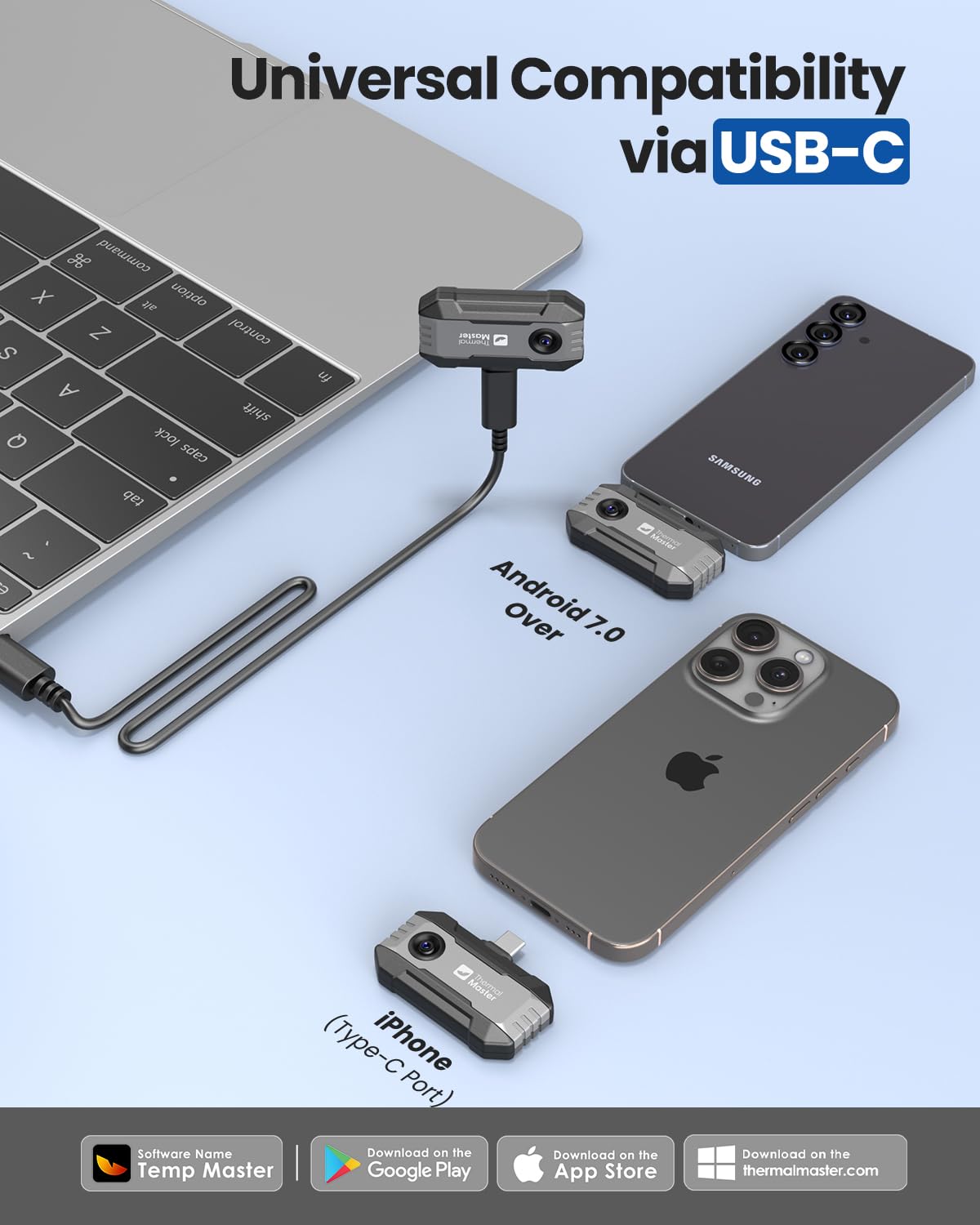
Image: The P1 thermal camera connected to various devices, demonstrating universal compatibility via USB-C.

Image: The 50cm extension cable and the extended USB-C connector, designed for flexible use and compatibility with phone cases.
5. Operating Instructions
5.1 Basic Operation
Once connected and the Temp Master app is running, the camera will display a real-time thermal image on your device screen. You can immediately begin observing temperature variations.

Image: The Thermal Master P1 camera connected to an iPhone, showing a live thermal feed of industrial pipes.
5.2 Using the Temp Master App
The Temp Master app provides a comprehensive interface for controlling the P1 camera and analyzing thermal data:
- Resolution Enhancement: The P1 utilizes X³ IR technology to upgrade its native 160×120 IR resolution to 320×240, providing sharper and clearer images.
- Digital Zoom: Use a two-finger pinch gesture on the screen to activate the 15× digital zoom, allowing for closer inspection of specific areas.
- Temperature Measurement: The app displays real-time temperature readings. You can select various measurement modes, including point, line, and area analysis, to pinpoint specific hot or cold spots.
- High/Low Temperature Alarms: Set custom high and low temperature thresholds. The app can alert you visually or audibly when temperatures exceed or fall below these limits.
- Isotherm Mode: Highlight specific temperature ranges with distinct colors to easily identify areas within a critical temperature band.
- Color Palettes: Choose from 12 different color palettes to visualize thermal data in a way that best suits your application and preference.
- Adjustable Emissivity: Correct temperature readings by adjusting the emissivity setting based on the material being inspected. This improves accuracy.
- Ambient Temperature & Distance Settings: Further refine temperature accuracy by inputting ambient temperature and measurement distance.
- Image & Video Capture: Capture thermal images and videos directly through the app for documentation and later analysis.
- Offline Image Analysis: The app supports professional offline image analysis, allowing you to edit, generate reports, and review data on your smartphone or a connected PC.
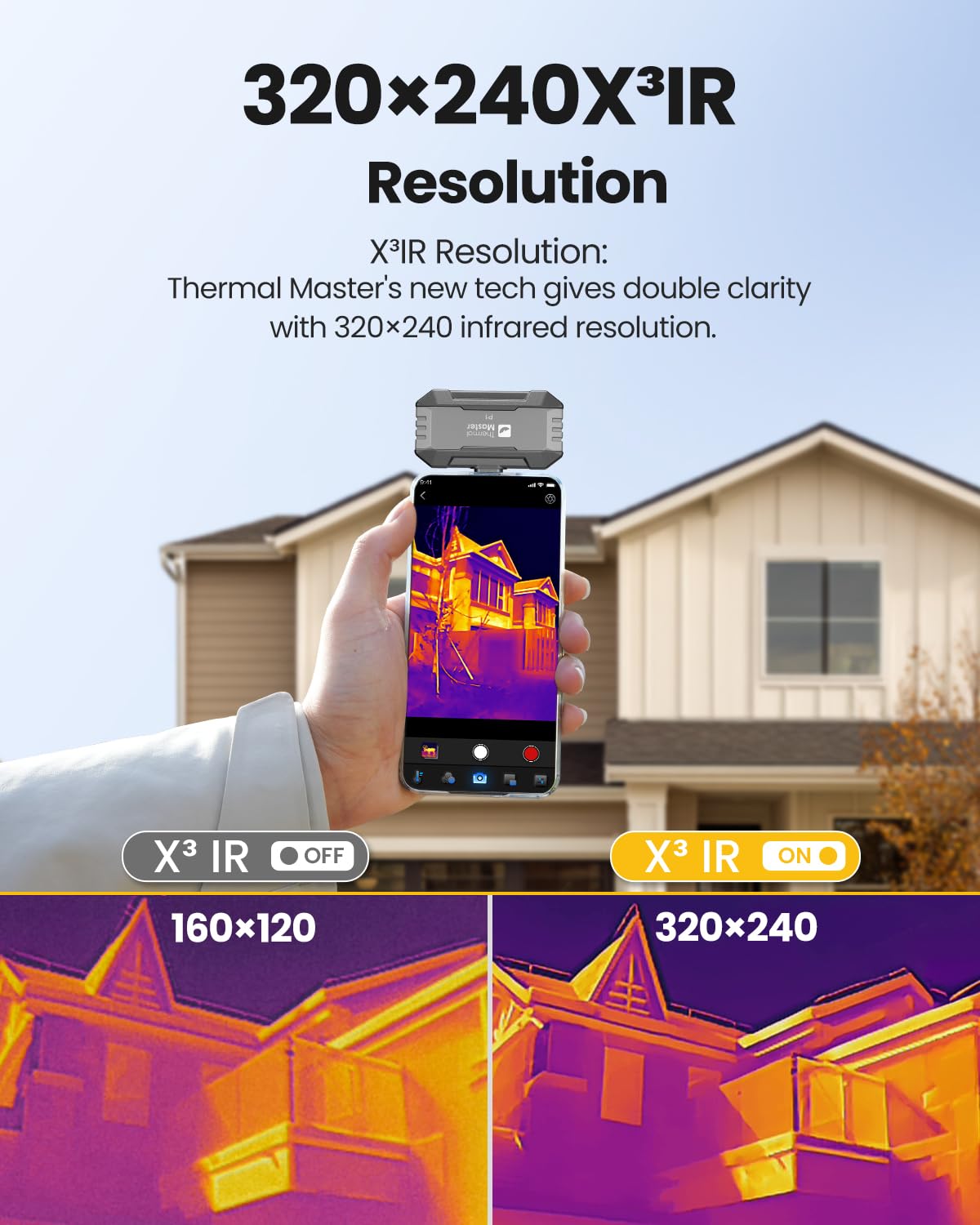
Image: A visual comparison demonstrating the enhanced clarity of 320×240 X³ IR Resolution compared to 160×120.

Image: A user demonstrating the 15× digital zoom feature on a thermal image of a sink plumbing system.

Image: The Temp Master app displaying point-line-area thermal analysis and options for setting high/low temperature alerts.

Image: The Temp Master app interface demonstrating isotherm mode and the variety of 12 available color palettes.
5.3 Applications
The Thermal Master P1 is suitable for a wide range of thermal inspection tasks:
- Home insulation inspections to identify heat loss.
- HVAC system diagnostics for airflow and component issues.
- Electrical panel inspections to detect overheating components.
- Industrial equipment maintenance for preventative checks.
- Automotive troubleshooting for engine and component heat signatures.
- Solar panel inspection for hot spots.

Image: Examples of the P1 thermal camera in use for home, HVAC, pipe, and electrical inspections.

Image: Further applications of the P1 thermal camera, including solar panel, HVAC, car repair, and industrial inspections.
6. Maintenance
6.1 Cleaning
- Gently wipe the camera lens and body with a soft, dry cloth.
- Do not use abrasive cleaners, solvents, or harsh chemicals, as these can damage the device.
- Ensure the USB-C connector is free of dust and debris.
6.2 Storage
- Store the P1 thermal camera in its provided zipper case when not in use to protect it from dust, scratches, and impacts.
- Keep the device in a cool, dry place, away from direct sunlight and extreme temperatures.
7. Troubleshooting
- Camera not detected by app: Ensure the Temp Master app is installed and updated. Try unplugging and re-plugging the camera. Restart your smartphone or computer. If using a different app, switch to Temp Master as recommended.
- Inaccurate temperature readings: Verify that the emissivity setting in the app matches the material you are inspecting. Adjust ambient temperature and measurement distance settings for improved accuracy. Ensure the lens is clean.
- Image quality issues: Check for obstructions on the lens. Ensure your device's screen is clean. The X³ IR resolution enhancement is automatic, but ensure sufficient lighting for optimal visual context if available.
- Device not powering the camera: Ensure your smartphone or computer has sufficient battery charge. The P1 has low power consumption (0.32W), but prolonged use on a low-battery device may cause issues.
8. Specifications
| Feature | Specification |
|---|---|
| Model | P1 |
| IR Resolution | 320×240 (X³ IR enhanced from 160×120) |
| Temperature Range | -4℉ to 1112℉ (-20℃ to 600℃) |
| Accuracy | ±3.6℉ |
| Refresh Rate | 25Hz |
| NETD (Sensitivity) | 0.04℃ |
| Digital Zoom | 15× |
| Power Consumption | 0.32W |
| Dimensions (L×W×H) | 2.32×1.06×0.68 inches (59×27×17.2mm) |
| Weight | 0.62oz (17g) |
| Compatibility | USB-C iOS, Android (7.0+), Windows |
| App Name | Temp Master |
| Extension Cable Length | 50cm |

Image: The compact size and light weight (17g) of the P1 thermal camera, highlighting its portability.
9. Warranty and Support
9.1 Warranty Information
Thermal Master products are covered by a standard warranty. You may be eligible to register your product for a warranty extension. Please refer to the Quick Start Guide or the Temp Master app for details on how to register your device and apply for an extended warranty.
9.2 Customer Support
For technical assistance, troubleshooting, or any questions regarding your Thermal Master P1 thermal camera, please contact Thermal Master customer service. Contact information can typically be found within the Temp Master app under the 'Customer Service' section or on the official Thermal Master website.


