1. Introduction
This manual provides comprehensive instructions for the setup, operation, and maintenance of your ULTIMEA Skywave X40 5.1.2ch Wireless Surround Sound System. This system is designed to deliver an immersive audio experience with Dolby Atmos, featuring a soundbar, wireless subwoofer, and two wireless surround speakers.
Please read this manual thoroughly before using the product to ensure proper operation and to maximize your enjoyment of the system.
2. Safety Information
- Do not expose this appliance to dripping or splashing water.
- Do not place objects filled with liquids, such as vases, on the apparatus.
- Ensure proper ventilation. Do not block any ventilation openings.
- Place the system on a stable, flat surface.
- Use only attachments/accessories specified by the manufacturer.
- Unplug the apparatus during lightning storms or when unused for long periods.
- Refer all servicing to qualified service personnel.
3. Package Contents
Verify that all items listed below are included in your package:
- 1 X Soundbar
- 1 X 10" Subwoofer
- 2 X Surround Speaker
- 1 X Soundbar Power Adaptor
- 1 X Subwoofer Power Cord
- 2 X Surround Power Adaptor
- 1 X HDMI Cable
- 1 X Digital Optical Cable
- 1 X Remote Control (Battery not included)
- 1 X User Manual
- 1 X Wall Mounting Guide
- 12 X Bracket Screw
- 6 X Bracket
- 6 X Wall Anchors
4. Product Overview
The ULTIMEA Skywave X40 system consists of a main soundbar, a wireless subwoofer, and two wireless surround speakers, designed to create a 5.1.2 channel audio environment.

Image: Overview of the ULTIMEA Skywave X40 system, showing the soundbar, wireless subwoofer, and two wireless surround speakers.
4.1 Soundbar Features
- Up-Firing Speakers: Two integrated up-firing speakers project sound upwards for immersive overhead audio effects, crucial for Dolby Atmos.
- Control Panel: Located on the top of the soundbar for easy access to power, volume, and input selection.
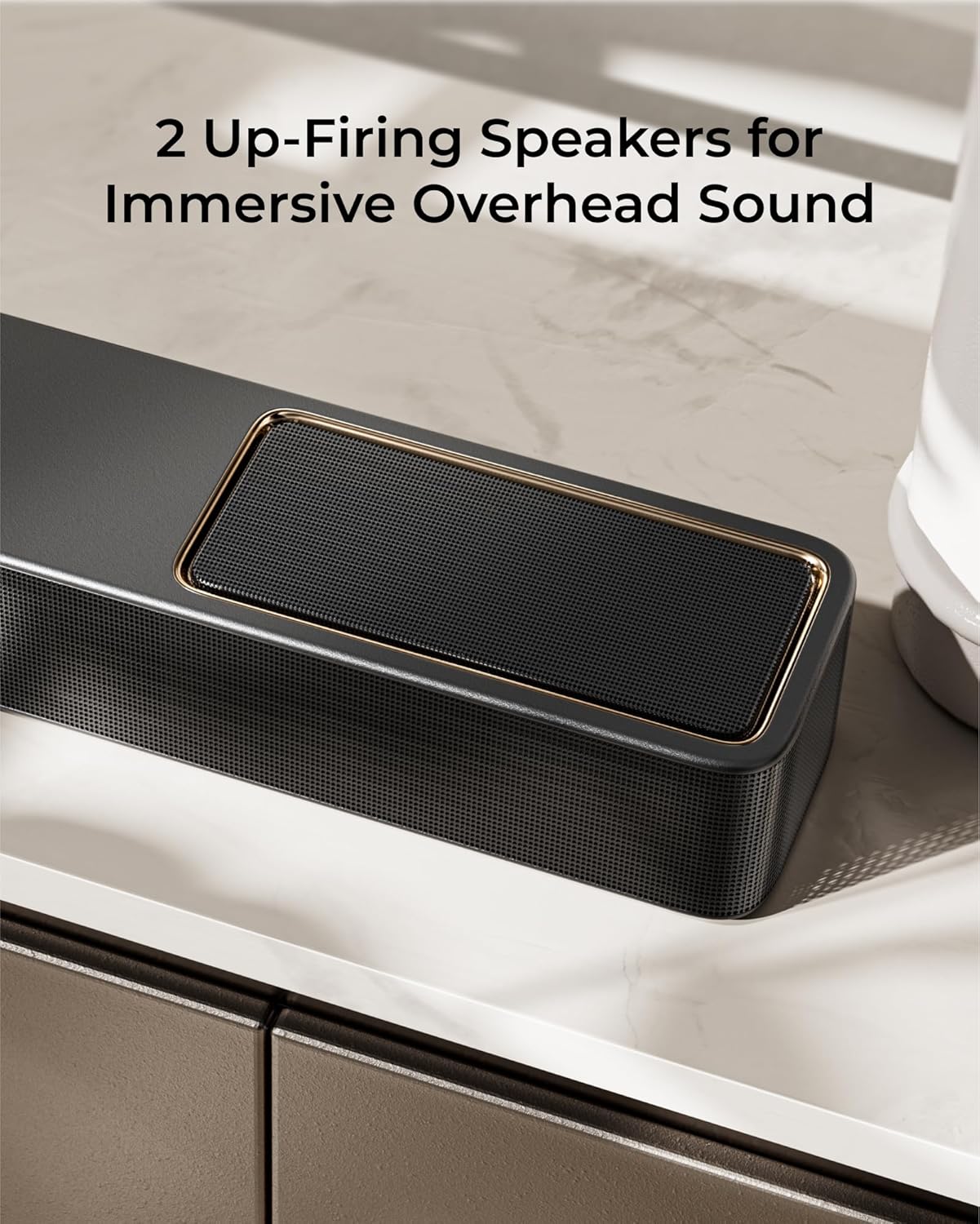
Image: A detailed view of the soundbar's up-firing speakers, designed to enhance the vertical sound dimension.
4.2 Wireless Subwoofer
- 6.5-inch Driver: Delivers deep, powerful bass frequencies.
- Wireless Connectivity: Connects wirelessly to the soundbar for flexible placement.
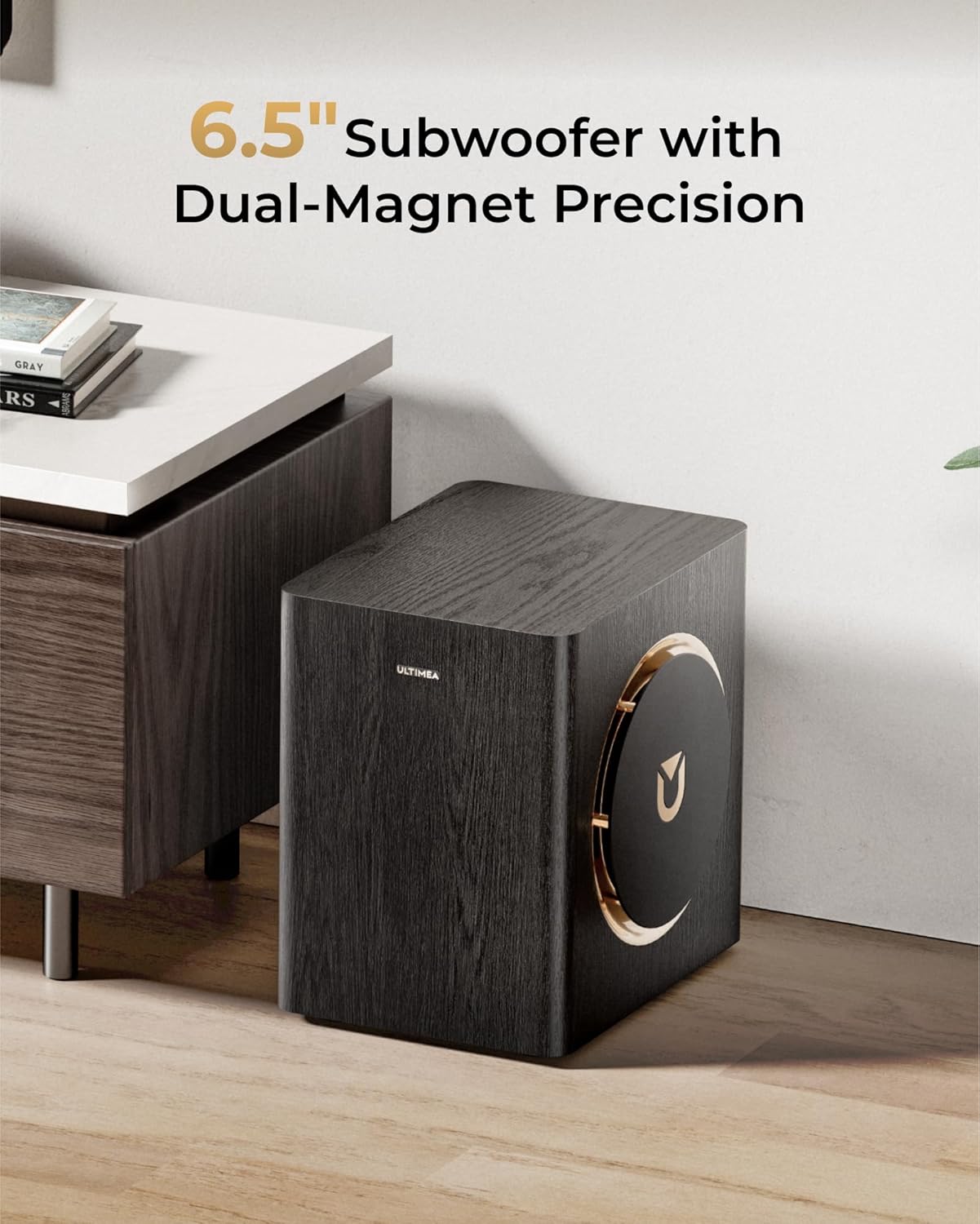
Image: The wireless subwoofer, featuring a 6.5-inch driver and a stylish wooden finish with gold accents.
4.3 Wireless Surround Speakers
- Rear Channel Audio: Provide discrete rear channel audio for a complete surround sound field.
- Wireless Design: Connect wirelessly to the soundbar, simplifying setup and placement.

Image: The two compact wireless surround speakers, designed for placement behind the listening area.
5. Setup
5.1 Soundbar Assembly
The soundbar may come in multiple sections. Connect the sections by aligning the connectors and gently pushing them together until they click into place.

Image: Diagram illustrating the process of connecting the soundbar sections.
5.2 Component Placement
For optimal sound performance, position the soundbar centrally below your TV. Place the wireless subwoofer in a location that provides balanced bass, typically near the soundbar or in a corner. The wireless surround speakers should be placed behind your primary listening position, ideally at ear level or slightly above.

Image: A visual guide for placing the soundbar, subwoofer, and surround speakers in a living room setup for 5.1.2 channel audio.
5.3 Power Connections
- Connect the soundbar power adaptor to the soundbar's DC IN port and then to a power outlet.
- Connect the subwoofer power cord to the subwoofer and then to a power outlet.
- Connect the surround speaker power adaptors to each surround speaker and then to power outlets.
The soundbar, subwoofer, and surround speakers are designed to automatically pair upon powering on. If pairing does not occur, refer to the troubleshooting section.
6. Connections
The ULTIMEA Skywave X40 offers multiple connectivity options for various audio sources.

Image: Diagram showing the available input ports on the rear of the soundbar, including HDMI eARC, HDMI IN, Optical, USB, and DC IN.
6.1 HDMI eARC Connection
For the best audio quality and control, connect your TV's HDMI eARC/ARC port to the soundbar's HDMI TO TV (eARC) port using the provided HDMI cable. This allows for high-resolution audio transmission and TV remote control of the soundbar's volume.

Image: A close-up of an HDMI cable connected to a device, illustrating the 4K HDR passthrough capability.
6.2 HDMI IN Connection
Connect external devices such as gaming consoles, Blu-ray players, or streaming devices to the soundbar's HDMI IN port. This allows the soundbar to process the audio and pass the video signal through to your TV.
6.3 Optical Connection
If your TV does not support HDMI ARC/eARC, use the optical cable to connect your TV's optical output to the soundbar's OPTICAL input. Ensure your TV's audio output is set to 'PCM' or 'Stereo' if you experience no sound.
6.4 Bluetooth Connection
To connect a Bluetooth device:
- Press the Bluetooth button on the remote control or soundbar to enter Bluetooth pairing mode. The display will show 'BT'.
- On your device, search for 'ULTIMEA Skywave X40' in the Bluetooth settings and select it to pair.
- Once connected, the display will show 'PAIRED'.
6.5 USB Playback
Insert a USB drive into the USB port on the soundbar to play audio files. The system supports common audio formats.
7. Operating Instructions
7.1 Power On/Off
Press the power button on the soundbar or remote control to turn the system on or off.
7.2 Input Selection
Press the 'Input' button on the remote control or soundbar to cycle through available input sources (HDMI eARC, HDMI IN, Optical, Bluetooth, USB).
7.3 Volume Control
Use the 'Volume +' and 'Volume -' buttons on the remote control or soundbar to adjust the master volume. You can also adjust the bass and surround speaker levels independently using the remote.

Image: The remote control for the ULTIMEA Skywave X40, showing buttons for power, input, volume, and sound mode selection.
7.4 Sound Modes
The system offers various sound modes optimized for different content types. Use the 'MODE' button on the remote to switch between modes such as Movie, Music, News, or Game. Each mode adjusts the audio profile for an enhanced listening experience.
7.5 ULTIMEA App Control
Download the ULTIMEA app from your smartphone's app store for advanced control and customization options, including equalizer settings and sound profiles.

Image: Screenshots of the ULTIMEA mobile application interface, demonstrating equalizer and sound customization options.
8. Maintenance
To ensure the longevity and optimal performance of your sound system, follow these maintenance guidelines:
- Cleaning: Use a soft, dry cloth to clean the surfaces of the soundbar, subwoofer, and surround speakers. Do not use liquid cleaners or abrasive materials.
- Ventilation: Ensure that all ventilation openings remain clear and unobstructed to prevent overheating.
- Storage: If storing the system for an extended period, unplug all components and store them in a cool, dry place.
9. Troubleshooting
If you encounter issues with your ULTIMEA Skywave X40 system, refer to the following common problems and solutions:
| Problem | Possible Cause | Solution |
|---|---|---|
| No power | Power cables not connected securely; Power outlet not active. | Check all power connections. Try a different power outlet. |
| No sound | Incorrect input source selected; Volume too low; Cables not connected properly; TV audio output settings incorrect. | Select the correct input source. Increase volume. Check all audio cables. For Optical connection, set TV audio output to PCM. |
| Subwoofer/Surround speakers not pairing | Interference; Out of range; Pairing issue. | Ensure components are within range and free from obstructions. Power cycle all components. Refer to manual for manual pairing steps if automatic pairing fails. |
| Bluetooth connection issues | Device not in pairing mode; Device already connected to another system; Interference. | Ensure soundbar is in Bluetooth pairing mode. Disconnect from other devices. Try pairing again. |
| Remote control not working | Batteries depleted; Obstruction between remote and soundbar. | Replace batteries. Ensure clear line of sight to the soundbar's IR receiver. |
10. Specifications
| Feature | Specification |
|---|---|
| Model Name | Skywave X40 |
| Item Model Number | U4124 |
| Surround Sound Channel Configuration | 5.1.2 |
| Speaker Type | Soundbar |
| Speaker Maximum Output Power | 530 Watts |
| Subwoofer Diameter | 6.5 Inches |
| Frequency Response | 35 Hz |
| Connectivity Technology | HDMI eARC / Optical / Bluetooth / USB |
| Wireless Communication Technology | Bluetooth, Wi-Fi |
| Bluetooth Range | 15 Meters |
| Subwoofer Connectivity Technology | Wireless |
| Product Dimensions | 43.31"D x 2.76"W x 3.94"H |
| Item Weight | 32.1 pounds |
| Color | Black & Gold |
| Power Source | Corded Electric |
| Mounting Type | Tabletop Mount |
11. Warranty and Support
The ULTIMEA Skywave X40 comes with a Limited Warranty. Please refer to the warranty card included in your package for specific terms and conditions.
For technical support, troubleshooting assistance, or warranty claims, please contact ULTIMEA customer service through the official website or the contact information provided in your product packaging.


