
1. Introduction
This manual provides detailed instructions for the installation, operation, and maintenance of your MekedeTech Android Car Radio Stereo GPS Navigation system. This unit is designed for KIA Sportage 4 models from 2018 to 2022, featuring an Android 13 OS, 8-Core A53 2.0GHz CPU, 8GB RAM, and 256GB ROM. It includes a 9-inch IPS touch screen with 1280x720 resolution, built-in WiFi, GPS navigation, and supports steering wheel controls.
Key features include:
- Seamless integration with KIA Sportage 4 (2018-2022) without requiring wiring modifications.
- Wireless CarPlay and Android Auto for smartphone connectivity.
- High-performance Octa-core CPU with 8GB RAM and 256GB ROM for smooth operation.
- Multifunctional entertainment and navigation with built-in GPS, offline/online maps, WiFi, FM RDS radio, and Bluetooth hands-free calling.
- Practical driving assistance features like reverse image input and split-screen display.
2. Package Contents
Before beginning installation, please verify that all components listed below are present in your package.
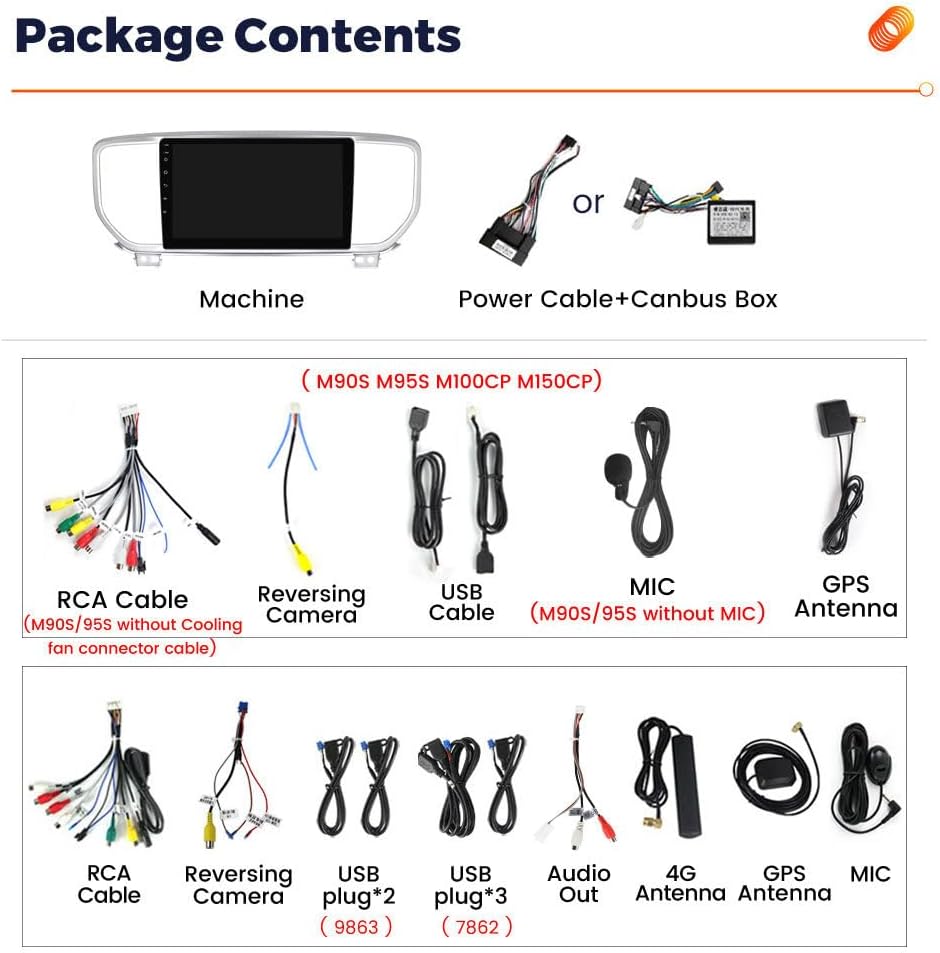
Image: Overview of the package contents, including the main unit, power cables, RCA cables, reversing camera cable, USB cables, microphone, and GPS antenna.
The package typically includes:
- 9.0 inch Touch screen (Main Unit)
- Plug & Play Power Harness (with or without Canbus Box, depending on vehicle)
- RCA Harness
- Reverse Harness
- GPS Antenna
- USB Cables (multiple)
- Microphone (external, for some models)
- 4G Antenna (for models with 4G LTE)
3. Setup and Installation
This unit is designed for direct replacement in KIA Sportage 4 models (2018-2022). Professional installation is recommended. Ensure the vehicle's ignition is off and the battery is disconnected before starting installation.
3.1. Physical Installation
- Carefully remove the original car radio and trim panels. Refer to your vehicle's service manual for specific instructions.
- Connect the provided Plug & Play Power Harness to the vehicle's wiring harness. Ensure all connections are secure.
- Connect the RCA Harness, Reverse Harness, USB cables, and external microphone (if applicable) to the corresponding ports on the new head unit.
- Mount the GPS Antenna in a location with a clear view of the sky, typically on the dashboard or under the windshield.
- If your unit supports 4G LTE, insert the SIM card into the designated slot. There are typically two SIM card slots: one on the back of the main unit and one on the RCA cable.
- Carefully slide the new head unit into the dashboard opening and secure it.
- Reinstall all trim panels.

Image: Comparison of the car dashboard before and after installation of the MekedeTech Android Car Radio, showing the integrated display.

Image: Detail showing the 4G SIM card slot on the main unit and an external SIM card slot on the RCA cable, for network connectivity.
3.2. Initial Power-On and Cooling Fan Setup
- Reconnect the vehicle battery.
- Turn on the vehicle ignition. The unit should power on automatically.
- If your unit includes a cooling fan, follow these steps to ensure it is active:
- Navigate to Settings > Device > Sound.
- Ensure the cooling fan option is enabled.
- Verify the fan is operating by checking for airflow or a slight hum.
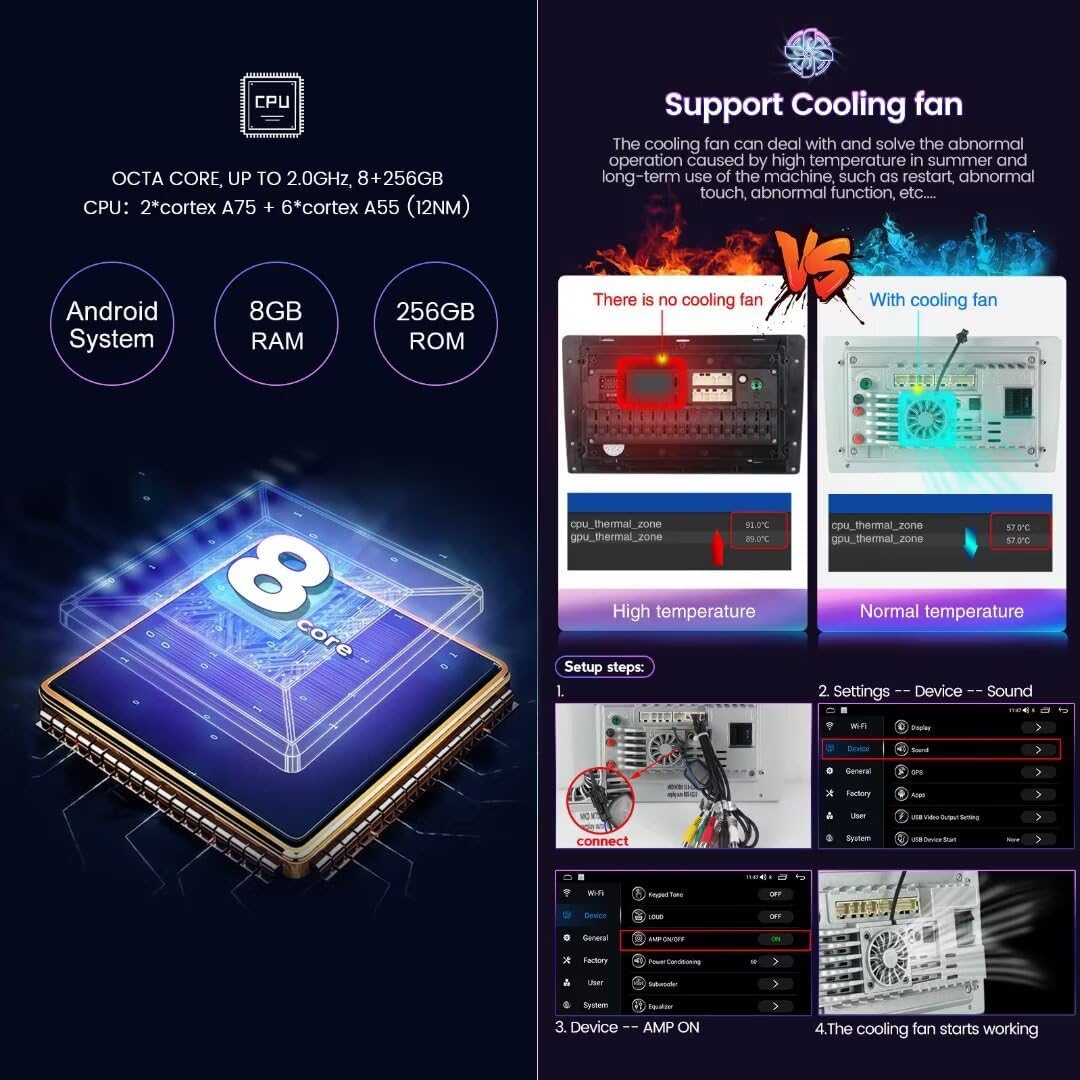
Image: Diagram illustrating the cooling fan setup steps within the system settings, showing how to connect and activate the fan to prevent overheating.
4. Operating Instructions
4.1. Basic Navigation and Interface
The unit operates on Android 13. Navigate through applications and settings using the 9-inch touch screen. Swipe left or right to access different home screens, and tap icons to launch applications.
4.2. Wireless CarPlay and Android Auto
Connect your iPhone or Android smartphone wirelessly for seamless integration of navigation, music, calls, and messages.
- Enable Bluetooth on your smartphone and on the head unit.
- On the head unit, navigate to the CarLink or ZLink application.
- Pair your phone via Bluetooth.
- Once paired, select your phone from the list in the CarLink/ZLink app.
- CarPlay or Android Auto should launch automatically. (Note: Can also be connected via USB cable for initial setup or if wireless connection is unstable.)
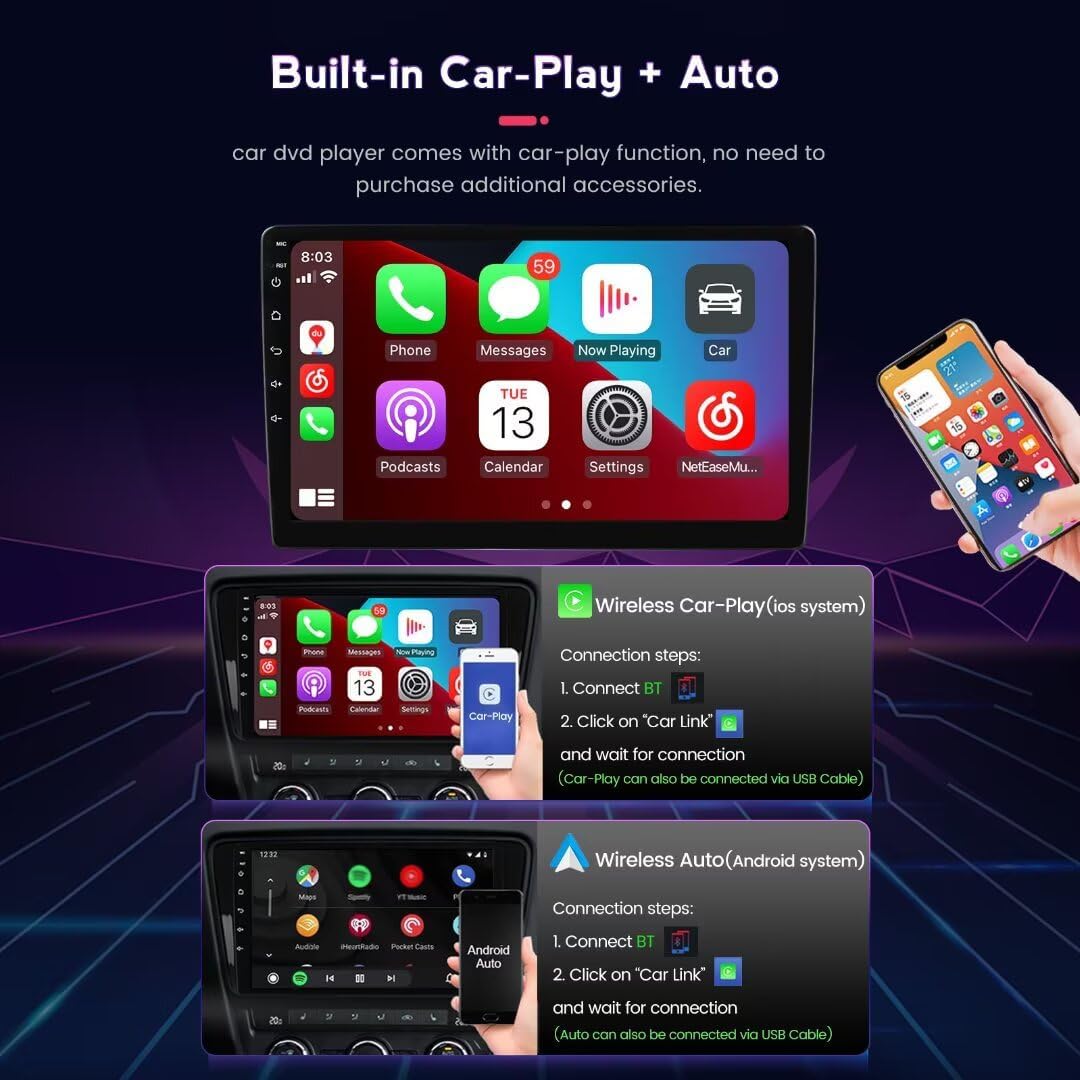
Image: Screenshots demonstrating the connection process for Wireless CarPlay (iOS system) and Wireless Android Auto (Android system) via Bluetooth and the CarLink application.
4.3. GPS Navigation
The unit comes with built-in GPS. You can use pre-installed offline maps or download online maps via WiFi/4G connection. Ensure the GPS antenna is properly installed for optimal signal reception.
- To use online maps, connect the unit to a WiFi hotspot or insert a 4G SIM card.
- Launch your preferred navigation application (e.g., Google Maps, Waze).
- Enter your destination and follow the on-screen directions.
4.4. Multimedia and Radio
Access various multimedia options including FM RDS radio, Bluetooth audio streaming, and local media playback via USB.
- Radio: Select the "Radio" app to tune into FM stations. RDS (Radio Data System) provides station information.
- Bluetooth Audio: Pair your phone via Bluetooth to stream music.
- USB Playback: Connect a USB drive to one of the USB ports to play audio or video files.
4.5. Steering Wheel Control
The unit supports original steering wheel controls. After installation, you may need to configure the buttons in the system settings to match your vehicle's controls. This allows for safe operation of essential functions without taking your hands off the wheel.
4.6. DSP Processor
The integrated DSP (Digital Signal Processor) enhances audio quality, providing multi-dimensional surround sound effects. Adjust DSP settings in the audio menu to customize your listening experience.
Image: Illustration of the DSP (Digital Signal Processor) module, highlighting its role in enhancing audio quality and providing surround sound effects.
5. Maintenance
Proper maintenance ensures the longevity and optimal performance of your car radio stereo.
- Screen Cleaning: Use a soft, lint-free cloth slightly dampened with water or a screen cleaner specifically designed for electronics. Do not use abrasive cleaners or solvents.
- Software Updates: Periodically check for system software updates through the unit's settings menu or the manufacturer's website to ensure you have the latest features and security patches.
- Ventilation: Ensure the cooling fan (if present) and ventilation openings are not obstructed to prevent overheating.
- Environmental Conditions: Avoid exposing the unit to extreme temperatures, direct sunlight for prolonged periods, or excessive moisture.
6. Troubleshooting
Refer to the following table for common issues and their solutions.
| Problem | Possible Cause | Solution |
|---|---|---|
| Unit does not power on. | Loose power connection, blown fuse, vehicle battery issue. | Check power harness connections. Inspect vehicle fuses. Ensure vehicle battery is charged. |
| No sound. | Volume too low, mute activated, incorrect audio source, loose speaker wires. | Increase volume. Check if mute is active. Select correct audio source. Verify speaker wire connections. |
| GPS signal lost or inaccurate. | GPS antenna obstructed or improperly installed, unit in an area with poor satellite reception. | Ensure GPS antenna has a clear view of the sky. Check antenna connection. Move to an open area. |
| CarPlay/Android Auto not connecting. | Bluetooth not enabled, phone not paired, CarLink app not launched, phone software issue. | Ensure Bluetooth is on for both devices. Re-pair phone. Launch CarLink/ZLink app. Try connecting via USB. Restart phone and head unit. |
| Touch screen unresponsive. | System freeze, temporary software glitch. | Perform a soft reset (refer to manufacturer's instructions for reset button location, usually a small pinhole). If issue persists, disconnect and reconnect battery. |
If the problem persists after attempting these solutions, please contact MekedeTech customer support.
7. Specifications
| Feature | Detail |
|---|---|
| Model Number | 8-Core 8+256G |
| Operating System | Android 13 |
| CPU | 8-Core A53 2.0GHz |
| Memory (RAM) | 8GB |
| Storage (ROM) | 256GB |
| Display Size | 9 Inches |
| Display Resolution | 1280*720 (IPS Touch Screen) |
| Connectivity | Bluetooth, USB, Wi-Fi, 4G LTE (SIM card support) |
| Special Features | Wireless CarPlay, Android Auto, GPS Navigation, DSP Processor, Steering Wheel Control, Reverse Image Input, Split Screen |
| Audio Output Mode | Digital |
| Mounting Type | Dashboard Mount |
| Vehicle Service Type | Car, RV, SUV, Truck (Specifically KIA Sportage 4 2018-2022) |
8. Warranty Information
This MekedeTech product comes with a 1 Year Manufacturer Warranty from the date of purchase. This warranty covers defects in materials and workmanship under normal use.
The warranty does not cover:
- Damage caused by improper installation, accident, misuse, abuse, neglect, or unauthorized modification.
- Damage caused by power surges or incorrect voltage.
- Normal wear and tear.
- Damage from external causes such as drops, liquid exposure, or extreme temperatures.
Please retain your proof of purchase for warranty claims.
9. Customer Support
For technical assistance, troubleshooting, or warranty inquiries, please contact MekedeTech customer support.
- Brand: MekedeTech
- Online Support: Visit the official MekedeTech Store on Amazon for product information and support resources.
- Refer to the contact information provided with your product packaging for direct support channels.