1. Introduction
This manual provides detailed instructions for the safe and efficient use of your HiBy R3 PRO II MP3 Music Player. Please read this manual thoroughly before operating the device and retain it for future reference.

Figure 1: HiBy R3 PRO II MP3 Music Player, front and back view. The front features a touch screen displaying music playback, while the back shows the 'HIBY' logo and 'Ultrasuede' text on a textured surface.
2. Safety Information
To ensure safe operation and prevent damage, observe the following precautions:
- Do not expose the device to extreme temperatures, direct sunlight, or high humidity.
- Avoid dropping or subjecting the device to strong impacts.
- Do not disassemble, repair, or modify the device yourself. Contact authorized service personnel for assistance.
- Keep the device away from water and other liquids.
- Use only approved chargers and cables.
- Prolonged listening at high volume levels can cause hearing damage.
3. Package Contents
Verify that all items are present in the package:
- HiBy R3 PRO II Player x1
- Transparent Case x1
- Lanyard x1
- USB 2.0 Data Cable x1
4. Product Overview
The HiBy R3 PRO II is a portable high-resolution audio player designed for exceptional sound quality and versatile connectivity.
4.1 Key Components and Features
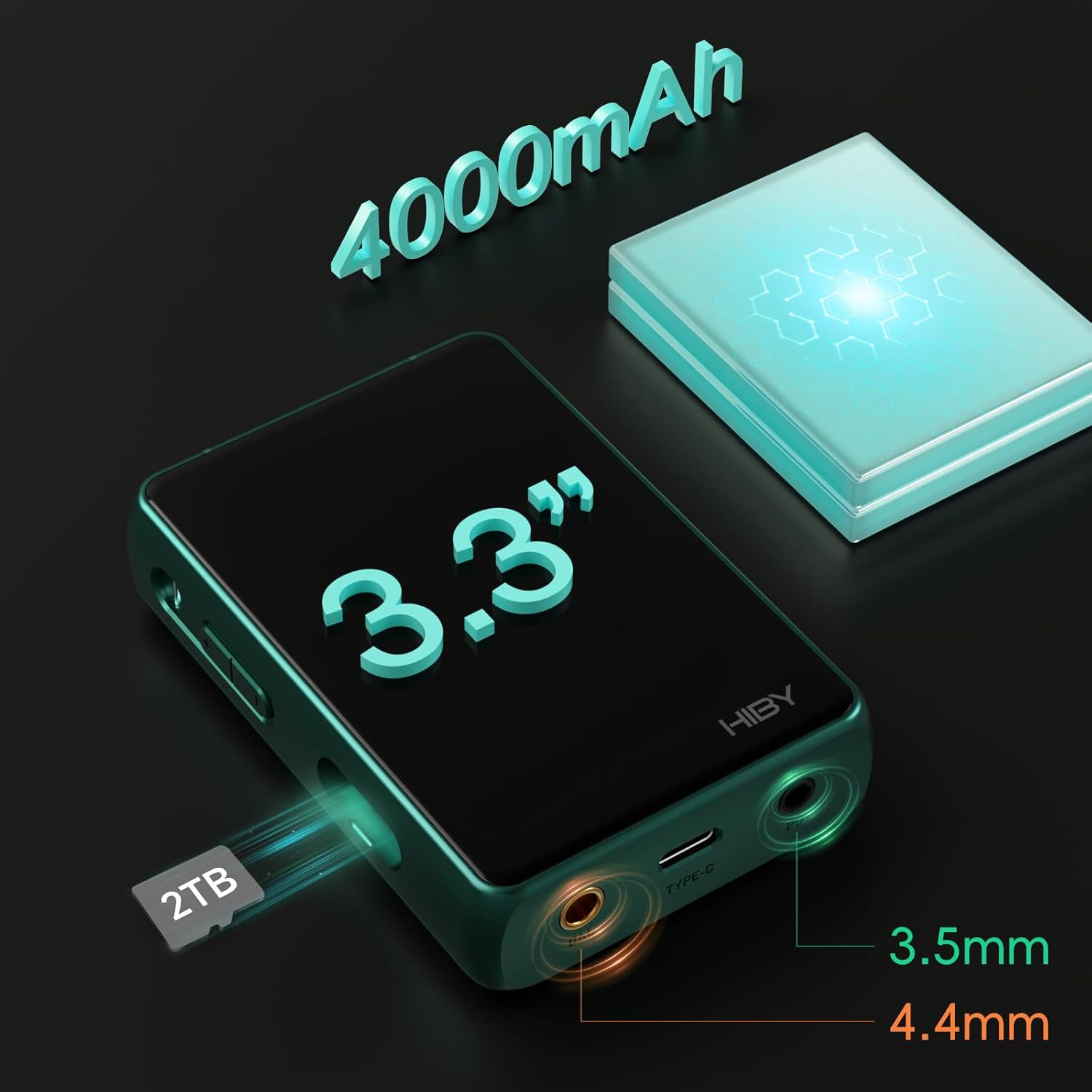
Figure 2: Key physical features of the HiBy R3 PRO II. This diagram highlights the 4000mAh battery capacity, 3.3-inch IPS display, microSD expansion slot supporting up to 2TB, and the 3.5mm single-ended and 4.4mm balanced headphone jacks.
- Dual DACs and Quad Amps: Features dual CS43198 DACs and four OPA1622 amps for high-resolution audio with low distortion.
- Hi-Res Audio Support: Supports DSD256 native, PCM384kHz/32bit FLAC, and MQA 8X decoding. Hi-Res & Hi-Res Wireless certified.
- Wireless Connectivity: Bluetooth 5.1 (LDAC, aptX, AAC, SBC) and 2.4G WiFi for streaming (Qobuz, Tidal), firmware updates, and file transfer. Supports AirPlay and DLNA.
- HiByOS with MSEB: Integrated X1600E processor and HiByOS audio system with a flat UI. Includes the proprietary MSEB Tuning System for sound customization.
- Long Battery Life: 4000mAh battery providing over 21 hours of continuous playback and 900+ hours of standby time.
- Versatile Ports: 3.5mm single-ended and 4.4mm balanced headphone jacks. USB-C port supports coaxial output, LineOut, USB DAC, and digital turntable functions.
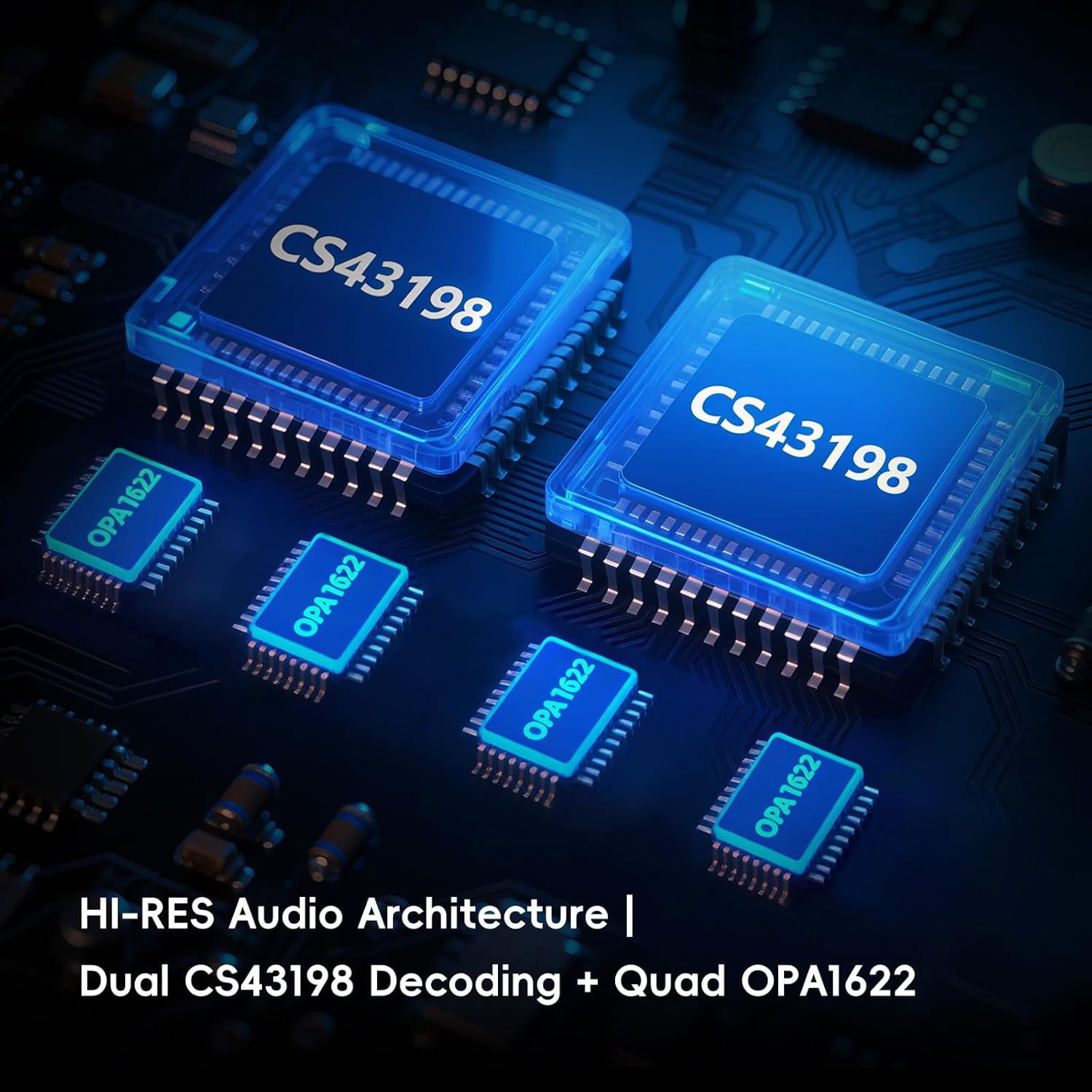
Figure 3: High-Resolution Audio Architecture. This image illustrates the internal components, specifically the dual CS43198 Digital-to-Analog Converters (DACs) and the quad OPA1622 operational amplifiers, which are central to the player's audio processing capabilities.
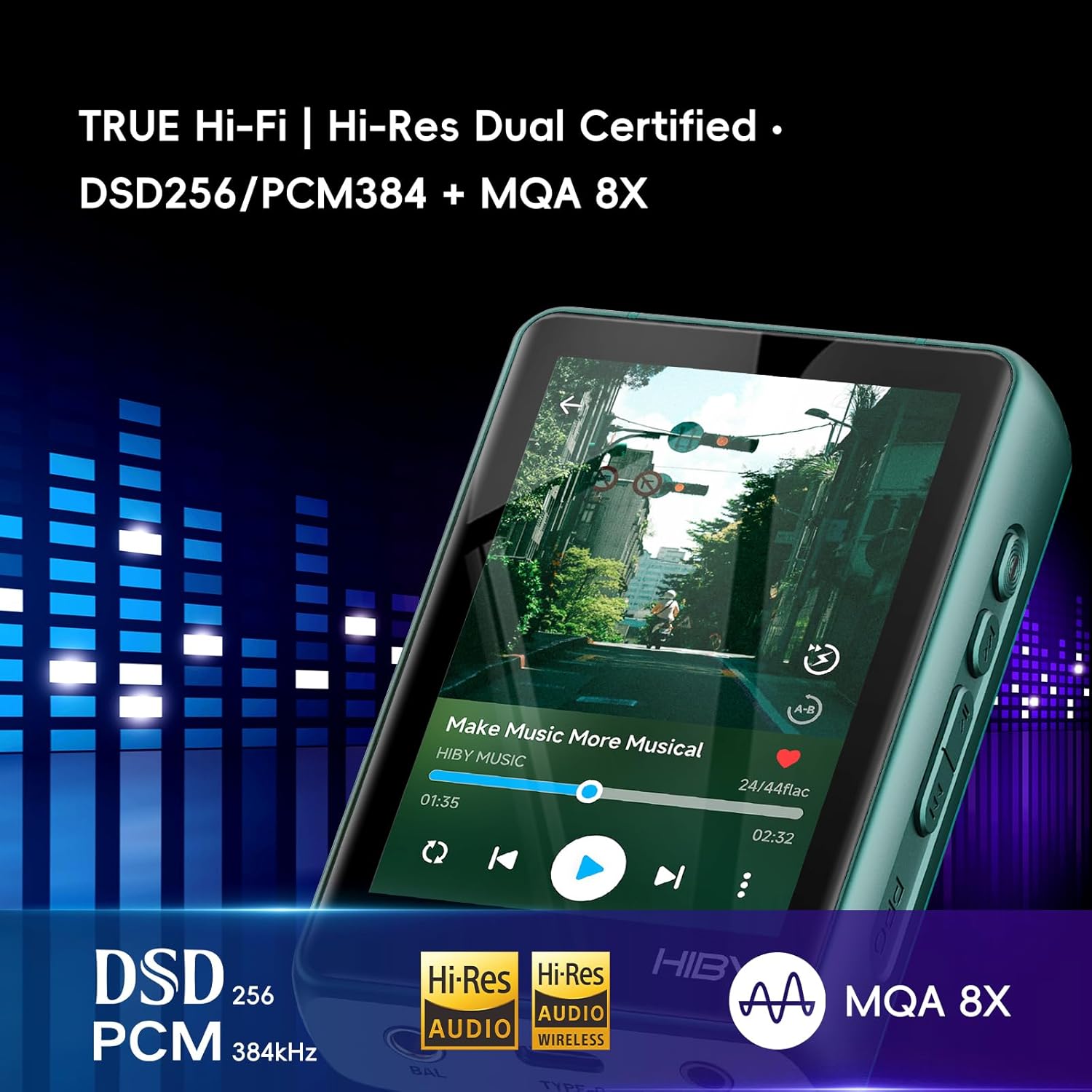
Figure 4: Displaying Hi-Res Audio Capabilities. The screen shows music playback information alongside prominent 'Hi-Res Audio', 'Hi-Res Audio Wireless', and 'MQA 8X' certification logos, indicating support for various high-fidelity audio formats.

Figure 5: Wireless Connectivity Options. This image highlights the player's support for Bluetooth 5.1, WiFi, AirPlay, and DLNA, enabling diverse wireless audio streaming and connection possibilities.
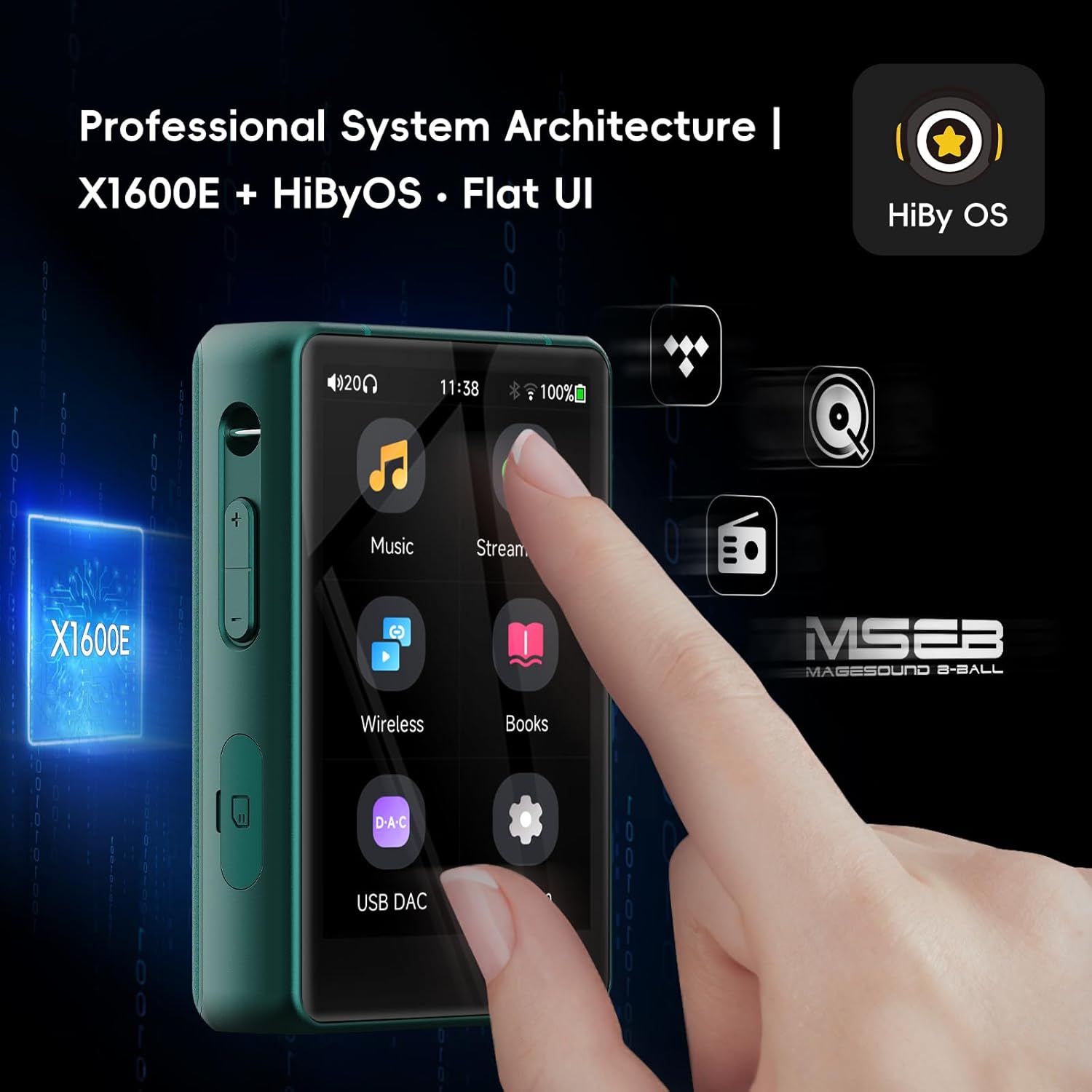
Figure 6: Professional System Architecture. The image shows the HiBy R3 PRO II's screen with the HiByOS user interface and app icons, alongside an illustration of the X1600E processor, emphasizing the device's optimized operating system.
5. Setup
5.1 Charging the Device
- Connect the provided USB-C cable to the player's USB-C port.
- Connect the other end of the cable to a USB power adapter (not included) or a computer's USB port.
- The screen will indicate charging status. A full charge typically takes approximately 2-3 hours.
5.2 Inserting a MicroSD Card
The HiBy R3 PRO II supports microSD cards up to 2TB for expanded storage.
- Locate the microSD card slot on the side of the device.
- Insert the microSD card into the slot with the gold contacts facing down until it clicks into place.
- To remove, gently push the card in until it springs out.
5.3 Initial Power On
- Press and hold the power button (located on the side) for a few seconds until the screen lights up.
- Follow the on-screen prompts to select your language and complete the initial setup.
- The device will automatically scan the inserted microSD card for music files. This process may take some time depending on the size of your music library.
6. Operating Instructions
6.1 Basic Navigation
The HiBy R3 PRO II features a 3.3-inch IPS touch screen for navigation. Swipe left/right or up/down to browse menus and tap to select options.
6.2 Music Playback (Local Files)
- From the main menu, tap the 'Music' icon.
- Browse your music library by Artist, Album, Genre, Folder, or All Songs.
- Tap on a song or album to begin playback.
- Use the on-screen controls for play/pause, skip tracks, and volume adjustment.
6.3 Streaming Services (Qobuz, Tidal)
The device supports streaming from Qobuz and Tidal via WiFi.

Figure 7: Streaming Media Support. The screen displays icons for TIDAL and Qobuz, indicating direct support for these high-fidelity music streaming platforms.
- Ensure the device is connected to a WiFi network (see Section 6.5).
- From the main menu, tap the 'Stream media' icon.
- Select either Qobuz or Tidal.
- Log in with your account credentials.
- Browse and play music from the streaming service.
6.4 Bluetooth Connectivity
Connect to Bluetooth headphones or speakers.

Figure 8: Bluetooth 5.1 Connectivity. The image shows the player's Bluetooth settings menu, indicating active Bluetooth 5.1, with a pair of wireless earbuds nearby, illustrating wireless audio transmission.
- Go to 'Settings' > 'Bluetooth'.
- Turn Bluetooth on.
- Put your Bluetooth headphones/speaker into pairing mode.
- Select your device from the list of available devices to pair.
6.5 WiFi Connectivity
Connect to a WiFi network for streaming, firmware updates, and WiFi music transfer.

Figure 9: WiFi Music Transfer. The image illustrates the player's interface for WiFi music transfer, allowing users to wirelessly move music files to the R3 PRO II without physical cables.
- Go to 'Settings' > 'WiFi'.
- Turn WiFi on.
- Select your desired network and enter the password if prompted.
6.6 MSEB Tuning System
The MSEB (MageSound 8-Ball) system allows for intuitive sound customization.

Figure 10: MSEB Tuning Board Interface. This image displays the MSEB (MageSound 8-Ball) tuning interface, which allows users to adjust various sound characteristics like tonal warmth, bass extension, note thickness, and vocal positioning.
- During music playback, access the MSEB settings (usually found in the playback screen or system settings).
- Adjust parameters such as 'Overall Temperature', 'Bass extension', 'Note thickness', and 'Vocals' to tailor the sound to your preference.
6.7 USB-C Port Functions
The USB-C port offers multiple functionalities:
- Coaxial Output: Connect to an external DAC/amplifier using a USB-C to coaxial cable.
- LineOut: Provides a fixed-level audio output for connecting to an amplifier or active speakers.
- USB DAC: Use the R3 PRO II as an external DAC for your computer or smartphone.
- Digital Turntable: Connect to other USB DACs to use the R3 PRO II as a digital transport.
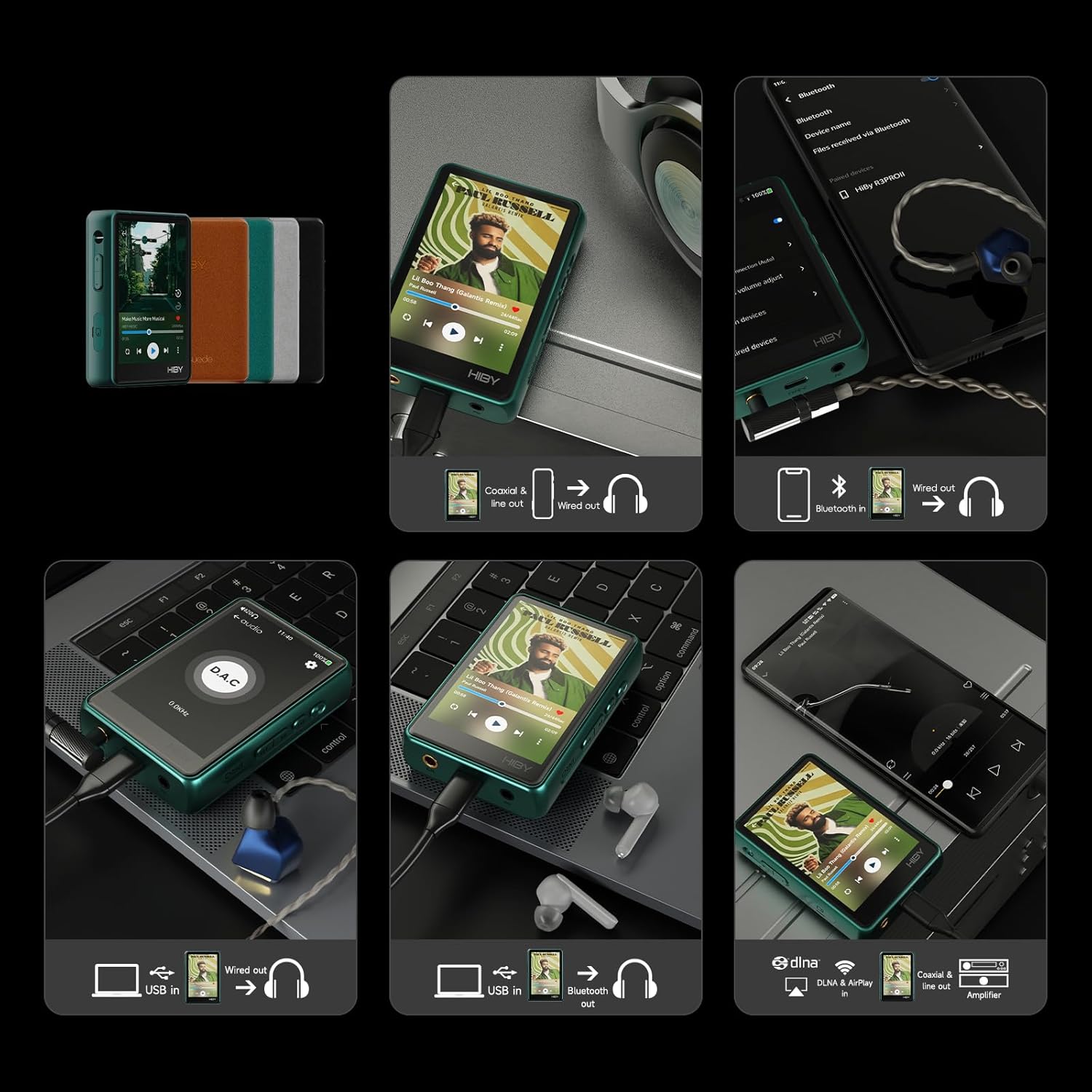
Figure 11: Multi-functional Connectivity. This composite image demonstrates various ways to connect and use the HiBy R3 PRO II, including coaxial output, line out, USB DAC mode, and Bluetooth output, showcasing its versatility as a digital audio player.
7. Maintenance
7.1 Cleaning
Wipe the device with a soft, dry cloth. Do not use liquid cleaners or solvents.
7.2 Software Updates
Regularly check for firmware updates to ensure optimal performance and access to new features.
- Connect the device to a WiFi network.
- Go to 'Settings' > 'About device' > 'Firmware update'.
- Follow the on-screen instructions to download and install any available updates.
7.3 Battery Care
To prolong battery life:
- Avoid fully discharging the battery frequently.
- Do not leave the device uncharged for extended periods.
- Store the device in a cool, dry place when not in use.
8. Troubleshooting
If you encounter issues with your HiBy R3 PRO II, refer to the following common problems and solutions:
| Problem | Possible Solution |
|---|---|
| Device does not power on. | Ensure the battery is charged. Connect to a power source and try again. If unresponsive, press and hold the power button for 10-15 seconds for a forced restart. |
| No sound output. | Check headphone connection. Ensure volume is not muted or too low. Verify correct output mode (e.g., 3.5mm, 4.4mm, Bluetooth). |
| MicroSD card not recognized or scan incomplete. | Ensure the card is inserted correctly. Try re-inserting the card. Format the card (this will erase all data) if issues persist. For large libraries, the initial scan may take a long time; allow it to complete. |
| Bluetooth connection issues. | Ensure Bluetooth is enabled on both devices. Place devices close to each other. Unpair and re-pair the device. |
| WiFi connection unstable. | Ensure you are within range of the WiFi router. Restart the device and the router. Verify the WiFi password. |
9. Specifications
9.1 General Specifications
| Feature | Detail |
|---|---|
| Model Name | HIBYR3P2 |
| Brand | HiBy |
| Package Dimensions | 5.98 x 5 x 2.24 inches |
| Item Weight | 5.5 ounces |
| Batteries | 1 Nonstandard Battery (included) |
| Connectivity Technology | Bluetooth, USB, Wireless |
| Screen Size | 3.3 Inches |
| Display Technology | IPS |
| Media Type | Micro SD (up to 2TB) |
| Special Features | 3.5mm + 4.4mm balanced dual headphone jacks, DSD256 native, PCM384kHz/32bit FLAC, MQA 8X, Hi-Res & Hi-Res Wireless certified, Qobuz, Tidal support |
9.2 Audio Specifications

Figure 12: Detailed Audio Specifications. This table provides specific performance metrics for both the 3.5mm single-ended (PO) and 4.4mm balanced (BAL) headphone outputs, including maximum output voltage, power, distortion, dynamic range, noise floor, SNR, channel separation, and frequency response.
| Parameter | 3.5mm PO | 4.4mm BAL |
|---|---|---|
| Max output voltage | 2VRms | 3.91VRms |
| Max output power | 121mW | 480mW |
| Nominal output voltage | 1.9VRms | 3.91VRms |
| Nominal output power | 121mW | 480mW |
| Minimum distortion | 0.0005% | 0.0005% |
| Dynamic range | 122dB | 128dB |
| Noise floor | 1.6uV | 1.8uV |
| SNR | 128dB | 126dB |
| Channel separation | 70dB | 109dB |
| Frequency response | 20Hz-90kHz | 20Hz-90kHz |
10. Warranty Information
Warranty terms and conditions may vary by region and retailer. Please refer to the warranty card included with your product or contact your point of purchase for specific details regarding warranty coverage and service.
11. Support
For further assistance, technical support, or service inquiries, please visit the official HiBy website or contact their customer service department. Contact information can typically be found on the manufacturer's website or in the product packaging.