
1. Introduction
Thank you for choosing the PROTKPETS Portable CD Player. This device combines classic CD playback with modern connectivity options, including Bluetooth 5.3, 3.5mm AUX input, and USB playback. Designed for ease of use and portability, it delivers clear, high-fidelity sound for your listening pleasure. Please read this manual carefully before operating the device to ensure proper use and to maximize its lifespan.
2. Product Overview
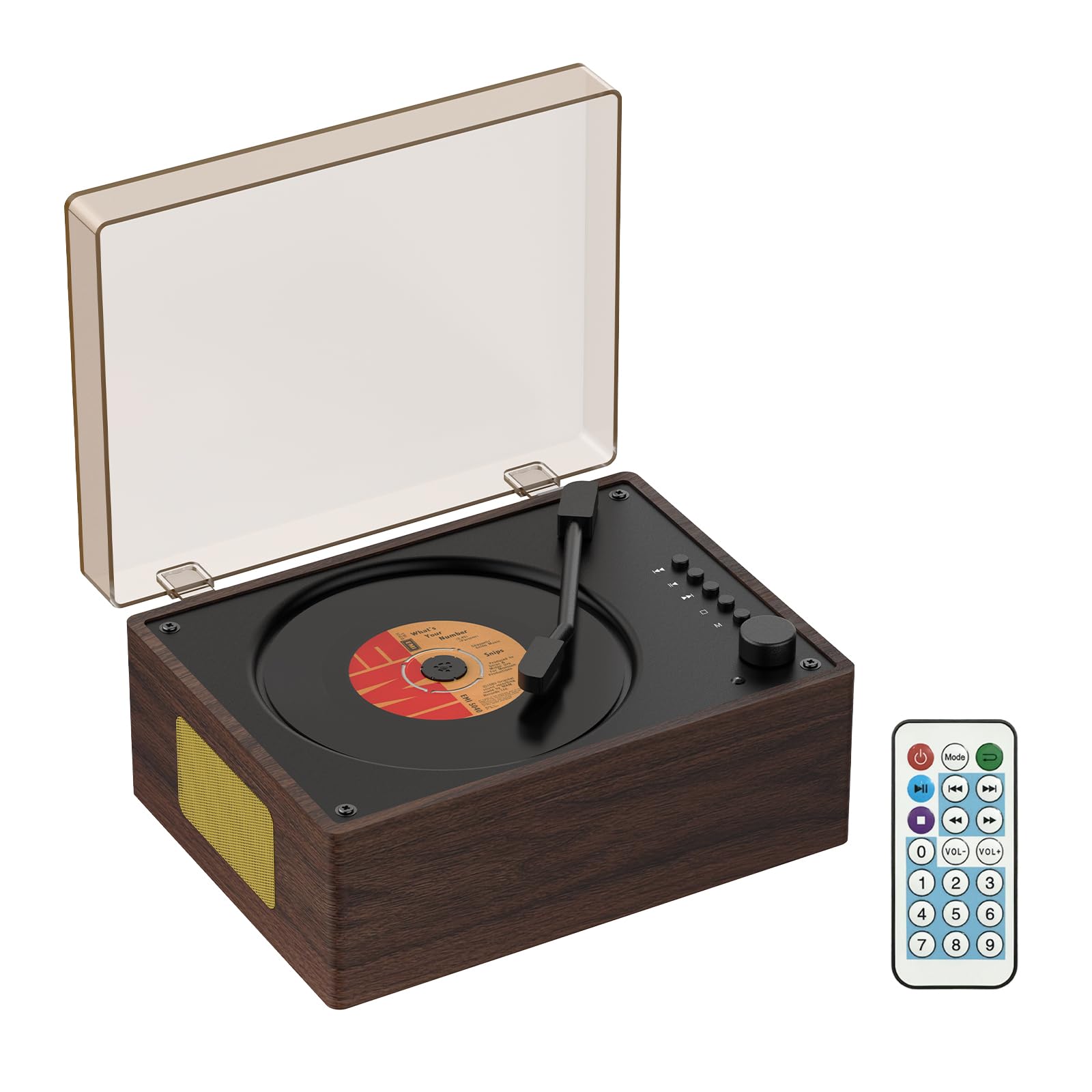
Figure 2.1: PROTKPETS Portable CD Player (Brown)
Key Features:
- Multi-Function: CD player, Bluetooth speaker, 3.5mm AUX input, USB playback.
- Retro Design: Vintage walnut finish with an acrylic dust cover.
- Wide Compatibility: Supports CD, CD-R, CD-RM, CD-G, MP3, WMA, and WAV formats.
- Hi-Fi Speakers: Built-in dual stereo speakers for rich sound.
- Portability: Compact and lightweight design for easy transport.
Components and Controls:

Figure 2.2: Rear Ports and Top Controls
- CD Tray/Turntable: Area for placing CDs.
- Tonearm Pick: Used to initiate CD playback (visually resembles a tonearm).
- Control Buttons: Play/Pause, Skip Forward, Skip Backward, Stop, Mode (M).
- Volume Knob: Adjusts audio output level.
- ON/OFF Switch: Power switch located at the rear.
- Type-C 5V/2A Port: Power input for charging/operation.
- USB Port: For USB drive playback.
- Audio Input Port (AUX IN): Connect external audio sources.
- Audio Output Port (AUX OUT): Connect to external speakers or headphones.
3. Setup
3.1 Powering the Device
- Connect the provided Type-C USB cable to the Type-C 5V/2A Port on the rear of the player.
- Connect the other end of the USB cable to a compatible USB power adapter (not included) or a powered USB port.
- Flip the ON/OFF Switch on the rear to the 'ON' position. The power indicator light will illuminate.
3.2 Initial Charge
For optimal performance, fully charge the internal battery before first use. The charging indicator light will show charging status (e.g., red for charging, green for fully charged, if applicable to your model).
4. Operating Instructions
4.1 CD Playback Mode
- Ensure the player is powered on.
- Gently lift the acrylic dust cover.
- Place a CD (CD, CD-R, CD-RM, CD-G) onto the CD tray, ensuring it is centered.
- Close the dust cover.
- Press the Mode (M) button until 'CD' mode is selected.
- Move the Tonearm Pick over the CD to initiate playback.
- Use the Play/Pause, Skip Forward, Skip Backward, and Stop buttons to control playback.
- Adjust the volume using the Volume Knob.

Figure 4.1: Top-Loading CD Mechanism
4.2 Bluetooth Mode
- Ensure the player is powered on.
- Press the Mode (M) button until 'BT' (Bluetooth) mode is selected. The Bluetooth indicator will flash, indicating it's ready for pairing.
- On your mobile device (smartphone, tablet, etc.), enable Bluetooth and search for available devices.
- Select 'PROTKPETS CD Player' (or similar name) from the list of devices to pair.
- Once paired, the Bluetooth indicator will stop flashing and remain solid. You can now stream audio from your device to the CD player.
- Adjust volume via the player's Volume Knob or your connected device.

Figure 4.2: Bluetooth 5.3 Connectivity
4.3 AUX Input Mode
- Ensure the player is powered on.
- Connect one end of a 3.5mm audio cable (not included) to the Audio Input Port (AUX IN) on the rear of the CD player.
- Connect the other end of the audio cable to the headphone jack or audio output of your external device (e.g., MP3 player, computer).
- Press the Mode (M) button until 'AUX' mode is selected.
- Play audio from your external device.
- Adjust volume via the player's Volume Knob and/or your external device.
4.4 USB Playback Mode
- Ensure the player is powered on.
- Insert a USB flash drive containing MP3, WMA, or WAV audio files into the USB Port on the rear of the player.
- Press the Mode (M) button until 'USB' mode is selected.
- The player will automatically detect and begin playing audio files from the USB drive.
- Use the Play/Pause, Skip Forward, Skip Backward, and Stop buttons to control playback.
- Adjust the volume using the Volume Knob.

Figure 4.3: Multi-functional Playback Options
4.5 Remote Control
The player includes a remote control for convenient operation from a distance. Functions typically include power on/off, mode selection, play/pause, skip tracks, and volume control. Refer to the remote control's specific button layout for detailed functionality.
5. Maintenance
- Cleaning: Use a soft, dry cloth to clean the exterior of the player. For the acrylic dust cover, use a slightly damp cloth and avoid abrasive cleaners.
- CD Care: Handle CDs by their edges. Clean CDs with a soft, lint-free cloth, wiping from the center outwards.
- Storage: Store the player in a cool, dry place away from direct sunlight, extreme temperatures, and humidity.
- Avoid Liquids: Do not expose the player to water or other liquids.
6. Troubleshooting
| Problem | Possible Cause | Solution |
|---|---|---|
| Player does not power on. | No power, battery drained, power switch off. | Check power connection, charge battery, ensure ON/OFF switch is on. |
| CD does not play or skips. | CD dirty/scratched, incorrect mode, tonearm not positioned. | Clean CD, select 'CD' mode, ensure tonearm is over the CD. |
| No sound. | Volume too low, incorrect mode, external device not connected properly. | Increase volume, select correct mode (CD/BT/AUX/USB), check cable connections. |
| Bluetooth not pairing. | Player not in BT mode, device too far, previously paired. | Ensure 'BT' mode is selected, move device closer, unpair from other devices. |
| USB playback not working. | USB drive not inserted correctly, unsupported file format, incorrect mode. | Reinsert USB drive, ensure files are MP3/WMA/WAV, select 'USB' mode. |
7. Specifications
| Feature | Detail |
|---|---|
| Brand | PROTKPETS |
| Model Name | CD Player-PK (also referred to as Cd-bt100) |
| Color | Brown |
| Connectivity Technology | Bluetooth 5.3 |
| Supported Audio Formats | CD, MP3, WMA, WAV, CD-R, CD-RM, CD-G |
| Number of Discs | 1 |
| Headphones Jack | 3.5mm Jack |
| Item Dimensions (L x W x H) | 8"L x 6"W x 6"H |
| Item Weight | 1.4 Pounds |
| Power Input | Type-C 5V/2A |
8. Warranty and Support
This PROTKPETS CD Player comes with a one-year warranty from the date of purchase. For warranty claims, technical support, or any inquiries regarding your product, please contact PROTKPETS customer service. Keep your purchase receipt as proof of purchase for warranty validation.
Manufacturer: PROTKPETS
9. Product Videos
CD Player for Home - Overview
This video provides a general overview of the PROTKPETS Portable CD Player, demonstrating its features and functionality for home use. It highlights the compact design and ease of operation.