
1. Introduction
This manual provides detailed instructions for the installation, operation, and maintenance of your ArvoElio Wireless Wi-Fi Video Doorbell Camera M50. Please read this manual thoroughly before using the product to ensure correct usage and optimal performance. Keep this manual for future reference.

Image 1.1: ArvoElio M50 Wireless Video Doorbell Camera, Chime, and Smartphone App Interface. This image displays the main components of the ArvoElio M50 system, including the doorbell camera, the indoor chime unit, and a smartphone screen showing the live view from the camera.
2. Product Overview
2.1 Package Contents
- ArvoElio Wireless Wi-Fi Video Doorbell Camera M50
- Indoor Chime Receiver
- Mounting Bracket
- Charging Cable (USB)
- Instruction Manual
- Mounting Screws and Anchors
2.2 Key Features
- 1080p HD Video: Provides clear, high-definition video footage.
- AI Human Detection: Advanced motion detection distinguishes human figures from other movements, reducing false alerts.
- Clear Night Vision: Enhanced infrared night vision for visibility in low-light or dark conditions.
- Wide-Angle Lens: Offers a broad field of view to cover more area.
- Two-Way Audio: Built-in microphone and speaker allow for real-time communication with visitors.
- 2.4GHz Wi-Fi Connectivity: Connects to your home's 2.4GHz Wi-Fi network for stable operation. (Not compatible with 5GHz Wi-Fi).
- Battery Powered: Operates on a rechargeable battery for wireless installation.
- Cloud Storage Option: Supports optional cloud storage for video recording backup (subscription sold separately).
- Weather-Resistant Design: Suitable for outdoor use in various weather conditions.
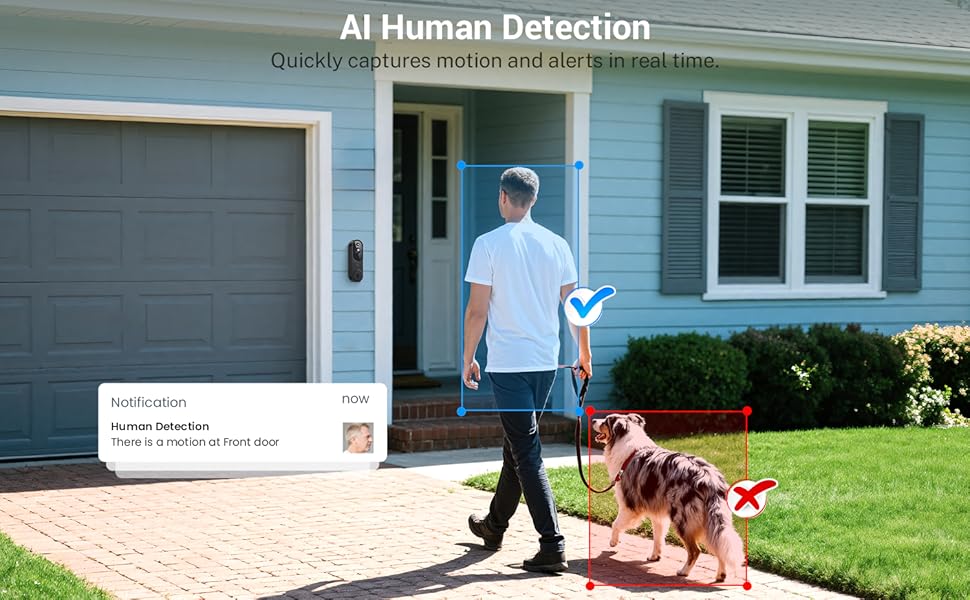
Image 2.1: Key features of the ArvoElio M50 Video Doorbell Camera. This graphic highlights the primary functionalities including 1080p resolution, AI human detection, clear night vision, wide-angle lens, cloud storage, two-way talk, and 2.4GHz Wi-Fi compatibility.
3. Setup
3.1 Initial Charging
Before first use, fully charge the doorbell camera. Remove the insulating strip from the battery compartment if present. Connect the provided USB charging cable to the doorbell and a standard DC 5V 1A or 5V 2A power source (power adapter not included). The indicator light will show charging status.
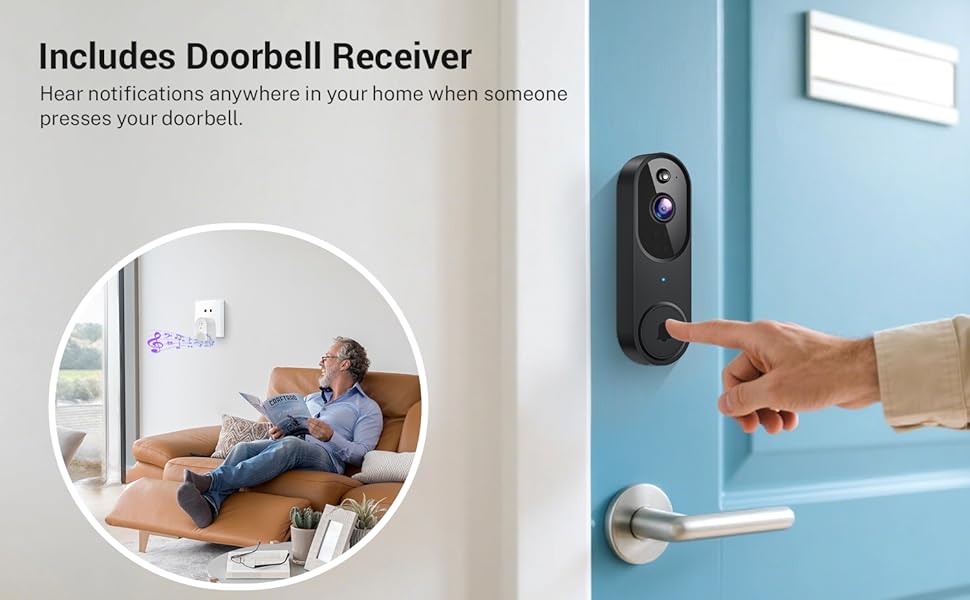
Image 3.1: Charging and initial setup steps. This image illustrates how to remove the doorbell from its mounting bracket and connect the USB charging cable for initial power-up.
3.2 Physical Installation
- Select Location: Choose an ideal spot near your door, ensuring good Wi-Fi signal strength.
- Mounting: Use the provided mounting bracket, screws, and anchors to securely attach the doorbell to your desired surface. Ensure the camera has a clear view.
- Chime Placement: Plug the indoor chime receiver into a standard electrical outlet inside your home, within range of the doorbell camera.

Image 3.2: ArvoElio M50 doorbell camera installed on a door, with the indoor chime receiver plugged into an outlet. This image demonstrates the doorbell mounted on a doorframe and the chime unit placed indoors, indicating its function to alert occupants.
3.3 App Setup and Wi-Fi Connection
- Download App: Search for the designated app (refer to the packaging or quick start guide for the app name) on the App Store (iOS) or Google Play Store (Android) and install it on your smartphone.
- Account Creation: Open the app and follow the on-screen instructions to create a new user account.
- Add Device: In the app, select the option to add a new device. Follow the in-app prompts to pair your doorbell camera. This typically involves scanning a QR code on the doorbell or entering a device ID.
- Connect to Wi-Fi: During the pairing process, you will be asked to connect the doorbell to your home's 2.4GHz Wi-Fi network. Ensure your smartphone is also connected to the same 2.4GHz network during setup. The doorbell is not compatible with 5GHz Wi-Fi networks.
- Device Naming: Assign a name to your doorbell camera for easy identification within the app.

Image 3.3: App download, pairing, and installation steps. This visual guide outlines the process of downloading the companion app, linking the doorbell camera, and selecting an optimal mounting location.
4. Operating Instructions
4.1 Live View and Notifications
Once connected, you can access a live video feed from your doorbell camera through the app at any time. When motion is detected or the doorbell button is pressed, you will receive instant notifications on your smartphone.
4.2 AI Human Detection
The doorbell camera utilizes AI technology to identify human shapes, minimizing alerts from non-human movements like animals or passing vehicles. You can adjust the sensitivity and detection zones within the app settings.

Image 4.1: AI Human Detection feature. This image demonstrates the doorbell camera's ability to accurately detect human presence while ignoring other moving objects, such as pets, to reduce unnecessary alerts.
4.3 Two-Way Audio
To communicate with someone at your door, open the live view in the app and tap the microphone icon. Speak into your phone, and your voice will be transmitted through the doorbell's speaker. You can also hear responses through your phone's speaker.
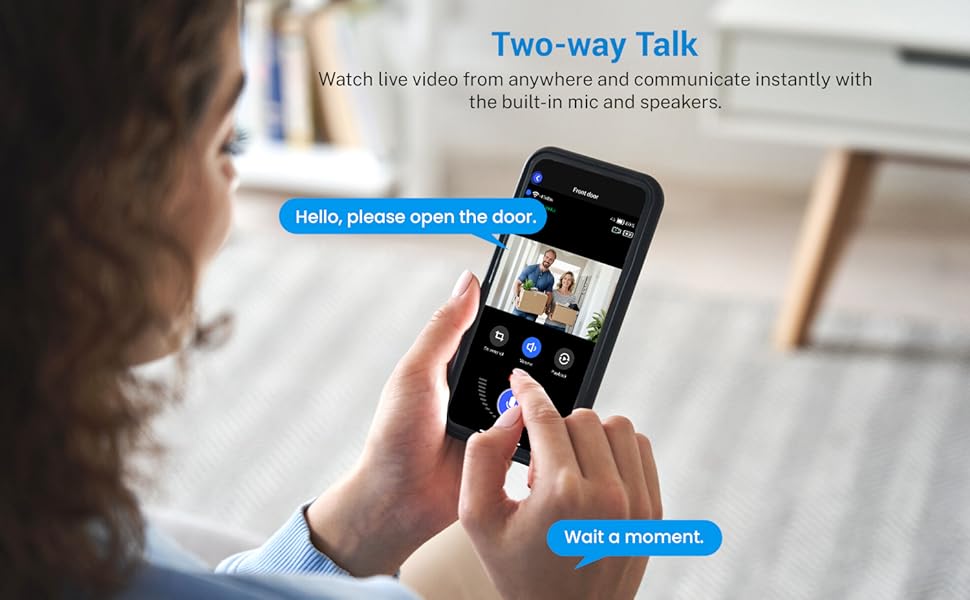
Image 4.2: User communicating via two-way audio feature. This image shows a user interacting with a visitor at the door through the doorbell camera's two-way audio function via the smartphone app.
4.4 Night Vision
The doorbell camera automatically switches to night vision mode in low-light conditions, providing a clear black-and-white image. This ensures continuous monitoring and security around the clock.

Image 4.3: Day vision and night vision comparison. This split image illustrates the clear visual capabilities of the ArvoElio M50 doorbell camera during both daytime and nighttime conditions.
4.5 Cloud Storage
The ArvoElio M50 offers an optional cloud storage service for securely saving your video recordings. This allows you to review past events from anywhere, anytime. Cloud storage is a subscription-based service and is sold separately.
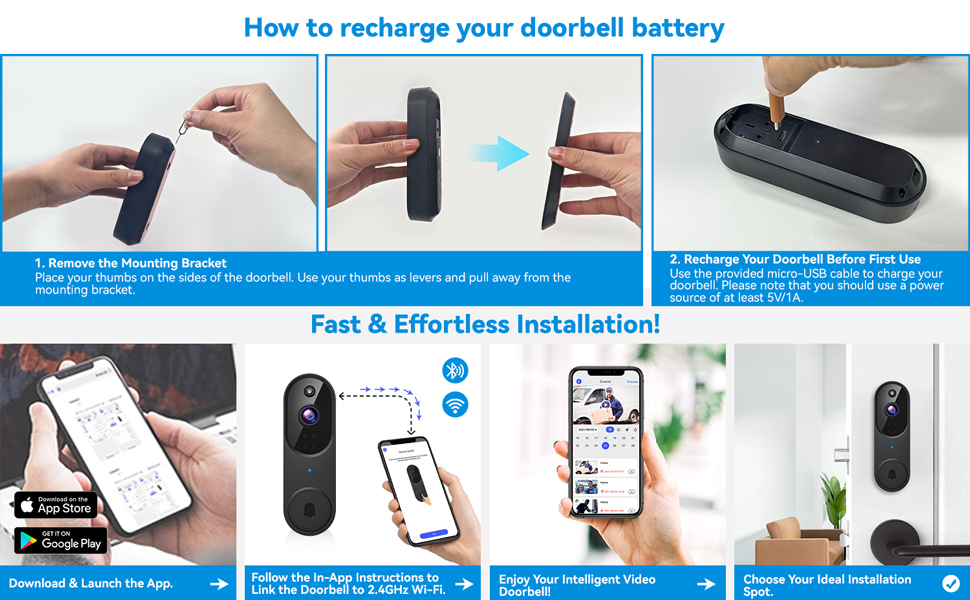
Image 4.4: Cloud storage diagram. This graphic visually represents how video footage from the doorbell camera can be securely stored and accessed via cloud services, showing various scenarios of recorded events.
5. Maintenance
5.1 Battery Charging
The doorbell camera is powered by a rechargeable battery. When the battery level is low, the app will notify you. To recharge, carefully remove the doorbell from its mounting bracket by pressing the tabs on the sides. Connect the provided USB charging cable to the doorbell and a 5V 1A/2A power source. A full charge typically takes several hours. Ensure the doorbell is re-secured to its mount after charging.
5.2 Cleaning
Periodically clean the camera lens and the doorbell's exterior with a soft, damp cloth to remove dust and debris. Do not use harsh chemicals or abrasive cleaners.
6. Troubleshooting
- Doorbell Offline or Delayed Notifications:
Ensure your doorbell is within range of your 2.4GHz Wi-Fi router and has a strong signal. If Wi-Fi is unstable, the device may go offline or experience delays. Try resetting the camera and reconnecting it to your network. It is crucial for the device to have good Wi-Fi connectivity, especially since it is typically installed outdoors. - No Video or Poor Video Quality:
Check your Wi-Fi connection strength. Ensure the camera lens is clean and free from obstructions. If the issue persists, try restarting the doorbell and your router. - Two-Way Audio Issues:
Verify that your phone's microphone and speaker are enabled for the app. Check the volume settings on both your phone and within the app. Ensure there are no physical obstructions blocking the doorbell's microphone or speaker. - Motion Detection Not Working:
Check the motion detection settings in the app. Ensure it is enabled and the sensitivity is set appropriately. Verify that the detection zones are configured correctly. - Chime Not Ringing:
Ensure the indoor chime receiver is plugged into a working power outlet and is paired with the doorbell. Check the chime's volume settings.
7. Specifications
| Feature | Specification |
|---|---|
| Model Name | M50 |
| Indoor/Outdoor Usage | Outdoor |
| Video Capture Resolution | 1080p |
| Power Source | Battery Powered |
| Connectivity Technology | Wireless |
| Connectivity Protocol | Wi-Fi (2.4GHz Only) |
| Compatible Devices | Smartphone (Android, iOS) |
| Mounting Type | Wall Mount |
| Item Dimensions (L x W x H) | 5.4 x 1.77 x 1.34 inches (13.7 x 4.5 x 3.4 cm) |
| Item Weight | 6.2 ounces (0.39 Pounds) |
| Included Components | Doorbell Camera, Chime, Charging Cable, Instruction Manual |
8. Warranty and Support
For warranty information and technical support, please refer to the contact details provided on the product packaging or the official ArvoElio website. Keep your purchase receipt as proof of purchase for warranty claims. Do not attempt to repair the device yourself, as this may void the warranty.