
BIGASUO 101C
BIGASUO 10.1" Digital Calendar Smart Touchscreen Interactive Display User Manual
Model: 101C | Brand: BIGASUO
Introduction
This manual provides detailed instructions for setting up and operating your BIGASUO 10.1" Digital Calendar. This device is designed to be an all-in-one family hub, simplifying scheduling, task management, meal planning, and serving as a digital photo frame. Please read this manual thoroughly to ensure optimal performance and a seamless user experience.
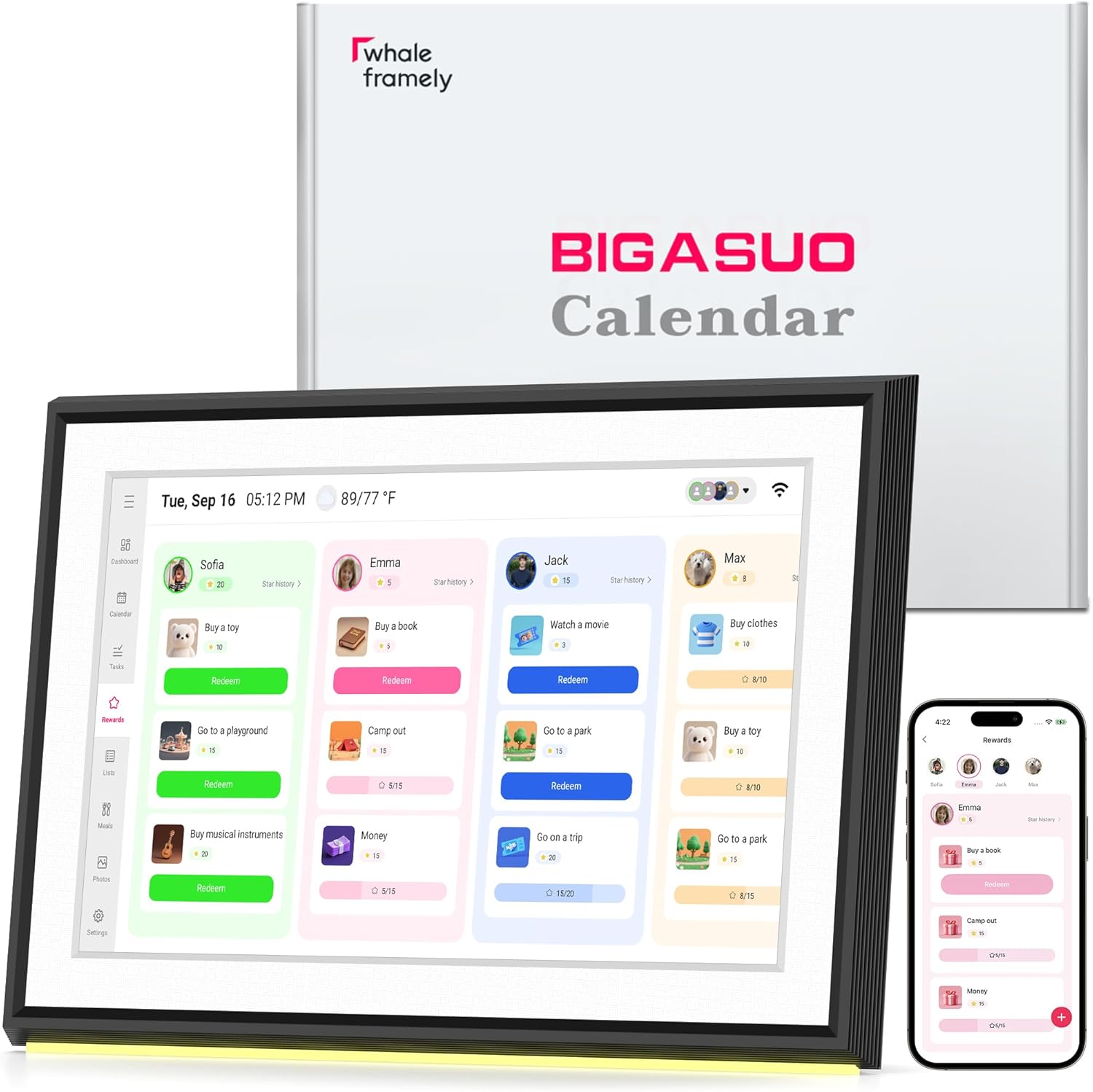
Image: The BIGASUO 10.1" Digital Calendar, showcasing its interactive display with family tasks and rewards, alongside its packaging and companion mobile application.
Setup Guide
- Power Connection: Connect the power adapter to the device and plug it into a power outlet. The device will power on automatically.
- Wi-Fi Connection: Follow the on-screen prompts to connect your device to a stable Wi-Fi network.
- Download the Whale Framely App:
Scan the QR code displayed on the device screen or visit your app store to download the "Whale Framely" application.

Image: Setup guide with QR codes for downloading the Whale Framely app on Android and iOS, and visual steps for device pairing and event creation.
For Android: Google Play Store
For iOS: Apple App Store
- Account Creation & Device Pairing:
Open the Whale Framely app, create an account, and follow the instructions to pair your digital calendar using the QR code or pairing code displayed on the device.
Video: Instructions on how to create a new member profile within the Whale Framely app, including setting a profile photo, name, and color, then saving the new member.
- Calendar Synchronization:
From the Whale Framely app, navigate to the "Sync Calendar" section. You can sync with various third-party calendar services:
- Google Calendar:
Tap "Google", enter your email address, authorize login, then choose "Two-way sync" or "One-way sync" and select the calendars and devices to sync.
Video: Step-by-step guide on syncing Google Calendar with the Whale Framely app, including login authorization and selecting sync preferences.
- Outlook Calendar:
Tap "Outlook", enter your email address, authorize login, then select the calendars and devices to sync.
Video: Demonstration of syncing Outlook Calendar with the Whale Framely app, covering email entry, authorization, and calendar selection.
- iCloud Calendar:
Tap "iCloud", go to your iPhone Calendar, tap "Calendars", tap the "i" icon next to your desired calendar, ensure "Public Calendar" is on, tap "Share Link" to copy, then paste the URL into the Whale Framely app and tap "Done".
Video: Guide on syncing iCloud Calendar by obtaining a shareable link from the iPhone Calendar app and pasting it into Whale Framely.
- Cozi Calendar:
Tap "Cozi", open the Cozi app, go to the "Family" tab, select "Settings", tap "Shared Cozi Calendars", share all events or a specific calendar, tap "Copy Cozi URL", then paste the URL into the Whale Framely app and tap "Done".
Video: Instructions for syncing Cozi Calendar by generating a shareable URL from the Cozi app and integrating it with Whale Framely.
- Yahoo Calendar:
Tap "Yahoo", on a computer, open calendar.yahoo.com, edit the calendar you want to share, toggle "Get sharable link" and copy the ICS URL, then paste the URL into the Whale Framely app and tap "Done".
Video: Tutorial on syncing Yahoo Calendar by obtaining the ICS URL from the Yahoo Calendar website and adding it to the Whale Framely app.
- TeamSnap Calendar:
Tap "TeamSnap", on a computer, log in to go.teamsnap.com, go to the "Schedule" tab, select "Sync Calendar / Export" in settings, copy the Full Calendar or Games Only URL, then paste the URL into the Whale Framely app and tap "Done".
Video: Guide to syncing TeamSnap Calendar by exporting the calendar URL from the TeamSnap website and importing it into the Whale Framely app.
- External Calendar by URL:
Tap "Calendar URL", get the public share link from your external calendar, then paste the URL into the Whale Framely app and tap "Done".
Video: Instructions for adding any external calendar by URL to the Whale Framely app.
- Google Calendar:
Operating Instructions
Dashboard Overview
The main dashboard provides a quick overview of your day, including date, time, weather, upcoming events, and lists.
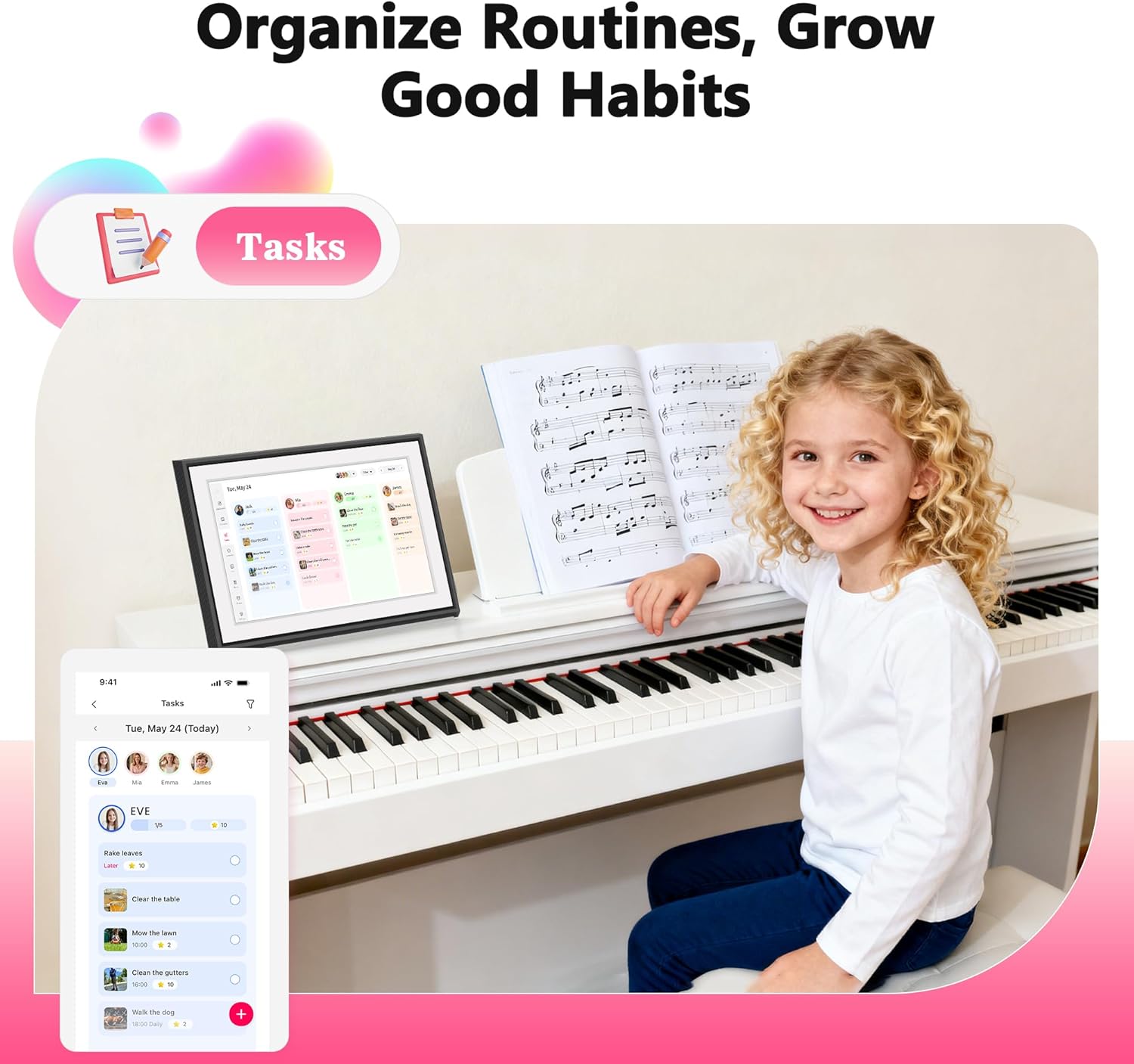
Image: The digital calendar's main dashboard, showing the current date, time, weather, and navigation options for calendar, tasks, rewards, lists, meals, photos, and settings.
Managing Calendar Events
View your monthly, weekly, and daily agenda. Events synced from external calendars will appear here. You can also add new events directly on the device or via the mobile app.

Image: The digital calendar displaying a monthly view with various color-coded events, indicating seamless synchronization with the mobile application.
Managing Tasks and Chores
Create and assign tasks or chores to family members. Mark them as complete directly on the device. The system supports rewards for completed tasks.

Image: The digital calendar displaying a task management interface with assigned chores, emphasizing its utility for organizing household responsibilities, with a child doing dishes in the background.

Image: The digital calendar displaying a rewards screen, illustrating how completed tasks can lead to rewards, with a child receiving a gift from an adult.
Video: A short demonstration on how to create a role for kids within the Whale Framely app, likely for assigning tasks and managing rewards.
Meal Planning
Plan your weekly meals and display them on the calendar. This feature helps keep everyone informed about upcoming meals.

Image: The digital calendar displaying a meal planning interface, showing daily meal schedules, with a family cooking together in the kitchen.
Lists
Create and manage various lists, such as grocery lists or to-do lists, directly on the device or through the app.

Image: The digital calendar displaying a shopping list, highlighting its utility for organizing errands, with a woman pointing to groceries.
Photo Frame Functionality
When not actively using the calendar features, the device can function as a digital photo frame, displaying your cherished memories. Share photos and videos directly from your phone using the app.

Image: The digital calendar functioning as a photo frame, displaying a family picture on a table, blending into home decor.
Settings and Customization
Access various settings to personalize your device:
- General: Adjust calendar display name, time zone, and language.
- Calendar: Manage calendar-specific settings.
- Photos: Configure photo display options and screensaver settings.
- Members: Add or manage family members and their profiles.
- Wi-Fi: Manage network connections.
- More: Access advanced settings like brightness, touch sounds, and text size.

Image: The digital calendar displaying a detailed weather forecast for the week, showing current temperature and daily predictions.

Image: The digital calendar displaying an alarm notification for "Medicine time," demonstrating its reminder functionality.
Maintenance
- Cleaning: Use a soft, dry cloth to clean the screen and exterior. Avoid abrasive cleaners or solvents.
- Software Updates: Ensure your device is updated to the latest software version (R-1.5.0 or newer) for enhanced features and performance. Navigate to Settings → More → Upgrade → Check for new version.
- Placement: Place the device on a stable, flat surface. It is not designed for wall mounting.
Troubleshooting
- Device Not Powering On: Ensure the power adapter is securely connected to both the device and a working power outlet.
- Wi-Fi Connection Issues: Verify your Wi-Fi network is active and the password is correct. Try restarting your router and the digital calendar.
- Calendar Not Syncing: Check your internet connection. In the Whale Framely app, ensure the correct calendar accounts are linked and permissions are granted for two-way sync if desired.
- Screen Unresponsive: Restart the device by unplugging it and plugging it back in. If the issue persists, check for software updates.
Specifications
| Feature | Detail |
|---|---|
| Brand | BIGASUO |
| Model Number | 101C-digital calendar |
| Screen Size | 10.1 Inches |
| Product Dimensions | 12.1 x 12.1 x 10.1 inches |
| Item Weight | 2.93 pounds |
| Color | Black |
| Material Type | Plastic |
| Connectivity | Wi-Fi enabled |
| Compatible Calendars | Google Calendar, iCloud, Outlook, Cozi, Yahoo Calendar |
Warranty and Support
For warranty information and customer service, please refer to the product packaging or contact BIGASUO customer service directly. Keep your purchase receipt for warranty claims.
Related documents101C

Ask a question about this manual
Ask about setup, troubleshooting, compatibility, parts, safety, or missing instructions. Manuals+ will review the question and use this page’s manual context to help answer it.