1. Introduction
This manual provides essential information for the safe and efficient use of your OPPO Reno 14F 5G smartphone. Please read this guide thoroughly before operating the device to ensure proper functionality and to understand its features. Keep this manual for future reference.
2. Package Contents
Verify that your product package contains the following items:
- OPPO Reno 14F 5G Smartphone
- Headset
- SIM Tray Ejector
- USB Cable (Type-C)
If any items are missing or damaged, please contact your retailer or OPPO customer support.
3. Device Overview
Familiarize yourself with the physical components of your OPPO Reno 14F 5G.

Figure 3.1: Front View. This image displays the front of the OPPO Reno 14F 5G smartphone, highlighting the display screen and the front-facing camera located at the top center.

Figure 3.2: Back View. This image shows the rear of the OPPO Reno 14F 5G smartphone in Luminous Green, featuring the dual camera module and the OPPO branding.
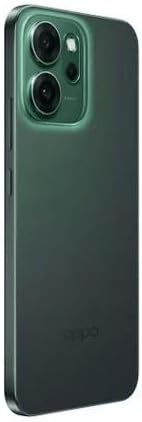
Figure 3.3: Side View. This image illustrates the side profile of the OPPO Reno 14F 5G, indicating the location of the volume buttons, power button, and SIM card tray.
3.1. Buttons and Ports
- Power Button: Located on the right side. Press and hold to power on/off or restart. Press briefly to lock/unlock the screen.
- Volume Buttons: Located on the left side. Press to adjust media volume, call volume, or notification volume.
- USB Type-C Port: Located at the bottom. Used for charging, data transfer, and connecting the included headset.
- SIM Card Tray: Located on the side. Use the provided SIM ejector tool to open.
- Cameras: Front-facing camera for selfies and video calls. Rear dual-camera system for high-quality photos and videos.
4. Setup
4.1. Charging the Device
Before first use, fully charge your OPPO Reno 14F 5G. Connect the USB cable to the USB Type-C port on the phone and the other end to a compatible power adapter. Plug the adapter into a power outlet.
4.2. Inserting the SIM Card
- Power off the device.
- Locate the SIM card tray on the side of the phone (refer to Figure 3.3).
- Insert the SIM ejector tool into the small hole on the SIM tray and press gently until the tray pops out.
- Place your Nano-SIM card(s) into the tray with the gold contacts facing down. Ensure proper orientation.
- Carefully push the tray back into the phone until it clicks into place.
4.3. Initial Power-On and Setup Wizard
Press and hold the Power button until the OPPO logo appears. Follow the on-screen instructions to complete the initial setup, which includes:
- Language selection
- Connecting to a Wi-Fi network
- Setting up your Google account
- Configuring security features (fingerprint, face unlock, PIN/pattern)
- Transferring data from an old device (optional)
5. Operating the Device
5.1. Basic Navigation
Your OPPO Reno 14F 5G runs on Android 14 and supports gesture navigation or traditional navigation buttons. You can configure your preferred navigation method in the Settings menu.
- Swipe Up: Go to the Home screen.
- Swipe Up and Hold: Open recent apps.
- Swipe from Left/Right Edge: Go back.
5.2. Making Calls and Sending Messages
Use the Phone app to make calls and the Messages app to send and receive SMS/MMS messages. Ensure your SIM card is active and has network coverage.
5.3. Using the Camera
Open the Camera app to capture photos and videos. The rear camera system offers various modes for different scenarios, while the front camera is ideal for selfies and video calls. Tap the shutter button to take a photo or record a video.
5.4. Connectivity
- Wi-Fi: Connect to wireless networks for internet access.
- Bluetooth: Pair with wireless headphones, speakers, or other Bluetooth-enabled devices.
- 5G: Utilize high-speed mobile data networks where available.
- GPS: For location services and navigation.
6. Maintenance
6.1. Cleaning the Device
Use a soft, lint-free cloth to clean the screen and body of your phone. Avoid using harsh chemicals or abrasive materials, as these can damage the device's finish.
6.2. Battery Care
To prolong battery life:
- Avoid extreme temperatures.
- Use the original charger and cable.
- Do not leave the phone charging for extended periods after it's full.
6.3. Software Updates
Regularly check for and install software updates to ensure your device has the latest features, security patches, and performance improvements. Go to Settings > About device > Up to date to check for updates.
6.4. Data Backup
Regularly back up your important data (photos, contacts, documents) to a cloud service or a computer to prevent data loss.
7. Troubleshooting
If you encounter issues with your device, refer to the following common solutions:
| Issue | Solution |
|---|---|
| Device not powering on | Ensure the battery is charged. Press and hold the Power button for at least 10 seconds to force a restart. |
| Screen unresponsive | Force restart the device. If the issue persists, contact support. |
| Network connectivity issues | Check if Airplane Mode is off. Restart the device. Reinsert the SIM card. Reset network settings (Settings > System settings > Back up and reset > Reset phone > Reset network settings). |
| Apps crashing or freezing | Clear the app's cache and data (Settings > Apps > App management > [App Name] > Storage usage). Update the app. Uninstall and reinstall the app. |
| Battery draining fast | Check battery usage in Settings to identify power-hungry apps. Reduce screen brightness. Disable unnecessary features like GPS, Bluetooth, or Wi-Fi when not in use. |
| Overheating | Close background apps. Avoid using the phone while charging or in direct sunlight. If overheating persists, power off the device and allow it to cool. |
7.1. Factory Reset
As a last resort for persistent software issues, you may perform a factory reset. This will erase all data on your phone. Back up your data before proceeding. Go to Settings > System settings > Back up and reset > Reset phone > Erase all data.
8. Specifications
Detailed technical specifications for the OPPO Reno 14F 5G smartphone:
| Feature | Detail |
|---|---|
| Operating System | Android 14 |
| RAM Memory Installed | 12 GB |
| Memory Storage Capacity | 256 GB |
| Connectivity Technology | 5G |
| Cellular Technology | 5G |
| Wireless Provider | Unlocked for All Carriers |
| Battery Power Rating | 6000 mAh |
| Item Weight | 187 g |
| Package Dimensions | 18.3 x 9.9 x 5.9 cm |
| Audio Jack | USB Type C |
| Color | Luminous Green |
| Model Name | Reno 5G |
| Item Model Number | 6932169376945 |
9. Warranty and Support
Your OPPO Reno 14F 5G smartphone is covered by a limited warranty. For detailed warranty terms and conditions, please refer to the warranty card included in your package or visit the official OPPO website. For technical support, service, or further assistance, please contact OPPO customer service through their official channels.


