
1. Introduction
This manual provides comprehensive instructions for the installation, setup, operation, and maintenance of your NGTeco D2310 Fingerprint Keyless Entry Smart Deadbolt Lock. Please read this manual thoroughly before installation and use to ensure proper function and security.
2. Product Overview
The NGTeco D2310 is a smart deadbolt lock designed for enhanced home security and convenience. It offers multiple access methods including fingerprint recognition, keypad codes, traditional keys, and control via the NGTeco Home mobile application using Bluetooth 5.0 connectivity. Key features include rapid fingerprint unlocking, auto-lock functionality, and emergency power options.

Figure 1: NGTeco D2310 Smart Deadbolt Lock components.
3. Package Contents
Verify that all components are present before beginning installation:
- Exterior Keypad Assembly with Fingerprint Sensor
- Interior Unit Assembly
- Deadbolt Latch
- Mounting Plate
- Strike Plate
- Screws (various sizes for installation)
- Traditional Keys (backup)
- User Manual (this document)
4. Installation Guide
The NGTeco D2310 lock is designed for easy installation on standard doors with a thickness between 35mm and 60mm. A Phillips head screwdriver is typically the only tool required.
- Prepare the Door: Ensure your door meets the specified thickness requirements (35-60mm). Remove any existing deadbolt hardware.
- Install the Deadbolt Latch: Insert the deadbolt latch into the door edge. Ensure the "UP" arrow on the latch is facing upwards. Secure it with screws.
- Install the Exterior Keypad: Feed the cable from the exterior keypad through the door hole and position the keypad flush against the door.
- Install the Mounting Plate: Secure the mounting plate to the interior side of the door, aligning it with the deadbolt latch and the exterior keypad. Connect the cable from the exterior keypad to the interior unit's connector.
- Install the Interior Unit: Attach the interior unit to the mounting plate, ensuring the thumb turn spindle engages correctly with the deadbolt mechanism. Secure with screws.
- Insert Batteries: Open the battery cover on the interior unit and insert four AA batteries (not included), observing polarity.
- Test Operation: Manually operate the deadbolt using the thumb turn to ensure smooth movement.

Figure 2: Door thickness and lock dimensions for installation.
5. Setup and Programming
5.1. NGTeco Home App Setup
The NGTeco Home app provides remote control and management features for your smart lock via Bluetooth 5.0.
- Download the App: Search for "NGTeco Home" in your smartphone's app store (iOS or Android) and install it.
- Create an Account: Follow the in-app instructions to register a new user account.
- Add Device: Open the app, enable Bluetooth on your phone, and select "Add Device." Choose your D2310 lock from the list of discoverable devices.
- Pairing: Follow the on-screen prompts to pair the lock with your smartphone. This typically involves pressing a button on the interior unit or entering a default administrator code.

Figure 3: Remote control via Bluetooth 5.0 using the NGTeco Home App.
5.2. Fingerprint Enrollment
The lock features a capacitive fingerprint sensor for quick access.
- Access Enrollment Mode: Refer to your app or the lock's audio prompts for entering fingerprint enrollment mode. This usually involves entering the administrator code followed by a specific command.
- Scan Fingerprint: Place your finger on the sensor. The lock will prompt you to lift and place your finger multiple times from different angles to capture a complete scan.
- Confirmation: The lock will provide an audio or visual confirmation once the fingerprint is successfully enrolled.
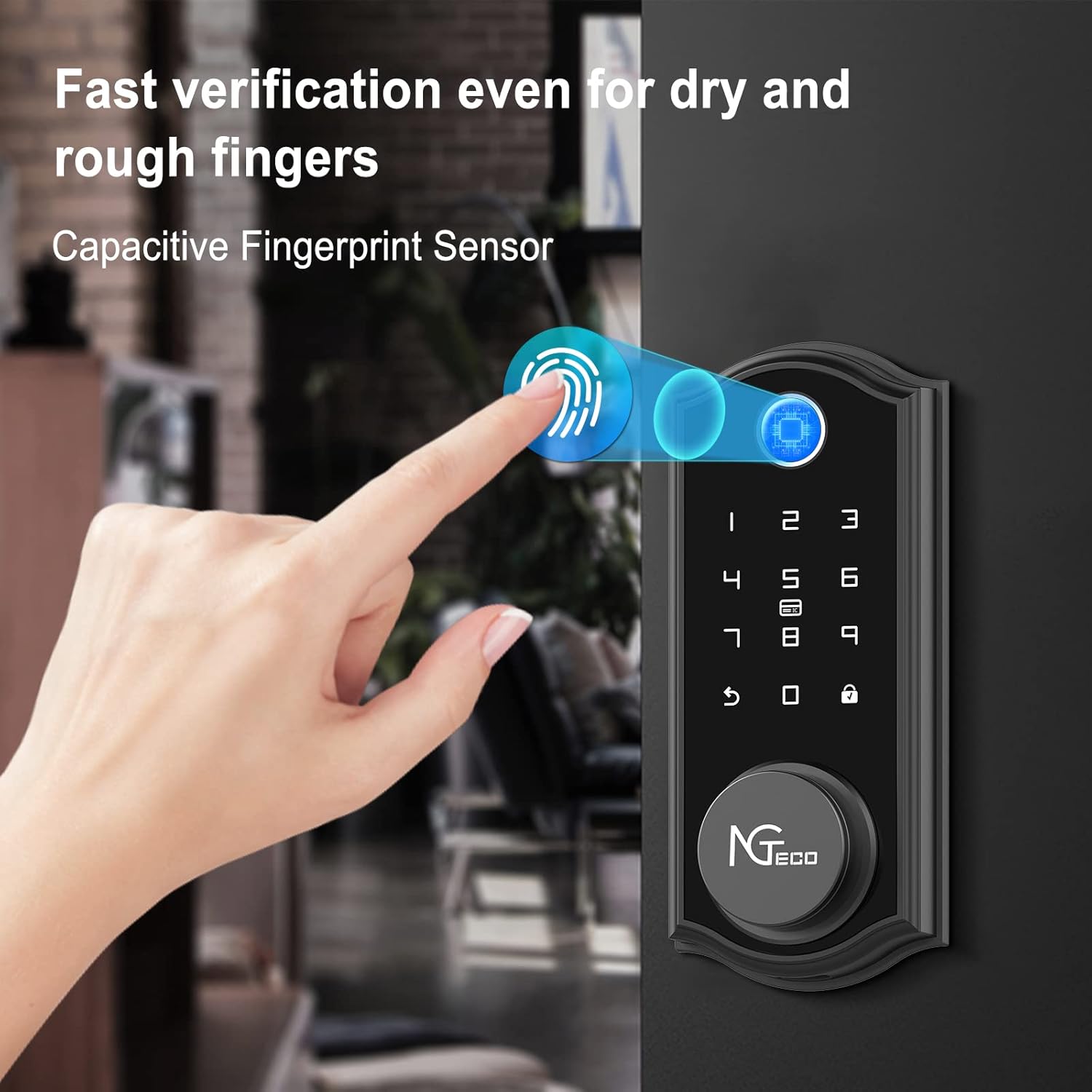
Figure 4: Fast fingerprint verification process.
5.3. Passcode Management
You can create various types of passcodes for different users.
- Administrator Passcode: Used for programming and managing the lock.
- User Passcodes: For regular access.
- Temporary Passcodes: Valid for a limited time or number of uses.
- One-Time Passcodes: Valid for a single entry.
All passcode management is performed through the NGTeco Home app. Refer to the app's instructions for detailed steps on creating and modifying passcodes.
5.4. Audio Prompts
The lock provides English audio prompts for operational feedback. The volume can be adjusted (high, low, or silent) via the NGTeco Home app settings.
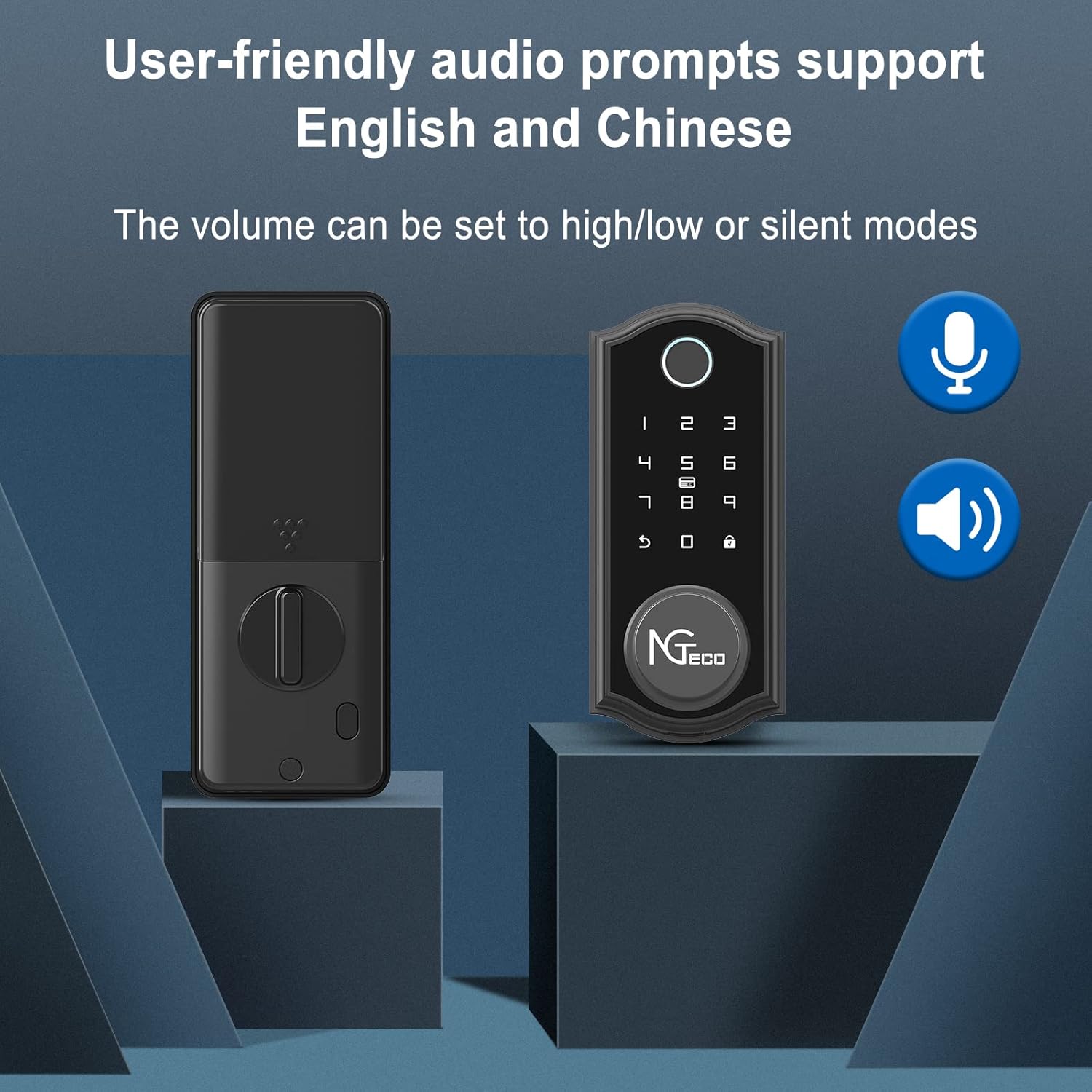
Figure 5: Adjustable audio prompts for clear operation feedback.
6. Operation
6.1. Unlocking the Door
The NGTeco D2310 offers multiple ways to unlock:
- Fingerprint: Place your enrolled finger on the sensor. The lock will unlock in approximately 1 second upon successful recognition.
- Keypad: Enter your valid passcode on the illuminated keypad, then press the unlock button (usually a checkmark or lock icon).
- Traditional Key: Insert the physical key into the keyhole and turn to unlock.
- NGTeco Home App: Open the app, ensure Bluetooth is connected, and tap the "Unlock" button.

Figure 6: Multiple ways to unlock the NGTeco D2310.
6.2. Locking the Door
- Auto Re-lock: The lock features an auto re-lock mode that automatically locks the door after a set period (configurable via the app) once it has been opened and closed. This ensures your property is secure even if you forget to manually lock it.
- Manual Lock: Press and hold the lock button on the keypad for a few seconds to manually engage the deadbolt.
- NGTeco Home App: Open the app and tap the "Lock" button.
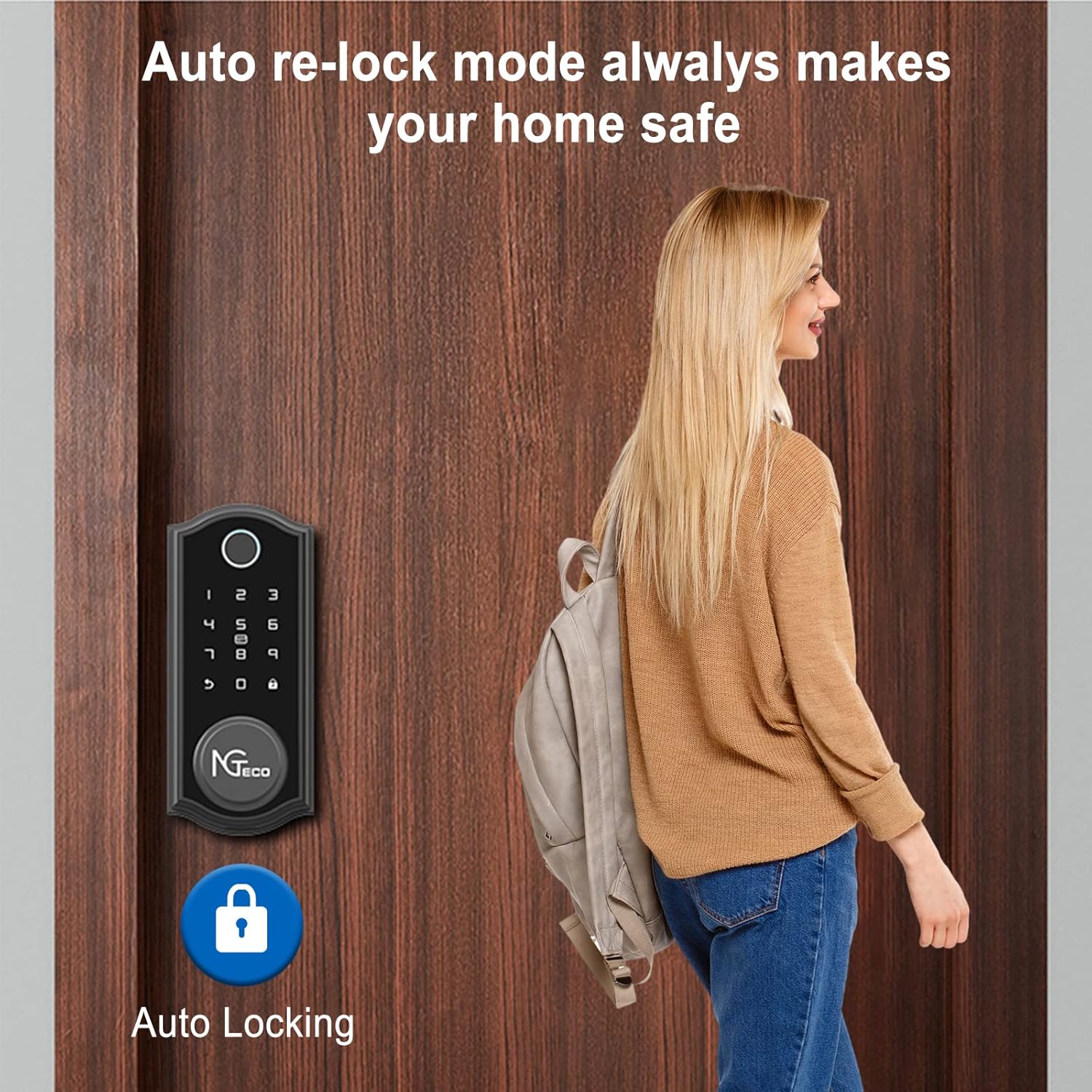
Figure 7: Auto re-lock mode for enhanced security.
6.3. Passage Mode
For situations where the door needs to remain unlocked (e.g., during gatherings), the lock can be set to Passage Mode via the NGTeco Home app. In this mode, the auto-lock feature is temporarily disabled, allowing free entry and exit without requiring credentials.

Figure 8: Passage mode for temporary unrestricted access.
7. Maintenance
7.1. Battery Management
The NGTeco D2310 lock is powered by four AA batteries. It features a low battery warning system:
- Low Battery Warning: The lock will provide an audible alert and/or a notification via the NGTeco Home app when battery levels are low. Replace batteries promptly to avoid lockout.
- Emergency Charging: If batteries completely deplete, a Micro-USB port is available on the exterior unit for emergency power. Connect a power bank or USB charger to temporarily power the lock and gain access.

Figure 9: Low battery warning and emergency Micro-USB charging.
7.2. General Care
Clean the lock's exterior with a soft, dry cloth. Avoid abrasive cleaners or solvents. Ensure the fingerprint sensor and keypad remain free of dirt and debris for optimal performance.
8. Troubleshooting
| Problem | Possible Cause | Solution |
|---|---|---|
| Lock does not respond. | Dead batteries. | Replace batteries or use emergency Micro-USB power. |
| Fingerprint not recognized. | Finger not properly placed; fingerprint not enrolled; sensor dirty. | Ensure finger covers the sensor completely; re-enroll fingerprint; clean sensor. |
| Keypad unresponsive or incorrect code. | Incorrect code entered; lock is in lockout mode (after 5+ incorrect attempts). | Verify passcode; wait 3 minutes if in lockout mode. |
| Bluetooth connection issues. | Bluetooth disabled on phone; lock too far from phone; app not running. | Enable Bluetooth; move closer to lock; restart NGTeco Home app. |
| Auto-lock not working. | Passage mode is active; auto-lock feature disabled in app. | Deactivate Passage mode; enable auto-lock in NGTeco Home app settings. |
9. Specifications
| Feature | Detail |
|---|---|
| Brand | NGTeco |
| Model Name | D2310 |
| Lock Type | Biometric, Deadbolt, Keypad |
| Special Features | Auto-Lock, Battery Indicator, Fingerprint, Keyless Entry, Touchscreen |
| Material | Housing (Zinc Alloy) |
| Color | Silver |
| Finish Type | Satin Nickel |
| Item Dimensions (L x W x H) | 2.72 x 0.65 x 6.14 inches |
| Item Weight | 2.5 Pounds |
| Recommended Door Thickness | 35-60mm |
| Control Method | App, Remote, Keypad, Fingerprint, Key |
| Connectivity Protocol | Bluetooth 5.0 |
| Power Source | 4 x AA Batteries (not included) |
| Emergency Power | Micro-USB Port |
| Operating Temperature | -22°F to 122°F (-30°C to 50°C) |
10. Warranty and Support
For warranty information and technical support, please refer to the official NGTeco website or contact their customer service directly. Keep your purchase receipt for warranty claims.
NGTeco Customer Service: Please visit the NGTeco official website for the most current contact information.


