
1. Introduction
This instruction manual provides detailed guidance for the Newmight 7-in-1 USB-C Docking Station, a versatile multiport adapter designed to expand connectivity for compatible USB-C devices. It offers dual HDMI outputs, multiple USB data ports, and power delivery capabilities to enhance your workstation setup.
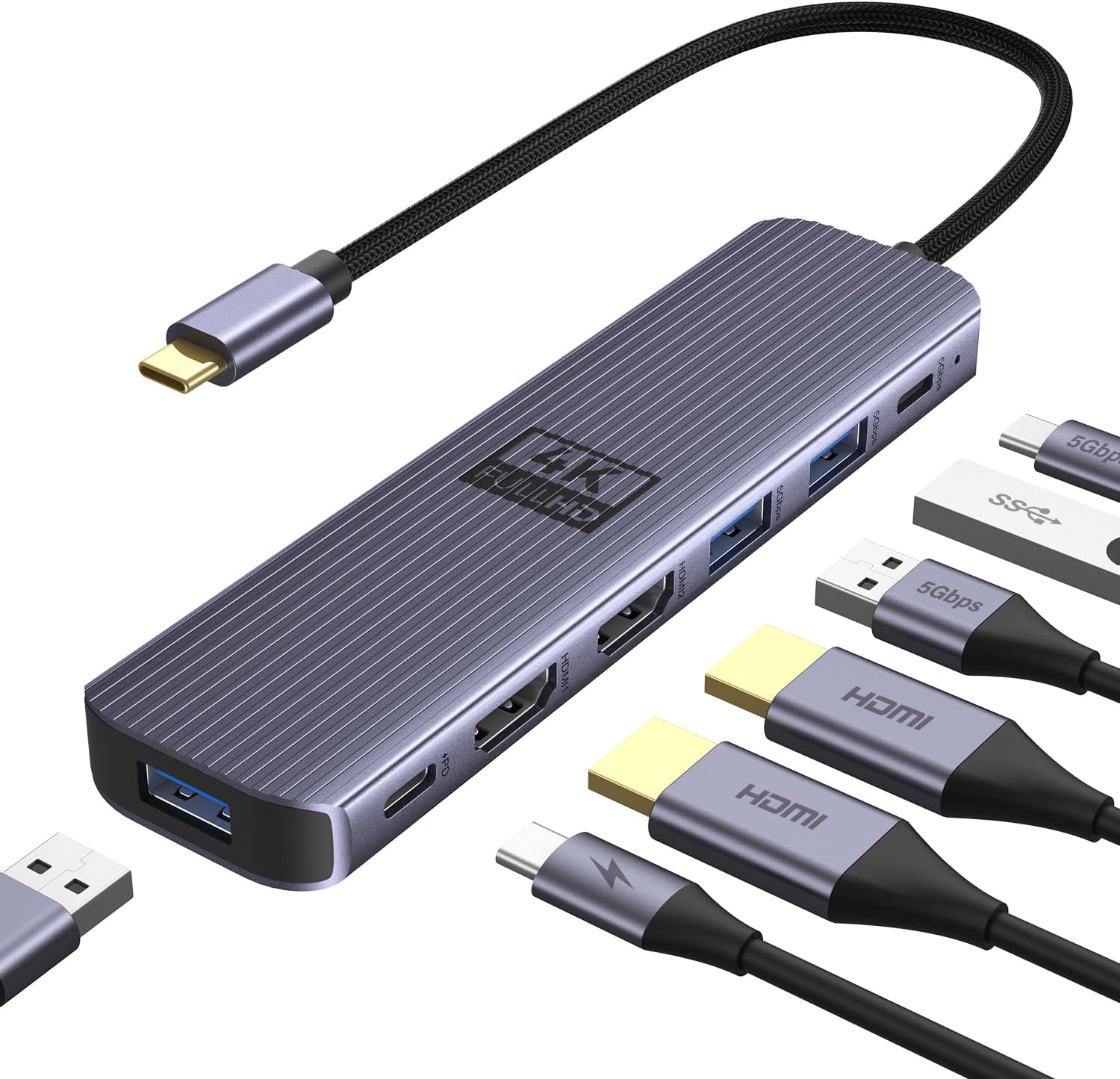
Figure 1: Overview of the Newmight 7-in-1 USB-C Docking Station and its connected cables.
2. Key Features
- 7-in-1 Connectivity: Integrates dual HDMI 4K@60Hz, three USB-A 3.0 ports (5Gbps), one 100W Power Delivery (PD) charging port, and one USB-C 3.0 data port (5Gbps). All ports can be used simultaneously.
- Dual 4K@60Hz Display: Supports extending or duplicating your display across two 4K@60Hz monitors for Windows systems. For macOS, it supports dual 4K@60Hz in mirror/extend (SST mode).
- High-Speed Data Transfer: Three USB 3.0 ports offer 5Gbps transfer speeds for quick data exchange with external devices like mice, keyboards, and storage.
- 100W Power Delivery: Supports up to 100W fast charging for compatible laptops and tablets, ensuring continuous power supply.
- Broad Compatibility: Works with most Type-C laptops featuring Thunderbolt 3/4 or USB-C with DisplayPort Alternate Mode (DP Alt Mode), including MacBook Pro/Air (2016+), Dell XPS, HP Spectre, ThinkPad, Surface Book 2, and Google Chromebook Pixel.
- Durable and Portable Design: Constructed from anodized aluminum alloy for resistance to fingerprints, scratches, and wear, with efficient heat dissipation. Its compact size facilitates easy portability.

Figure 2: Detailed view of the docking station's ports and their functions.
3. Setup and Connection
- Verify Laptop Compatibility: Ensure your laptop's USB-C port supports video output (DisplayPort Alternate Mode or Thunderbolt 3/4). Some USB-C ports only support data transfer and are not compatible with this docking station for video output.
- Connect to Laptop: Plug the USB-C connector of the docking station into a compatible USB-C port on your laptop. The device is Plug and Play, requiring no driver installation.
- Connect External Displays: Use HDMI cables to connect your monitors to the two HDMI ports on the docking station.
- Connect USB Devices: Plug your USB-A 3.0 devices (e.g., mouse, keyboard, USB drives) into the available USB-A ports. Connect USB-C data devices to the USB-C data port.
- Power Delivery (Optional): For laptop charging, connect your laptop's original USB-C power adapter to the 100W PD charging port on the docking station.

Figure 3: Visual guide for identifying compatible USB-C ports on your laptop.

Figure 4: Example setup with a laptop connected to dual HDMI displays.
4. Operating Instructions
4.1 Display Modes
The docking station supports various display configurations depending on your operating system:
- Windows: Supports extending or duplicating your display across two 4K@60Hz monitors (A-B-C mode).
- macOS: Due to macOS limitations, all MacBook models can only mirror the display on two screens (A-A-A / A-B-B) and cannot support Multi-Stream Transport (MST) mode (A-B-C).
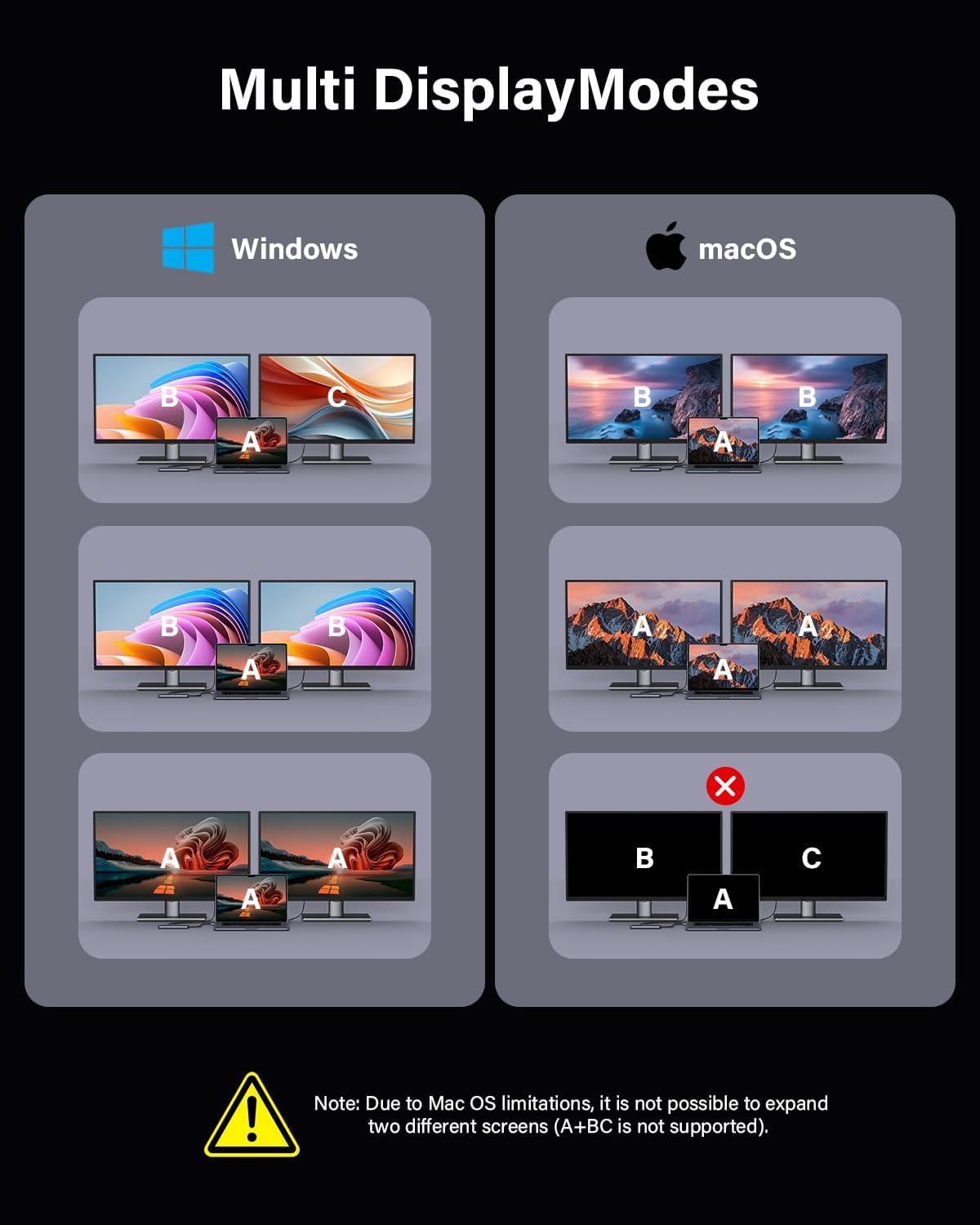
Figure 5: Visual representation of supported display modes for different operating systems.
4.2 Data Transfer
Utilize the USB 3.0 ports for high-speed data transfer up to 5Gbps. This allows for quick transfer of large files, photos, and videos without significant delays.

Figure 6: The docking station supports high-speed data transfer for efficient workflow.
4.3 Power Delivery
The dedicated 100W PD charging port ensures your compatible laptop or tablet receives sufficient power while connected to the docking station, eliminating the need for a separate charger for your host device.
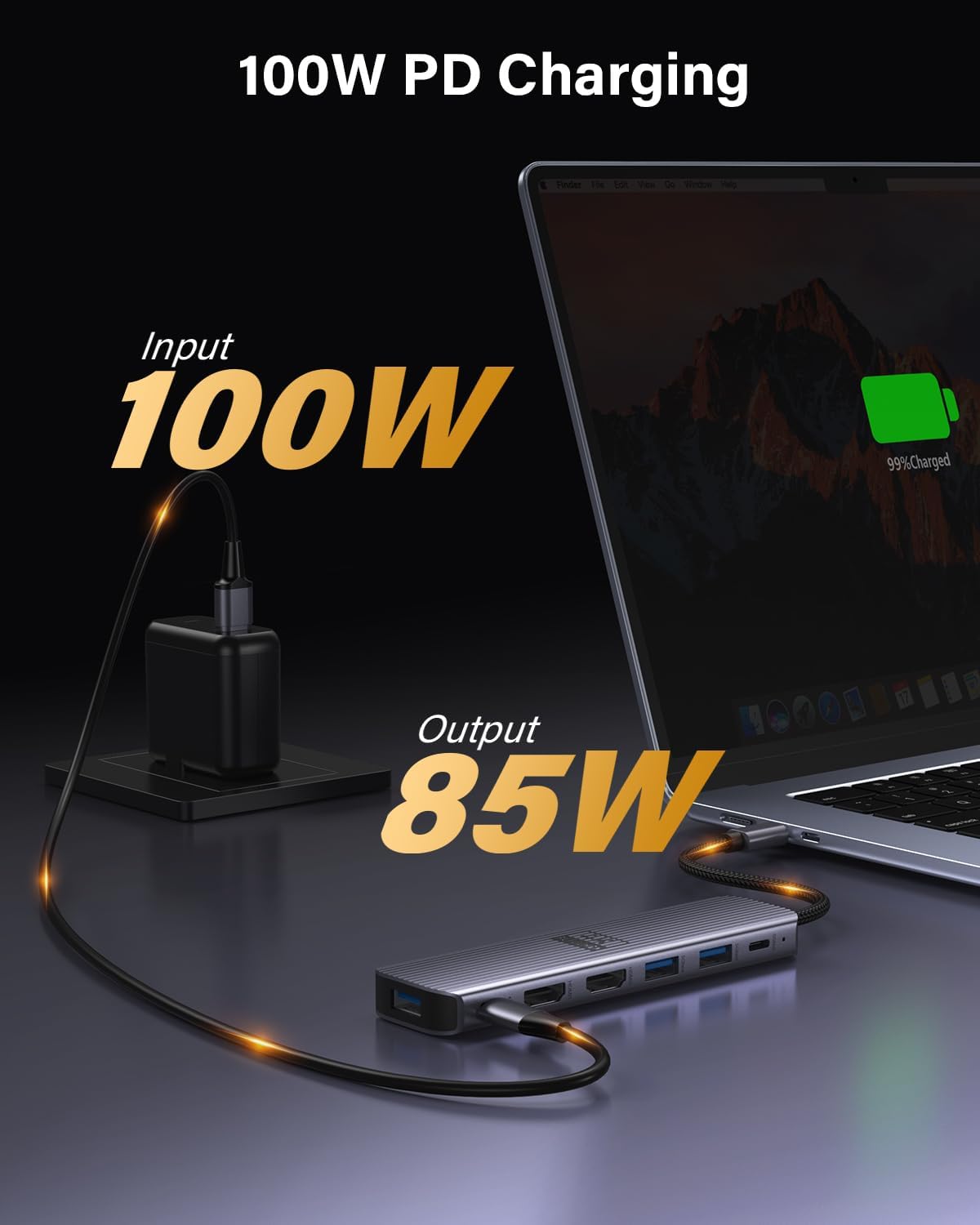
Figure 7: Power Delivery functionality for charging your laptop through the docking station.
5. Maintenance
- Cleaning: Use a soft, dry cloth to clean the surface of the docking station. Avoid liquid cleaners or abrasive materials.
- Storage: Store the device in a cool, dry place away from direct sunlight and extreme temperatures.
- Handling: The anodized aluminum alloy construction is designed for durability and heat dissipation. Handle with care to prevent damage to ports or cables.
6. Troubleshooting
- No Display Output:
- Ensure your laptop's USB-C port supports video output (DP Alt Mode or Thunderbolt 3/4).
- Check all HDMI cable connections between the docking station and monitors.
- Verify that the monitors are powered on and set to the correct input source.
- For macOS users, remember that MST (A-B-C) mode is not supported; only mirror or SST extend (A-B-B) is available.
- USB Devices Not Recognized:
- Ensure the docking station is securely connected to your laptop.
- Try connecting the USB device directly to your laptop to confirm it functions independently.
- Restart your laptop and reconnect the docking station.
- Slow Charging:
- Ensure you are using a compatible USB-C power adapter connected to the PD port.
- Verify that your laptop supports 100W Power Delivery.
7. Specifications
| Feature | Detail |
|---|---|
| Model | 7-in-1 USB-C Docking Station |
| Ports | 2x HDMI 4K@60Hz, 3x USB-A 3.0, 1x USB-C 3.0 Data, 1x USB-C 100W PD Charging |
| Data Transfer Rate | 5 Gigabits Per Second (USB 3.0 ports) |
| Power Delivery | Up to 100W |
| Material | Anodized Aluminum Alloy |
| Item Weight | 2.12 ounces |
| Package Dimensions | 7.95 x 3.19 x 0.75 inches |
8. Warranty and Support
The Newmight 7-in-1 USB-C Docking Station comes with a 12-month warranty. For any technical assistance or inquiries, please contact Newmight customer support for lifetime technical support.
9. Official Product Videos
Newmight 7-in-1 USB-C Docking Station Overview
This video provides a concise overview of the Newmight 7-in-1 USB-C Docking Station, highlighting its features and connectivity options.

