
1. Introduction
The Akko Mineral 02 is a high-performance mechanical keyboard designed for versatility and customization. Featuring a durable aluminum construction, tri-mode connectivity (Bluetooth, 2.4GHz wireless, and wired USB-C), hot-swappable switches, and customizable RGB lighting via QMK/VIA, this keyboard offers a premium typing and gaming experience. This manual provides essential information for setup, operation, and maintenance.
2. Package Contents
Please ensure all items are present in the package:
- Akko Mineral 02 Mechanical Keyboard
- USB-C Cable
- 2.4GHz Wireless Receiver
- Keycap Puller
- Switch Puller
- Assembly/Disassembly Tools
- User Manual (this document)
3. Setup
3.1 Initial Charging
Before first use, connect the keyboard to a USB power source using the provided USB-C cable. The keyboard features an 8000mAh battery. The charging indicator will show the charging status.

Image: The keyboard's 8000mAh battery capacity, indicating long-lasting wireless use.
3.2 Connectivity Modes
The Akko Mineral 02 supports three connection modes: Wired (USB-C), 2.4GHz Wireless, and Bluetooth.

Image: Visual representation of the keyboard's Type-C wired, 2.4GHz wireless, and Bluetooth connectivity options.
3.2.1 Wired Mode
- Connect the USB-C cable to the keyboard and your computer.
- Ensure the mode switch on the keyboard is set to 'Wired' or 'USB'.
- The keyboard will be recognized automatically by your operating system.
3.2.2 2.4GHz Wireless Mode
- Plug the 2.4GHz wireless receiver into an available USB port on your computer.
- Set the mode switch on the keyboard to '2.4G'.
- The keyboard should connect automatically. If not, press and hold Fn + 4 for 3 seconds to initiate pairing.
3.2.3 Bluetooth Mode
The keyboard supports up to three Bluetooth devices.
- Set the mode switch on the keyboard to 'BT'.
- To pair a new device, press and hold Fn + 1 (or Fn + 2, Fn + 3 for other slots) for 3 seconds until the indicator light flashes rapidly.
- On your device (PC, tablet, smartphone), search for Bluetooth devices and select 'Akko Mineral 02'.
- Once paired, the indicator light will stop flashing.
- To switch between paired Bluetooth devices, press Fn + 1, Fn + 2, or Fn + 3 briefly.
4. Operating Instructions
4.1 Basic Key Functions
The keyboard features a standard layout with additional function keys accessible via the Fn key. Refer to the keyboard's keycaps for specific legends.
4.2 RGB Lighting Control
The Akko Mineral 02 features customizable RGB lighting. Use the following key combinations to control the lighting effects:
- Fn + \|: Change RGB lighting effect.
- Fn + <: Decrease brightness.
- Fn + >: Increase brightness.
- Fn + Up Arrow: Increase animation speed.
- Fn + Down Arrow: Decrease animation speed.
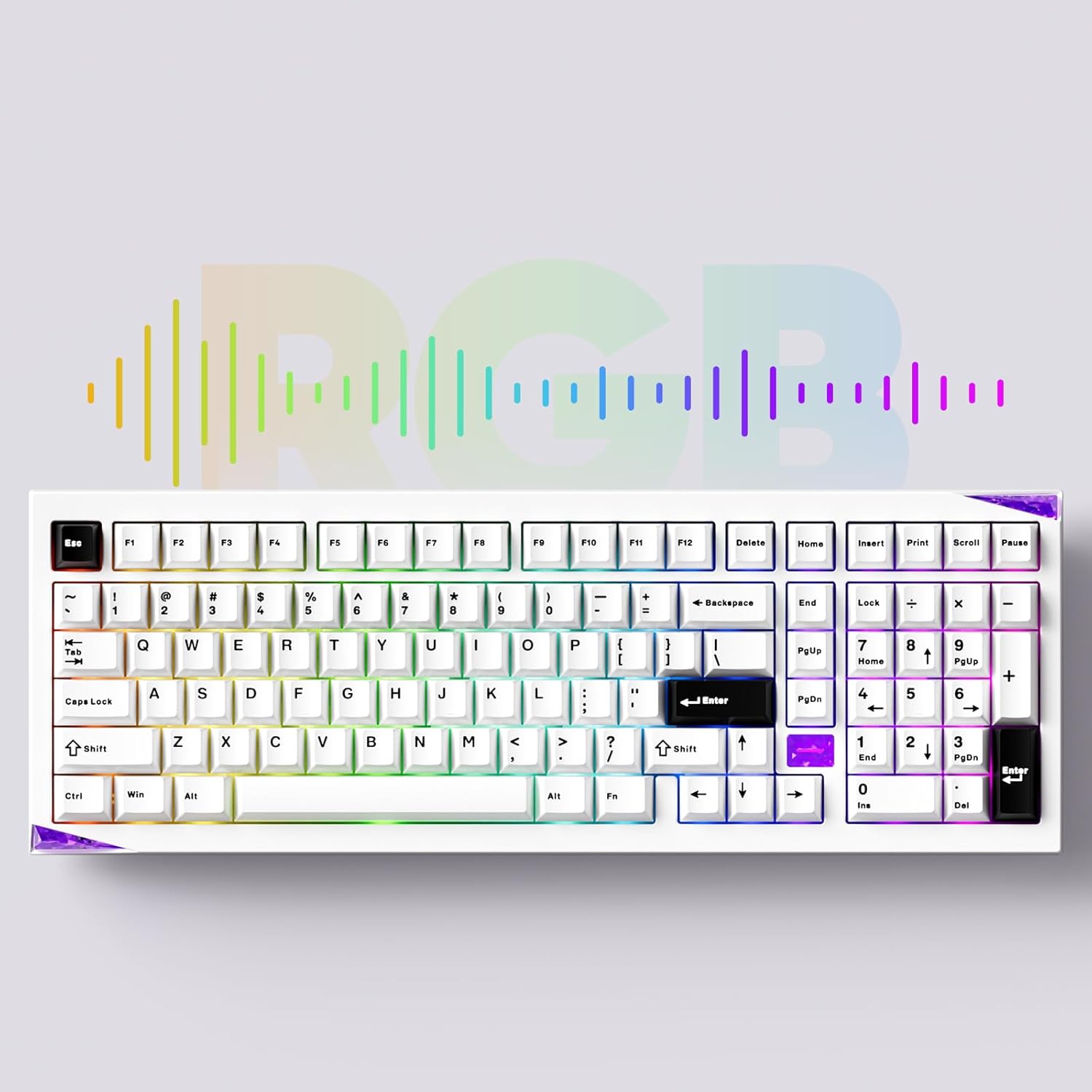
Image: The keyboard showcasing its customizable RGB lighting capabilities.
4.3 QMK/VIA Customization
The keyboard supports QMK/VIA for advanced key remapping, macro creation, and lighting customization. Download the VIA software from the official Akko website or caniusevia.com. Connect the keyboard in wired mode to use VIA.
5. Maintenance
5.1 Cleaning
To clean the keyboard, disconnect it from all power sources. Use a soft, dry cloth to wipe the surface. For deeper cleaning, remove keycaps using the provided keycap puller and clean with compressed air or a soft brush. Avoid using harsh chemicals or abrasive materials.
5.2 Hot-Swappable Switches
The Akko Mineral 02 features hot-swappable switch sockets, allowing you to change switches without soldering. Use the provided switch puller to carefully remove switches. Align new switches with the pins and press gently until they click into place.

Image: A close-up view of the keyboard's hot-swappable sockets, allowing for easy switch replacement.
5.3 Quick Release Design
The keyboard features a quick-release design for tool-free assembly and disassembly of the aluminum top and bottom case. This facilitates customization and maintenance. Refer to the included assembly/disassembly tools for guidance.
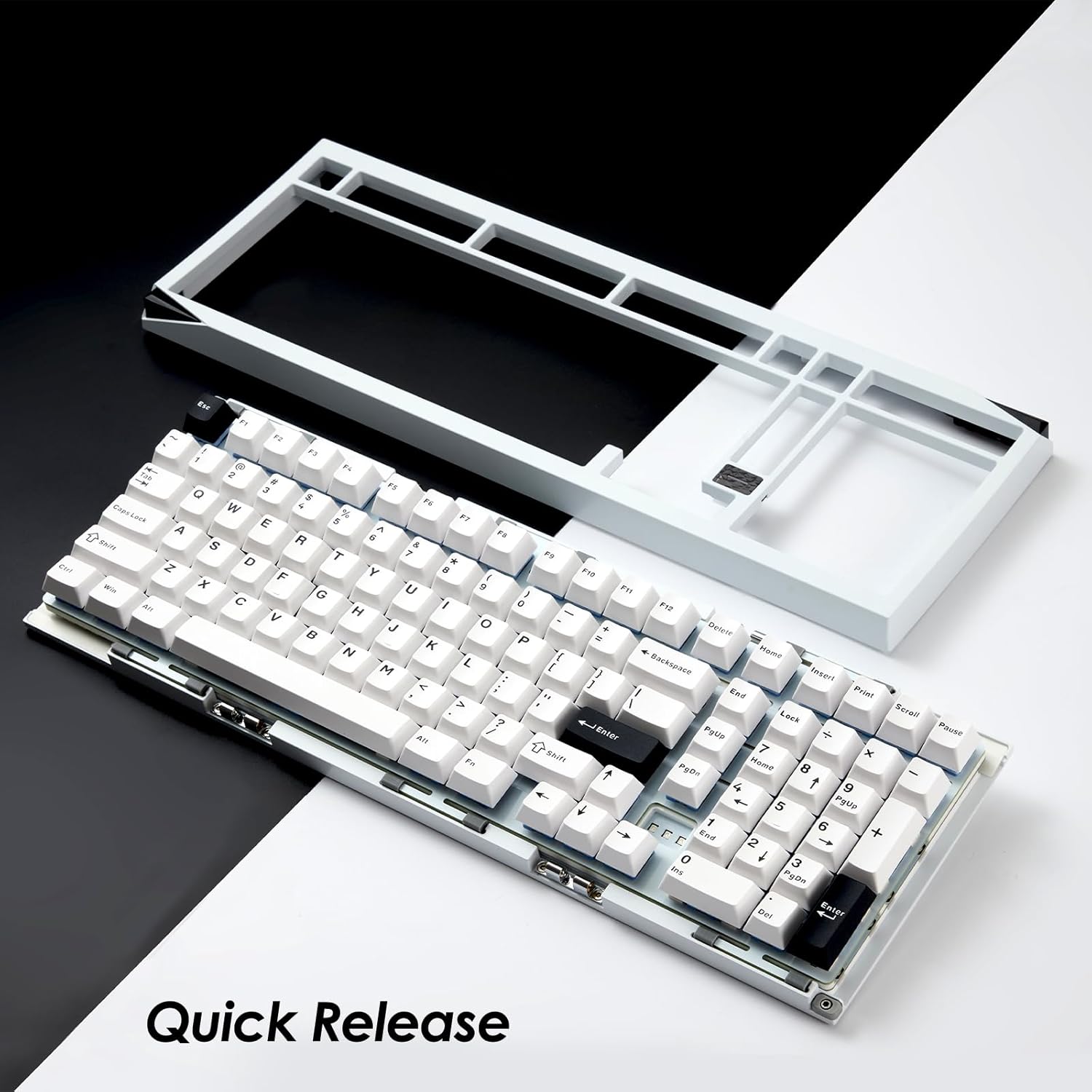
Image: The keyboard with its top case separated, demonstrating the quick-release mechanism for easy customization and maintenance.
6. Troubleshooting
6.1 Keyboard Not Responding
- Ensure the keyboard is charged.
- Check the connection mode switch (Wired, 2.4G, BT) matches your intended connection.
- For wired mode, try a different USB port or cable.
- For 2.4GHz, ensure the receiver is properly plugged in and try re-pairing (Fn + 4 for 3 seconds).
- For Bluetooth, ensure it's paired correctly and try re-pairing (Fn + 1/2/3 for 3 seconds).
- Restart your computer or device.
6.2 RGB Lighting Not Working
- Ensure the keyboard is powered on.
- Check brightness settings using Fn + < and Fn + >.
- If using VIA, ensure no lighting profiles are conflicting.
6.3 Keys Not Registering
- Remove the keycap and switch for the affected key.
- Inspect the switch pins for bending or damage. Straighten carefully if bent.
- Reinsert the switch firmly. If the issue persists, try replacing the switch with a known working one.
7. Specifications
| Brand | Akko |
| Model | Mineral 02 |
| Connectivity | Bluetooth, 2.4GHz Wireless, USB-C Wired |
| Material | Aluminum |
| Battery Capacity | 8000mAh |
| Special Features | QMK/VIA Support, Hot-swappable Switches, RGB Lighting, Gasket-mounted Design, Quick Release Case |
| Compatible Devices | PC, Tablet, Smartphone |
8. Warranty Information
Akko products are covered by a limited warranty. Please refer to the official Akko website or your purchase documentation for specific warranty terms and conditions. Keep your proof of purchase for warranty claims.
9. Support
For further assistance, technical support, or inquiries, please visit the official Akko website or contact Akko customer service through the channels provided on their website. Online resources, FAQs, and driver downloads may also be available.


