
1. Product Overview
The Elecom Wireless Silent Mouse OSMOD Seven 7 (Model M-MY40MBSBK-G) is a versatile mouse designed for comfort and efficiency. It offers dual connectivity via 2.4GHz wireless USB-A receiver and Bluetooth Low Energy, allowing connection to up to two devices simultaneously. Its silent button design ensures a quiet working environment, while the 7-button layout, including a tilt wheel, provides enhanced functionality for various tasks.
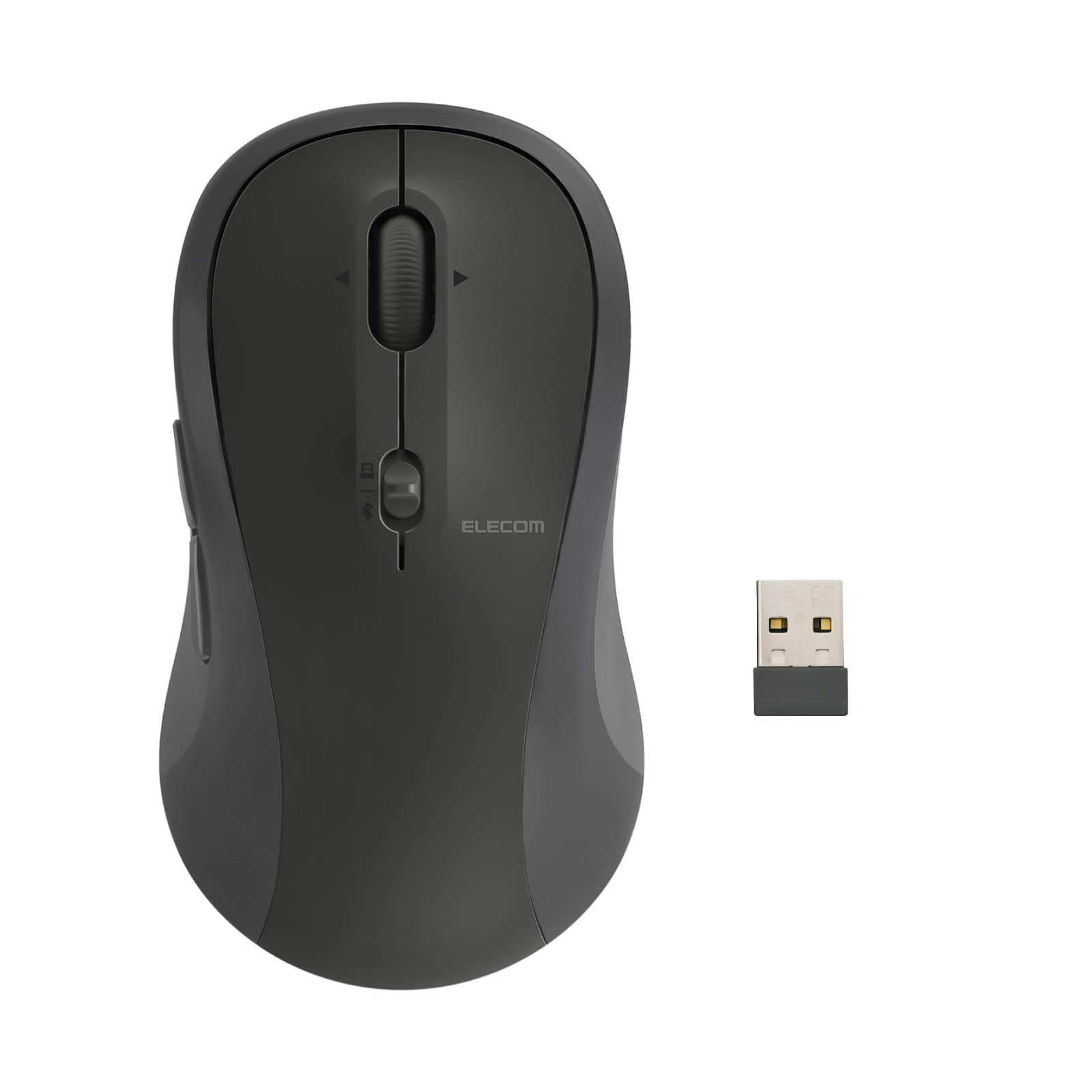
Figure 1: Elecom OSMOD Seven 7 Wireless Silent Mouse (Black)
2. Key Features
- Dual Connectivity: Connects via 2.4GHz wireless (USB-A receiver) or Bluetooth Low Energy, supporting a wide range of devices.
- Multi-pairing Function: Stores connection settings for up to two devices (one 2.4GHz, one Bluetooth) and allows easy switching via a top-mounted switch.

Figure 2: Multi-pairing feature connecting to a laptop and a tablet.
- 7-Button Design: Includes left, right, scroll wheel, tilt wheel (left/right scroll), and dedicated "Forward" and "Back" buttons for efficient navigation.

Figure 3: Detailed view of the 7 programmable buttons on the mouse.
- Silent Switches: Left, right, and tilt wheel buttons use silent switches, reducing click noise for a quiet environment.

Figure 4: Demonstrating the silent click feature of the mouse.
- Tilt Wheel: Enables horizontal scrolling by tilting the scroll wheel left or right, enhancing productivity in applications like spreadsheets and web browsers.

Figure 5: The tilt wheel allows for horizontal scrolling.
- Adjustable DPI: Three-stage DPI adjustment (1000/1500/2000 DPI) allows users to customize cursor speed to suit their preferences and tasks.

Figure 6: DPI switch on the bottom of the mouse for sensitivity adjustment.
- Blue LED Sensor: High-precision Blue LED sensor ensures accurate tracking on various surfaces, including wood, resin, glass, and fabric.
- Ergonomic & Ambidextrous Design: Symmetrical elliptical shape fits comfortably in any hand, reducing stress during prolonged use. The sides feature a smooth rubber finish for a secure grip.
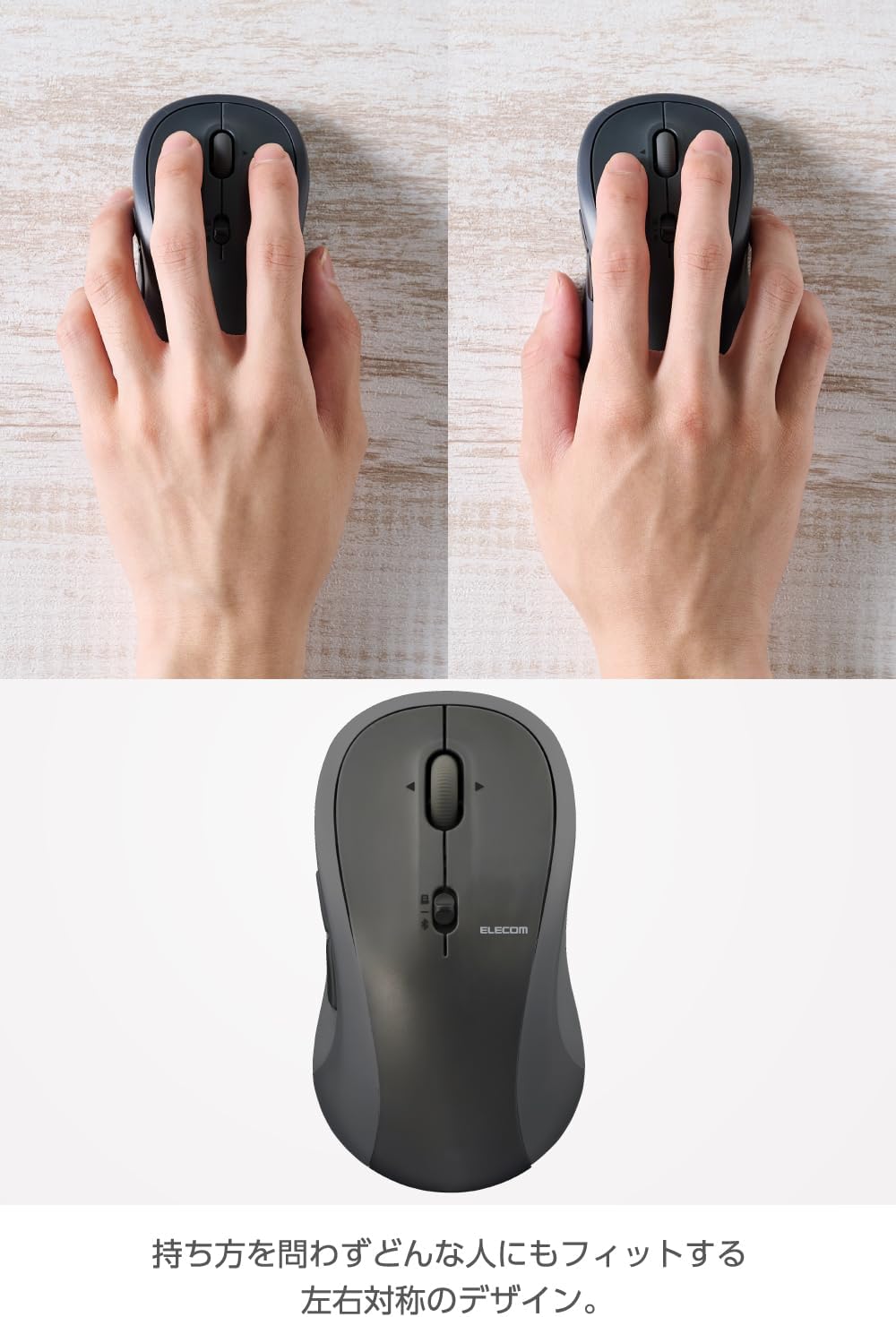
Figure 7: The ambidextrous design ensures comfort for both left and right-handed users.
- Elecom Mouse Assistant Software: Free downloadable software (Windows/macOS only) allows customization of button assignments and other functions to optimize workflow.

Figure 8: Elecom Mouse Assistant software for advanced customization.
3. Package Contents
Please ensure all the following items are included in your package:
- Mouse unit x 1
- USB receiver x 1
- AA alkaline battery (for operation check) x 1
- Quick Start Guide x 1
4. Setup
4.1. Battery Installation
- Open the battery cover located on the underside of the mouse.
- Insert one AA battery, ensuring correct polarity (+/-).
- Close the battery cover securely.

Figure 9: Battery compartment and installation of the AA battery.
4.2. 2.4GHz Wireless Connection
- Remove the USB receiver from its storage slot on the underside of the mouse.

Figure 10: USB receiver and mouse.
- Insert the USB receiver into an available USB-A port on your computer.
- Turn on the mouse using the power switch on the underside.
- Set the connection switch on the top of the mouse to the 2.4GHz wireless mode (indicated by a USB icon).
- The mouse should automatically connect to your computer.
4.3. Bluetooth Connection
- Turn on the mouse using the power switch on the underside.
- Set the connection switch on the top of the mouse to the Bluetooth mode (indicated by a Bluetooth icon).
- Press and hold the PAIRING button on the underside of the mouse for approximately 3 seconds until the LED indicator starts flashing. This indicates pairing mode.
- On your device (computer, tablet, smartphone), go to Bluetooth settings and search for new devices.
- Select "ELECOM OSMOD Seven 7" from the list of available devices to complete the pairing process.
4.4. Multi-pairing Function
The mouse supports multi-pairing, allowing you to connect to one device via 2.4GHz wireless and another via Bluetooth. Use the connection switch on the top of the mouse to easily switch between the two paired devices.
5. Operating Instructions
5.1. Button Functions
The OSMOD Seven 7 mouse features 7 buttons for enhanced control:
- Left Button: Standard click function.
- Right Button: Standard right-click function.
- Scroll Wheel: Scrolls vertically. Pressing it acts as a middle click.
- Tilt Wheel (Left/Right): Tilting the scroll wheel left or right enables horizontal scrolling.
- Forward Button: Navigates forward in web browsers or file explorers.
- Back Button: Navigates backward in web browsers or file explorers.
- DPI Button: Located on the underside, cycles through 1000, 1500, and 2000 DPI settings.

Figure 11: Front and back view of the mouse with button labels.
5.2. DPI Adjustment
To adjust the cursor sensitivity (DPI), press the DPI button located on the underside of the mouse. Each press cycles through the available settings: 1000 DPI (Low), 1500 DPI (Mid), and 2000 DPI (High). Select the sensitivity that best suits your task and screen resolution.
5.3. Elecom Mouse Assistant Software
For advanced customization of button functions, download and install the "Elecom Mouse Assistant" software from the official Elecom website. This software is compatible with Windows and macOS operating systems. It allows you to assign frequently used functions to any of the 7 buttons, enhancing your workflow efficiency.

Figure 12: Customizing mouse buttons using the Elecom Mouse Assistant software.
6. Maintenance
- Cleaning: Use a soft, dry cloth to clean the mouse surface. For stubborn dirt, slightly dampen the cloth with water or a mild cleaning solution. Avoid harsh chemicals or abrasive materials.
- Sensor Cleaning: Periodically clean the Blue LED sensor on the underside of the mouse with a cotton swab to ensure optimal tracking performance.
- Battery Replacement: Replace the AA battery when the mouse's performance degrades or it stops responding. Dispose of used batteries according to local regulations.
- Storage: When not in use for extended periods, turn off the mouse to conserve battery life. Store the USB receiver in its designated slot on the mouse.
7. Troubleshooting
| Problem | Possible Cause | Solution |
|---|---|---|
| Mouse does not respond. |
|
|
| Cursor movement is erratic or slow. |
|
|
| Cannot switch between devices (multi-pairing). |
|
|
8. Specifications
| Feature | Detail |
|---|---|
| Connector Type | USB-A plug |
| Connection Method | 2.4GHz Wireless / Bluetooth(R) Wireless |
| Bluetooth Standard | Bluetooth Low Energy |
| Supported OS (USB) | Windows, macOS, ChromeOS equipped with USB-A port |
| Supported OS (Bluetooth) | Windows, macOS, iOS, iPadOS, ChromeOS, Android compatible with Bluetooth Low Energy |
| Supported OS (Windows) | Windows 11/10 |
| Supported OS (Android) | Android 15 |
| Supported OS (macOS) | macOS Sequoia 15 |
| Supported OS (iOS) | iOS 18 |
| Supported OS (iPadOS) | iPadOS 18 |
| Supported OS (Other) | ChromeOS |
| Radio Frequency | 2.4GHz band |
| Radio Range | Up to approximately 10m (may vary depending on usage environment) |
| Connection Switching | Supported (1 device for 2.4GHz wireless, 1 device for Bluetooth) |
| Reading Method | Blue LED |
| Sensor Resolution (DPI) | 1000/1500/2000 DPI (switchable) |
| Number of Buttons | 7 buttons (including scroll wheel and tilt wheel functions) |
| Number of Wheels | 1 |
| Receiver Storage | Supported |
| Power Source | 1 x AA alkaline dry cell, AA manganese dry cell, or AA nickel-metal hydride rechargeable battery |
| Battery Life | Up to approximately 2 years (目安: guideline when using alkaline dry cell battery; may vary depending on usage conditions) |
| Size Classification | L size |
| External Dimensions (Mouse) | Approx. 65mm (W) x 120mm (D) x 40mm (H) |
| External Dimensions (Receiver) | Approx. 13mm (W) x 19mm (D) x 6mm (H) |
| Weight (Mouse) | Approx. 82g |
| Weight (Receiver) | Approx. 2g |
| Color | Black |
9. Warranty and Support
This product comes with a 2-year warranty from the date of purchase. Please retain your proof of purchase for warranty claims.
For technical support, troubleshooting assistance, or warranty inquiries, please visit the official ELECOM website or contact their customer service department. Contact information can typically be found on the ELECOM website or in the Quick Start Guide included with your product.
10. Product Video Demonstration
Video 1: A brief overview of the Elecom OSMOD Seven 7 mouse, showcasing its design and key features like silent buttons and multi-pairing. This video provides a visual demonstration of the product in use.


