
Introduction
This manual provides detailed instructions for the AIGO A68 60% Three-Mode Mechanical Gaming Keyboard. It covers setup, operation, maintenance, and troubleshooting to ensure optimal performance and longevity of your device. Please read this manual thoroughly before using the keyboard.
Product Overview
The AIGO A68 is a compact 60% mechanical keyboard designed for gaming and daily use, offering versatile connectivity options and durable components.
Key Features:
- Three-Mode Connectivity: Supports Bluetooth, 2.4G wireless, and wired (USB Type-C) connections.
- Hot-Swappable Switches: Allows for easy replacement of switches without soldering.
- Durable PBT Keycaps: Double-shot PBT keycaps for enhanced durability and resistance to wear.
- Long-lasting Battery: Integrated 1200mAh lithium battery for extended wireless usage.
- Compact 60% Layout: 68-key English layout, ideal for minimalist setups and portability.
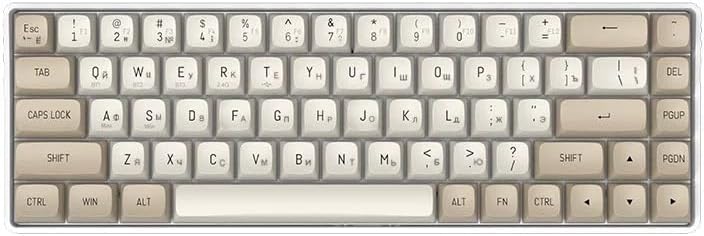
Image: AIGO A68 Keyboard Layout. This image displays the compact 68-key English layout of the AIGO A68 mechanical keyboard.
Package Contents:
Upon opening the package, ensure all the following items are present:
- 1 x AIGO A68 Mechanical Keyboard
- 1 x Detachable USB Type-C Cable
- 1 x User Manual (English and Chinese)
- Additional Switches (if included)
- Keycap Puller / Switch Puller (if included)

Image: AIGO A68 Package Contents. This image shows the keyboard, USB-C cable, user manual, and additional accessories included in the box.
Setup
Charging the Keyboard:
The AIGO A68 keyboard is equipped with a 1200mAh rechargeable lithium battery.
- Connect the provided USB Type-C cable to the keyboard's Type-C port.
- Connect the other end of the USB cable to a power source (e.g., computer USB port, USB wall adapter).
- The keyboard will indicate charging status (e.g., an LED indicator). A full charge typically takes approximately 2 hours and provides up to 90 days of usage, depending on usage patterns.

Image: AIGO A68 Battery Life and Charging. This image illustrates the approximate usage time (90 days) and charging time (2 hours) for the keyboard's 1200mAh battery.
Connection Modes:
The AIGO A68 supports three connection modes: Wired, 2.4G Wireless, and Bluetooth.

Image: AIGO A68 Three-Mode Connectivity. This image shows the keyboard connected to multiple devices via 2.4G wireless, wired, and Bluetooth modes.
1. Wired Mode Connection:
- Plug the USB Type-C interface of the charging cable into the keyboard.
- Connect the USB-A end of the cable to your computer's USB port.
- To switch to wired mode, press Fn + T. The keyboard will be ready for use.
2. 2.4G Wireless Connection:
- Plug the USB receiver into an available USB port on your PC or notebook.
- Pull the power switch on the keyboard to the "ON" position.
- Short press Fn + R to switch to 2.4G channel.
- At the same time, press and hold the Fn + "R" button for 3-5 seconds to enter the code pairing mode. The green light will flash quickly.
- Insert the receiver within 20 seconds. If the code is successful, the LED goes out. If it fails, the keyboard will turn off after 20 seconds. Exit pairing mode by turning off the LED.
3. Bluetooth Connection:
The keyboard can connect to up to 3 Bluetooth devices.
- Pull the power switch on the keyboard to the "ON" position.
- Press Fn + Q, Fn + W, or Fn + E to select a Bluetooth channel (BT1, BT2, BT3).
- Press and hold Fn + Q/W/E for 3-5 seconds to enter pairing mode. The corresponding channel LED will flash rapidly.
- On your device (computer, tablet, smartphone), search for Bluetooth devices and select "AIGO A68" to connect.
- Once connected, the LED will stop flashing and remain solid for a few seconds before turning off.
- To switch between paired Bluetooth devices, short press Fn + Q/W/E.

Image: AIGO A68 Connection Instructions. This image provides a visual guide for wired and 2.4G wireless connection steps.
Operating Instructions
Function Key Combinations (Fn):
The AIGO A68 keyboard utilizes the Fn key for accessing secondary functions due to its compact layout.
- Fn + T: Switch to Wired Mode.
- Fn + R: Switch to 2.4G Wireless Mode.
- Fn + Q/W/E: Switch to Bluetooth Channel 1/2/3.
- Fn + F1-F12: Access multimedia or system functions (specific functions may vary based on operating system).
- Fn + Arrow Keys: May control backlight effects or other functions (refer to the physical manual for specific combinations).
Hot-Swappable Switches:
The AIGO A68 features hot-swappable sockets, allowing users to change mechanical switches without soldering. This keyboard comes with yellow switches, which offer a quiet, light, and stable press.
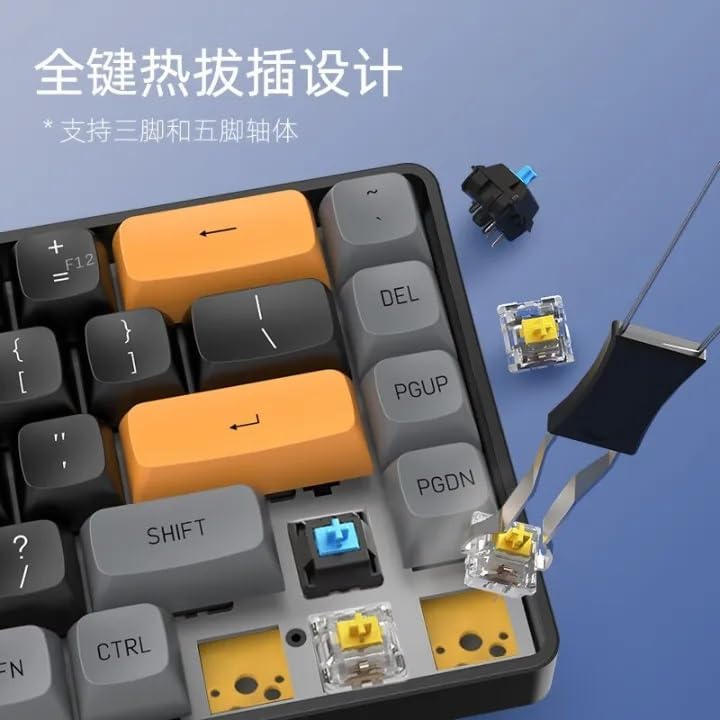
Image: AIGO A68 Hot-Swappable Switches. This image demonstrates the hot-swappable design, showing switches being removed and inserted.
To replace a switch:
- Use the provided switch puller tool to gently grip the switch and pull it straight up.
- Align the pins of the new switch with the holes on the PCB.
- Gently press the new switch down until it clicks into place. Ensure the pins are not bent.
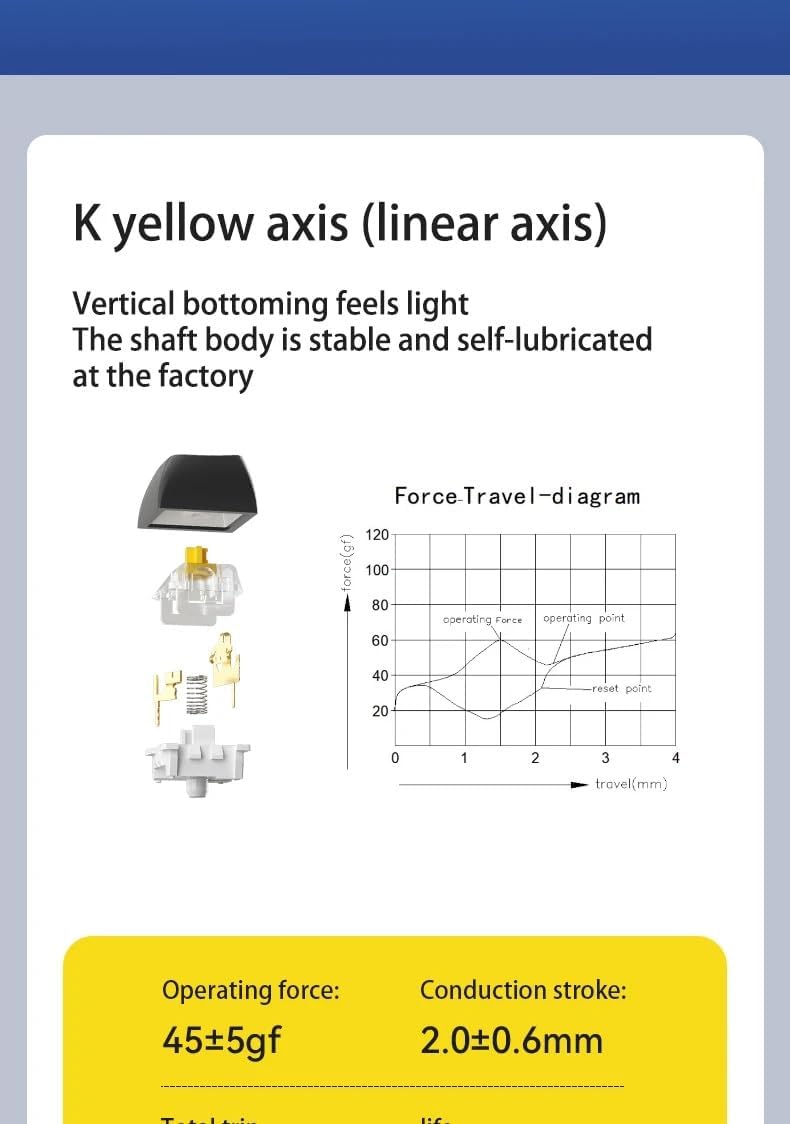
Image: AIGO A68 Yellow Switch Characteristics. This image shows a force-travel diagram and specifications for the yellow switches, indicating an operating force of 45±5gf and a conduction stroke of 2.0±0.6mm.
PBT Keycaps:
The keyboard features double-shot PBT keycaps, known for their durability and resistance to shine over time.

Image: AIGO A68 PBT Keycaps. This image highlights the PBT double-shot keycaps, showcasing their texture and design.
Maintenance
Proper maintenance ensures the longevity and performance of your AIGO A68 keyboard.
- Cleaning: Use a soft, dry cloth to wipe the surface of the keyboard. For deeper cleaning, use compressed air to remove dust and debris from between the keycaps. Keycaps can be removed gently with a keycap puller for thorough cleaning.
- Storage: Store the keyboard in a cool, dry place away from direct sunlight and extreme temperatures.
- Battery Care: Avoid fully discharging the battery frequently. Charge the keyboard regularly to maintain battery health.
- Liquid Exposure: Avoid spilling liquids on the keyboard. If a spill occurs, immediately disconnect the keyboard, turn it off, and allow it to dry completely before reconnecting.
Troubleshooting
| Problem | Possible Cause | Solution |
|---|---|---|
| Keyboard not responding in wireless mode. | Low battery, incorrect mode selected, pairing issue, receiver not connected. | Charge the keyboard. Ensure the power switch is ON. Verify the correct mode (2.4G or Bluetooth) is selected. Re-pair the device. Ensure the 2.4G receiver is properly inserted. |
| Bluetooth connection unstable or failing. | Interference, distance, device compatibility, incorrect pairing. | Ensure the keyboard is within range of the device. Remove any obstructions. Try re-pairing the keyboard with the device. Ensure your device's Bluetooth is enabled. |
| Keys not registering or double-typing. | Faulty switch, debris under keycap, software issue. | Clean under the keycap. If hot-swappable, try replacing the switch. Test on another computer to rule out software issues. |
| Keyboard not charging. | Faulty cable, power source issue, damaged charging port. | Try a different USB Type-C cable. Use a different USB port or power adapter. Ensure the cable is fully inserted. |
Specifications
| Feature | Detail |
|---|---|
| Model | A68 |
| Connectivity | Bluetooth, 2.4G Wireless, USB Type-C Wired |
| Layout | 68-key, 60% English Layout |
| Switches | Hot-swappable Yellow Switches |
| Keycaps | Double-shot PBT |
| Battery Capacity | 1200mAh Lithium Battery |
| Charging Port | USB Type-C |
| Compatible Devices | Tablet, Computer, Laptop |
| Dimensions | 35.6 x 15.2 x 5.2 cm |
| Weight | 425 grams |
Warranty and Support
For warranty information and technical support, please refer to the official AIGO website or contact your retailer. The included user manual may contain specific warranty details.
A QR code is present on the physical user manual for additional resources. You can scan it using a QR code reader on your smartphone.
QR Code Link: http://weixin.qq.com/r/4kxgeFTEFwlorRAb9xnw