
AutoSky CPHM-1
AutoSky CarPlay TV Adapter + HDMI Cable Combo User Manual
Model: CPHM-1
1. Introduction
The AutoSky CarPlay TV Adapter + HDMI Cable Combo is designed to enhance your in-car entertainment and connectivity experience. This innovative product offers a dual-function design, allowing you to convert your vehicle's wired CarPlay or Android Auto system into a wireless one, and providing an HDMI input for mirroring content directly to your car's infotainment screen.
With the adapter, you can seamlessly stream your favorite apps like Netflix and YouTube using your phone's 4G/5G hotspot, eliminating the need to constantly plug in your smartphone. The included USB-C to HDMI cable further expands functionality, enabling you to mirror any compatible smartphone application, including videos, games, and navigation, making it ideal for vehicles without wireless connectivity or when a wired option is preferred.
This device is a plug-and-play solution, requiring no complex tools or permanent installation. It integrates smoothly with your car's existing USB/USB-C ports and maintains factory controls such as voice assistants, steering wheel buttons, and the OEM microphone for safe, hands-free operation.

Figure 1.1: The AutoSky CarPlay TV Adapter and HDMI Cable Combo, shown with examples of content displayed on car infotainment screens, including navigation, media playback, and video streaming.
2. What's in the Box
Upon opening the package, please verify that all the following components are included:
- AutoSky CarPlay TV Adapter (Model: CPHM-1)
- USB-C to HDMI Cable
- User Manual (this document)
- USB-A to USB-C Adapter (for compatibility with USB-A ports)

Figure 2.1: All items included in the AutoSky CarPlay TV Adapter + HDMI Cable Combo package.
3. Setup and Installation
The AutoSky CarPlay TV Adapter and HDMI Cable Combo are designed for simple plug-and-play installation. No special tools or permanent modifications to your vehicle are required.
3.1. Wireless CarPlay/Android Auto Setup
This adapter converts your existing wired CarPlay or Android Auto system to wireless. It does not add CarPlay or Android Auto functionality to vehicles that do not already possess it.
- Ensure your vehicle supports wired CarPlay or Android Auto and that it is active.
- Locate an available USB or USB-C port in your vehicle. This is typically the port used for wired CarPlay/Android Auto.
- Plug the AutoSky CarPlay TV Adapter into the vehicle's USB/USB-C port. If your car has a USB-A port, use the provided USB-A to USB-C adapter.
- Once the adapter is powered on, a prompt may appear on your car's infotainment screen. Follow the on-screen instructions to pair your smartphone via Bluetooth.
- After successful Bluetooth pairing, your phone will automatically connect to the adapter for wireless CarPlay or Android Auto.

Figure 3.1: Wireless CarPlay interface displayed on a car's infotainment screen after connecting the adapter.


Figure 3.2: Examples of the adapter's compact placement and connection in a vehicle's console.
3.2. HDMI Mirroring Setup
The included USB-C to HDMI cable allows you to mirror content from compatible devices directly to your car's screen via the adapter's HDMI input.
- Connect the USB-C end of the HDMI cable to your smartphone or other compatible device (e.g., a TV stick, gaming console).
- Connect the HDMI end of the cable to the HDMI input port on the AutoSky CarPlay TV Adapter.
- Ensure the AutoSky adapter is powered on and connected to your car's USB port as described in Section 3.1.
- Switch the input on your car's infotainment system to the HDMI source, if required. The mirrored content from your device should now appear on the car's screen.
Note: For HDMI mirroring, your car's infotainment system must support video input via CarPlay/Android Auto, or the adapter must be able to switch to an HDMI input mode. Some car systems may restrict video playback while the vehicle is in motion for safety reasons.
4. Operating Instructions
4.1. Using Wireless CarPlay/Android Auto
Once connected, your wireless CarPlay or Android Auto experience will largely mimic the wired version, with the added convenience of not needing a physical cable connection to your phone.
- Navigation: Use your preferred navigation apps (e.g., Google Maps, Apple Maps, Waze) directly on your car's screen.
- Music & Media: Access streaming music services (e.g., Spotify, Apple Music, YouTube Music) and podcasts.
- Calls & Messages: Make and receive calls, and send/receive messages using voice commands or the car's controls.
- Voice Assistant: Utilize Siri or Google Assistant via your car's microphone and steering wheel controls.

Figure 4.1: Example of navigation through CarPlay on the vehicle's display.

Figure 4.2: Example of Android Auto interface with various applications.
4.2. Using HDMI Mirroring for Entertainment
The HDMI input feature allows you to display content from external devices, transforming your car into a mobile entertainment hub.
- Video Streaming: Connect a TV stick (e.g., Firestick, Roku) to the HDMI input to stream Netflix, YouTube, Hulu, and other video services directly on your car's screen.
- Smartphone Mirroring: Mirror your smartphone's screen to display photos, videos, or any app content.
- Gaming: Connect compatible gaming consoles or devices to enjoy games on the go.

Figure 4.3: Streaming video content on the car's display using the adapter.

Figure 4.4: Using a TV stick with the adapter to access streaming services.

Figure 4.5: Smartphone screen mirroring to the car's display.

Figure 4.6: Gaming on the car's display using the adapter.
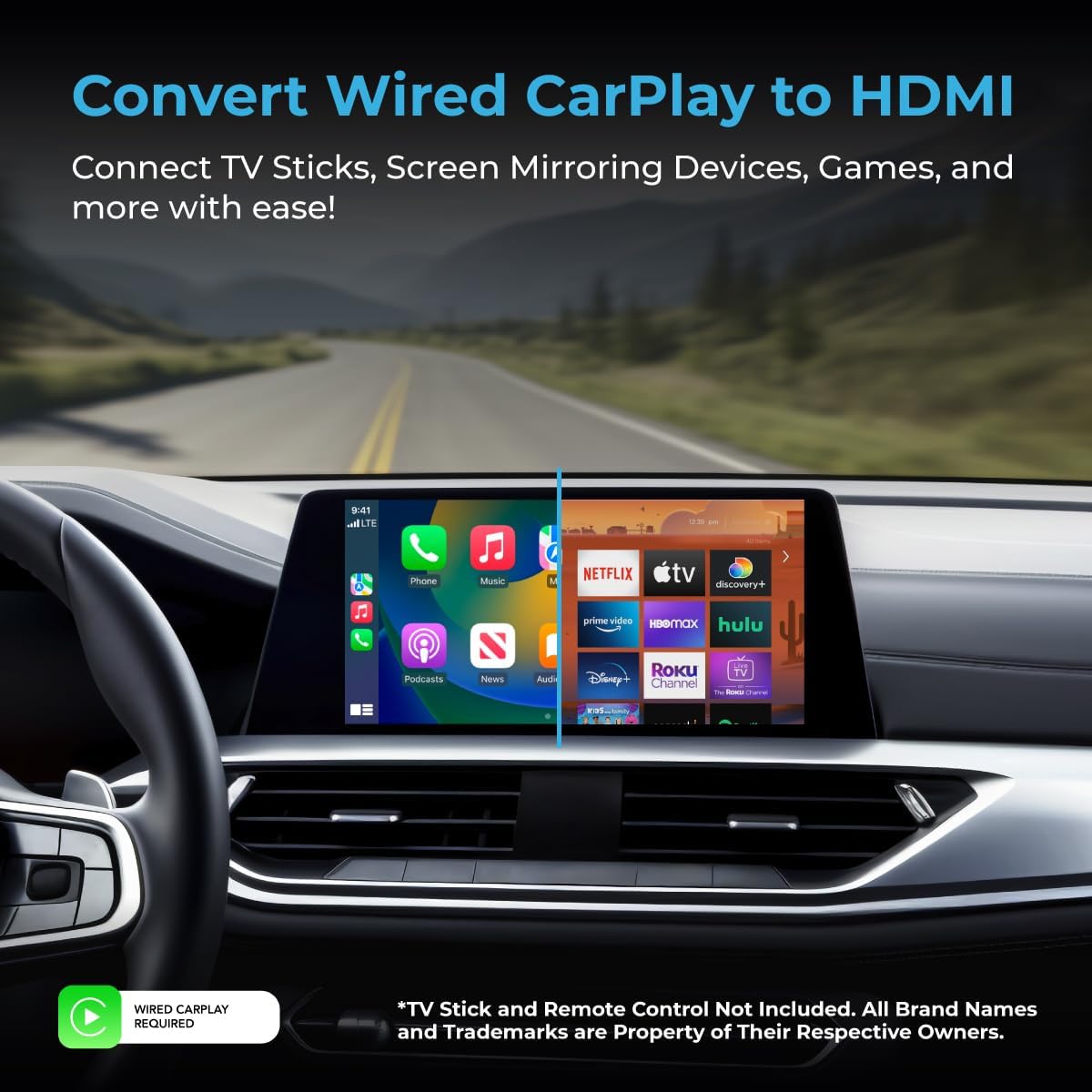
Figure 4.7: Visual representation of converting wired CarPlay to HDMI for media consumption.

Figure 4.8: User interacting with the car's infotainment screen.
5. Maintenance
The AutoSky CarPlay TV Adapter and HDMI Cable are designed for durability and require minimal maintenance. Following these simple guidelines will help ensure their longevity:
- Cleaning: Use a soft, dry cloth to wipe the adapter and cable. Avoid using harsh chemicals, solvents, or abrasive cleaners, as these can damage the surfaces.
- Storage: When not in use, store the adapter and cable in a cool, dry place, away from direct sunlight and extreme temperatures. Their compact size makes them easy to store in a glove compartment or console.
- Handling: Avoid bending the cable excessively or applying undue force to the connectors. Always grasp the plug when connecting or disconnecting, rather than pulling on the cable itself.
- Environment: Protect the devices from moisture, dust, and dirt. Do not expose them to liquids.
6. Troubleshooting
If you encounter issues while using your AutoSky CarPlay TV Adapter + HDMI Cable Combo, please refer to the following common problems and their solutions:
| Problem | Possible Cause | Solution |
|---|---|---|
| Adapter not recognized by car / No wireless CarPlay/Android Auto. |
|
|
| No display when using HDMI mirroring. |
|
|
| Audio issues (no sound or distorted sound). |
|
|
| Lag or stuttering video/audio. |
|
|
Important Note: This device is an HDMI adapter that lets you mirror any application connected through an HDMI port to your vehicle’s screen. For example, with this adapter you can play all the apps from your smartphone or other video devices such as Firestick, Roku or gaming consoles. On its own, this device does not provide direct or free access to any of these applications; each app still requires its own subscription.
7. Specifications
| Feature | Detail |
|---|---|
| Model | CPHM-1 |
| Brand | AutoSky |
| Color | Black |
| Connector Type | USB Type A (with USB-C adapter) |
| Compatible Devices | Smartphones with wired CarPlay/Android Auto, devices with HDMI output (e.g., TV sticks, gaming consoles) |
| Number of Ports | 2 (USB input, HDMI input) |
| Wireless Connectivity | Integrated dual-band Wi-Fi for smooth wireless performance |
| Dimensions (Adapter) | Approx. 5 x 4.5 x 1 inches (Package Dimensions, actual adapter size is smaller) |
| Manufacturer | Promaster Electronic LLC |
8. Support and Warranty Information
For technical support, troubleshooting assistance, or inquiries regarding your AutoSky CarPlay TV Adapter + HDMI Cable Combo, please contact Promaster Electronic LLC, the manufacturer of this product.
Manufacturer: Promaster Electronic LLC
Please refer to the product packaging or the official AutoSky website for the most current contact information and details regarding warranty coverage. Keep your purchase receipt as proof of purchase for any warranty claims.
While this document provides general guidance, specific warranty terms and conditions may apply. It is recommended to review the full warranty statement provided with your product or available from the manufacturer.