
Introduction
This manual provides essential information for the proper use and maintenance of your Motorola Razr 50 Ultra XT2451-1 5G Foldable Smartphone. Please read this guide thoroughly before operating your device to ensure optimal performance and longevity.
The Motorola Razr 50 Ultra XT2451-1 features a 6.9-inch pOLED main display with a 165Hz refresh rate and a 4-inch external display. It is designed for multitasking, gaming, and productivity with its advanced processing capabilities. The device includes a 50MP main camera, a 50MP telephoto lens with 2x optical zoom, and supports global 5G connectivity. It is crafted with premium materials and offers IPX8 water resistance.
What's in the Box
Verify that all items are present in the product packaging:
- Motorola Razr 50 Ultra XT2451-1 Smartphone
- Power Adapter
If any items are missing or damaged, please contact customer support.
Setup
1. Charging the Device
Before initial use, fully charge your Motorola Razr 50 Ultra. Connect the provided Power Adapter to the charging port on your device and plug it into a power outlet. The device features a 4000 mAh battery and supports 45W TurboPower fast charging. A full charge typically takes approximately 2 hours.
2. SIM Card Installation
The Motorola Razr 50 Ultra XT2451-1 is an unlocked device supporting 5G cellular technology. Locate the SIM card tray on the side of the device. Use the SIM ejector tool (not included, typically found with new SIM cards) to open the tray. Insert your nano-SIM card into the tray with the gold contacts facing down, then carefully reinsert the tray into the device.
3. Initial Power On
Press and hold the power button located on the side of the device until the Motorola logo appears. Follow the on-screen prompts to complete the initial setup, including language selection, Wi-Fi connection, and Google account setup.
Operating the Device
Main and External Displays
Your device features a large 6.9-inch pOLED main display when unfolded and a functional 4-inch external display when folded. The external display allows for quick access to notifications, widgets, and certain applications without needing to unfold the phone.
Folding and Unfolding
To unfold the device, gently open it from the folded position until it clicks into place. To fold, close the device until the two halves meet. Avoid applying excessive force when folding or unfolding.
Camera Usage
The Motorola Razr 50 Ultra is equipped with a 50MP main camera and a 50MP telephoto lens with 2x optical zoom. Open the Camera application to access various shooting modes, including standard photo, portrait, and video. Utilize the advanced AI photography features for enhanced image quality.
Software and Connectivity
The device operates on Android 14, providing access to a wide range of applications and features. It supports global 5G connectivity for high-speed data access. Ensure your SIM card is properly installed and your mobile data or Wi-Fi is enabled for internet access.
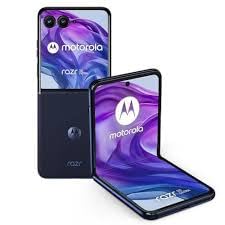
Image of the Motorola Razr 50 Ultra XT2451-1 foldable smartphone, showcasing its compact design.
Maintenance
Cleaning Your Device
To clean your Motorola Razr 50 Ultra, use a soft, lint-free cloth. For stubborn smudges, slightly dampen the cloth with water or a screen cleaner specifically designed for electronics. Avoid using harsh chemicals or abrasive materials.
Software Updates
Regularly check for and install software updates to ensure your device has the latest features, security patches, and performance improvements. You can typically find update options in the device's settings menu under 'System' or 'About phone'.
Battery Care
To prolong battery life, avoid exposing the device to extreme temperatures. It is recommended to keep the battery charge between 20% and 80% for optimal long-term health. Use only the provided power adapter or certified compatible chargers.
Water Resistance
The device features IPX8 water resistance, meaning it can withstand immersion in up to 1.5 meters of fresh water for up to 30 minutes. This protection is not permanent and may decrease over time with normal wear. Avoid exposing the device to saltwater, chlorinated water, or other liquids. If the device gets wet, dry it thoroughly before charging or using the ports.
Troubleshooting
Device Not Powering On
Ensure the battery is sufficiently charged. Connect the device to the power adapter and allow it to charge for at least 15 minutes before attempting to power it on again. If the issue persists, perform a force restart by holding the power button for an extended period (usually 10-15 seconds).
Display Issues
If the screen is unresponsive or frozen, try restarting the device. Check for any physical damage to the display. Ensure the device is not in a mode that turns off the screen (e.g., power saving mode).
Connectivity Problems (Wi-Fi/5G)
For Wi-Fi issues, restart your router and the device. For 5G cellular issues, ensure your SIM card is correctly inserted and your mobile data is enabled. Check if you have network coverage in your area. Try toggling airplane mode on and off.
Slow Performance
Close unnecessary background applications. Clear cache data from apps or perform a system cache clear. Ensure your device has sufficient storage space. If performance issues continue, consider a factory reset (back up your data first).
Specifications
| Feature | Specification |
|---|---|
| Model Name | Razr 50 Ultra XT2451-1 256GB 8GB |
| Item Model Number | XT2451-1 |
| Operating System | Android 14 |
| CPU Model | Qualcomm Snapdragon MSM8260A |
| CPU Speed | 2.2 GHz |
| RAM Memory Installed Size | 8 GB |
| Memory Storage Capacity | 8 GB (Note: This refers to RAM, internal storage is 256GB as per product title) |
| Battery Capacity | 4000 mAh (Battery Power Rating) |
| Charging Time | 2 Hours |
| Cellular Technology | 5G |
| Wireless Carrier | Unlocked |
| Form Factor | Bar (Foldable) |
| Color | Space gray |
| Item Weight | 7 ounces |
| Package Dimensions | 7 x 6.5 x 3.2 inches |
Warranty and Support
For detailed warranty information, please refer to the warranty card included with your product or visit the official Motorola website. For technical support, software updates, or service inquiries, please visit the Motorola support page or contact their customer service directly. Keep your proof of purchase for warranty claims.


