
1. Introduction
This manual provides essential information for the setup, operation, maintenance, and troubleshooting of your JYXOIHUB 49 Inch Smart Board Interactive Whiteboard. Please read this manual thoroughly before using the product to ensure proper function and safety.
The JYXOIHUB 49 Inch Smart Board is an all-in-one interactive display designed for collaboration in various environments, including offices, classrooms, and homes. It features a 4K UHD display, an octa-core processor, Android 12 operating system, and multiple connectivity options.

Image: The JYXOIHUB Smart Board integrated into a modern office environment, showcasing its sleek design.
2. Package Contents
Verify that all items listed below are included in your package. If any items are missing or damaged, please contact customer support.
- 1 x 49 Inch Smart Whiteboard
- 1 x Wall Mount (suitable for 40"-80" displays)
- 1 x Remote Control
- 1 x Power Cord
- 1 x Touch Pen
- 1 x Warranty Card

Image: A visual representation of the items included in the product package: the 49-inch smart whiteboard, wall mount, remote control, power cord, touch pen, and warranty card.
3. Setup
3.1 Unboxing and Inspection
Carefully remove the Smart Board from its packaging. The product is shipped in a protective crate. Inspect the screen and frame for any signs of damage before proceeding with installation.
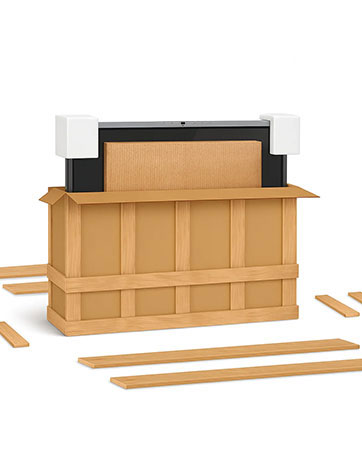
Image: The smart board being carefully lifted out of its protective wooden shipping crate.
3.2 Mounting Options
The Smart Board can be installed using the included wall mount. Ensure the wall can support the weight of the unit. A mobile floor stand is sold separately if you require portability.
- Wall Mount Installation: Follow the instructions provided with the wall mount bracket for secure installation.
- Mobile Stand (Optional): If using a mobile stand, ensure it is compatible with the board's VESA mounting pattern and weight.

Image: A detailed view of the wall mount bracket, indicating its compatibility with various screen sizes.
3.3 Initial Power On
Connect the power cord to the Smart Board and a suitable power outlet. Press the power button located on the side or bottom of the board. The system will boot up, displaying the Android 12 interface.
4. Operating Instructions
4.1 Basic Navigation and Touch Functions
The Smart Board features a 10-point multi-touch screen. Use your fingers or the included touch pen for interaction. The Android 12 operating system provides a familiar interface for app navigation and settings adjustments.

Image: A user actively writing and drawing on the interactive whiteboard, demonstrating its touch capabilities.
4.2 Wireless Screen Mirroring
The Smart Board supports wireless screen casting from various devices. Use the built-in Eshare application for Android devices or QuickShare for computers to mirror your screen. This allows for seamless presentation and content sharing.
Video: Demonstrates the mobile phone wireless screen projection operation, showing how to mirror a phone's display onto the smart board.
4.3 Phone Reverse Control
Utilize the two-way control feature to manage your Android phone directly from the Smart Board. This allows for convenient interaction with your mobile applications on the larger display.
Video: Illustrates the smart board's function, including the two-way control screen feature, allowing interaction with a connected phone.
4.4 Whiteboard Functionality
The integrated whiteboard application offers a smooth writing experience with ultra-low 6ms latency. Features include:
- Multi-person Writing: Multiple users can write simultaneously.
- Shape Recognition: Draw shapes that automatically snap into perfect geometry.
- Table Creation: Insert tables quickly.
- Wireless Canvas: Expand your writing area beyond the screen.
- QR Code Saving: Scan a QR code to save and share your notes instantly.
Video: Demonstrates the smart board's whiteboard functions, including drawing, erasing with the hand, and shape recognition.

Image: An illustration highlighting the smooth writing experience, multi-person writing, wireless canvas, and QR code sharing features of the smart board.
4.5 Application Management
The Smart Board runs on Android 12, allowing you to download and install various applications from the Google Play Store. This includes popular video conferencing tools like Zoom and Teams, as well as specialized educational or business software.

Image: The smart board's screen showing a selection of multiple applications available for download, similar to a mobile app store interface.
4.6 Connectivity and Ports
The Smart Board offers a range of ports for external devices:
- USB: For USB flash drives and screen mirroring devices.
- RJ45: For wired network connection.
- HDMI: For connecting laptops, cameras, and other display sources.
- 3.5mm Audio Jack: For headphones or external audio systems.

Image: A detailed diagram illustrating the various connectivity ports available on the smart board, including Antenna, USB, RJ45, HDMI, and 3.5mm audio jack.
5. Maintenance
5.1 Cleaning the Screen
The screen is made of tempered glass. To clean, use a soft, lint-free cloth slightly dampened with a non-abrasive screen cleaner. Avoid harsh chemicals or abrasive materials that could scratch the surface.
5.2 General Care
- Keep the Smart Board away from direct sunlight and heat sources.
- Ensure proper ventilation around the unit.
- Avoid placing heavy objects on the board.
- Do not attempt to open the casing; refer servicing to qualified personnel.
6. Troubleshooting
If you encounter issues with your Smart Board, refer to the following common problems and solutions:
| Problem | Possible Cause | Solution |
|---|---|---|
| Screen is unresponsive to touch. | Software glitch, calibration issue, or physical obstruction. | Restart the board. Check for any objects on the screen. If issue persists, contact support. |
| System feels slow or lags. | Too many applications running, low storage, or system update needed. | Close unnecessary applications. Clear cache. Check for system updates. |
| Screen is reflective, difficult to see. | Strong ambient light source. | Adjust room lighting or reposition the board to minimize reflections. |
| Cannot connect to Wi-Fi. | Incorrect password, router issue, or out of range. | Verify Wi-Fi password. Restart router. Ensure board is within Wi-Fi range. |
For issues not listed here or if troubleshooting steps do not resolve the problem, please contact JYXOIHUB customer support.
7. Specifications
| Feature | Detail |
|---|---|
| Model Number | 4955smartboard |
| Display Size | 49 Inch |
| Resolution | 4K UHD |
| Processor | RK3588 Octa-Core |
| Operating System | Android 12 |
| RAM | 8GB |
| Internal Storage | 64GB |
| Touch Points | 10-point touch |
| Response Time | 6ms |
| Connectivity | Wi-Fi 6, Bluetooth, USB, RJ45, HDMI, 3.5mm Audio |
| Speakers | Dual 5W |
| Material | Tempered Glass (screen), Metal (frame) |
| Color | Black |
8. Warranty and Support
8.1 Warranty Information
The JYXOIHUB 49 Inch Smart Board comes with a 3-Year Manufacturer Warranty. Additionally, a 1-Year Replacement Warranty is offered with support from a US-based warehouse for minimal downtime in case of product issues.
8.2 Customer Support
For any technical assistance, warranty claims, or product inquiries, our team of engineers is available 24/7 to provide support. Please refer to the contact information provided on your warranty card or the official JYXOIHUB website.