
Infinix XPAD GT
Infinix XPAD GT 13-inch Tablet User Manual
Model: XPAD GT
1. Introduction
This manual provides essential instructions for setting up, operating, and maintaining your Infinix XPAD GT 13-inch tablet. Please read this manual thoroughly before using your device to ensure proper functionality and to prevent damage.
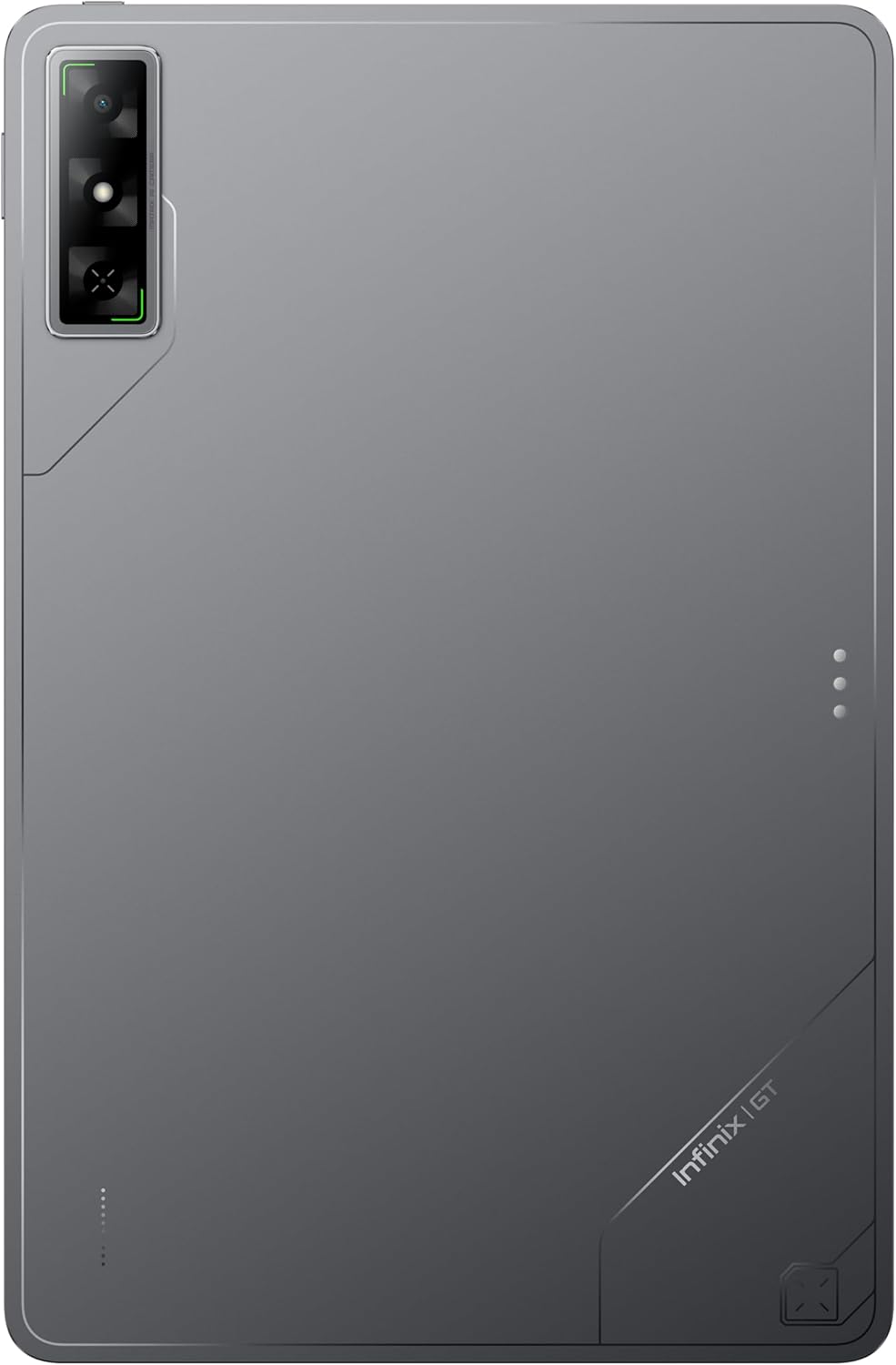
Image 1.1: The Infinix XPAD GT tablet, showcasing its sleek design.
2. Safety Information
To ensure safe and proper operation of your device, please observe the following guidelines:
- Do not expose the tablet to extreme temperatures, direct sunlight, or high humidity.
- Avoid dropping or subjecting the tablet to severe impact.
- Use only Infinix-approved chargers and accessories.
- Do not attempt to disassemble or repair the device yourself. Refer to qualified service personnel.
- Keep the tablet away from medical devices to avoid interference.
- Dispose of the device and its battery responsibly according to local regulations.
3. Package Contents
Verify that all items are present in your product package:
- Infinix XPAD GT Tablet
- Power Adapter (33W Fast Charger)
- USB-C Cable
- Protective Keyboard Case
- Stylus (Pencil)
- Quick Start Guide
- Warranty Card
4. Device Layout
Familiarize yourself with the physical components of your Infinix XPAD GT tablet.
4.1 Front View

Image 4.1: Front view of the tablet, highlighting the 13-inch display and front camera.
- Display: 13-inch 2.8K 144Hz screen.
- Front Camera: 9MP camera for video calls and selfies.
- Light Sensor: Adjusts screen brightness automatically.
4.2 Rear View

Image 4.2: Rear view of the tablet, showing the main camera module.
- Rear Camera: 13MP main camera.
- Infinix GT Branding: Located on the lower right.
4.3 Side Views and Ports

Image 4.3: Side view of the tablet, illustrating its slim profile and speaker grilles.

Image 4.4: Detailed side view of the tablet, showing the USB-C port and power/volume buttons.
- Power Button: Located on the side, used to power on/off or wake/sleep the device.
- Volume Buttons: Adjust media and notification volume.
- USB-C Port: For charging and data transfer.
- Speaker Grilles: Multiple grilles for the 8-speaker 3D sound system.
- Magnetic Connectors: For attaching the keyboard case.
5. Setup
Follow these steps to set up your Infinix XPAD GT tablet for the first time.
5.1 Initial Power On and Charging
- Connect the USB-C cable to the tablet's charging port and the power adapter.
- Plug the power adapter into a wall outlet. Allow the tablet to charge for at least 30 minutes before first use.
- Press and hold the Power Button until the Infinix logo appears on the screen.
- Follow the on-screen prompts to select your language, region, and accept terms and conditions.
5.2 Connecting to Wi-Fi
- During initial setup, select your desired Wi-Fi network from the list.
- Enter the Wi-Fi password if prompted and tap "Connect".
- If setting up later, navigate to Settings > Network & internet > Wi-Fi.
5.3 Setting up Google Account
A Google account is required to download apps from the Google Play Store and access Google services.
- During initial setup, you will be prompted to sign in with an existing Google account or create a new one.
- Enter your email and password, then follow the on-screen instructions.
- If setting up later, go to Settings > Accounts > Add account > Google.
5.4 Attaching the Keyboard Case

Image 5.1: The Infinix XPAD GT tablet connected to its dedicated keyboard case.
The protective keyboard case connects magnetically to your tablet.
- Align the magnetic connectors on the tablet's bottom edge with the corresponding connectors on the keyboard case.
- The tablet will snap into place. The keyboard will automatically be recognized and ready for use.
5.5 Using the Stylus (Pencil)

Image 5.2: The Infinix XPAD GT stylus, designed for precision input.
The stylus can be used for writing, drawing, and precise navigation. It may attach magnetically to the side of the tablet for charging or storage.
- Simply touch the stylus tip to the screen to interact.
- Specific app functionalities may vary.
6. Operating Your Tablet
6.1 Basic Navigation and Gestures
- Tap: Select an item or open an app.
- Swipe: Scroll through pages or lists.
- Pinch-to-Zoom: Enlarge or reduce content on the screen.
- Long Press: Access contextual menus or move icons.
- Home Screen: Swipe up from the bottom to go to the home screen.
- Recent Apps: Swipe up from the bottom and hold to view recent applications.
6.2 Display Settings
Customize your viewing experience:
- Navigate to Settings > Display.
- Adjust Brightness Level or enable Adaptive brightness.
- Set Screen refresh rate to 144Hz for smoother visuals (may impact battery life).
- Configure Screen timeout.
6.3 Camera Usage
Your tablet features a 13MP rear camera and a 9MP front camera.
- Open the Camera app.
- Tap the shutter button to take a photo.
- Switch between front and rear cameras using the camera icon.
- Explore modes like Portrait, Pro Mode, and Video.
6.4 Audio System
Experience immersive sound with the 8-speaker 3D sound system with DTS audio.
- Adjust volume using the physical volume buttons or through Settings > Sound & vibration.
- Customize sound profiles and DTS audio settings for an optimized listening experience.
6.5 Battery Management
The 10,000mAh battery supports 33W fast charging and 10W reverse charging.
- To charge, connect the tablet to the 33W fast charger.
- To use reverse charging (10W), connect a compatible device to the tablet using a USB-C to USB-C cable or an appropriate adapter.
- Monitor battery usage and optimize settings in Settings > Battery.
6.6 Connectivity
- Wi-Fi 6: For high-speed wireless internet. Manage connections in Settings > Network & internet > Wi-Fi.
- Bluetooth: Connect wireless headphones, speakers, or other Bluetooth devices. Access in Settings > Connected devices > Bluetooth.
6.7 Android 14 Features
Your tablet runs on Android 14, offering enhanced privacy controls, improved notifications, and new customization options. Explore these features through the Settings menu and various pre-installed applications.
7. Maintenance
Proper maintenance ensures the longevity and optimal performance of your tablet.
7.1 Cleaning Your Tablet
- Use a soft, lint-free cloth to clean the screen and body.
- For stubborn smudges, lightly dampen the cloth with water or a screen cleaner specifically designed for electronics.
- Avoid using harsh chemicals, abrasive materials, or excessive moisture.
7.2 Software Updates
Regularly check for and install software updates to enhance security, performance, and introduce new features.
- Go to Settings > System > System update.
- Follow the on-screen instructions to download and install any available updates. Ensure your tablet is sufficiently charged or connected to power during updates.
7.3 Storage Management
Your tablet comes with 256GB of UFS 3.1 storage. Manage your storage to maintain optimal performance.
- Check storage usage in Settings > Storage.
- Delete unnecessary files, uninstall unused apps, or move large media files to cloud storage or an external drive.
8. Troubleshooting
This section addresses common issues you might encounter with your Infinix XPAD GT tablet.
8.1 Tablet Does Not Turn On
- Ensure the tablet is charged. Connect it to the charger and wait a few minutes before attempting to power on again.
- Perform a forced restart by holding the Power Button for approximately 10-15 seconds.
8.2 Wi-Fi Connection Issues
- Check if Wi-Fi is enabled in Settings > Network & internet > Wi-Fi.
- Restart your Wi-Fi router.
- Forget the network and reconnect by entering the password again.
8.3 Apps Crashing or Freezing
- Close the app and reopen it.
- Clear the app's cache and data in Settings > Apps > [App Name] > Storage & cache.
- Ensure the app is updated to the latest version from the Google Play Store.
- If the issue persists, uninstall and reinstall the app.
8.4 Slow Performance
- Close unused background applications.
- Clear cache for frequently used apps.
- Check available storage and free up space if necessary.
- Restart the tablet periodically.
9. Specifications
Detailed technical specifications for the Infinix XPAD GT tablet.
| Feature | Detail |
|---|---|
| Model Name | XPAD GT |
| Display | 13-inch 2.8K (2880x1840 pixels) IPS, 144Hz Refresh Rate, 700 nits brightness, Corning Gorilla Glass 3 |
| Processor | Qualcomm Snapdragon 888 |
| RAM | 8GB (expandable up to 13GB) |
| Storage | 256GB UFS 3.1 |
| Rear Camera | 13MP |
| Front Camera | 9MP |
| Battery | 10,000mAh |
| Charging | 33W Fast Charging, 10W Reverse Charging |
| Operating System | Android 14 |
| Connectivity | Wi-Fi 6 (802.11ax), Bluetooth |
| Audio | 8-speaker 3D sound system with DTS audio |
| Dimensions | 33 x 23.8 x 8.2 cm (Package) |
| Weight | 655 g |
| Included Accessories | Keyboard Case, Stylus (Pencil) |
10. Warranty and Support
Your Infinix XPAD GT tablet comes with a 12-month manufacturer's warranty.
- Warranty Period: 12 months from the date of purchase.
- Coverage: This warranty covers manufacturing defects. It does not cover damage caused by misuse, accidents, unauthorized modifications, or normal wear and tear.
- Claiming Warranty: For warranty service, please contact Infinix customer support with your proof of purchase.
- Customer Support: For technical assistance, troubleshooting, or service inquiries, please visit the official Infinix website or refer to the contact information provided in your warranty card.
For more information, visit the Infinix Store on Amazon.
Related Documents - XPAD GT
 |
Infinix XPAD X1101B User Manual User manual for the Infinix XPAD X1101B tablet, covering basic features, installation, charging, and FCC compliance information. |
 |
Infinix X659B User Manual: Setup, Features, and Safety Information Comprehensive user manual for the Infinix X659B smartphone (Model: X659B, FCC ID: 2AIZN-X659B) by Infinix Mobility Limited. Covers setup, SIM/SD card installation, charging, phone features, and FCC/SAR compliance information. |
 |
Infinix X688B User Manual: Features, Installation, and Safety Information Comprehensive user manual for the Infinix X688B smartphone, covering phone layout, SIM/SD card installation, charging procedures, FCC compliance statements, and SAR information. Includes a detailed explosion diagram specification. |
 |
Смартфон Infinix X6833B: Руководство пользователя Полное руководство пользователя для смартфона Infinix X6833B. Содержит информацию о безопасности, технических характеристиках, установке SIM/SD-карт, зарядке и комплектации. |
 |
Infinix HOT 60i User Manual: Setup, Features, and Safety Information This user manual provides comprehensive information for the Infinix HOT 60i smartphone, model X6728. It covers setup, features, charging, safety guidelines, and regulatory compliance. |
 |
Infinix GT30Pro X6873 User Manual User manual and technical specifications for the Infinix GT30Pro smartphone (model X6873), covering setup, features, RF information, and safety guidelines. |