1. Introduction
This manual provides comprehensive instructions for the setup, operation, and maintenance of your AVM FRITZ!Box 7530 WLAN AC+N Router. The FRITZ!Box 7530 is a versatile network device designed to provide high-speed internet access via DSL/VDSL, robust Wi-Fi connectivity, and advanced telephony features.
Key features include:
- High-speed WLAN AC+N for fast wireless connections (866 Mbit/s on 5 GHz and 400 Mbit/s on 2.4 GHz).
- Support for DSL/VDSL connections, including Supervectoring 35b for speeds up to 300 Mbit/s.
- Integrated DECT base station for cordless telephony.
- FRITZ!OS operating system for easy management and advanced features.
2. Package Contents
Ensure all items are present in the package:
- 1 x AVM FRITZ!Box 7530 Router
- 1 x Power Adapter
- 1 x DSL Cable
- 1 x LAN Cable
- 1 x Quick Installation Guide (if included)
3. Setup Guide
3.1. Physical Connection
- Connect to Power: Plug the power adapter into the FRITZ!Box's power input and then into a wall outlet. The "Power/DSL" LED will start blinking.
- Connect to DSL Line: Connect the DSL cable from the FRITZ!Box's "DSL" port to your DSL wall socket. Wait for the "Power/DSL" LED to illuminate steadily, indicating a successful DSL connection. This may take a few minutes.
- Connect to Computer (Optional): For initial setup or wired connection, connect one end of the LAN cable to any of the LAN ports on the FRITZ!Box and the other end to your computer's network port.
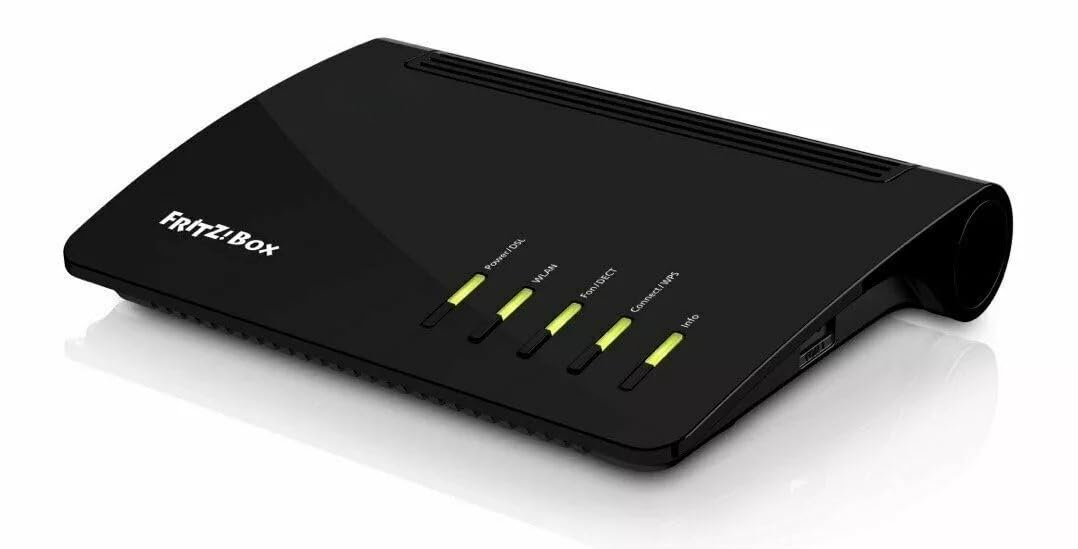
Figure 1: Front view of the AVM FRITZ!Box 7530, showing the "FRITZ!Box" logo and LED indicators for Power/DSL, WLAN, Fon/DECT, Connect/WPS, and Info. The LEDs are illuminated in green, indicating active connections.
3.2. Initial Configuration (FRITZ!OS)
- Access the User Interface: Open a web browser on a connected computer or device and enter http://fritz.box or http://192.168.178.1 in the address bar.
- Login: If prompted, enter the password found on the bottom of your FRITZ!Box or on the included setup card.
- Follow Setup Wizard: The FRITZ!OS wizard will guide you through the initial setup, including internet access configuration (selecting your internet provider and entering connection details), Wi-Fi settings (SSID and password), and telephony setup.
- Update FRITZ!OS: It is highly recommended to update your FRITZ!OS to the latest version for optimal performance and security. Navigate to System > Update in the FRITZ!OS interface.
4. Operating Instructions
4.1. Wi-Fi Network
- Connecting Devices: Use the Wi-Fi network name (SSID) and password printed on the bottom of your FRITZ!Box to connect smartphones, tablets, and computers.
- WPS (Wi-Fi Protected Setup): Press the "Connect/WPS" button on the FRITZ!Box for a few seconds to quickly connect WPS-compatible devices without entering the password.
- Guest Wi-Fi: Enable a separate guest Wi-Fi network via the FRITZ!OS interface (Wi-Fi > Guest Access) to provide internet access to visitors without giving them access to your main network.
4.2. Telephony (DECT)
- Registering Cordless Phones: Press the "Fon/DECT" button on the FRITZ!Box to register new DECT cordless phones. Follow the registration instructions on your phone.
- Answering Machine: Configure the integrated answering machine via the FRITZ!OS interface (Telephony > Answering Machine).
4.3. USB Devices
The FRITZ!Box 7530 features a USB port for connecting external storage devices (USB sticks, hard drives) or USB printers. These can be accessed by all devices in your home network.
- Storage: Use the USB storage for network-attached storage (NAS) functionality or as a media server (Home Network > USB / Storage).
- Printer: Connect a USB printer to make it accessible to all network devices (Home Network > USB / Storage > USB Remote Connection).
5. Maintenance
- Regular Updates: Keep your FRITZ!OS updated to ensure security and access to new features. Check for updates regularly via System > Update.
- Backup Settings: Periodically back up your FRITZ!Box settings (System > Backup) to easily restore them in case of a reset or replacement.
- Cleaning: Clean the exterior of the device with a soft, dry cloth. Do not use liquid cleaners or solvents. Ensure ventilation slots are clear of dust.
- Optimal Placement: Place the FRITZ!Box in a central location, away from obstructions and other electronic devices that might cause interference, to maximize Wi-Fi coverage.
6. Troubleshooting
| Problem | Possible Cause | Solution |
|---|---|---|
| No Internet Connection | DSL cable not connected, incorrect internet settings, provider issue. | Check DSL cable connection. Verify internet settings in FRITZ!OS (Internet > Account Information). Contact your internet provider if the "Power/DSL" LED is blinking or off. |
| Wi-Fi Not Working | Wi-Fi disabled, incorrect password, signal interference. | Ensure WLAN LED is on. Check Wi-Fi settings and password in FRITZ!OS (Wi-Fi > Security). Try changing Wi-Fi channel. |
| Cannot Access FRITZ!OS Interface | Incorrect IP address, network issue, browser cache. | Ensure your device is connected to the FRITZ!Box. Try http://fritz.box or http://192.168.178.1. Clear browser cache or try a different browser. |
| Slow Internet Speed | Network congestion, Wi-Fi interference, outdated FRITZ!OS. | Reduce number of active devices. Optimize Wi-Fi channel. Update FRITZ!OS. Check line quality with your provider. |
For more detailed troubleshooting, refer to the online help within the FRITZ!OS interface or visit the AVM support website.
7. Technical Specifications
| Feature | Detail |
|---|---|
| Model | FRITZ!Box 7530 |
| Internet Connection | ADSL2+, VDSL2 (incl. Supervectoring 35b up to 300 Mbit/s) |
| WLAN Standards | Wi-Fi 5 (802.11ac) up to 866 Mbit/s (5 GHz), Wi-Fi 4 (802.11n) up to 400 Mbit/s (2.4 GHz) |
| Ethernet Ports | 4 x Gigabit LAN (10/100/1000 Base-T) |
| Telephony | DECT base station for up to 6 cordless phones, 1 x analog telephone line (FXS) |
| USB Port | 1 x USB 2.0 for storage media and printers |
| Operating System | FRITZ!OS |
| Dimensions (L x W x H) | Approx. 21 x 15 x 4 cm |
| Weight | Approx. 500 g |
8. Warranty and Support
This product is part of Amazon Renewed, meaning it has been professionally inspected and tested to work and look like new. It comes with the Amazon Renewed Guarantee. If you are not satisfied with the product, you can exchange or return it under this guarantee.
For technical support related to the FRITZ!Box 7530, please visit the official AVM support website or consult the comprehensive online help available within the FRITZ!OS interface.
- AVM Support: https://en.avm.de/service/ (General AVM support link, as specific one not provided)
- Amazon Renewed Guarantee: Refer to your purchase documentation or the Amazon Renewed page for details on returns and exchanges.


