
Introduction
Thank you for choosing the EDJO K213T Bluetooth/2.4G Wireless Keyboard. This manual provides detailed instructions for setting up, operating, and maintaining your keyboard to ensure optimal performance and longevity. Please read this manual thoroughly before use and retain it for future reference.

The EDJO K213T ergonomic wave keyboard, designed for a natural typing experience, shown on a modern desk setup.
Setup
Follow these steps to set up your EDJO K213T wireless keyboard.
1. Battery Installation
The keyboard requires two AAA batteries (not included). Locate the battery compartment on the underside of the keyboard. Open the cover, insert the batteries according to the polarity indicators, and close the cover securely.

Illustration of the keyboard's smart power saving features, including the battery compartment for 2*AAA batteries.
2. Power On/Off
Locate the ON/OFF switch on the underside of the keyboard. Slide the switch to the 'ON' position to power on the keyboard. Slide it to 'OFF' when not in use to conserve battery life.

Bottom view of the EDJO K213T keyboard, highlighting the ON/OFF switch and the storage slot for the USB receiver.
3. Connectivity Options
The EDJO K213T keyboard supports both 2.4G wireless and Bluetooth connections, allowing connection to up to three devices simultaneously (one 2.4G, two Bluetooth).
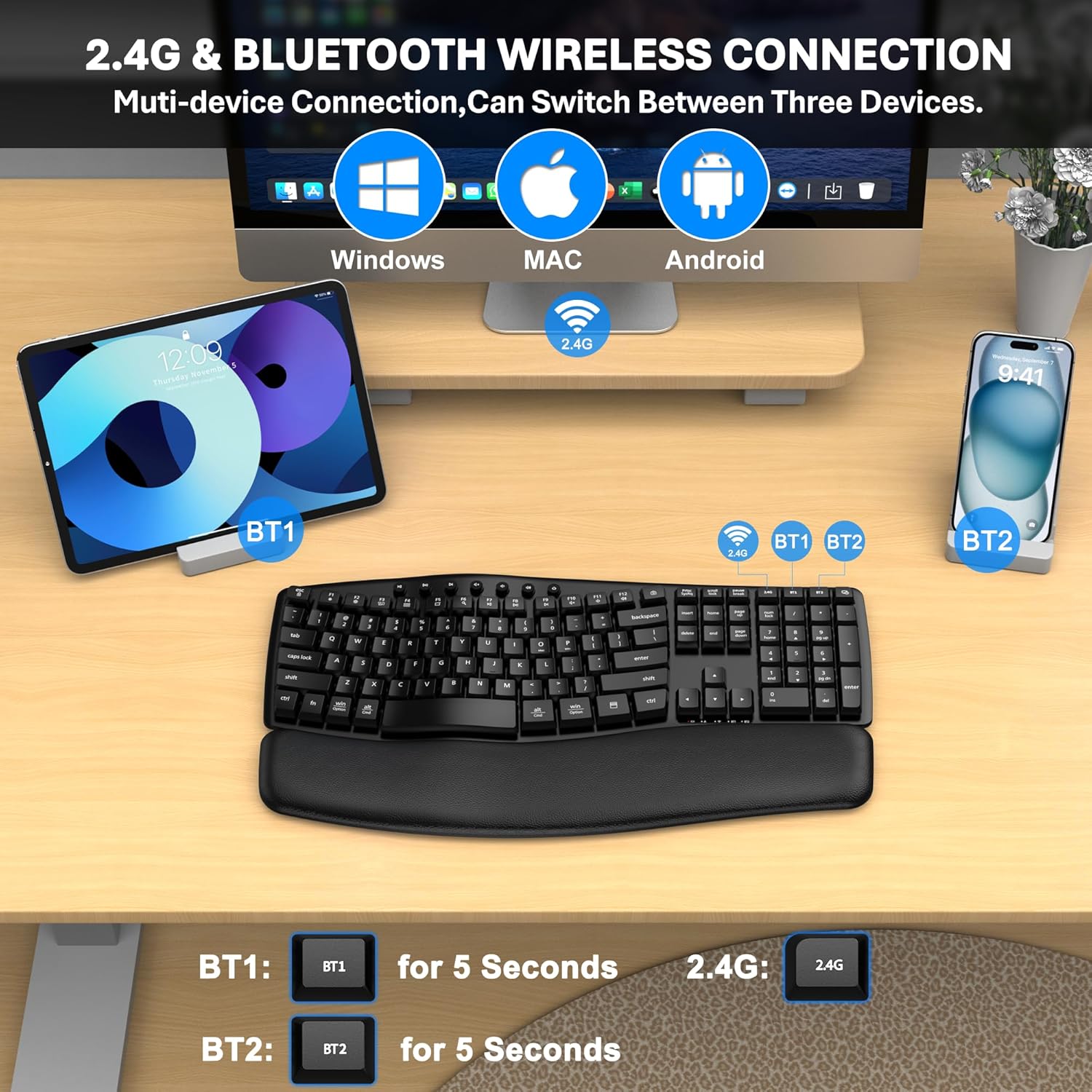
Visual guide for connecting the keyboard via 2.4G USB receiver or Bluetooth (BT1, BT2) to Windows, Mac, and Android devices.
3.1. 2.4G Wireless Connection
- Take out the USB receiver from the storage slot on the underside of the keyboard.
- Plug the USB receiver into an available USB-A port on your computer (Laptop, PC).
- The keyboard will automatically connect. The 2.4G indicator light on the keyboard will illuminate briefly.
3.2. Bluetooth Connection (BT1 / BT2)
- Ensure the keyboard is powered on.
- Press and hold the BT1 or BT2 button for 5 seconds until the corresponding indicator light starts flashing rapidly. This indicates the keyboard is in pairing mode.
- On your device (e.g., tablet, smartphone, computer), go to Bluetooth settings and search for new devices.
- Select "EDJO K213T" from the list of available devices.
- Once paired, the indicator light will stop flashing and remain solid for a few seconds before turning off.
4. Switching Between Devices
To switch between connected devices, simply press the 2.4G, BT1, or BT2 button. The keyboard will connect to the corresponding device.
5. System Compatibility
The EDJO K213T keyboard features a dual-system standard layout, compatible with various operating systems.
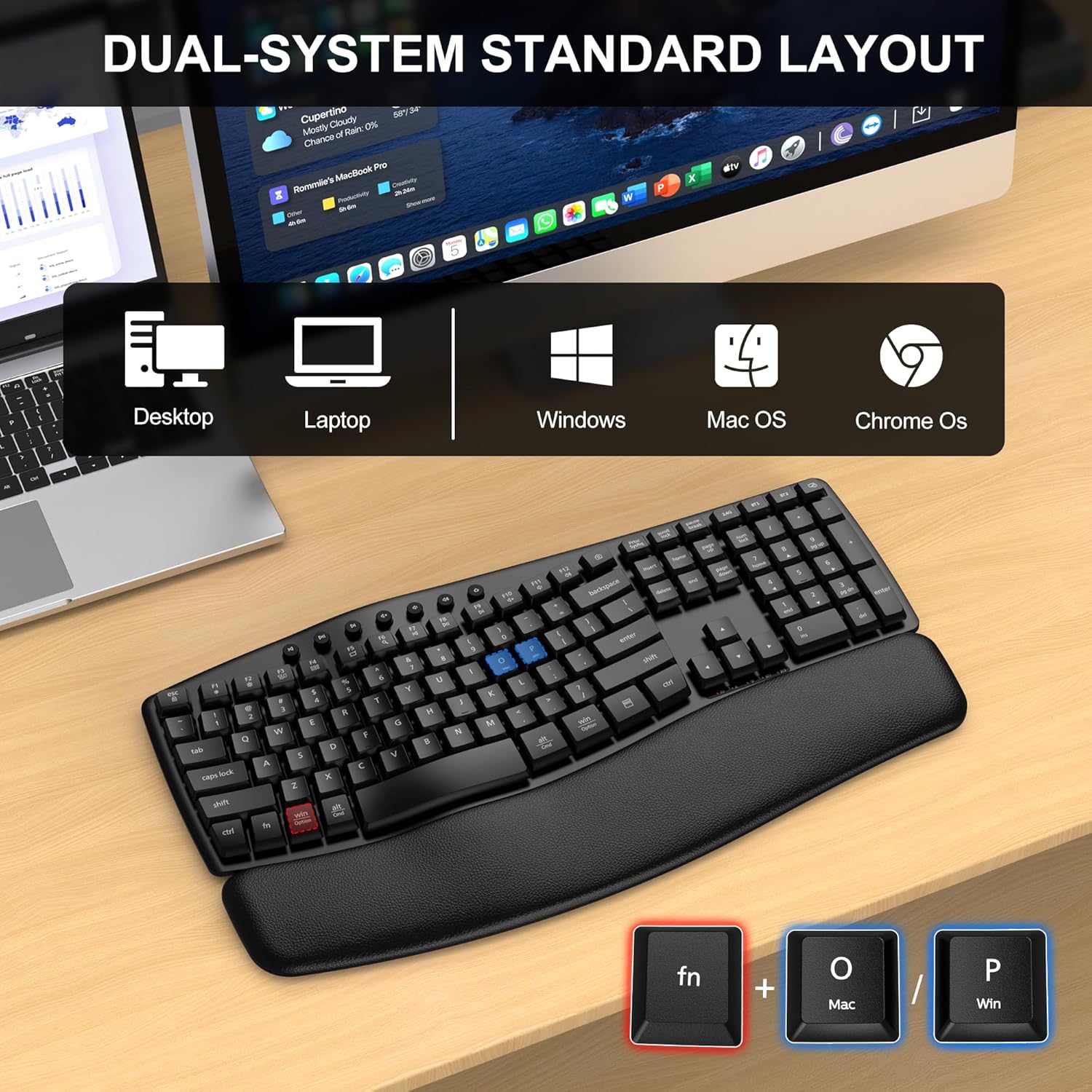
The keyboard supports Desktop and Laptop computers running Windows, Mac OS, and Chrome OS. Use Fn + O for Mac OS or Fn + P for Windows to optimize key functions.
Operating Instructions
This section details the general operation and special functions of your keyboard.
1. Basic Typing
The keyboard features a standard QWERTY layout for comfortable and efficient typing.
2. Multimedia and Function Keys
The keyboard includes 12 multimedia keys and 7 independent buttons for quick access to various functions.
The keyboard features dedicated multimedia keys (F1-F12) and independent buttons for functions like volume control, play/pause, and calculator.
- F1-F12 Keys: These keys often have secondary functions (e.g., media control, brightness adjustment) when pressed in combination with the Fn key. Refer to the keycap legends for specific functions.
- Independent Buttons: Dedicated buttons for functions such as volume up/down, mute, play/pause, previous/next track, and calculator.
3. Smart Power Saving
The keyboard is designed with smart power-saving features to extend battery life.
- Auto Sleep: If the keyboard is inactive for 30 minutes, it will automatically enter sleep mode to conserve power. Press any key to wake it up.
- ON/OFF Switch: Always turn off the keyboard using the ON/OFF switch when not in use for extended periods.
Maintenance
Proper maintenance ensures the longevity and performance of your keyboard.
1. Cleaning
- Turn off the keyboard before cleaning.
- Use a soft, lint-free cloth slightly dampened with water or a mild cleaning solution to wipe the surface of the keyboard.
- Do not use harsh chemicals, abrasive cleaners, or immerse the keyboard in liquid.
- Use compressed air to remove dust and debris from between the keys.
2. Battery Replacement
When the keyboard's performance degrades or it fails to connect, it may be time to replace the batteries. Follow the battery installation steps in the Setup section.
Troubleshooting
If you encounter issues with your EDJO K213T keyboard, refer to the following common solutions.
- Keyboard not responding:
- Ensure the keyboard is powered on.
- Check battery levels and replace if necessary.
- For 2.4G connection, ensure the USB receiver is securely plugged into a working USB port. Try a different USB port.
- For Bluetooth connection, ensure Bluetooth is enabled on your device and the keyboard is paired correctly. Try re-pairing the keyboard.
- Switch to a different connection mode (2.4G, BT1, BT2) to see if the issue persists.
- Lag or intermittent connection:
- Move the keyboard closer to your device.
- Ensure there are no large metal objects or other wireless devices interfering with the signal.
- Replace batteries.
- Keys not working correctly:
- Clean the keyboard to remove any debris that might be obstructing the keys.
- Ensure the correct operating system mode (Fn+O for Mac, Fn+P for Windows) is selected.
Specifications
Detailed technical specifications for the EDJO K213T keyboard.
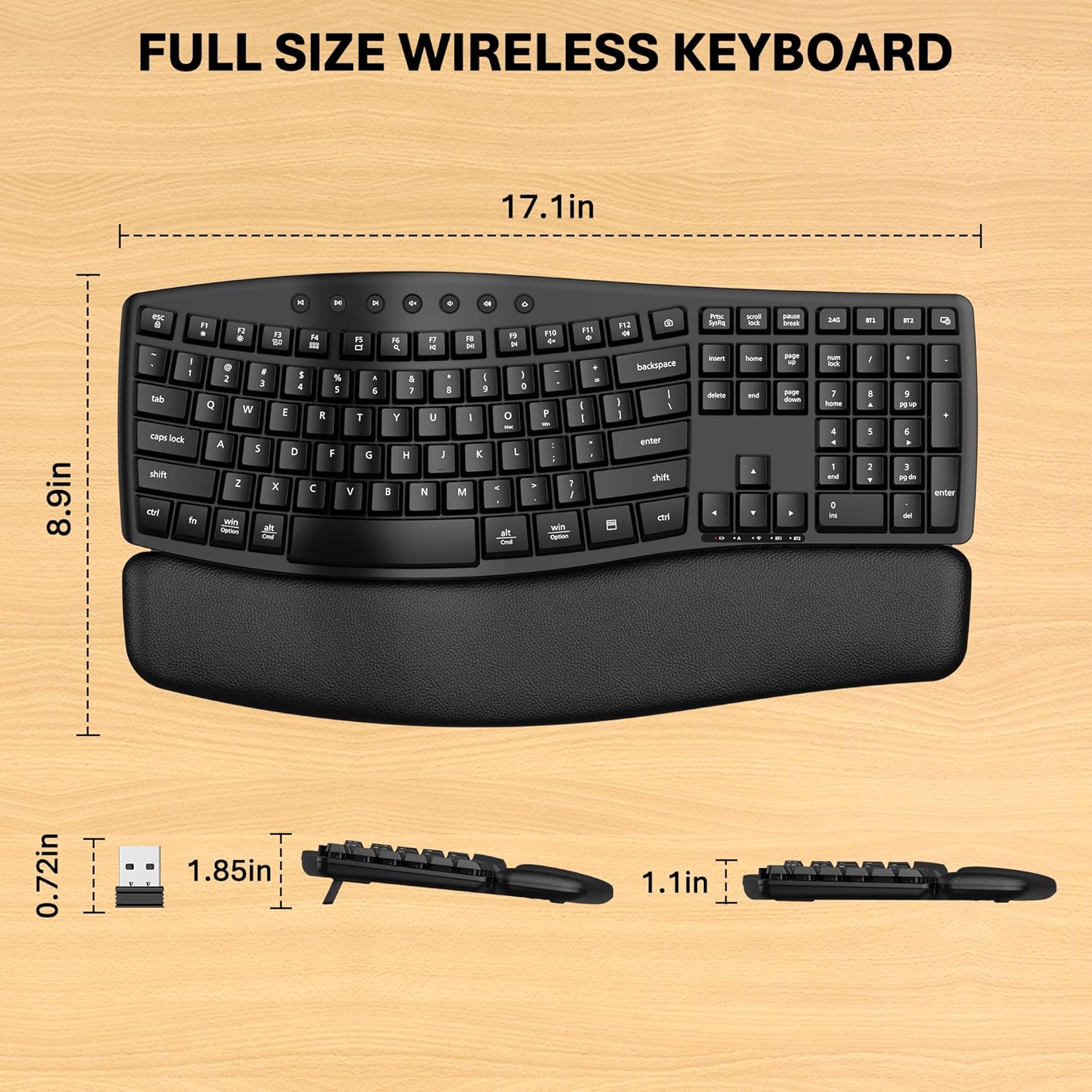
The EDJO K213T full-size wireless keyboard with its overall dimensions of 17.1 inches (length) by 8.9 inches (width).
| Brand | EDJO |
| Model | K213T |
| Connectivity Technology | Bluetooth, 2.4G Wireless (USB-A) |
| Compatible Devices | Laptop, PC (Windows, Mac OS, Chrome OS, Android) |
| Keyboard Description | Membrane |
| Special Features | Ergonomic design, Multimedia keys, Smart power saving |
| Keyboard Layout | QWERTY |
| Product Dimensions | 43.43 x 22.61 x 2.79 cm (17.1 x 8.9 x 1.1 inches) |
| Item Weight | 962 g |
| Batteries Required | 2 x AAA (Not Included) |
| Auto Sleep Time | 30 Minutes of inactivity |
| Standby Time | Up to 365 Days |
Warranty and Support
For warranty information and technical support, please refer to the documentation provided with your purchase or contact EDJO customer service through the retailer where the product was purchased. Please have your product model number (K213T) and purchase date available when contacting support.
