
Introduction
This manual provides detailed instructions for the safe and effective use of your WOLFBOX MF50 Electric Air Duster and WOLFBOX X3 2.5K Dash Cam. Please read this manual thoroughly before operating the devices and retain it for future reference.
WOLFBOX MF50 Electric Air Duster
Components
The WOLFBOX MF50 Electric Air Duster is a compact, handheld device designed for efficient dust and debris removal. It includes the main duster unit, various nozzles, and a charging cable.

Image: WOLFBOX MF50 Electric Air Duster with included nozzles and USB-C charging cable.
Setup
- Charging: Connect the provided USB-C cable to the charging port on the duster and to a compatible USB power source. The battery indicator lights will illuminate during charging.
- Attaching Nozzles: Select the appropriate nozzle for your cleaning task. Align the nozzle with the air outlet and twist clockwise until it clicks into place. To remove, twist counter-clockwise and pull.
Operating Instructions
The MF50 duster features a powerful turbo fan with adjustable speed settings.
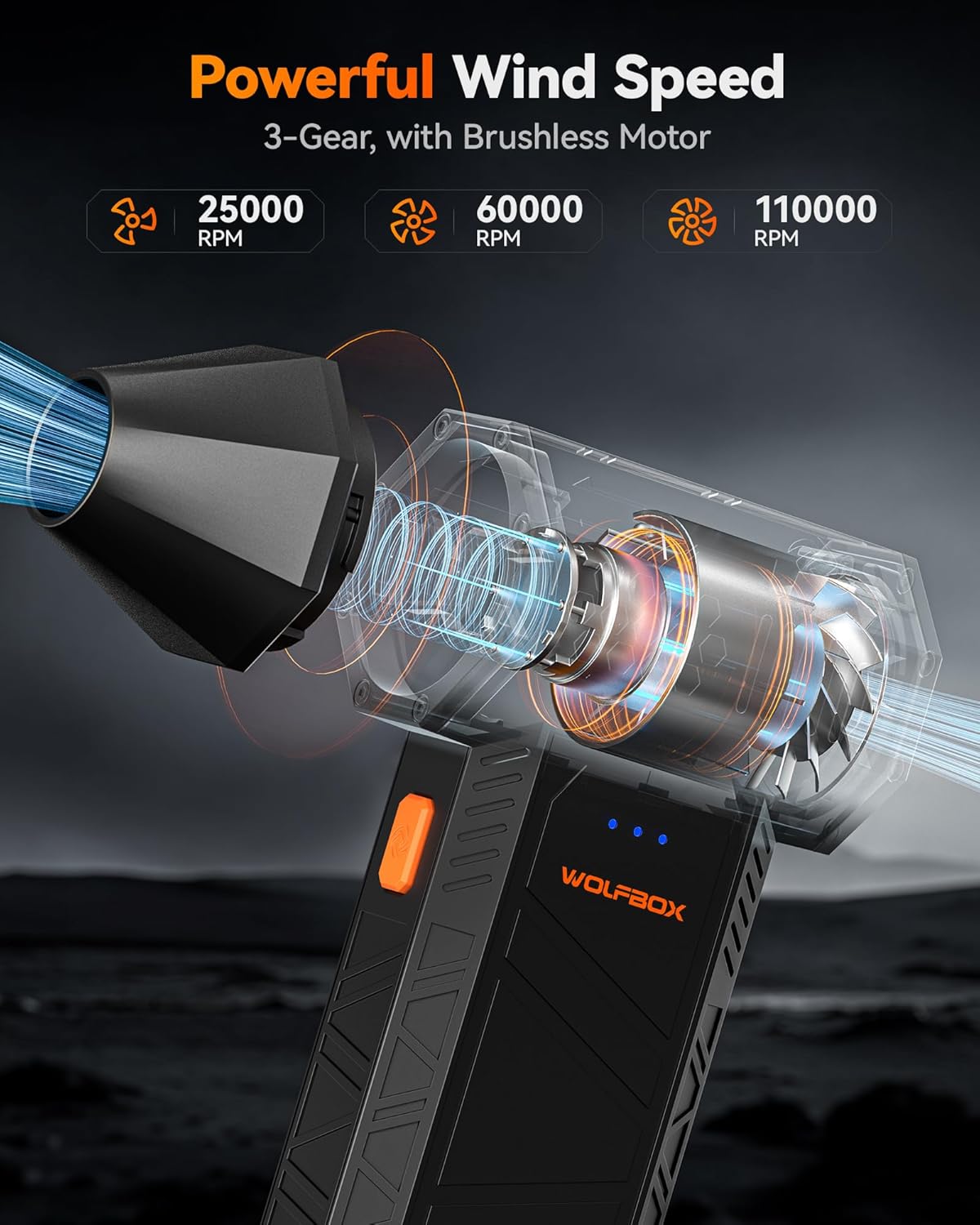
Image: Illustration of WOLFBOX MF50's three adjustable speed settings.
- Power On/Off: Press and hold the power button (located on the side) for a few seconds to turn the device on. The battery indicator lights will show the current charge level. To turn off, press and hold the power button again.
- Adjusting Speed: Once powered on, short press the power button to cycle through the three speed settings:
- Low (25,000 RPM)
- Medium (60,000 RPM)
- High (110,000 RPM)
- Blowing: To activate the air flow, press and hold the trigger button (located on the handle). Release the button to stop the air flow.
Video: Demonstration of the WOLFBOX MF50 Electric Air Duster's power and adjustable settings.
Maintenance
Regularly clean the nozzles and the air inlet mesh to ensure optimal performance. Use a soft brush or cloth to remove any accumulated dust or debris. Do not block the air inlet during operation to prevent damage or overheating.
WOLFBOX X3 2.5K Dash Cam
Components
The WOLFBOX X3 Dash Cam system includes a main front camera unit with an LED display, a rear camera, and a GPS module. It is designed to capture high-quality video footage while driving.

Image: WOLFBOX X3 2.5K Dash Cam with its main unit, rear camera, and GPS module.
Setup
- Installation: Mount the front camera unit on your car's windshield, ensuring a clear view of the road. Install the rear camera at the back of your vehicle for dual-channel recording. Connect the GPS module to the main unit.
- Power Connection: Connect the dash cam to your vehicle's power source. The dash cam typically draws power from the car's electrical system.
- Wi-Fi Connection: The X3 supports 5.8GHz Wi-Fi. Tap the touchscreen to enable Wi-Fi and connect to the WOLFBOX app on your smartphone for faster video transfers, live preview, and clip downloads.
- GPS Functionality: The built-in GPS automatically records vehicle speed and location, embedding this data directly into video files.
Operating Instructions
The X3 Dash Cam offers advanced recording and driver assistance features.

Image: WOLFBOX X3 Dash Cam showcasing its ultra-smooth video recording capabilities.
- Video Recording: The front camera records in 2.5K (2560*1440P) at 60fps, and the rear camera records in 1080P at 30fps. The STARVIS 2 IMX675 sensor enhances low-light performance and reduces image noise.
- Smart ADAS: The Advanced Driver Assistance System (ADAS) provides proactive alerts for road hazards, including pedestrian collision warnings, lane departure warnings, and stop & go alerts.
- Touch Screen: Use the touchscreen for convenient control and navigation of the dash cam's settings and features.
Maintenance
Keep the camera lenses clean and free from obstructions for clear recording. Regularly check the SD card for proper function and ensure sufficient storage space. Refer to the dash cam's specific manual for detailed cleaning and storage instructions.
Troubleshooting
Electric Air Duster (MF50)
- Device not turning on: Ensure the battery is sufficiently charged. Connect to a power source and allow it to charge.
- Weak airflow: Check if the nozzle is securely attached and if the air inlet is clear of obstructions. Ensure the device is set to a higher speed setting.
Dash Cam (X3)
- Recording issues: Verify that an SD card is inserted and has sufficient free space. Check the power connection to the vehicle.
- Wi-Fi connection problems: Ensure the dash cam's Wi-Fi is enabled via the touchscreen. Try restarting both the dash cam and your smartphone's Wi-Fi.
- GPS not working: Ensure the GPS module is properly connected and the vehicle is in an open area with clear sky visibility.
Specifications
WOLFBOX MF50 Electric Air Duster
- Max RPM: 110,000 RPM
- Speed Settings: 3 adjustable speeds
- Motor Type: Brushless
- Power Source: Rechargeable internal battery
WOLFBOX X3 2.5K Dash Cam
- Model Name: X3
- Color: Black
- Front Video Resolution: 2.5K (2560*1440P) @ 60fps
- Rear Video Resolution: 1080P @ 30fps
- Front Sensor: STARVIS 2 IMX675
- Connectivity: 5.8GHz Wi-Fi
- Features: Built-in GPS, Smart ADAS, Touch Screen, Front & Rear Auto Part Position
- Display Type: LED
Warranty and Support
WOLFBOX products are designed for high standards of quality and performance. For any issues or inquiries, please contact WOLFBOX customer service.
- Customer Service Email: service@wolfbox.com
- Customer Service Phone: +1 888 296 8399