
1. Introduction
The PEICHENG Q2SPRO is a 7-inch tablet designed for a smooth and responsive user experience, powered by the Android 15.0 operating system. It features an IPS display, ample memory and storage, and dual cameras, making it suitable for various daily tasks from browsing to media consumption. This manual provides essential information for setting up, operating, maintaining, and troubleshooting your device.
2. Package Contents
Please check the package contents upon unboxing. If any items are missing or damaged, contact customer support.
- PEICHENG Q2SPRO 7-inch Android 15.0 Tablet
- Protective Case with Foldable Stand
- USB-C Charging Cable
- Power Adapter (may vary by region)
- User Manual (this document)
3. Device Layout
Familiarize yourself with the physical components of your PEICHENG Q2SPRO tablet.
This image shows the PEICHENG Q2SPRO tablet from both the front, displaying its screen, and the rear, highlighting the camera and overall design.

A side view of the PEICHENG Q2SPRO tablet, illustrating the placement of its various ports and buttons, such as the USB-C port, power button, and volume controls.
- Front Camera: Located above the screen.
- Rear Camera: Located on the back panel.
- Power Button: Typically on the side, used to turn the device on/off or wake/sleep.
- Volume Buttons: Adjust audio levels.
- USB-C Port: For charging and data transfer.
- Speaker: For audio output.
- MicroSD Card Slot: For expandable storage.
4. Setup
4.1 Initial Charging
Before first use, fully charge your tablet. Connect the USB-C cable to the tablet's charging port and the other end to the power adapter. Plug the adapter into a wall outlet. The charging indicator will show the charging status.
4.2 Power On/Off
- To Power On: Press and hold the Power button until the PEICHENG logo appears on the screen.
- To Power Off: Press and hold the Power button until the power options appear, then select "Power Off."
- To Sleep/Wake: Briefly press the Power button.
4.3 Initial Setup Wizard
Upon first power-on, the Android 15.0 setup wizard will guide you through essential configurations:
- Language Selection: Choose your preferred language.
- Wi-Fi Connection: Connect to a wireless network to access the internet. The tablet supports WiFi6 (2.4G+5G).
- Google Account: Sign in with your Google account or create a new one to access Google services like the Play Store, Gmail, and Google Drive.
- Date & Time: Set the correct date and time.
- Security: Set up a screen lock (PIN, pattern, or password) for device security.

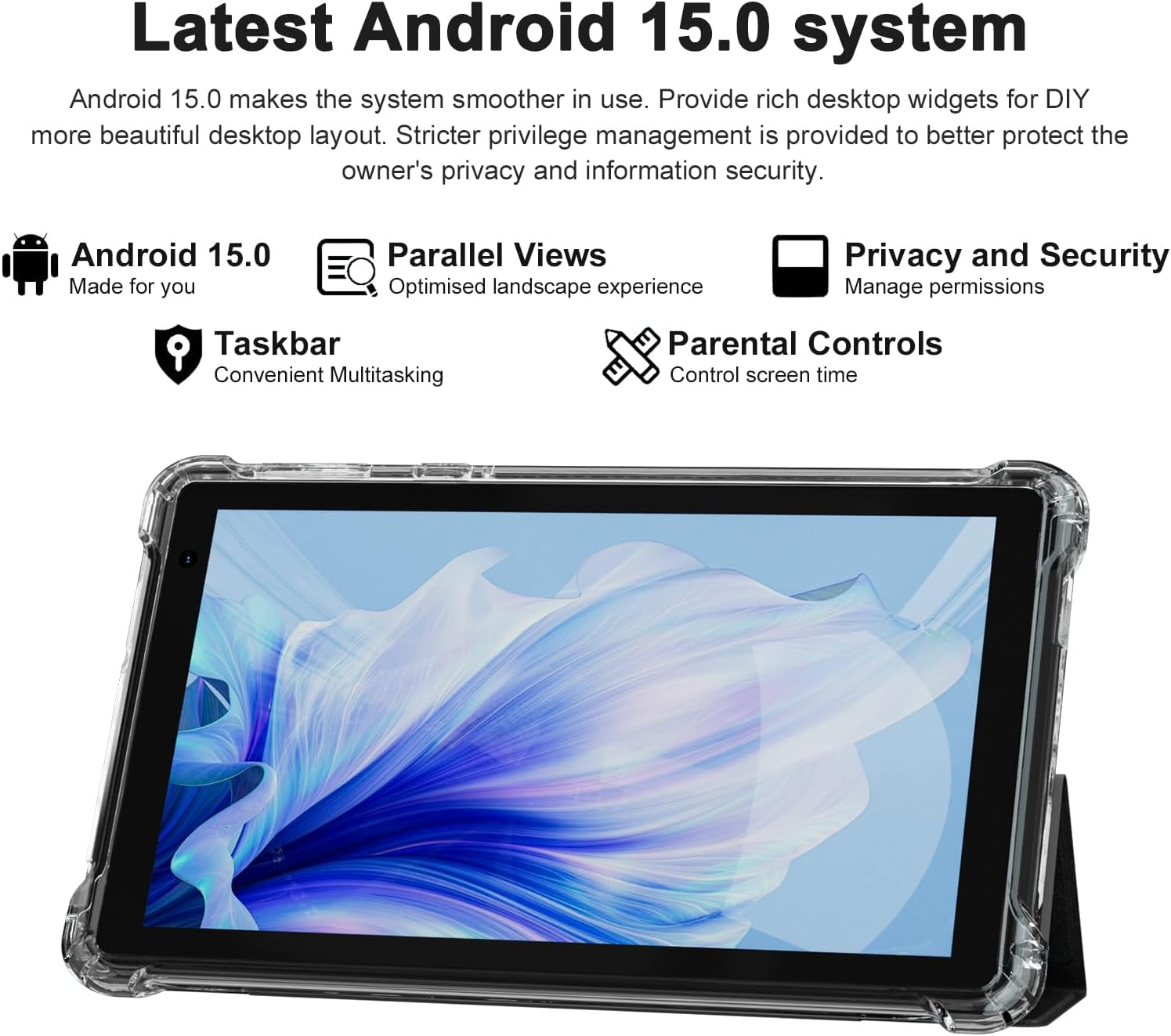
The PEICHENG Q2SPRO tablet screen displaying the Android 15.0 operating system interface, highlighting features like desktop widgets and privacy controls.
5. Operating Instructions
5.1 Basic Navigation
- Touchscreen: Tap, swipe, pinch-to-zoom for interaction.
- Home Screen: Access apps, widgets, and notifications. Android 15.0 offers rich desktop widgets for customization.
- Notifications Panel: Swipe down from the top of the screen to view notifications and quick settings.
- Taskbar: Android 15.0 includes a taskbar for convenient multitasking and optimized landscape mode.
5.2 Wi-Fi Connection
- Go to Settings > Network & internet > Internet.
- Turn on Wi-Fi.
- Select your desired Wi-Fi network from the list.
- Enter the password if prompted, then tap Connect.
5.3 Bluetooth Pairing
- Go to Settings > Connected devices > Connection preferences > Bluetooth.
- Turn on Bluetooth.
- Ensure the device you want to pair is in pairing mode.
- Select the device from the list of available devices and follow on-screen instructions to complete pairing.
5.4 Camera Usage
The tablet features a 2.0MP front camera and a 5.0MP rear camera.
- Open the Camera application.
- Tap the camera icon to switch between front and rear cameras.
- Tap the shutter button to take a photo or start/stop video recording.

This image illustrates the 5MP rear camera and 2MP front camera specifications of the PEICHENG Q2SPRO tablet, alongside example photos taken with the device.
5.5 App Installation
Access millions of applications through the Google Play Store.
- Open the Play Store app.
- Search for the desired app.
- Tap Install and follow the on-screen prompts.
5.6 Protective Case and Stand
The included transparent, shock-absorbing protective case helps protect your tablet. It features a built-in foldable stand, allowing you to prop the tablet at a comfortable viewing angle for hands-free use.

The PEICHENG Q2SPRO tablet enclosed in its transparent protective case, demonstrating the integrated foldable stand propping the device at a comfortable viewing angle.
6. Maintenance
6.1 Cleaning the Tablet
- Use a soft, lint-free cloth to clean the screen and body.
- Do not use liquid cleaners or aerosols directly on the tablet.
- For stubborn marks, slightly dampen the cloth with water or a screen-safe cleaner.
6.2 Software Updates
Regularly check for and install software updates to ensure optimal performance, security, and access to new features. Go to Settings > System > System update.
6.3 Battery Care
- Avoid extreme temperatures, which can degrade battery life.
- Do not let the battery completely drain frequently.
- Use the provided charger for optimal charging.
- The tablet emphasizes low power consumption for better battery efficiency.
7. Troubleshooting
This section addresses common issues you might encounter with your tablet.
| Problem | Possible Cause / Solution |
|---|---|
| Tablet does not power on | Ensure the battery is charged. Connect to the charger and wait a few minutes before attempting to power on again. |
| Tablet freezes or is unresponsive | Press and hold the Power button for about 10-15 seconds to force a restart. Close unnecessary background applications. |
| Wi-Fi connection issues | Ensure Wi-Fi is enabled. Restart your router and the tablet. Check if the Wi-Fi password is correct. Try connecting to a different network if available. |
| Battery drains quickly | Reduce screen brightness. Close unused apps. Disable Wi-Fi/Bluetooth when not in use. Check for power-intensive apps in battery settings. |
| Tablet overheats | Avoid using the tablet in direct sunlight or hot environments. Close demanding applications. Allow the tablet to cool down before continued use. |
| Slow performance | Clear cache and data of frequently used apps. Uninstall unused apps. Ensure sufficient free storage space. Restart the tablet regularly. |
8. Specifications
Technical specifications for the PEICHENG Q2SPRO tablet.
| Feature | Detail |
|---|---|
| Brand | PEICHENG |
| Model Name | Q2SPRO |
| Operating System | Android 15.0 |
| Screen Size | 7 Inches |
| Display Type | IPS LED Touchscreen |
| Display Resolution | 1024 x 600 pixels |
| RAM Memory | 8GB (3GB installed + 5GB expandable) |
| Memory Storage Capacity | 32 GB (expandable up to 1TB via MicroSD) |
| Processor Brand | Rockchip |
| Rear Camera | 5.0MP |
| Front Camera | 2.0MP |
| Video Capture Resolution | HD 720p |
| Wireless Technology | Wi-Fi (802.11ax, 802.11g, 2.4G+5G) |
| Bluetooth | Bluetooth 5.0 |
| Connectivity Technology | USB 3.0 Type C |
| Battery Cell Type | Lithium Polymer |
| Battery Energy Content | 3000 Milliampere Hour (mAh) |
| Item Weight | 0.49 Kilograms |
| Item Dimensions (L x W x Thickness) | 8"L x 5"W x 0.4"Th |
9. Warranty Information
The PEICHENG Q2SPRO tablet comes with a 1-year limited warranty from the date of purchase. This warranty covers manufacturing defects and malfunctions under normal use. It does not cover damage caused by misuse, accidents, unauthorized repairs, or normal wear and tear. Please retain your proof of purchase for warranty claims.
10. Customer Support
For further assistance, technical support, or warranty inquiries, please refer to the contact information provided with your product packaging or visit the official PEICHENG website. When contacting support, please have your model number (Q2SPRO) and proof of purchase readily available.


