
1. Introduction
Welcome to the user manual for your new Motorola Razr 50 (2024) XT2453-3 smartphone. This guide provides essential information to help you set up, operate, and maintain your device. The Motorola Razr 50 combines innovative foldable design with powerful performance, offering a seamless user experience.
Please read this manual thoroughly to ensure optimal use and longevity of your device.
2. Package Contents
Before you begin, please verify that your package contains the following items:
- Motorola Razr 50 (2024) XT2453-3 Smartphone
- Power Adapter
- Quick Start Guide (may be separate or integrated)
- SIM Ejector Tool (may be included)
If any items are missing or damaged, please contact your retailer or Motorola customer support.
3. Device Overview
The Motorola Razr 50 features a unique foldable design with two displays. Familiarize yourself with the key components of your device.
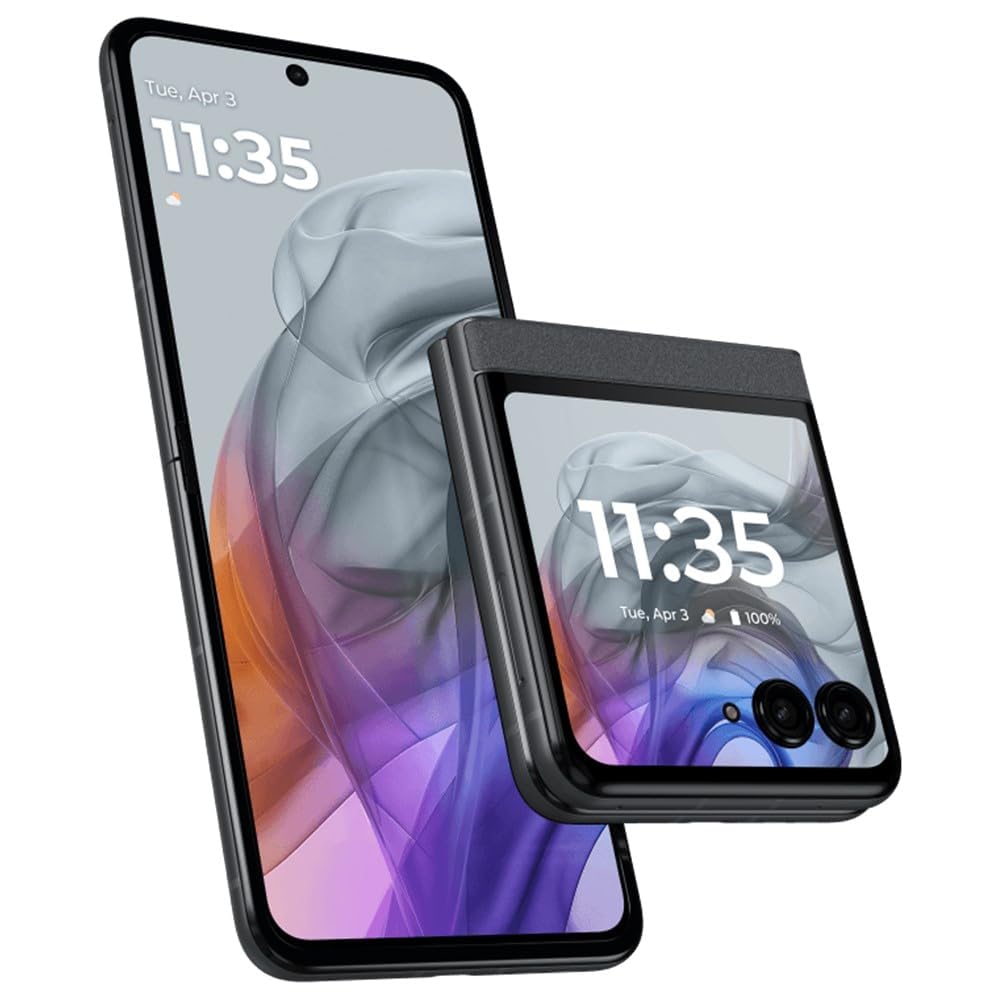
Image: Motorola Razr 50 (2024) XT2453-3 in Space Gray, folded, displaying the external screen. This image illustrates the compact form factor of the device.
Key Features:
- Foldable pOLED Main Display: Enjoy immersive visuals with a smooth 144Hz refresh rate.
- Interactive External Screen: A 3.6-inch display for notifications, quick replies, and selfies without opening the phone.
- High-Performance Camera: Capture sharp photos and 4K videos with advanced AI features.
- Ample Storage and RAM: 256GB storage and 8GB RAM for efficient multitasking and data storage.
- Compact Design: Pocket-friendly flip form factor for portability.
4. Setup
4.1. Inserting the SIM Card
- Locate the SIM card tray on the side of your device.
- Insert the SIM ejector tool into the small hole next to the tray and press firmly until the tray pops out.
- Place your Nano-SIM card(s) into the tray with the gold contacts facing down, ensuring it fits securely.
- Carefully reinsert the tray into the phone.
4.2. Initial Power On and Setup
- Press and hold the Power button until the Motorola logo appears.
- Follow the on-screen prompts to select your language, connect to a Wi-Fi network, and set up your Google account.
- You will be guided through setting up security features like Face Unlock and a screen lock (PIN, pattern, or password).
4.3. Charging the Battery
Connect the provided power adapter to your phone's USB-C port and plug it into a power outlet. The battery icon on the screen will indicate charging status. For optimal battery life, use only Motorola-approved chargers and cables.
5. Operating Your Device
5.1. Main Display Navigation
- Touch Gestures: Tap to open apps, swipe to navigate, pinch to zoom.
- Home Screen: Customize with widgets and app shortcuts.
- Notifications Panel: Swipe down from the top of the screen to access notifications and quick settings.
5.2. External Display Usage
The 3.6-inch external display provides quick access to essential functions without unfolding the phone.
- Notifications: View incoming calls, messages, and app alerts.
- Quick Settings: Access Wi-Fi, Bluetooth, and other toggles.
- Camera: Use the external display as a viewfinder for high-quality selfies with the main camera.
- Widgets: Customize with various widgets for music control, weather, and more.
5.3. Camera Functions
Open the Camera app to capture photos and videos. The Razr 50 features advanced AI capabilities for enhanced image quality.
- Photo Modes: Standard, Portrait, Night Vision, Pro Mode.
- Video Recording: Supports up to 4K resolution.
- AI Features: Scene optimization, auto smile capture.
5.4. Making Calls and Sending Messages
- Calls: Tap the Phone icon, enter a number, or select a contact.
- Messages: Tap the Messages icon to compose and send SMS/MMS.
6. Maintenance
6.1. Cleaning Your Device
To clean your phone, use a soft, lint-free cloth. Avoid abrasive materials, solvents, or aerosol sprays. For the foldable screen, gently wipe with a microfiber cloth. Do not press hard on the screen.
6.2. Software Updates
Regularly check for software updates to ensure your device has the latest features and security enhancements. Go to Settings > System > System updates to check for and install available updates.
6.3. Battery Care
To prolong battery life, avoid extreme temperatures. Do not leave your phone fully charged or fully discharged for extended periods. Use the provided charger for optimal performance.
7. Troubleshooting
7.1. Common Issues and Solutions
| Issue | Solution |
|---|---|
| Phone not turning on | Ensure the battery is charged. Connect to the power adapter for at least 15 minutes, then try powering on again. |
| Apps crashing or freezing | Close and reopen the app. Clear the app's cache (Settings > Apps > [App Name] > Storage & cache > Clear cache). Restart your phone. |
| Poor network signal | Check your SIM card insertion. Move to an area with better network coverage. Restart your phone. |
| Screen unresponsive | Perform a force restart by holding the Power button for about 10-15 seconds. |
7.2. Factory Reset
If you encounter persistent issues, a factory reset may resolve them. Warning: This will erase all data on your phone. Back up important data before proceeding.
- Go to Settings > System > Reset options.
- Select Erase all data (factory reset).
- Confirm your decision and enter your PIN/password if prompted.
8. Specifications
Below are the technical specifications for the Motorola Razr 50 (2024) XT2453-3:
| Feature | Detail |
|---|---|
| Model Name | Razr 50 (2024) XT2453-3 |
| Operating System | Android 14 |
| Main Display Size | 6.9 Inches |
| Refresh Rate | 144 Hz |
| External Display Size | 3.6 Inches (Information from product description) |
| Memory Storage Capacity | 256 GB |
| RAM Memory Installed Size | 8 GB |
| CPU Model | Mediatek Dimensity 9200 |
| CPU Speed | 2.2 GHz |
| Battery Capacity | 4200 Amp Hours (4200.0 Battery Power Rating) |
| Connectivity Technologies | 5G |
| Special Features | Face Unlock, GPS |
| Color | Space Gray |
| Item Weight | 7 ounces |
| Manufacturer | Motorola |
9. Safety Information
Please observe the following safety guidelines to prevent injury or damage to your device:
- Do not expose the device to extreme temperatures, direct sunlight, or excessive moisture.
- Avoid dropping or subjecting the device to severe impact.
- Use only approved accessories, batteries, and chargers.
- Do not attempt to disassemble or repair the device yourself. Refer to qualified service personnel.
- Keep the device away from medical devices, as it may interfere with their operation.
- Dispose of the device and its battery responsibly according to local regulations.
10. Warranty and Support
For warranty information, please refer to the warranty card included with your product or visit the official Motorola website. Motorola provides customer support for technical assistance and service inquiries.
You can find additional support resources, FAQs, and contact information on the official Motorola support website: www.motorola.com/support
Please have your device's model number (XT2453-3) and serial number ready when contacting support.


