
1. Introduction
Welcome to the instruction manual for your JBL Charge 6 Portable Bluetooth Speaker. This guide provides essential information for setting up, operating, and maintaining your device. The JBL Charge 6 is engineered for robust audio performance and portability, featuring IP68 waterproof and dustproof ratings, extended battery life, and Auracast multi-speaker connectivity.
2. What's in the Box
Carefully unpack your JBL Charge 6. The package should contain the following items:
- JBL Charge 6 Portable Bluetooth Speaker
- Strap
- Quick Start Guide
- Safety Sheet
Note: The JBL Charge 6 does NOT include a USB-C charging cable in the box. A compatible standard USB-C cable (sold separately) is required for charging.
This bundle also includes a Megen Hardshell Protection Case for your speaker.

Image: JBL Charge 6 speaker shown with its Megen hardshell protection case and also separately with its attached carrying strap.

Image: The detachable carrying strap for the JBL Charge 6 speaker.

Image: The Megen Hardshell Protection Case designed to store and protect the JBL Charge 6 speaker.
3. Product Overview
Familiarize yourself with the physical components and controls of your JBL Charge 6 speaker.
3.1. Speaker Components

Image: Side view of the JBL Charge 6 speaker, highlighting its textured fabric exterior and integrated carrying handle.
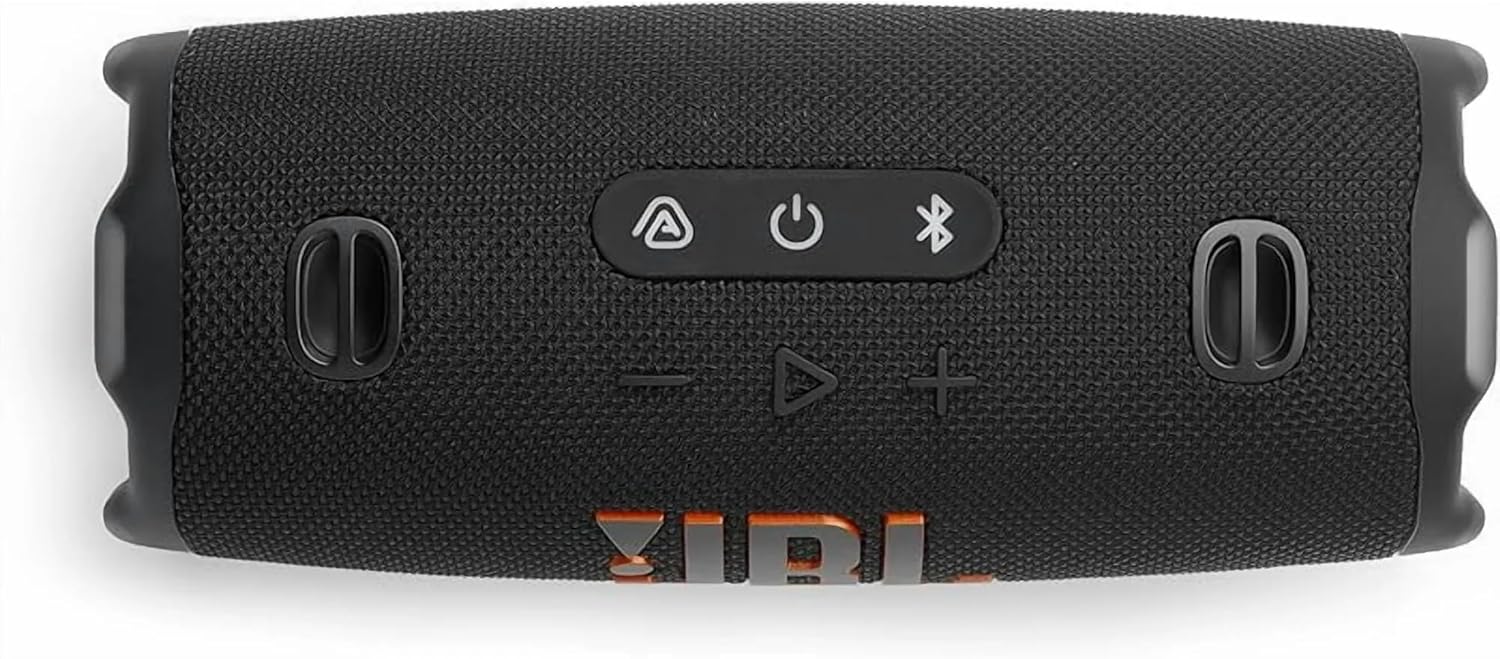
Image: End view of the JBL Charge 6 speaker, showing the passive radiator with the JBL exclamation mark logo.
3.2. Control Panel

Image: Top view of the JBL Charge 6 speaker, displaying the control buttons: Auracast, Power, Bluetooth, Volume Down, Play/Pause, and Volume Up.
- Auracast Button: For connecting multiple Auracast-enabled JBL speakers.
- Power Button: To turn the speaker on or off.
- Bluetooth Button: To initiate Bluetooth pairing mode.
- Volume Down Button: To decrease the audio volume.
- Play/Pause Button: To play or pause audio playback.
- Volume Up Button: To increase the audio volume.
3.3. Ports
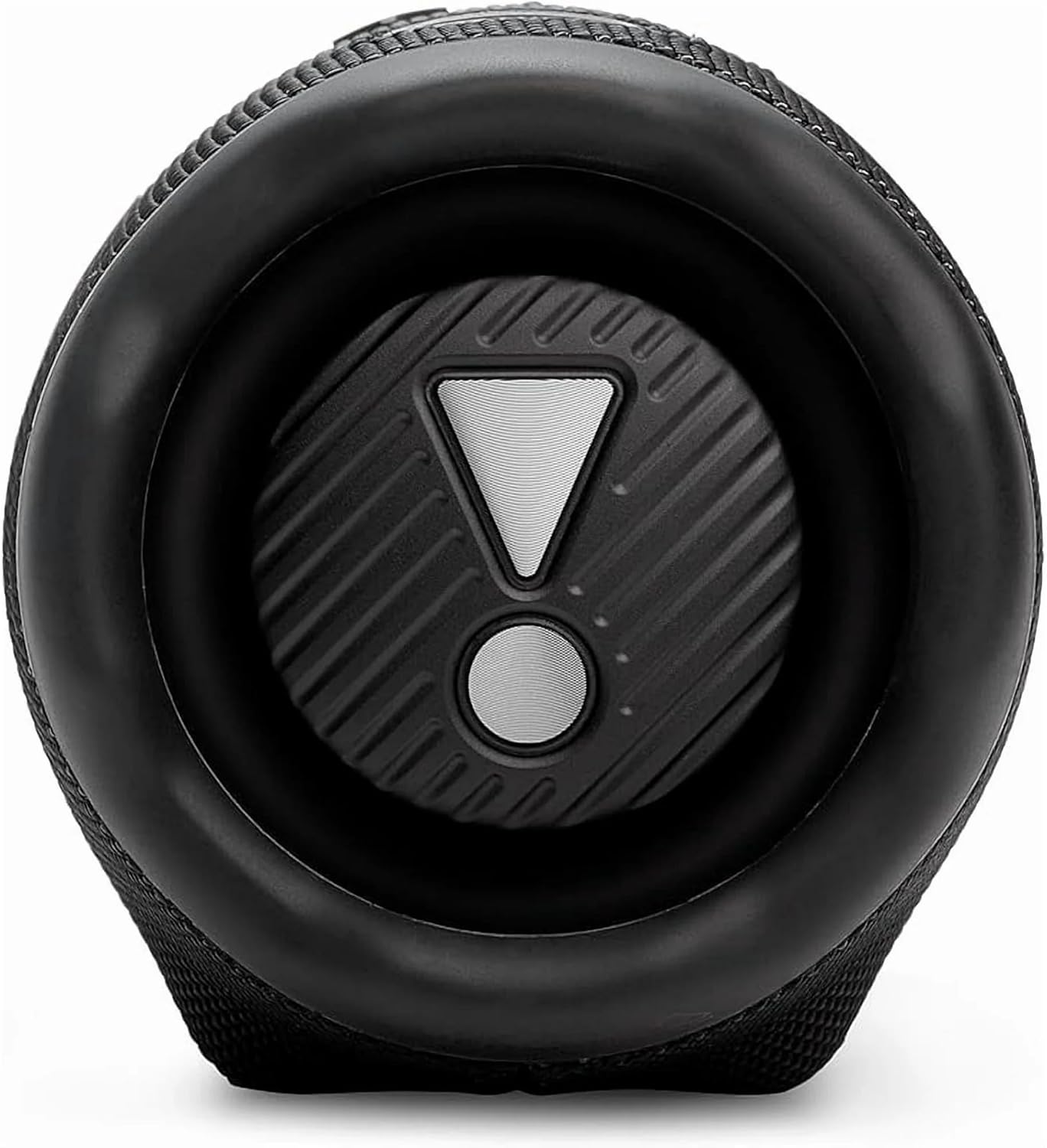
Image: Rear view of the JBL Charge 6 speaker, showing the USB-C charging port and the USB-A power bank port, typically located under a protective flap.
- USB-C Charging Port: For charging the JBL Charge 6 speaker.
- USB-A Power Bank Port: For charging external devices from the speaker's battery.
4. Setup
4.1. Initial Charge
Before first use, it is recommended to fully charge your JBL Charge 6 speaker. Connect a compatible USB-C cable to the speaker's USB-C charging port and then to a power adapter (not included). The battery indicator will show charging status.
4.2. Attaching the Strap
The included strap can be attached to the designated loops on the speaker for easier portability.
5. Operating Instructions
5.1. Power On/Off
- To turn on: Press the Power Button once.
- To turn off: Press and hold the Power Button until the speaker powers down.
5.2. Bluetooth Pairing
- Turn on your JBL Charge 6 speaker.
- Press the Bluetooth Button. The Bluetooth indicator will flash, indicating pairing mode.
- On your mobile device, go to Bluetooth settings and select "JBL Charge 6" from the list of available devices.
- Once connected, the Bluetooth indicator will remain solid.
5.3. Auracast (Multi-Speaker Connection)
The JBL Charge 6 supports Auracast, allowing you to connect multiple Auracast-enabled JBL speakers for a wider sound stage or to cover a larger area with the same audio.
- Ensure all speakers you wish to connect are powered on and within range.
- On the primary speaker (the one connected to your device via Bluetooth), press the Auracast Button.
- On any additional Auracast-enabled speakers, press their respective Auracast Button.
- The speakers will automatically connect, and audio will play simultaneously across all connected units.
5.4. Charging the Speaker
Connect a USB-C charging cable to the USB-C port on the speaker and to a power source. The battery indicator lights will show the charging progress. A full charge provides up to 28 hours of playtime.
5.5. Using as a Power Bank
The JBL Charge 6 can charge external devices. Open the protective flap on the rear of the speaker and connect your device's charging cable to the USB-A power bank port.
5.6. Volume and Playback Control
- Volume Adjustment: Use the Volume Up (+) and Volume Down (-) buttons.
- Play/Pause: Press the Play/Pause Button once.
- Skip Track: Double-press the Play/Pause Button to skip to the next track.
6. Features
6.1. IP68 Waterproof and Dustproof
The JBL Charge 6 is rated IP68, meaning it is fully protected against dust ingress and can withstand immersion in water up to 1.5 meters (approximately 5 feet) for up to 30 minutes. This makes it suitable for use in various outdoor environments, including near pools or at the beach.
6.2. AI Sound Boost
Equipped with JBL AI Sound Boost, the speaker utilizes an advanced audio processing algorithm to optimize sound output, delivering full, rich, and immersive audio performance.
6.3. Extended Playtime
Enjoy up to 28 hours of audio playback on a single charge, ensuring your music lasts through extended listening sessions.
7. Maintenance
7.1. Cleaning
To clean the speaker, use a soft, damp cloth. Avoid using harsh chemicals or abrasive materials, as these can damage the speaker's finish or components. Ensure all ports are dry before charging or connecting devices after exposure to water.
7.2. Storage
Store the speaker in a cool, dry place away from direct sunlight and extreme temperatures. If storing for an extended period, ensure the battery is partially charged (around 50%) to prolong its lifespan.
7.3. Battery Care
To maximize battery life, avoid fully discharging the speaker frequently. Charge the speaker regularly, even if not in use, to maintain battery health.
8. Troubleshooting
If you encounter issues with your JBL Charge 6, refer to the following common problems and solutions:
- Speaker does not power on:
Ensure the battery is charged. Connect the speaker to a power source using a USB-C cable and try again. - Cannot pair via Bluetooth:
Make sure the speaker is in pairing mode (Bluetooth indicator flashing). Ensure your device's Bluetooth is enabled and within range. Try restarting both the speaker and your device. - No sound:
Check the volume levels on both the speaker and your connected device. Ensure the speaker is successfully paired and connected. - Charging issues:
Verify that the USB-C cable and power adapter are working correctly. Ensure the charging port is clean and free of debris. - Auracast connection problems:
Ensure all speakers are Auracast-enabled and within close proximity. Follow the Auracast pairing steps carefully.
9. Specifications
| Brand | JBL |
| Model Name | Charge 6 |
| Speaker Type | Indoor Outdoor |
| Special Features | Dustproof, Portable, Waterproof |
| Connectivity Technology | Bluetooth |
| Wireless Communication Technology | Bluetooth |
| Compatible Devices | Smartphone |
| Power Source | Battery Powered |
| Battery Type | 1 Nonstandard Battery (included) |
| Speaker Maximum Output Power | 45 Watts |
| Audio Output Mode | Stereo |
| Surround Sound Channel Configuration | 2.0 |
| Water Resistance Level | Waterproof (IP68) |
| Material | Fabric, Rubber |
| Product Dimensions | 4"D x 3"W x 2"H |
| Item Weight | 3.72 pounds (1.69 Kilograms) |
| Control Method | Touch |
| Mounting Type | Portable Speaker |
10. Warranty and Support
The JBL Charge 6 comes with a Limited Warranty. For detailed warranty information, product support, or to register your product, please visit the official JBL website or refer to the Safety Sheet included in your package.
For further assistance, you may also contact JBL customer service through their official channels.


