
1. Introduction
Thank you for choosing the Portkeys HD7T 7-inch HD Camera Monitor. This professional on-camera monitor is designed to enhance your video production workflow with its high-brightness touchscreen, 4K HDMI input, and advanced monitoring tools. This manual provides detailed instructions for setting up, operating, and maintaining your device to ensure optimal performance.
2. Package Contents
Please verify that all items listed below are included in your package. If any items are missing or damaged, please contact your retailer or Portkeys customer support.
- 1x Portkeys HD7T Camera Monitor
- 1x Sunshade
- 1x A to A HDMI Cable
- 1x A to D Micro HDMI Cable
- 1x Ball Head Mount
- 1x AV Cable
3. Product Overview and Key Features
The Portkeys HD7T monitor offers a range of features designed for professional use:
- 7-inch High Brightness Touchscreen: Equipped with a 7-inch high brightness touchscreen, providing clear HD monitoring even in strong outdoor lighting conditions. The screen is approximately 96% larger than a standard 5-inch screen, enhancing visibility.
- 4K HDMI Input & 3D LUT: Supports HDMI signal input up to 4K30P and allows for the use of up to 20 replaceable 3D LUT files for cinematic-grade color grading.
- Professional Monitoring Tools: Includes various shooting assisting tools such as Peaking for focus assist, False Color for exposure analysis, Zebra for overexposure warnings, and Image Flip for flexible mounting options.
- High Efficiency and Energy Saving: Designed for dynamic shooting without motion blur, offering a wide viewing angle with consistent and accurate colors. A single NPF970 battery can support up to 4 hours of 4K monitoring.
- High-intensity Silent Fan: Features an adjustable fan speed for real-time control over heat dissipation and noise levels.
- IPS HD Matte Screen: Offers a resolution of 1280x800, a contrast ratio of 1000:1, and 8-bit color depth with Rec.709 professional color gamut coverage.
- Lightweight Design: The monitor is as thin as 20.8mm and weighs approximately 245g, making it highly portable.

Figure 3.1: Front view of the Portkeys HD7T monitor displaying a vibrant image.

Figure 3.2: Visual comparison illustrating the 7-inch screen's larger display area compared to a 5-inch screen.

Figure 3.3: The monitor's ultra-clean user interface with full touch screen control.

Figure 3.4: Demonstrating 4K monitoring capability via 4K30P HDMI input.
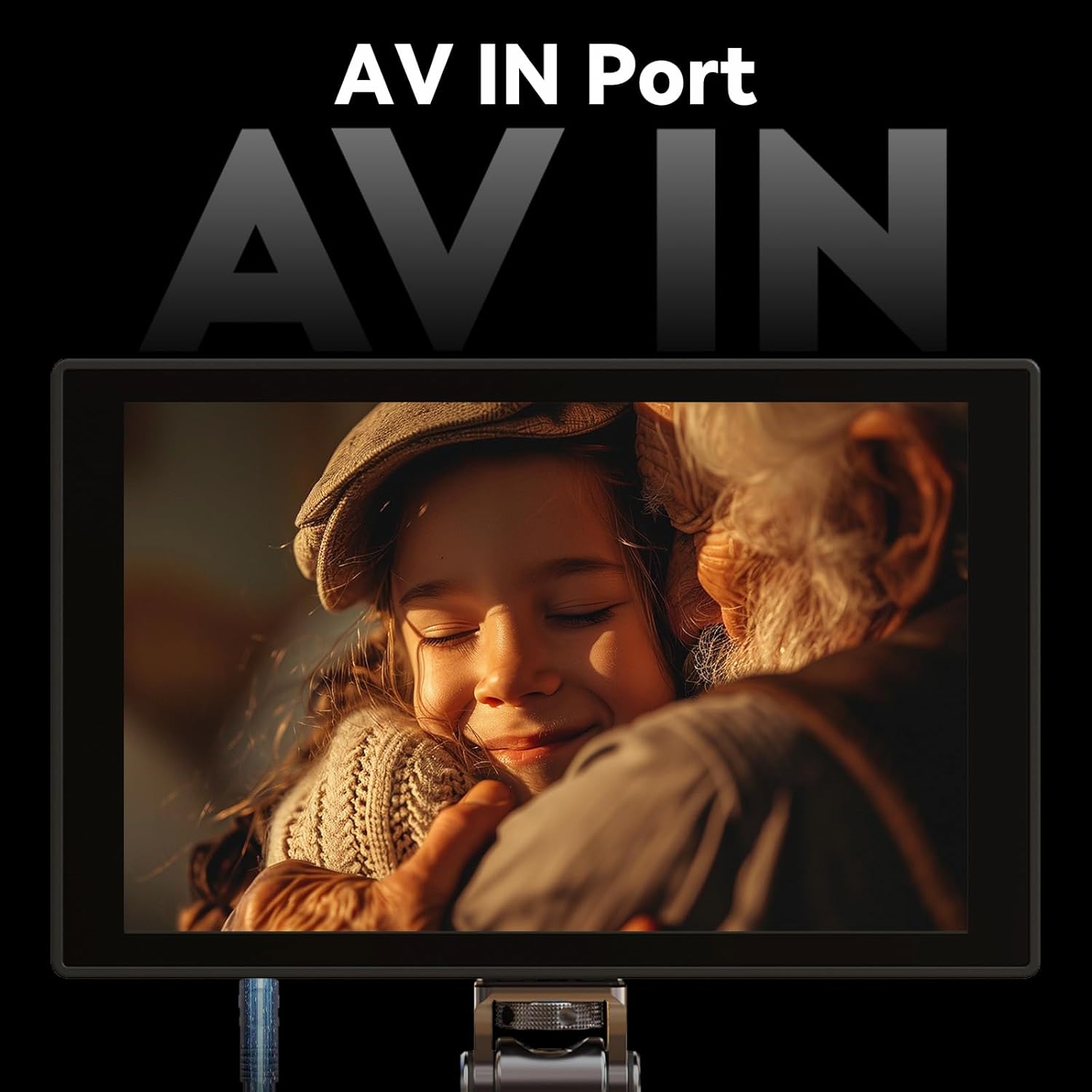
Figure 3.5: The monitor features an AV IN port for additional connectivity.

Figure 3.6: Details of the IPS HD Matte Screen, including resolution, contrast ratio, and color depth.
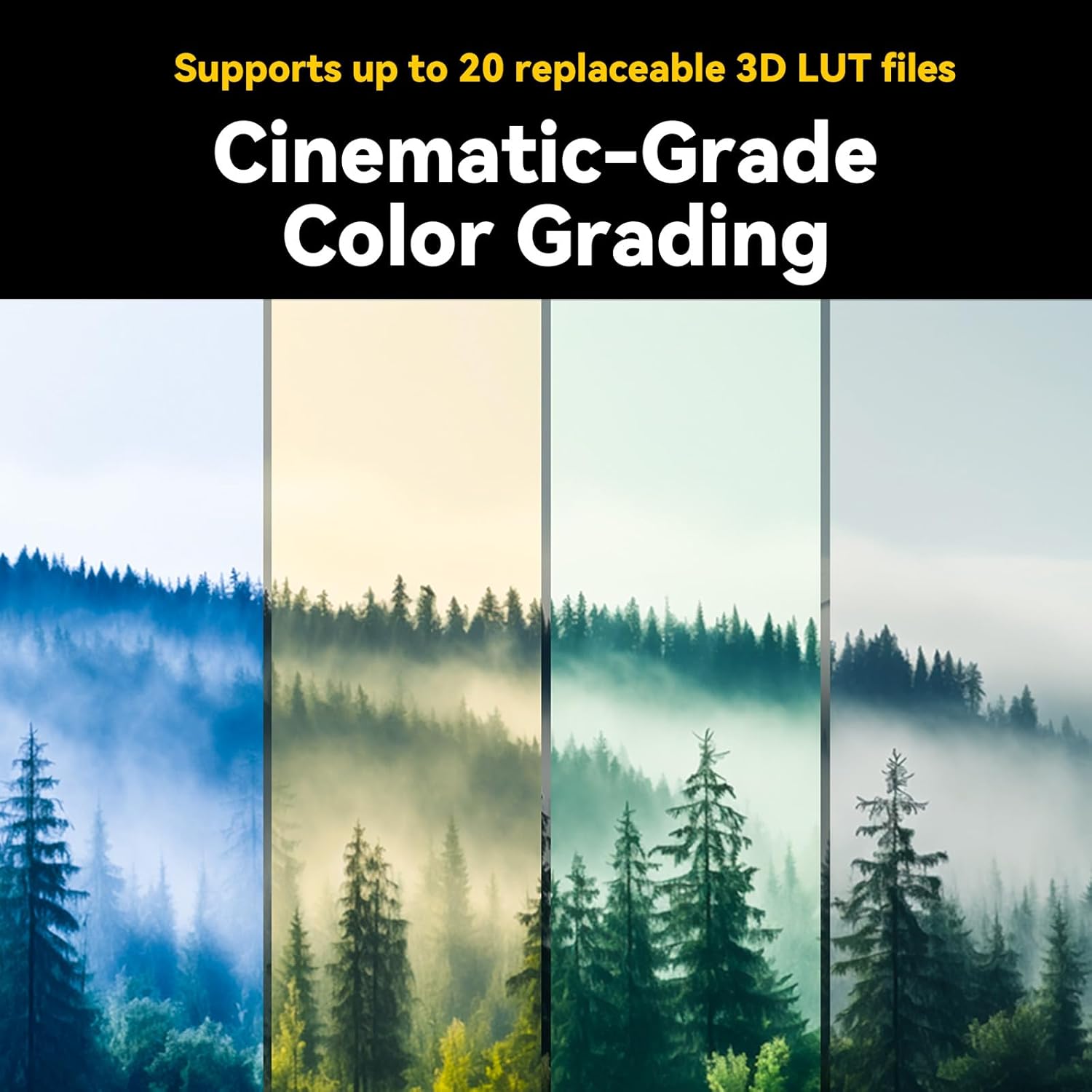
Figure 3.7: The monitor supports up to 20 replaceable 3D LUT files for cinematic color grading.

Figure 3.8: The lightweight and thin design of the Portkeys HD7T monitor, highlighting its portability and port layout.
4. Setup
4.1 Attaching the Ball Head Mount
- Locate the 1/4-inch screw thread on the bottom or side of the monitor.
- Screw the provided ball head mount onto the monitor securely.
- Attach the ball head mount to your camera's hot shoe or another compatible mounting point. Adjust the angle as needed.
4.2 Powering the Monitor
The Portkeys HD7T monitor is primarily powered by an NPF970 battery (not included). Ensure the battery is fully charged before use.
- Align the NPF970 battery with the battery plate on the back of the monitor.
- Slide the battery into place until it clicks securely.
- To remove, press the release latch and slide the battery out.
4.3 Connecting Video Sources
The monitor supports HDMI input up to 4K30P and AV input.
- HDMI Connection: Connect one end of the provided HDMI cable (A to A or A to D Micro HDMI, depending on your camera) to your camera's HDMI output port. Connect the other end to the HDMI input port on the Portkeys HD7T monitor.
- AV Connection: Connect the provided AV cable to the AV IN port on the monitor and to your video source's AV output.
5. Operating Instructions
5.1 Power On/Off
- To power on, press and hold the power button located on the side/top of the monitor until the screen illuminates.
- To power off, press and hold the power button again until the screen turns off.
5.2 Touchscreen Navigation
The HD7T features a full touchscreen interface for intuitive control.
- Tap: Select menu items or activate functions.
- Swipe: Navigate through menus or adjust parameters (e.g., brightness, volume).
- Pinch-to-Zoom: (If supported) Zoom in or out on the image for critical focus.
5.3 Using Monitoring Tools
Access these tools via the on-screen menu to assist with exposure and focus.
- Peaking: Highlights in-focus areas with a selectable color. Tap the Peaking icon to activate/deactivate and adjust sensitivity.
- False Color: Displays different exposure levels using a color gradient. Tap the False Color icon to cycle through modes.
- Zebra: Overlays stripes on areas exceeding a set brightness threshold, indicating overexposure. Tap the Zebra icon to activate/deactivate and set the threshold.
- Image Flip: Flips the image horizontally, vertically, or both, useful when mounting the monitor in various orientations.
5.4 Applying 3D LUTs
The monitor supports up to 20 custom 3D LUTs for on-set color grading.
- Access the LUT menu from the main interface.
- Select from the pre-loaded LUTs or import custom LUTs via the USB port (refer to advanced settings for import instructions).
- Apply the desired LUT to preview your footage with the intended color profile.
5.5 Fan Speed Adjustment
To manage heat and noise, the fan speed can be adjusted.
- Navigate to the system settings menu.
- Locate the 'Fan Speed' option and adjust it to your preference (e.g., Auto, Low, Medium, High).
6. Maintenance
6.1 Cleaning the Monitor
- Use a soft, lint-free cloth to gently wipe the screen and body of the monitor.
- For stubborn smudges, slightly dampen the cloth with water or a screen-cleaning solution specifically designed for electronics.
- Avoid using harsh chemicals, solvents, or abrasive materials, as these can damage the screen or finish.
6.2 Battery Care
- Always use genuine or certified compatible NPF970 batteries.
- Store batteries in a cool, dry place when not in use.
- Avoid fully discharging batteries frequently, as this can reduce their lifespan.
- If storing for extended periods, charge batteries to approximately 50-60% capacity.
6.3 Storage
- When not in use, store the monitor in its original packaging or a protective case to prevent dust and physical damage.
- Keep the monitor away from extreme temperatures, high humidity, and direct sunlight.
7. Troubleshooting
| Problem | Possible Cause | Solution |
|---|---|---|
| Monitor does not power on. | Battery is not inserted correctly or is depleted. | Ensure battery is securely attached and charged. Try a different, fully charged battery. |
| No video signal. | HDMI/AV cable is loose or faulty; incorrect input selected; camera output issue. | Check cable connections. Ensure the correct input source (HDMI/AV) is selected on the monitor. Verify camera's video output settings. Try a different cable. |
| Image is distorted or flickering. | Cable issue; signal incompatibility; environmental interference. | Replace HDMI/AV cable. Ensure camera output resolution/frame rate is compatible. Move away from strong electromagnetic sources. |
| Touchscreen is unresponsive. | Temporary software glitch; screen protector interference. | Restart the monitor. Ensure the screen is clean and free of debris. If a screen protector is used, ensure it is properly applied and not interfering. |
| Monitor gets hot during operation. | Normal operation; fan speed set too low. | Some heat is normal. Adjust the fan speed to a higher setting in the system menu. Ensure ventilation is not blocked. |
If the problem persists after attempting these solutions, please contact Portkeys customer support for further assistance.
8. Specifications
| Feature | Detail |
|---|---|
| Model | HD7T |
| Screen Size | 7 inches |
| Resolution | 1280 x 800 |
| Brightness | 1000 nit |
| Contrast Ratio | 1000:1 |
| Color Depth | 8-bit |
| Color Gamut | Rec.709 |
| Video Input | HDMI (up to 4K30P), AV |
| 3D LUT Support | Up to 20 replaceable files |
| Power Source | NPF970 Battery (not included) |
| Dimensions (approx.) | Thin as 20.8mm |
| Weight (approx.) | 245g (0.54 lbs) |
| Manufacturer | Portkeys |
| ASIN | B0FL2NN9G8 |
| UPC | 774336322364 |
9. Warranty and Support
Portkeys products are manufactured to high standards and undergo rigorous quality control. Specific warranty terms and conditions may vary by region and retailer. Please refer to the warranty card included with your product or visit the official Portkeys website for detailed warranty information.
For technical support, service, or inquiries, please contact Portkeys customer service through their official website or the contact information provided with your purchase.
Manufacturer: Portkeys
Official Website: Portkeys Official Store on Amazon (for general brand information)


