
BLKE Max maxo
BLKE Max Mini Rugged Phone maxo User Manual
Model: maxo
1. Introduction
This manual provides essential information for the proper setup, operation, and maintenance of your BLKE Max Mini Rugged Phone, model maxo. Please read this guide thoroughly to ensure optimal performance and longevity of your device.
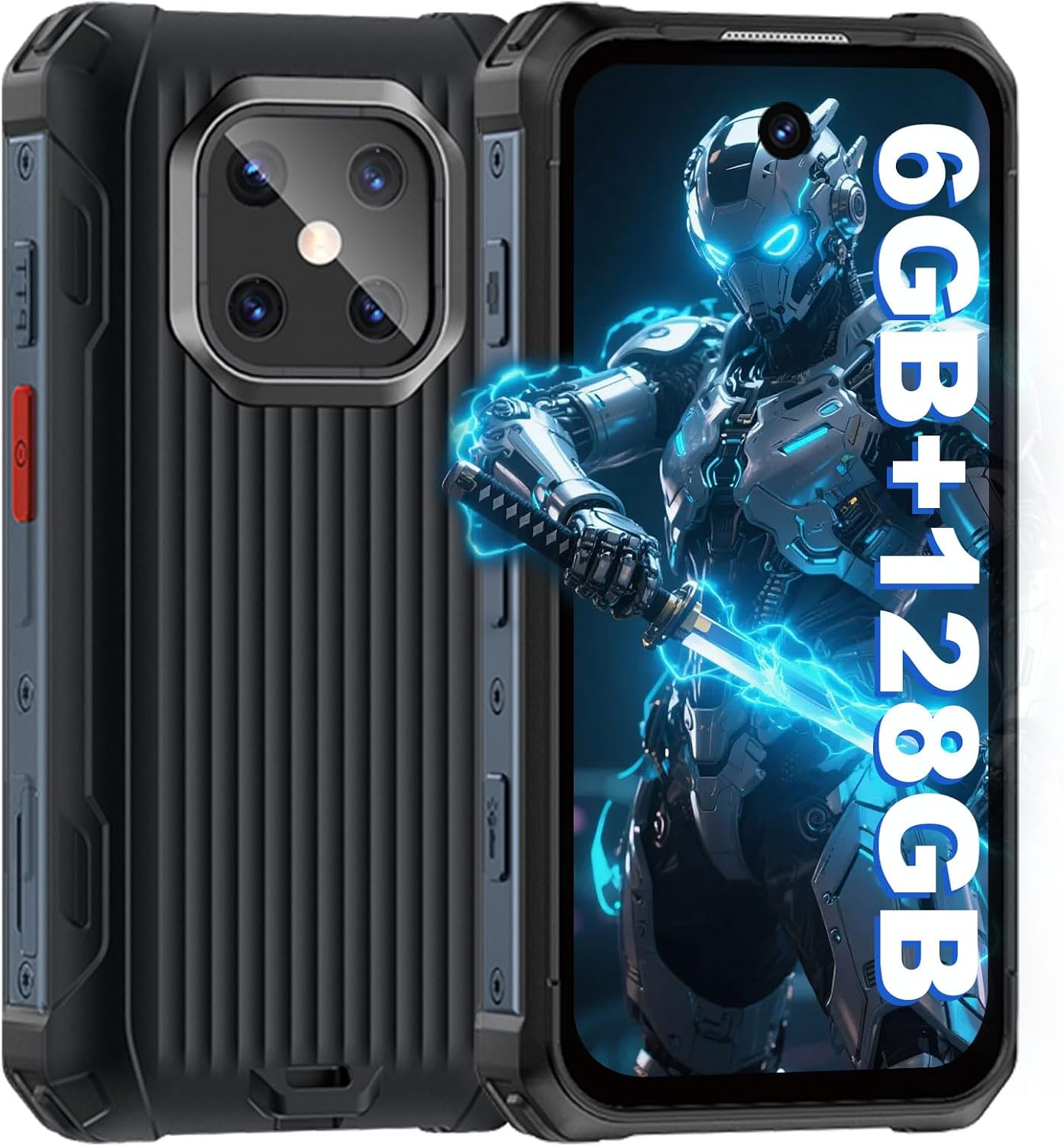
Image 1.1: Front and back view of the BLKE Max Mini Rugged Phone.
The BLKE Max Mini Rugged Phone maxo is designed for durability and portability, featuring a compact 3.7-inch HD screen and robust construction suitable for outdoor environments. It includes a 3000mAh battery, 6GB RAM, 128GB internal storage, and IP68 water and dust resistance.

Image 1.2: Key features of the BLKE Max Mini Rugged Phone, including battery, screen, memory, and ruggedness.

Image 1.3: Size comparison of the mini smartphone with a credit card, highlighting its compact form factor.
2. What's in the Box
Upon unboxing your BLKE Max Mini Rugged Phone, please verify that all the following items are included:
- Mini Smartphone (1 unit)
- Phone Case (1 unit)
- Screen Protector (1 unit)
- Type C Cable (1 unit)
- Ejection Pin / User Manual (1 unit)
3. Initial Setup
3.1. Inserting SIM Card(s) and SD Card
Your BLKE Max Mini Rugged Phone supports dual SIM cards and an expandable SD card for additional storage.
- Locate the SIM card tray on the side of the phone.
- Insert the provided ejection pin into the small hole next to the tray to open it.
- Carefully place your Nano-SIM card(s) and/or microSD card into the designated slots on the tray. Ensure the gold contacts face downwards and the cards are correctly oriented.
- Gently push the tray back into the phone until it is flush with the device's side.

Image 3.1: Illustration of SIM and SD card insertion into the phone's tray.
3.2. Powering On and Initial Configuration
- Press and hold the Power button (typically on the right side) until the BLKE Max logo appears on the screen.
- Follow the on-screen prompts to select your language, connect to a Wi-Fi network, and set up your Google account.
- Review and accept the terms and conditions to complete the initial setup.
3.3. Network Compatibility
Before use, confirm that your SIM card supports the following frequencies for optimal network performance:
- GSM: 850/900/1800/1900 MHz
- WCDMA: B1/B2/B4/B5/B8
- FDD-LTE: B1/B2/B3/B4/B5/B7/B8/B12/B17/B20/B28/B28A/B66
- TDD-LTE: B34/B38/B39/B40/B41
4. Operating Your Phone
4.1. Basic Functions
- Making Calls: Tap the Phone icon, enter the number, and press the call button.
- Sending Messages: Open the Messages app, tap 'Start chat', enter recipient and message.
- Internet Access: Connect to Wi-Fi via Settings > Network & internet, or enable mobile data.
4.2. Camera Operation
The phone features a 13MP rear camera and an 8MP front camera for capturing photos and videos.
- Open the Camera app from the home screen or app drawer.
- Switch between front and rear cameras using the icon on the screen.
- Tap the shutter button to take a photo or start/stop video recording.

Image 4.1: Camera features and sample images from the 13MP rear and 8MP front cameras.

Image 4.2: Further examples of photos taken with the phone's cameras, including macro shots.
4.3. LED Flashlight
The phone is equipped with a bright LED light for illumination in dark environments.
- Access the flashlight function from the quick settings panel by swiping down from the top of the screen.
- Alternatively, a dedicated physical button may be available for quick activation (refer to phone layout).

Image 4.3: The phone's LED flashlight in operation, providing a strong beam.
4.4. GPS and Navigation
The built-in GPS allows for accurate location tracking and navigation.
- Enable location services in Settings > Location.
- Use pre-installed or downloaded navigation applications for directions and mapping.

Image 4.4: Depiction of GPS functionality and face recognition for secure access.
4.5. Face Recognition
Unlock your phone securely using face recognition technology.
- Navigate to Settings > Security & privacy > Face unlock.
- Follow the on-screen instructions to register your face.
5. Maintenance and Care
The BLKE Max Mini Rugged Phone is built for durability, but proper care ensures its longevity.
5.1. Ruggedness and Protection
Your phone features an IP68 rating, meaning it is resistant to dust and water immersion up to 1.5 meters for 30 minutes. It is also designed to be drop and shock-resistant.
- Ensure all port covers (USB-C, SIM tray) are securely closed to maintain water and dust resistance.
- Avoid intentional submersion in water beyond specified limits or exposure to high-pressure water jets.
- While rugged, extreme impacts can still cause damage. Handle with care.

Image 5.1: Visual representation of the phone's rugged, waterproof, and dustproof design.

Image 5.2: Icons highlighting the phone's waterproof, shockproof, and dustproof attributes.
5.2. Cleaning
- Use a soft, lint-free cloth to clean the screen and body.
- For stubborn dirt, slightly dampen the cloth with water. Avoid harsh chemicals or abrasive materials.
- If the phone has been exposed to saltwater, rinse it gently with fresh water and dry thoroughly before charging.
6. Troubleshooting
This section addresses common issues you might encounter with your BLKE Max Mini Rugged Phone.
| Problem | Possible Cause | Solution |
|---|---|---|
| Phone does not power on | Low battery; software crash | Charge the phone for at least 30 minutes. Press and hold the Power button for 10-15 seconds to force restart. |
| Cannot connect to network | SIM card not inserted correctly; incorrect network settings; incompatible frequency bands | Reinsert SIM card. Check network settings in 'Settings > Network & internet > Mobile network'. Verify SIM card frequency compatibility (refer to Section 3.3). |
| Touchscreen unresponsive | Temporary software glitch; physical damage | Restart the phone. If issue persists, contact support. |
| Battery drains quickly | Background apps; high screen brightness; poor signal | Close unused apps. Reduce screen brightness. Use Wi-Fi instead of mobile data when possible. |
| Camera not working | App permissions; software issue | Check camera permissions in 'Settings > Apps > Camera > Permissions'. Restart the phone. |
7. Specifications
Detailed technical specifications for the BLKE Max Mini Rugged Phone maxo:
- Model Name: maxo
- Operating System: Android 12.0
- Screen Size: 3.7 Inches HD
- RAM: 6GB
- Internal Storage: 128GB
- Expandable Memory: Yes (via microSD card)
- Rear Camera: 13MP
- Front Camera: 8MP
- Battery Capacity: 3000mAh
- Connectivity: 4G LTE, Bluetooth, USB Type-C, Wi-Fi
- Special Features: Built-In GPS, Dual SIM, Mobile Hotspot Capability, Rugged Body, IP68 Waterproof & Dustproof, Bright LED Light
- Dimensions (approx.): 3.98 × 2.00 × 0.68 inches (101 × 50.7 × 17.2 mm)
- Item Weight: 8.1 ounces
- Color: Black

Image 7.1: Physical dimensions of the BLKE Max Mini Rugged Phone.

Image 7.2: Visual representation of the phone's 3000mAh battery capacity.

Image 7.3: Depiction of the phone's 6GB RAM and 128GB ROM, supporting numerous applications.

Image 7.4: Detailed dimensional comparison of the phone's thickness and length.
8. Warranty and Support
8.1. Warranty Information
Please refer to the warranty card included with your product packaging for specific warranty terms and conditions. Typically, BLKE Max products come with a limited manufacturer's warranty covering defects in materials and workmanship for a specified period from the date of purchase.
8.2. Customer Support
For technical assistance, troubleshooting beyond this manual, or warranty claims, please contact BLKE Max customer support through the following channels:
- Website: Visit the official BLKE Max website for support resources and contact forms.
- Email: Refer to your product documentation for the customer service email address.
- Phone: Check the BLKE Max website or product packaging for regional support phone numbers.
When contacting support, please have your product model (maxo) and purchase information readily available.
Ask a question about this manual
Ask about setup, troubleshooting, compatibility, parts, safety, or missing instructions. Manuals+ will review the question and use this page’s manual context to help answer it.