
1. Introduction
The Keychron K0 Max is a versatile 27-key low-profile number pad designed to enhance productivity. It features tri-mode wireless connectivity, QMK/VIA programmability, hot-swappable switches, and RGB backlighting. This manual provides instructions for setting up, operating, maintaining, and troubleshooting your K0 Max number pad.
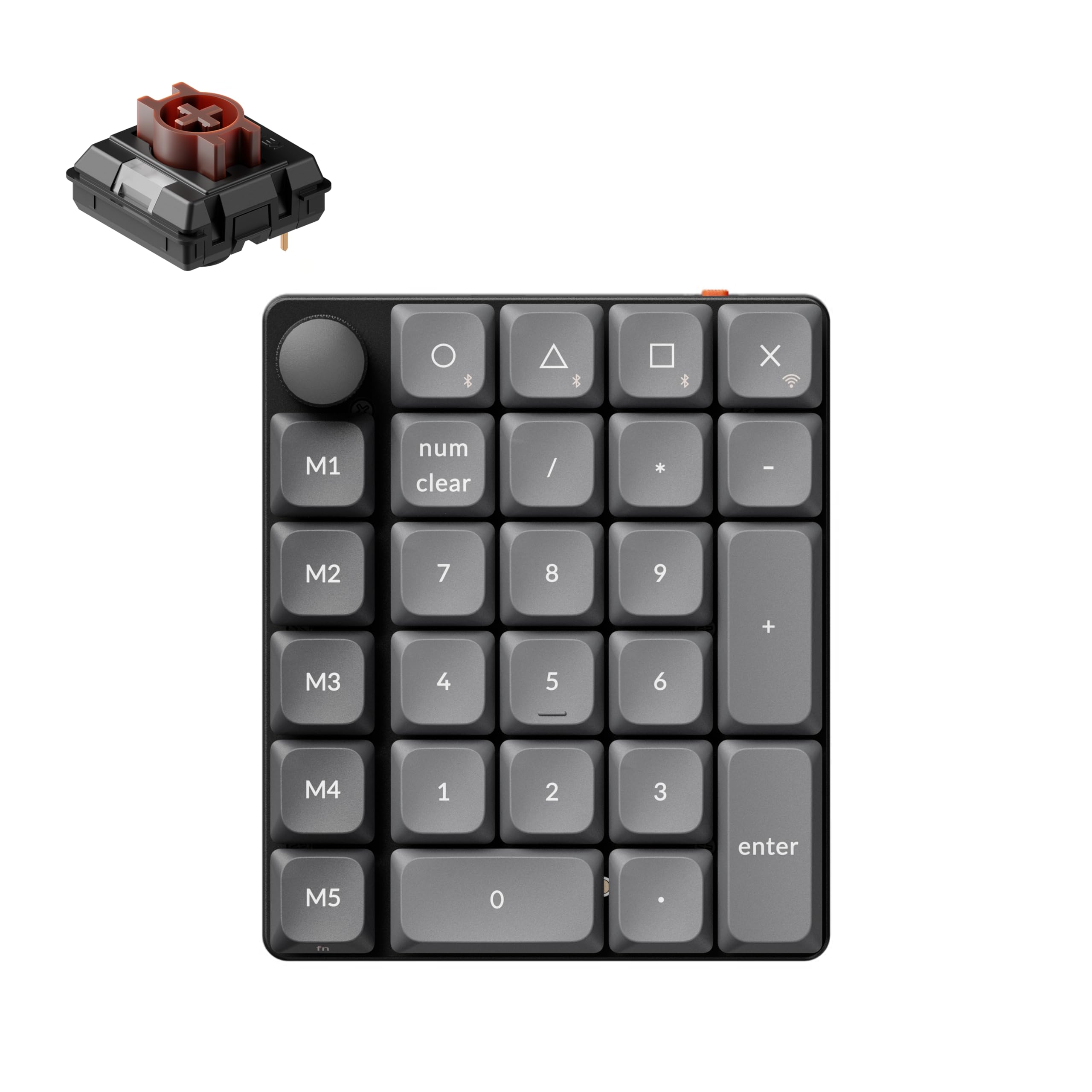
Image: The Keychron K0 Max number pad, showcasing its compact design and RGB backlighting.
Product Overview Video
Video: An overview of the Keychron K0 Max Wireless Low-Profile Hot-Swap RGB Number Pad, demonstrating its features and functionality.
2. Package Contents
Ensure all the following items are included in your package:
- 1x Fully Assembled Numpad
- 1x Type-A to Type-C Cable
- 1x Extension Adapter for Receiver
- 1x Type-A 2.4 GHz Receiver
- 1x Keycap & Switch Puller
- 1x Screwdriver

Image: Illustration of the Keychron K0 Max package contents, including the numpad, cables, receiver, and tools.
3. Setup
3.1 Charging the Numpad
Connect the provided Type-A to Type-C cable to the numpad's USB-C port and a power source (e.g., computer USB port or wall adapter). The numpad will indicate charging status via its LED indicator.
3.2 Connectivity Modes
The K0 Max supports three connection modes: 2.4 GHz Wireless, Bluetooth 5.3, and USB-C Wired. Use the switch located on the side of the numpad to select your desired mode.
- 2.4 GHz Wireless: Slide the switch to 'G' (2.4G). Insert the Type-A 2.4 GHz receiver into your computer's USB port. The numpad should connect automatically. An extension adapter is provided for optimal signal reception.
- Bluetooth 5.3: Slide the switch to 'BT' (Bluetooth). On your device, search for Bluetooth devices and select 'Keychron K0 Max' to pair. The numpad can store up to three Bluetooth devices (FN+O/Δ/☐).
- USB-C Wired: Slide the switch to 'Cable' (or off, depending on model). Connect the numpad directly to your computer using the Type-A to Type-C cable.

Image: Diagram illustrating the three connection modes: Bluetooth, 2.4GHz Wireless, and Type-C Wired, with the numpad connected to various devices.
3.3 Operating System Switch
Locate the OS switch on the side of the numpad. Slide it to the appropriate position for your operating system (Mac or Windows) to ensure correct key mapping and functionality.
4. Operating Instructions
4.1 Basic Key Functions
The K0 Max functions as a standard numeric keypad for data entry. The 'num clear' key clears the current entry, and 'enter' confirms it. The top row includes additional function keys and a rotary knob.
4.2 QMK/VIA Customization with Keychron Launcher
The K0 Max is fully QMK/VIA programmable, allowing extensive customization of key functions, macros, and lighting effects. Use the Keychron Launcher web configurator for easy setup:
- Visit the Keychron Launcher website (refer to the official Keychron support page for the exact URL).
- Connect your K0 Max numpad via USB-C.
- The web app will detect your numpad, allowing you to remap keys, create macros, and adjust lighting without installing any software.

Image: Screenshot of the Keychron Launcher web configurator, showing options for key remapping, macros, and lighting adjustments.
4.3 Programmable Rotary Knob
The rotary knob provides convenient control over various functions. By default, it controls volume up/down and mute. It can also be programmed via QMK/VIA for other functions such as zoom in/out, previous/next track, and play/pause media.

Image: Close-up of the programmable rotary knob, highlighting its default functions like volume control, zoom, and media navigation.
4.4 RGB Backlighting
The K0 Max features 22+ RGB backlight modes. You can cycle through different lighting effects and colors using specific key combinations (refer to the Keychron Launcher or the official Keychron website for detailed key commands).
4.5 Hot-Swappable Switches
The numpad is equipped with hot-swappable Milk POM switches, allowing you to change switches without soldering. Use the provided keycap and switch puller to carefully remove and replace switches. Ensure replacement switches are compatible 3-pin low-profile mechanical switches.

Image: The Keychron K0 Max numpad with several keycaps and switches removed, demonstrating the hot-swappable feature.

Image: Close-up of removed keycaps and the switch puller tool.
5. Maintenance
5.1 Cleaning
To clean your numpad, disconnect it from all power sources. Use a soft, dry cloth to wipe the surface. For deeper cleaning, carefully remove keycaps using the provided puller and use compressed air to clear debris from beneath the switches. Avoid using harsh chemicals or abrasive materials.
5.2 Switch and Keycap Replacement
If a switch or keycap needs replacement, use the dedicated tools. Gently pull the keycap straight up with the keycap puller. For switches, use the switch puller to grasp the switch firmly and pull it straight out. When inserting new switches, ensure the pins are aligned correctly with the sockets to prevent damage.
6. Troubleshooting
- Numpad not connecting: Ensure the mode switch (2.4G/BT/Cable) is in the correct position. For 2.4 GHz, check if the receiver is properly inserted. For Bluetooth, ensure pairing mode is active and the device is discoverable. For wired, check the USB-C cable connection.
- Keys not responding: Try reconnecting the numpad. If using wireless, check battery level. If a specific key is not working, the switch might be faulty; consider replacing it using the hot-swap feature.
- Backlight issues: Ensure the numpad is powered on. Cycle through backlight modes to see if it responds. If using wireless, low battery might affect backlight intensity.
- QMK/VIA customization not applying: Ensure the numpad is connected via USB-C to the computer running the Keychron Launcher web app. Confirm that the firmware is up to date.
- Poor wireless range: For 2.4 GHz, use the provided extension adapter to position the receiver closer to the numpad. Reduce interference from other wireless devices.
7. Specifications
| Feature | Detail |
|---|---|
| Model | Keychron K0 Max |
| Connectivity | 2.4 GHz Wireless, Bluetooth 5.3, USB-C Wired |
| Number of Keys | 27 |
| Backlighting | RGB |
| Material | Aluminum (Enclosure) |
| Switch Type | Keychron Milk POM Brown Switch (Tactile, Hot-Swappable) |
| Operation Force | 47 ± 8 gf |
| Pre-Travel | 1.8 ± 0.4 mm |
| Total Travel | 3.1 ± 0.1 mm |
| Dimensions (L×W) | 3.90 × 4.57 in (99 × 116 mm) |
| Weight | 0.39 lb (176.3 g) |
| Compatible Devices | Laptop, PC, Smartphone, Tablet |
| Operating Systems | Windows, Mac, Linux |

Image: Force travel diagram for the Low Profile Milk POM Brown Switch, detailing actuation and reset points.

Image: Visual representation of the Keychron K0 Max's ultra-slim body and dimensions, including switch height and overall profile.
8. Warranty & Support
8.1 Warranty Information
The Keychron K0 Max comes with a 1 Year Manufacturer Warranty. This warranty covers defects in materials and workmanship under normal use. Please retain your proof of purchase for warranty claims.
8.2 Customer Support
For further assistance, technical support, or warranty inquiries, please visit the official Keychron website or contact their customer service directly. You can typically find support contact information on the Keychron website's support section.


