1. Product Overview
The GMAIPOP F19 is a compact and powerful 4K Ultra HD dash camera designed to capture every detail of your journey. Featuring a 170-degree wide-angle lens, 5GHz Wi-Fi connectivity for seamless app control, and advanced night vision capabilities, it provides reliable high-definition evidence day or night. The dash cam includes a pre-installed 64GB high-endurance Micro SD card and supports up to 256GB for extended recording.

Figure 1: GMAIPOP F19 Dash Cam showing its compact size (2.4 inches high, 4.3 inches wide, 2.0 oz weight) and key features: 4K Front recording, 24H Parking Monitor, Free 64GB Card, 170° Wide Angle, and 5GHz WiFi.
Key Features:
- True 4K @30fps Front Recording: Captures crystal-clear video with a 170-degree wide-angle lens.
- 5GHz Wi-Fi & App Control: Fast video transfer and easy management via the Framefox app (iOS/Android).
- Discreet Mini Design: Low-profile design for easy, unobtrusive installation.
- G-Sensor & Loop Recording: Automatically detects collisions, locks footage, and overwrites old files for continuous recording.
- 24-Hour Parking Mode: Monitors your vehicle when parked (requires optional hardwire kit) with time-lapse and impact detection.
- Super Night Vision: 4K Ultra-HD with advanced sensor and HDR for clear footage in low-light conditions.
- 64GB Micro SD Card Included: Ready to record out of the box, expandable up to 256GB.
2. Package Contents
Ensure all items are present in the package:
- GMAIPOP F19 4K Front Dash Cam
- Car Charger (DC adapter with power cord)
- User Manual
- 64GB Micro SD Card (pre-inserted in dash cam body)
- Car Wiring Trim Tool
- 1 pc Electrostatic Film
- 5 pcs Cable Clips
- Adhesive Mount
Video 1: Unboxing the GMAIPOP F19 Dash Cam and reviewing its contents, including the dash cam unit, user manual, pre-installed 64GB SD card, car charger, wiring tool, electrostatic film, and cable clips.
3. Setup Instructions
3.1 Preparing the Windshield
- Clean the area on your windshield where the dash cam will be mounted. Ensure it is dust-free and dry.
- Apply the provided electrostatic film to the cleaned area. This helps protect your windshield and makes removal easier.
3.2 Mounting the Dash Cam
- Peel off the protective film from the adhesive mount on the dash cam.
- Firmly press the dash cam onto the electrostatic film on your windshield, ensuring the lens has a clear view of the road. Hold for a few seconds to secure.
Video 2: Demonstrating the installation of the dash cam onto the windshield using the adhesive mount and connecting the power cable.
3.3 Connecting Power
- Connect the power cable to the dash cam's power port.
- Plug the car charger (DC adapter) into your vehicle's cigarette lighter socket.
- Use the provided car wiring trim tool and cable clips to neatly route the power cable along the edge of your windshield and dashboard, keeping it out of the way and ensuring a clean installation.
3.4 Initial Setup & SD Card Formatting
- Upon first use, or if you replace the SD card, it is recommended to format the card using the dash cam. Press the power button to access the menu and navigate to the format option.
- The dash cam must be connected to a power source to operate.
3.5 App Download & Connection
The F19 dash cam must be set up via the Framefox app.
- Download the Framefox app from your device's app store (iOS/Android).
- On the dash cam, short press the power button to turn on Wi-Fi. The screen will display the Wi-Fi name (F19-*******) and default password (12345678).
- On your smartphone or tablet, go to Wi-Fi settings and connect to the dash cam's Wi-Fi network using the provided password.
- Open the Framefox app. Authorize the app to access your album, location, WLAN, and cellular data for proper functionality.
- In the app, tap "Add Camera" and wait for the connection to establish. Once connected, you will see a live view from the dash cam.
Video 3: Guide on connecting the dash cam to the Framefox app via Wi-Fi, showing the live view and file access features.
4. Operating Instructions
4.1 Basic Recording
- Once powered on, the dash cam will automatically begin loop recording. Video segments are typically 1, 3, or 5 minutes long.
- When the memory card is full, the oldest unlocked files will be automatically overwritten by new recordings.
4.2 G-Sensor (Emergency Recording)
The built-in G-sensor automatically detects sudden shakes or collisions. When triggered, the current video segment is locked to prevent it from being overwritten by loop recording. This ensures critical footage is preserved as evidence.

Figure 2: Illustration of the G-Sensor detecting a collision and locking footage, alongside the continuous loop recording feature.
4.3 24-Hour Parking Mode
To enable 24-hour parking monitoring, a hardwire kit (sold separately) is required. Once installed, the dash cam can:
- Time-Lapse Recording: Capture snapshots at set intervals (e.g., 1 frame every 1/5/10 seconds) after the ignition is off.
- Auto-Wake on Impact: Smart sensors activate full recording if someone bumps your car or suspicious activity is detected nearby.
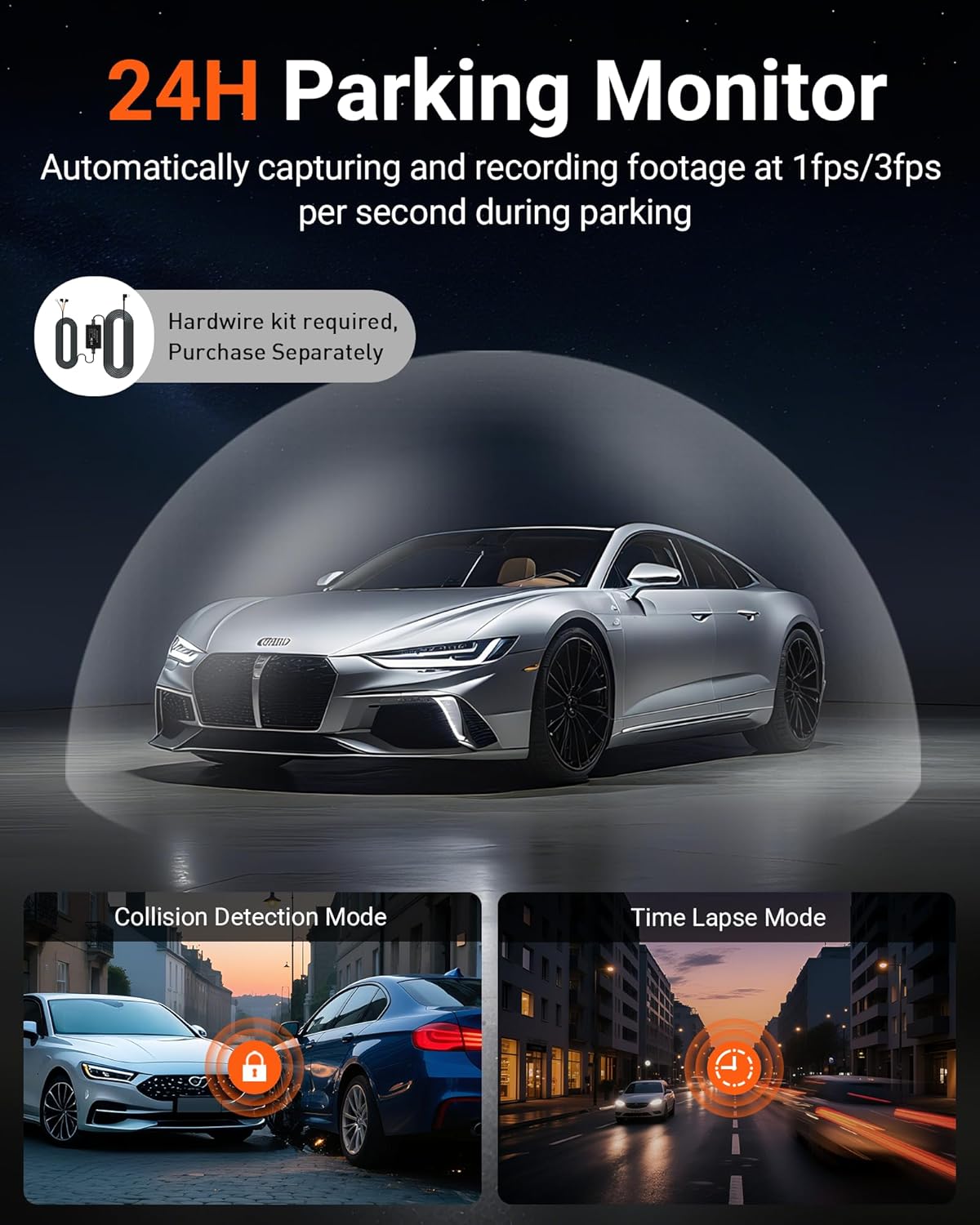
Figure 3: Visual representation of the 24-Hour Parking Monitor, highlighting Collision Detection Mode and Time Lapse Mode, with a note that a hardwire kit is sold separately.
4.4 Super Night Vision
The F19 dash cam utilizes 4K Ultra-HD resolution combined with an advanced sensor and HDR (High Dynamic Range) function. This technology balances bright lights and dark areas, eliminating glare from headlights and street lamps, to capture sharp and clear footage even in low-light or nighttime conditions.
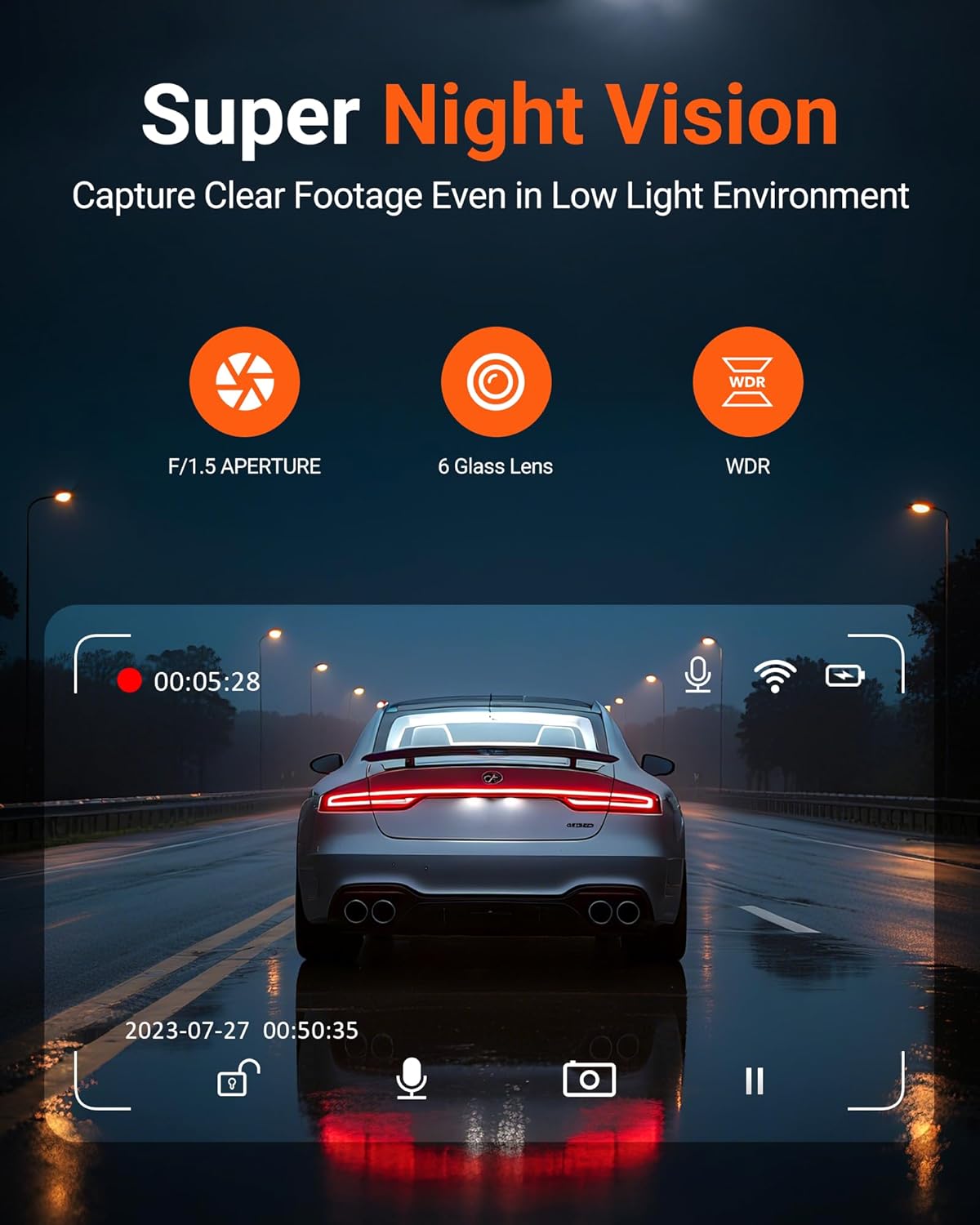
Figure 4: Depiction of the Super Night Vision capability, showing clear footage capture in a low-light environment with F/1.5 aperture, 6 Glass Lens, and WDR technology.
4.5 App Control (Framefox)
The Framefox app allows you to:
- Live View: See what your dash cam is recording in real-time.
- Review Footage: Browse through recorded videos and snapshots.
- Download & Share: Easily download videos and photos to your phone and share them without cables or monthly fees.
- Camera Settings: Adjust various dash cam settings directly from the app.
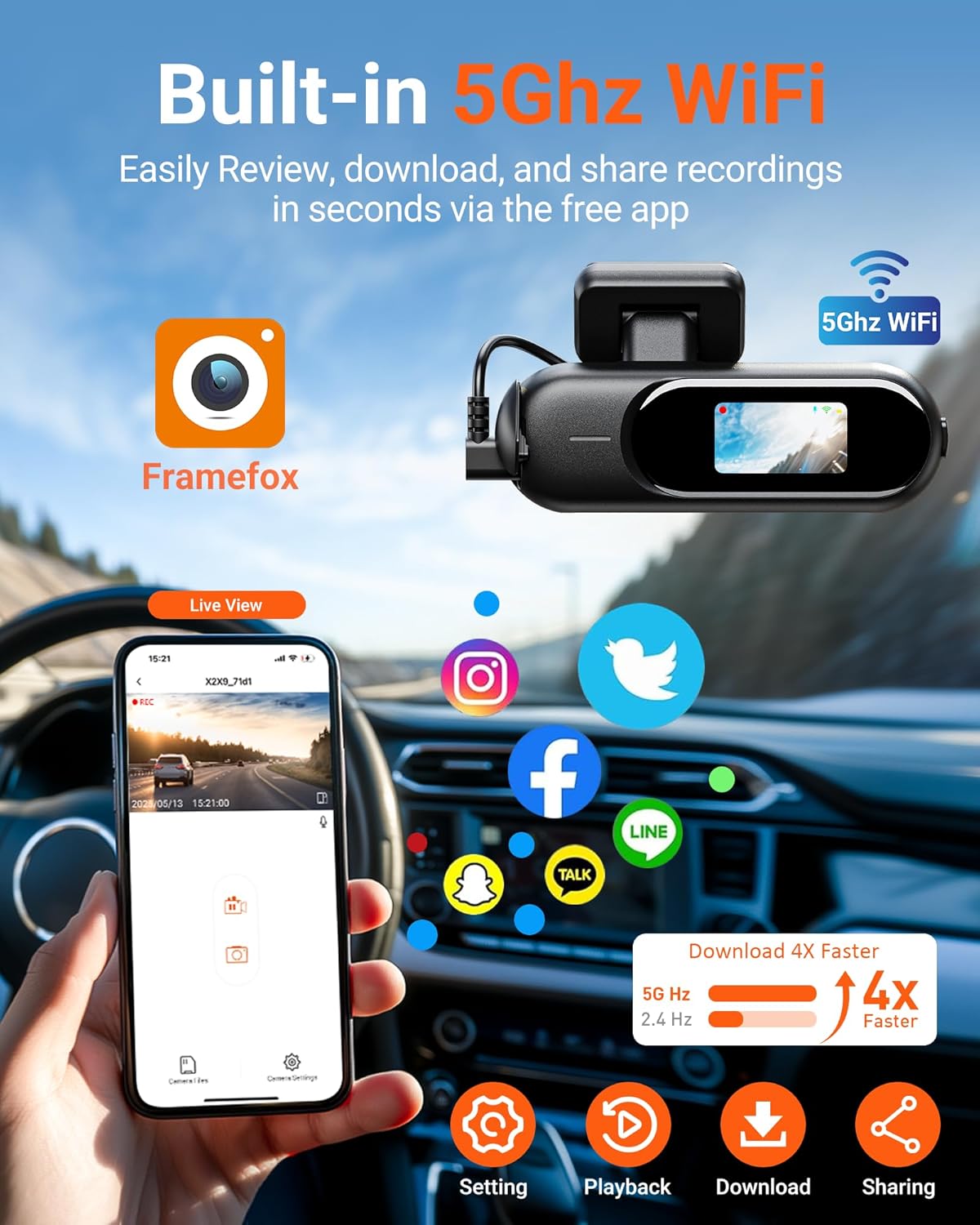
Figure 5: Screenshot of the Framefox app interface on a smartphone, demonstrating live view, playback, download, and sharing options, powered by built-in 5GHz WiFi for faster transfers.
5. Maintenance
5.1 SD Card Management
- The included 64GB high-endurance Micro SD card is designed for continuous recording.
- For optimal performance, it is recommended to format the SD card periodically (e.g., once a month) to prevent data corruption and ensure smooth operation.
- The dash cam supports up to 256GB Micro SD cards for extended recording capacity.
5.2 Cleaning
- Regularly clean the dash cam lens with a soft, lint-free cloth to ensure clear video quality.
- Use the provided wet and dry wipes to clean the windshield area around the dash cam mount as needed.
6. Troubleshooting
If you encounter any issues with your GMAIPOP F19 Dash Cam, please refer to the following common solutions:
- Dash Cam Not Turning On: Ensure the dash cam is properly connected to a power source. It does not have an internal battery for operation without external power.
- Wi-Fi Connection Issues: Verify that the dash cam's Wi-Fi is enabled. Ensure your phone's Wi-Fi is connected to the dash cam's network (F19-*******) and that the Framefox app has the necessary permissions (album, location, WLAN, cellular data).
- Recording Problems: Format the Micro SD card using the dash cam's menu. Ensure the card is inserted correctly and is not full (loop recording should prevent this, but manual intervention might be needed if locked files accumulate).
- Poor Video Quality: Clean the dash cam lens and ensure the windshield area is clear. Check app settings to confirm 4K recording is selected.
- Parking Mode Not Working: Confirm that a hardwire kit is correctly installed and connected.
For more detailed troubleshooting steps, please consult the full user manual included in your package or contact GMAIPOP customer support.
7. Specifications
| Feature | Detail |
|---|---|
| Brand | GMAIPOP |
| Model Name | F19 |
| Video Capture Resolution | 4K |
| Field Of View | 170 Degrees |
| Connectivity Technology | Wi-Fi (5GHz) |
| Special Features | 4K Dash Cam Front, Compact Size, Wi-Fi App Control, 64GB Card Included, Super Night Vision with HDR, Automatic Incident Detection, 24H Parking Monitor |
| Mounting Type | Windshield Mount |
| Included Components | Car Charger, User Manual, 64GB card (inserted dash cam body), Car Wiring Trim Tool, 1 pcs Electrostatic film, 5pcs cable clip, F19 4k Front dash cam, adhesive mount |
8. Warranty and Support
For warranty information, product registration, or technical support, please refer to the contact details provided in the included user manual or visit the official GMAIPOP website. Keep your purchase receipt for warranty claims.


