
1. Introduction
This manual provides essential information for the proper setup, operation, and maintenance of your INNOCN GA27M1Q 27-inch QD-OLED 2K QHD 500Hz Gaming Monitor. Please read this manual thoroughly before using the product to ensure optimal performance and safety.
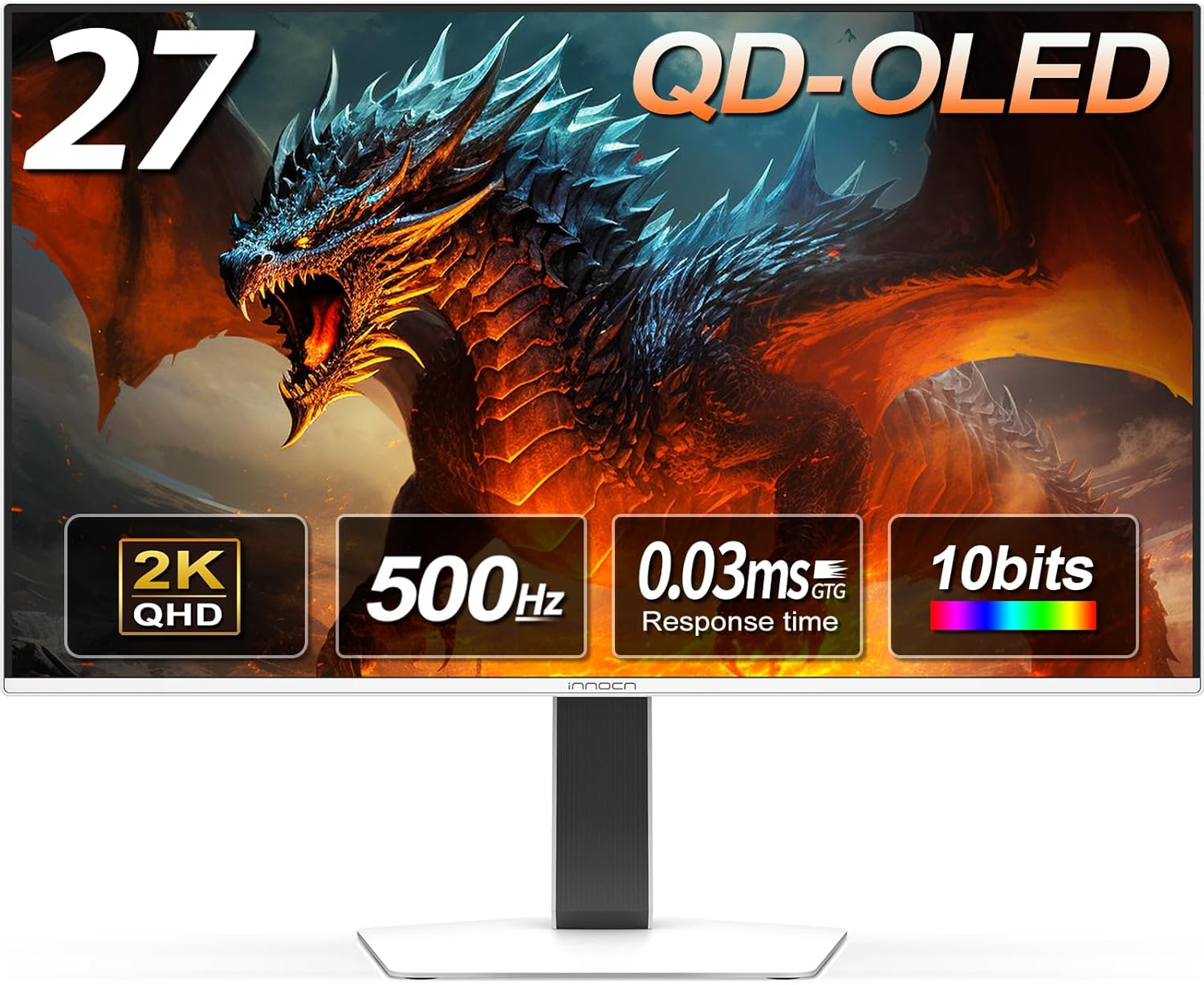
Figure 1: Front view of the INNOCN GA27M1Q 27-inch QD-OLED Gaming Monitor.
The INNOCN GA27M1Q is a high-performance gaming monitor featuring a 27-inch QD-OLED panel with a 2560 x 1440 (2K QHD) resolution, an ultra-fast 500Hz refresh rate, and a 0.03ms response time. It supports HDR 500, G-SYNC compatibility, and various connectivity options for an immersive visual experience.
2. Package Contents
Verify that all items listed below are present in your product packaging. If any items are missing or damaged, please contact customer support.
- INNOCN GA27M1Q Monitor
- Power Cable
- HDMI Cable
- DisplayPort (DP) Cable
- Color Calibration Report
- User Manual
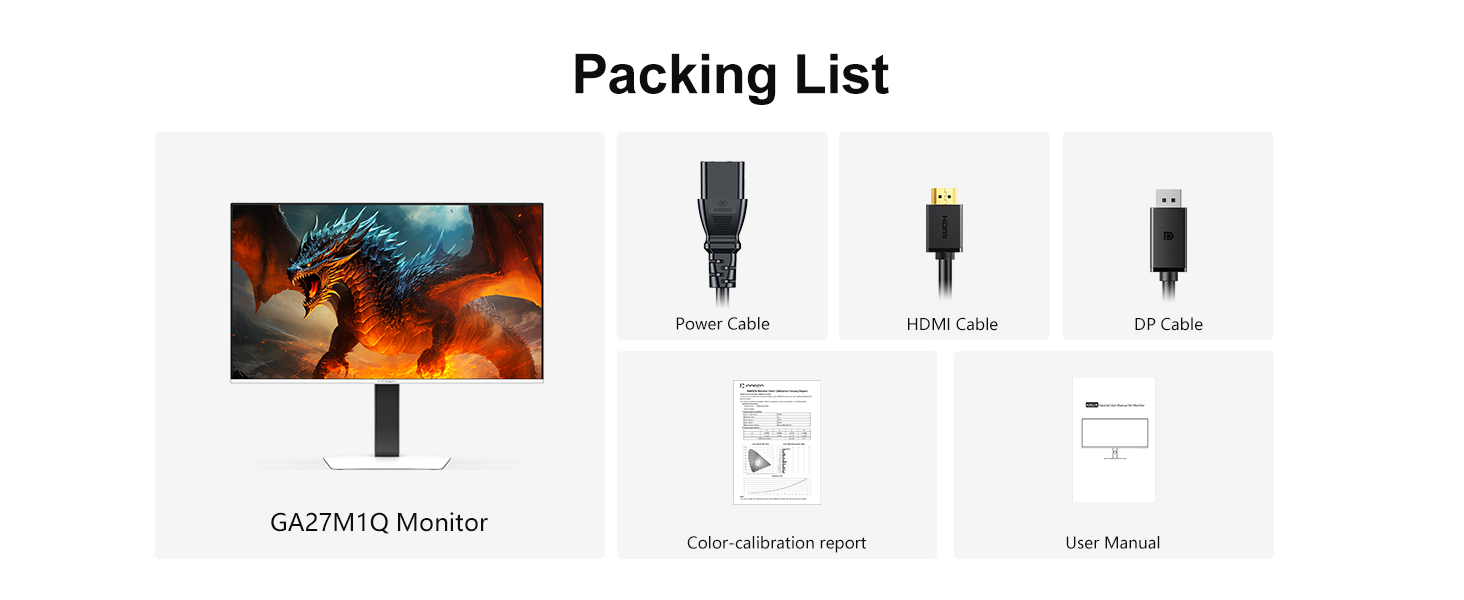
Figure 2: Illustration of the INNOCN GA27M1Q monitor and its included accessories.
3. Monitor Setup
3.1 Assembling the Stand
- Carefully remove the monitor and stand components from the packaging.
- Attach the stand neck to the monitor panel. Ensure it clicks securely into place.
- Attach the stand base to the stand neck and tighten the captive screw at the bottom of the base.
- Place the assembled monitor on a stable, flat surface.
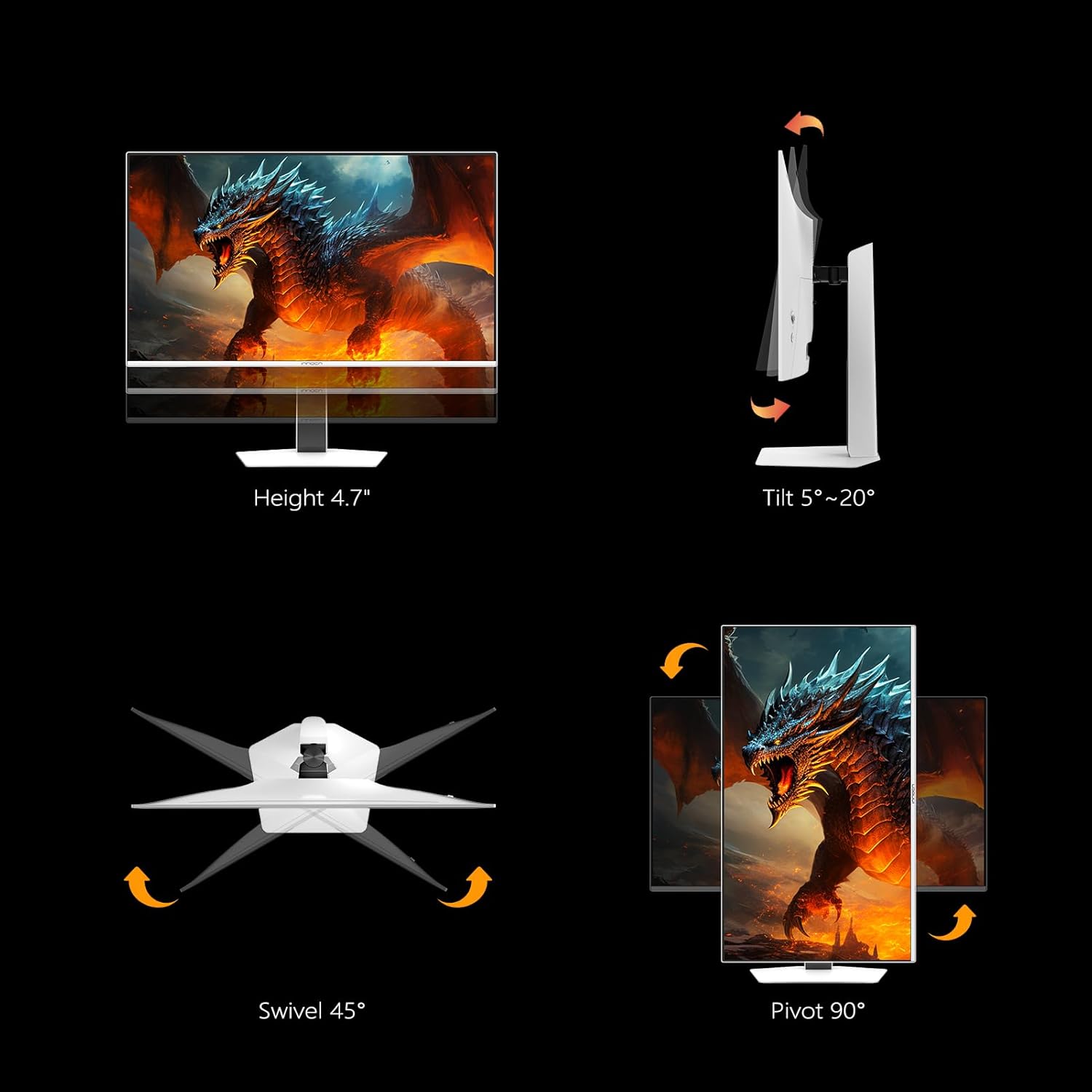
Figure 3: The monitor stand offers height, tilt, swivel, and pivot adjustments for ergonomic viewing.
3.2 Connecting to a Device
Connect your computer or gaming console to the monitor using the appropriate cables. The monitor supports various input types:
- DisplayPort (DP): For optimal performance, use the included DisplayPort cable to connect to your PC's graphics card.
- HDMI: Use an HDMI 2.1 cable for connecting gaming consoles (e.g., PS5, Xbox Series X) or other HDMI-compatible devices.
- USB-A 3.0: Connect peripherals such as keyboards and mice.
- USB-B 3.0: Connect to your computer to enable the monitor's USB-A ports.
- 3.5mm Audio Jack: For external audio output.
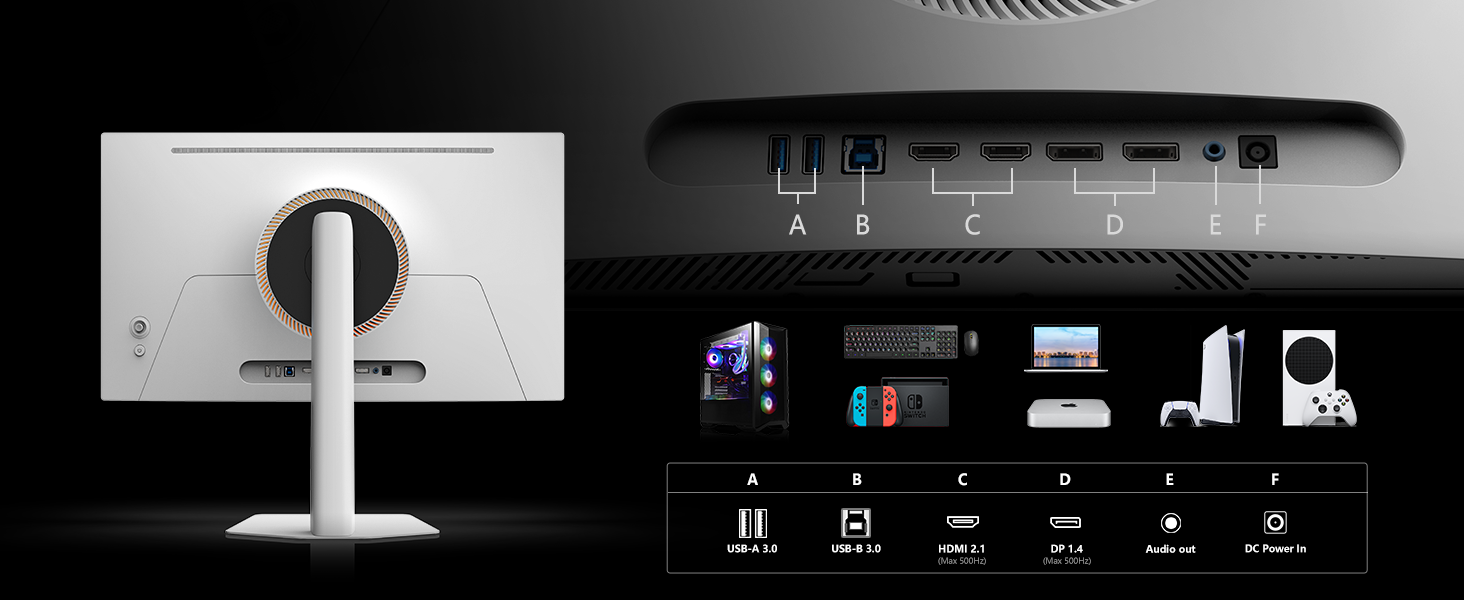
Figure 4: Rear view of the monitor showing connectivity options including USB, HDMI, DisplayPort, and audio out.
4. Operating Instructions
4.1 Power On/Off
Press the power button located on the back of the monitor to turn it on or off. The power indicator light will illuminate when the monitor is active.
4.2 On-Screen Display (OSD) Menu Navigation
The monitor features an intuitive OSD menu for adjusting various settings. Use the joystick control on the back of the monitor to navigate through the menu options.
4.3 Key Features and Settings
- 500Hz Refresh Rate: Experience ultra-smooth motion and reduced input lag. This setting can typically be adjusted within your operating system's display settings or graphics card control panel.
- 0.03ms Response Time: Minimizes motion blur and ghosting for crisp visuals, especially in fast-paced gaming.
- HDR 500: Enables a wider range of colors and contrast for more vibrant and detailed images. Activate HDR in your device's display settings.
- Adaptive-Sync & G-SYNC Compatible: Synchronizes the monitor's refresh rate with your graphics card's frame rate to eliminate screen tearing and stuttering. Ensure this feature is enabled in your graphics card control panel.
- MAC-VIEW Mode: Optimizes color matching for Mac devices, reducing color unevenness. This mode can be activated via the OSD menu. A USB-C to HDMI or USB-C to DisplayPort connector may be required.

Figure 5: Visual representation of the difference in motion clarity between a 60Hz LCD and the 500Hz QD-OLED panel.

Figure 6: The monitor's VESA DisplayHDR 500 support provides enhanced detail and contrast.
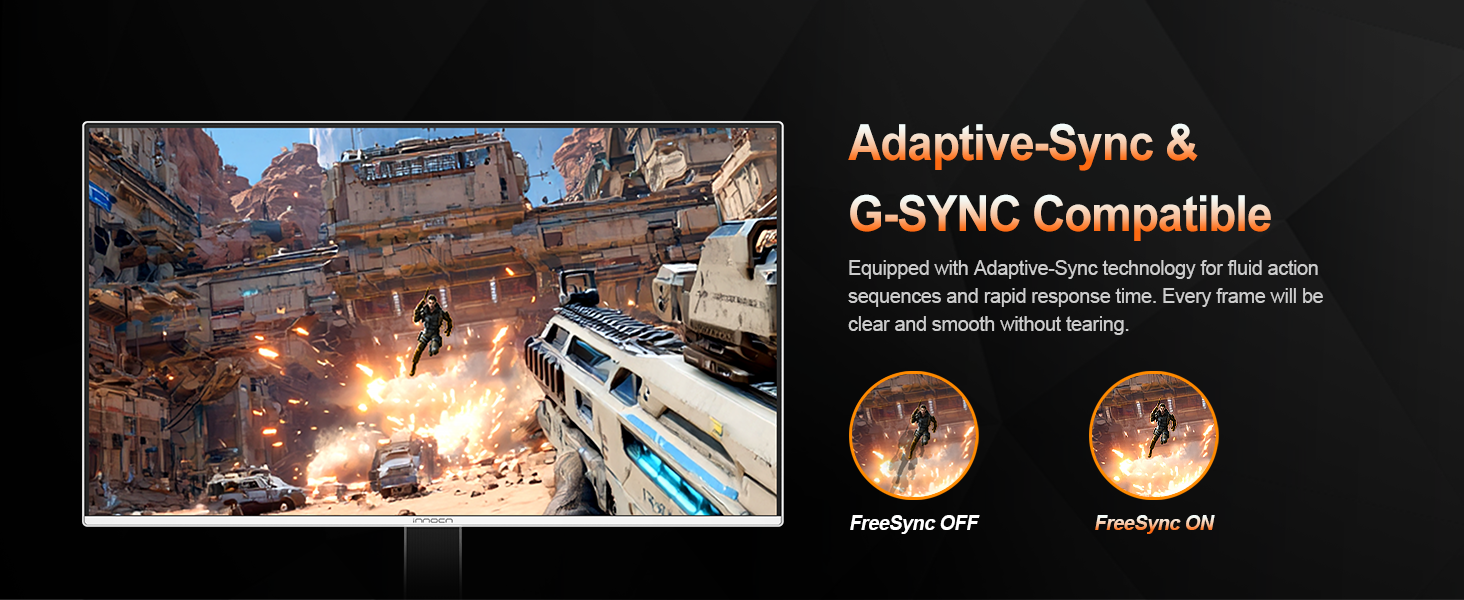
Figure 7: Adaptive-Sync technology ensures fluid action sequences without screen tearing.

Figure 8: MAC-VIEW Mode optimizes visual output for Apple devices.
5. Maintenance and Care
To ensure the longevity and optimal performance of your monitor, follow these maintenance guidelines:
- Cleaning: Gently wipe the screen with a soft, lint-free cloth. For stubborn marks, use a monitor-specific cleaning solution applied to the cloth, not directly to the screen.
- Avoid Direct Sunlight: Do not expose the monitor to direct sunlight for extended periods.
- Ventilation: Ensure adequate airflow around the monitor to prevent overheating.
5.1 OLED Panel Protection Features
The monitor incorporates several features to protect the OLED panel and prevent image retention:
- Pixel Shift (Enabled by default): Periodically shifts the entire screen image by a few pixels to prevent static elements from causing image retention.
- Static Screen Detection (Enabled by default): Automatically reduces brightness when a static image is detected for an extended period, minimizing the risk of image retention.
- Static Icon, Taskbar, and Boundary Detection: Identifies and mitigates potential image retention from persistent on-screen elements like taskbars or logos.
- Low Power Consumption At The Corners (Manually enabled): Reduces power consumption in screen corners, which can contribute to panel longevity.
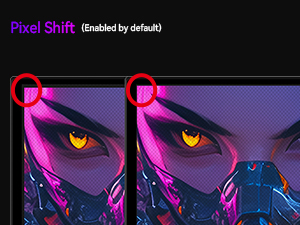
Figure 9: Pixel Shift subtly moves the display content to protect the OLED panel.
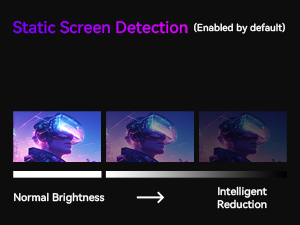
Figure 10: Static Screen Detection intelligently reduces brightness for prolonged static images.
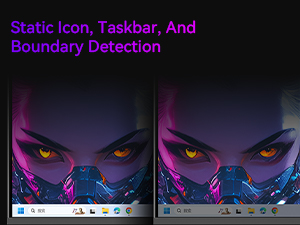
Figure 11: The monitor detects and addresses static elements like taskbars to prevent image retention.
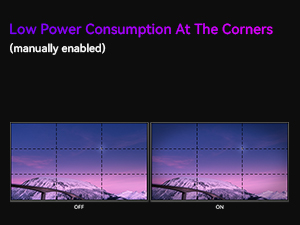
Figure 12: Low Power Consumption at Corners feature, which can be manually enabled.
6. Troubleshooting
If you encounter issues with your monitor, refer to the following common problems and solutions:
- No Power:
- Ensure the power cable is securely connected to both the monitor and a working power outlet.
- Verify the power adapter is functioning correctly.
- No Signal:
- Check that the video cable (DP or HDMI) is firmly connected to both the monitor and your device.
- Ensure the correct input source is selected on the monitor via the OSD menu.
- Test with a different video cable or device if possible.
- Flickering Screen:
- Verify the video cable is not damaged and is securely connected.
- Adjust the refresh rate in your device's display settings.
- Disable or enable Adaptive-Sync/G-SYNC in your graphics card settings to see if it resolves the issue.
- Image Retention/Burn-in:
- Utilize the monitor's built-in OLED panel protection features (Pixel Shift, Static Screen Detection).
- Avoid displaying static images for prolonged periods.
- Use screen savers or dynamic wallpapers.
- No Audio:
- Check the monitor's volume settings in the OSD menu.
- Ensure your device's audio output is set to the monitor.
- If using external speakers, ensure they are properly connected to the 3.5mm audio jack.
7. Technical Specifications
| Feature | Specification |
|---|---|
| Model Number | GA27M1Q (2780M) |
| Screen Size | 27 Inches |
| Panel Type | QD-OLED |
| Resolution | 2560 x 1440 (QHD) |
| Refresh Rate | 500Hz (VRR Supported: 48Hz~500Hz) |
| Response Time | 0.03ms (GTG) |
| Contrast Ratio | 1,500,000:1 |
| Color Gamut | 99% DCI-P3, 1.07 Billion Colors (10-bit) |
| HDR Support | HDR 500 |
| Adaptive Sync | Adaptive-Sync & G-SYNC Compatible |
| Connectivity | 2 x DisplayPort, 2 x HDMI, 1 x 3.5mm Audio Jack, 3 x USB-A 3.0, 1 x USB-B 3.0 |
| VESA Mount | 100mm x 100mm |
| Product Dimensions | 2 x 24.05 x 13.9 inches |
| Item Weight | 16.28 pounds |
8. Official Product Videos
The following videos provide additional information and demonstrations of the monitor's features:
8.1 Ultra Smooth Motion Control
This video demonstrates the monitor's ultra-smooth motion control, highlighting its fast refresh rate and response time for a fluid visual experience.
8.2 INNOCN 27 OLED 2K QHD 2560 x 1440p 500Hz Gaming Monitor Overview
This video provides a comprehensive overview of the INNOCN 27-inch OLED 2K QHD 500Hz Gaming Monitor, showcasing its features and capabilities for gaming and general use.
9. Warranty and Customer Support
INNOCN products are designed for reliability and performance. For information regarding warranty coverage, please refer to the warranty card included in your product packaging or visit the official INNOCN website.
If you require technical assistance, have questions about your product, or need to report an issue, please contact INNOCN customer support through their official channels. Contact information can typically be found on the INNOCN website or in your product documentation.