Introduction
This manual provides detailed instructions for the setup, operation, and maintenance of your Lemega PlayHD Multi-Region DVD Player. Please read this manual thoroughly before using the device to ensure proper functionality and to maximize your viewing experience. The PlayHD is designed to play DVDs from any region (0-8) and features 1080p HDMI upscaling for enhanced picture quality, along with USB media playback capabilities.
What's in the Box
Carefully unpack all items and ensure you have received the following components:
- Lemega PlayHD DVD Player
- Remote Control
- Power Adapter
- HDMI Cable
- RCA AV Cable
- Quick Start Guide

Image: All included accessories and the Lemega PlayHD DVD Player, ready for use.
Product Overview
Front Panel
The front panel features the disc tray, power button, basic playback controls, and a USB port.
- Disc Tray: Insert DVDs or CDs here.
- Power Button: Turns the player on or off.
- Open/Close Button: Ejects or closes the disc tray.
- Play/Pause Button: Starts or pauses playback.
- Stop Button: Stops playback.
- USB Port: Connect USB storage devices for media playback.
- Display: Shows current status, track number, or time.
Rear Panel
The rear panel provides various connection ports for audio and video output.
- HDMI Output: Connects to a TV or display for high-definition video and audio.
- RCA (AV) Output: Connects to older TVs or audio systems using composite video and stereo audio.
- Coaxial Output: Digital audio output for compatible audio receivers.
- Power Input: Connect the provided power adapter.
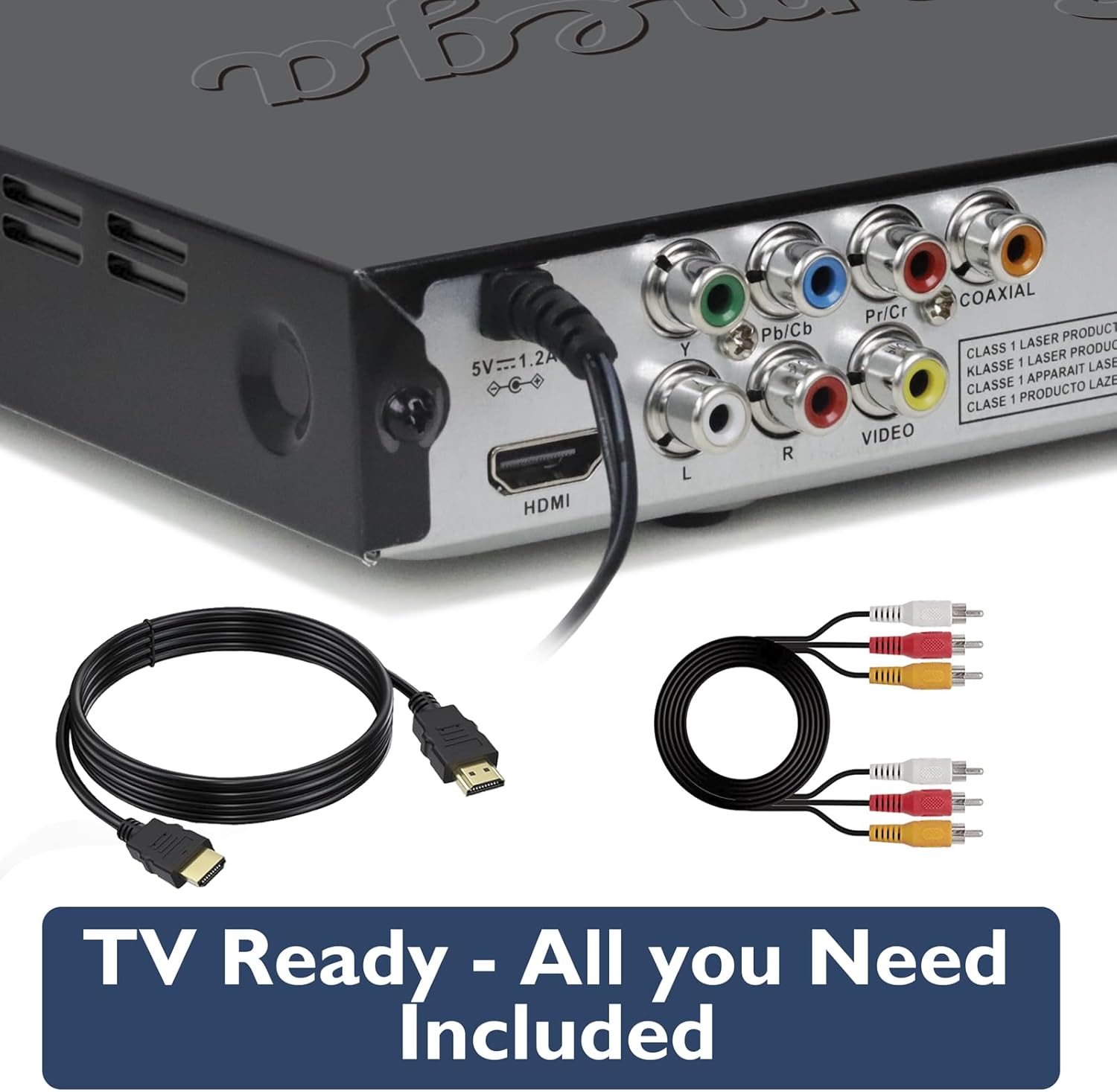
Image: The rear panel of the DVD player, highlighting the various connectivity options including HDMI and RCA ports.
Setup
Follow these steps to connect your Lemega PlayHD DVD Player to your television.
- Choose Your Connection Method:
- HDMI (Recommended for HD): Connect one end of the HDMI cable to the HDMI OUT port on the DVD player and the other end to an HDMI input port on your TV. Note the HDMI input number on your TV (e.g., HDMI 1, HDMI 2).
- RCA (Standard Definition): Connect the yellow plug of the RCA AV cable to the VIDEO OUT port on the DVD player, and the red and white plugs to the AUDIO R and AUDIO L ports respectively. Connect the other ends of these cables to the corresponding input ports on your TV.
- Connect Power: Plug the power adapter into the DC IN port on the DVD player, then plug the adapter into a wall outlet.
- Power On: Press the Power button on the DVD player or the remote control to turn on the unit.
- Select TV Input: Turn on your TV and use its remote control to select the correct input source (e.g., HDMI 1, AV) that corresponds to the connection you made in step 1.

Image: The DVD player and remote control positioned in front of a television displaying the setup menu, indicating ease of installation.
Operating Instructions
Basic DVD Playback
- Ensure the player is connected to your TV and powered on.
- Press the OPEN/CLOSE button on the player or remote to open the disc tray.
- Place a DVD or CD disc gently into the tray with the label side facing up.
- Press the OPEN/CLOSE button again to close the tray. The player will automatically detect the disc and begin playback or display the disc menu.
- Use the navigation buttons (Up, Down, Left, Right, OK) on the remote control to navigate disc menus.
- Use the PLAY/PAUSE, STOP, FAST FORWARD, REWIND, NEXT, and PREVIOUS buttons on the remote for playback control.
Multi-Region Playback
The Lemega PlayHD DVD Player is designed to automatically detect and play DVDs from any region (Region 0-8) without manual switching. Simply insert your DVD, and the player will adjust accordingly.

Image: The DVD player ready to play a disc, illustrating its multi-region compatibility with various DVD cases.
1080p HDMI Upscaling
When connected via HDMI, the PlayHD player automatically upscales standard definition DVD content to 1080p resolution, providing a clearer and more detailed picture on compatible high-definition televisions.

Image: A visual comparison demonstrating the enhanced clarity and detail provided by 1080p HD upscaling.
Advanced Playback Controls
The remote control offers additional playback functions:
- ZOOM: Magnify a portion of the screen during playback.
- SLOW: Play video in slow motion.
- ANGLE: Change camera angles on compatible DVDs.
- SUBTITLE: Select subtitle tracks.
- AUDIO: Select audio tracks or languages.

Image: The remote control in use, demonstrating advanced playback options such as slow motion and zoom.
USB Playback
The PlayHD supports media playback from USB storage devices.
- Insert a USB flash drive into the USB port on the front panel of the DVD player.
- The player should automatically detect the USB device and display a media browser. If not, press the 'USB' button on the remote control or navigate to the USB input option.
- Use the navigation buttons on the remote to browse through your video, music (MP3), or photo (JPEG) files.
- Press the OK button to select and play a file.
Maintenance
Proper care will extend the life of your DVD player.
- Cleaning the Unit: Wipe the exterior of the player with a soft, dry cloth. Do not use liquid cleaners or abrasive materials.
- Disc Care: Handle discs by their edges. Keep discs clean and free of scratches. Store them in their cases when not in use.
- Ventilation: Ensure the player has adequate ventilation. Do not block the ventilation slots.
- Storage: When not in use for extended periods, disconnect the power adapter and store the player in a cool, dry place.
Troubleshooting
If you encounter issues with your DVD player, refer to the following common problems and solutions.
| Problem | Possible Cause | Solution |
|---|---|---|
| No power | Power adapter not connected; power outlet not working. | Ensure power adapter is securely connected to the player and a working power outlet. |
| No picture on TV | Incorrect TV input selected; loose HDMI/RCA cable connection. | Select the correct TV input source. Check HDMI or RCA cable connections. |
| No sound | TV volume muted; audio cables loose; incorrect audio settings. | Increase TV volume. Check audio cable connections. Verify audio settings on the player and TV. |
| Disc not playing | Disc is dirty or scratched; disc inserted incorrectly; unsupported disc format. | Clean the disc. Insert disc with label side up. Ensure the disc is a supported format (DVD, CD). |
| Remote control not working | Batteries are dead or inserted incorrectly; obstruction between remote and player. | Replace batteries. Ensure correct battery polarity. Remove any obstructions and point remote directly at the player's sensor. |
Specifications
- Model Number: PlayHD
- Brand: LEMEGA
- Media Type: CD, DVD
- Video Output: HDMI (1080p Upscaling), RCA Composite Video
- Audio Output: HDMI, RCA Stereo Audio, Coaxial Digital Audio
- USB Playback: Supports video, MP3, JPEG files
- Region Compatibility: Multi-region (0-8)
- Manufacturer: HuiZhou LEMEDIA Technology Co.,Ltd
Warranty and Support
The Lemega PlayHD DVD Player comes with a 1-year manufacturer's warranty. For warranty claims or technical support not covered in this manual, please contact LEMEGA customer service. Keep your purchase receipt as proof of purchase for warranty purposes.
For further assistance, please refer to the contact information provided in your Quick Start Guide or visit the official LEMEGA website.


