
Introduction
Thank you for choosing the ORDA Keyboard Case. This manual provides essential information for setting up, operating, and maintaining your keyboard case to ensure optimal performance and longevity. This keyboard case is designed to enhance your tablet experience by providing a physical keyboard and trackpad, transforming your device into a versatile workstation.
Compatibility
This ORDA Keyboard Case is compatible with the following iPad models:
- iPad Pro 13-inch (M4, 2024)
- iPad Air 13-inch
- iPad Pro 12.9-inch (3rd, 4th, 5th, 6th Generation)
Ensure your iPad model matches one of the listed compatible devices for proper fit and functionality.
Setup
1. Unboxing and Initial Inspection
Carefully remove the keyboard case from its packaging. Inspect the case and keyboard for any signs of damage. The package should include the keyboard case and a charging cable.
2. Attaching Your iPad
The ORDA Keyboard Case features a strong magnetic attachment system. Align your iPad with the case, ensuring the camera cutout and ports match. The magnets will securely hold your iPad in place.
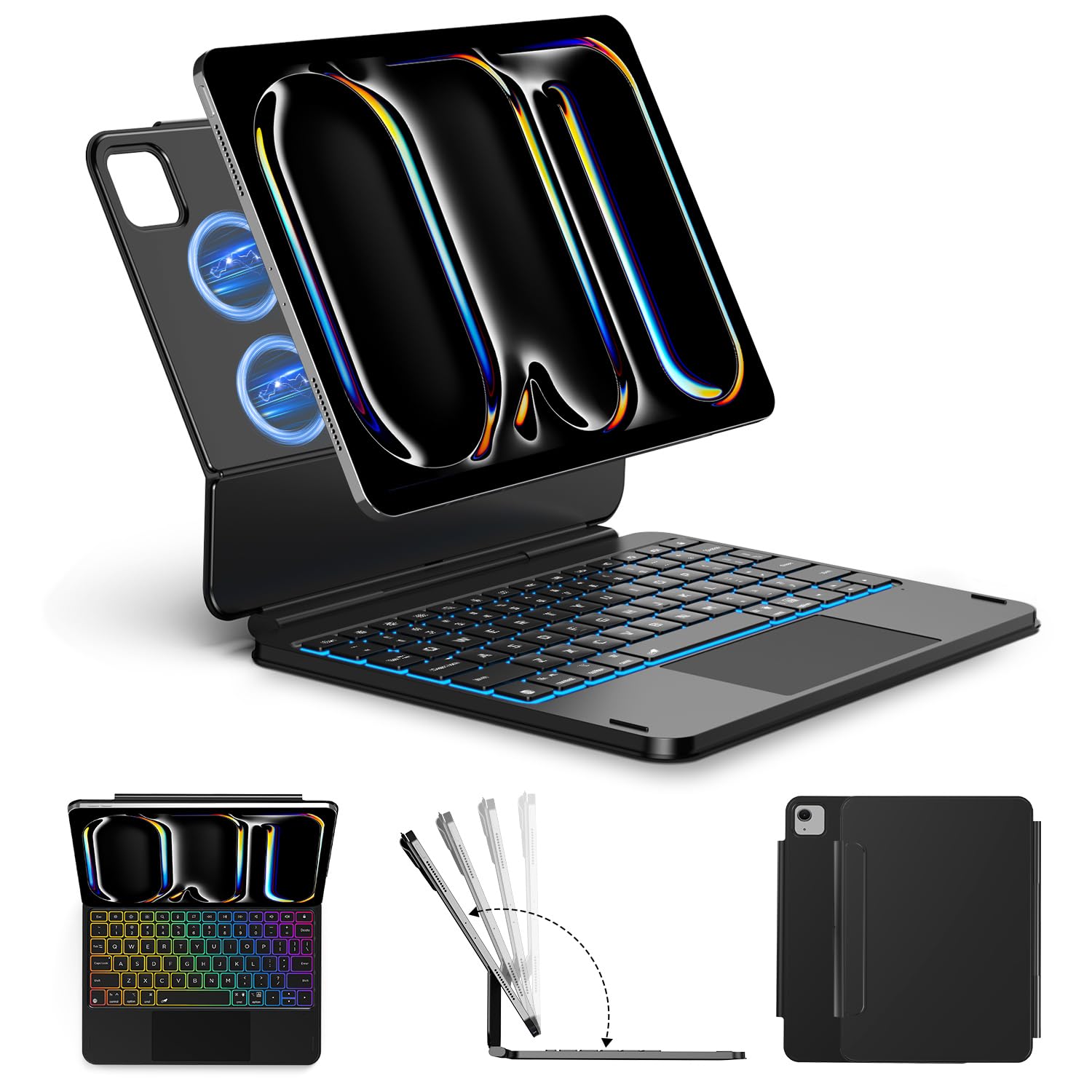
Image: The ORDA Keyboard Case with an iPad securely attached, demonstrating the magnetic connection and overall form factor.
3. Bluetooth Pairing
- Ensure the keyboard is charged. Connect the provided charging cable to the keyboard and a power source if needed.
- Turn on the keyboard by pressing the power button (usually located on the side or top edge of the keyboard). A small indicator light may flash.
- On your iPad, go to Settings > Bluetooth.
- Toggle Bluetooth On.
- Your iPad will search for nearby Bluetooth devices. Look for "Bluetooth Keyboard" or a similar name in the list of devices.
- Tap on the keyboard name to initiate pairing. Your iPad may display a code; type this code on the ORDA keyboard and press Enter.
- Once paired, the keyboard will show as "Connected" in your iPad's Bluetooth settings.
Note: The keyboard will automatically attempt to reconnect to the last paired device when turned on.
Video: Demonstrates the keyboard's backlit keys and general operation, including opening and closing the case.
Operating Instructions
Keyboard Functions
- Backlit Keys: The keyboard features adjustable backlighting. Use the dedicated backlight key (often represented by a lightbulb icon or similar) to cycle through brightness levels or colors.
- Trackpad: The integrated trackpad supports multi-touch gestures, allowing for precise navigation and control similar to a laptop. Refer to your iPad's settings for customizable trackpad gestures.
- Function Keys: The top row of keys provides quick access to iPad functions such as screen brightness, volume control, media playback, and search.
Adjustable Viewing Angles
The case is designed with a flexible hinge and magnetic stand, allowing you to adjust your iPad to various viewing angles for typing, drawing, or watching videos. The strong magnets ensure stability at your chosen angle.
Video: Showcases the various viewing angles and stability of the ORDA Keyboard Case.
Video: Demonstrates how the keyboard case transforms the iPad into a laptop-like setup for typing and productivity.
Maintenance
- Cleaning: Use a soft, damp cloth to wipe the exterior of the case. For the keyboard, use a soft, dry cloth or a can of compressed air to remove dust and debris between keys. Avoid harsh chemicals or abrasive materials.
- Storage: When not in use, keep the keyboard case closed to protect both the iPad screen and the keyboard. Store in a cool, dry place away from direct sunlight and extreme temperatures.
- Charging: Charge the keyboard regularly to maintain battery health. Avoid overcharging or completely draining the battery frequently.
Troubleshooting
- Keyboard Not Connecting:
- Ensure the keyboard is powered on and charged.
- Check your iPad's Bluetooth settings to confirm Bluetooth is enabled and the keyboard is listed as "Connected." If not, try re-pairing.
- Restart both your iPad and the keyboard.
- Keys Not Responding:
- Ensure the keyboard is connected via Bluetooth.
- Check for low battery.
- Clean any debris from under the keys.
- Trackpad Not Working:
- Verify Bluetooth connection.
- Ensure the trackpad is not accidentally disabled (some keyboards have a function key to toggle the trackpad).
- Check iPad accessibility settings for pointer control.
- Backlight Not Working:
- Press the backlight key to cycle through brightness levels.
- Ensure the keyboard has sufficient battery charge.
Specifications
| Feature | Detail |
|---|---|
| Brand | ORDA |
| Keyboard Description | Multi Functional |
| Material | Plastic |
| Number of Buttons | 84 |
| Item Weight | 2.7 pounds |
| Package Dimensions | 13.58 x 12.6 x 1.26 inches |
Warranty and Support
For warranty information and customer support, please refer to the documentation included with your product or visit the official ORDA website. Keep your purchase receipt as proof of purchase for any warranty claims.