
1. Introduction
Welcome to the Glorious GMBK 75% Gaming Keyboard instruction manual. This document provides essential information for setting up, operating, maintaining, and troubleshooting your new keyboard. Designed for performance and customization, the GMBK 75% offers a compact layout, vibrant RGB lighting, and durable construction.
2. Key Features
- Highly Customizable Design: Features swappable keycaps, cables, and knobs compatible with Glorious accessories and MX-style stems.
- 10-Zone RGB Lighting: Offers up to twice as many RGB zones as competitors for extensive lighting customization.
- IP57 Waterproof & Dust Resistant: Engineered to withstand spills and dust, ensuring durability during use.
- Quiet & Responsive Gaming Switches: Built with quiet, responsive switches designed for up to 20 million keypresses.
- Optimized 75% Form Factor: Provides extra mouse space without sacrificing essential keys, ideal for gaming.
3. What's in the Box
- Glorious GMBK 75% Gaming Keyboard
- Detachable USB Cable
4. Setup Guide
4.1 Connecting the Keyboard
- Locate the USB-C port on the back of the Glorious GMBK 75% keyboard.
- Connect the detachable USB cable to the keyboard's USB-C port.
- Plug the other end of the USB cable into an available USB port on your computer (PC or Mac).
- The keyboard will automatically be detected and drivers will install.
4.2 Initial Power On
Upon successful connection, the keyboard's RGB lighting will illuminate, indicating it is powered on and ready for use. No additional power source is required as it is USB powered.
5. Operating Instructions
5.1 RGB Lighting Control
The Glorious GMBK 75% features 10-zone RGB lighting. Use the dedicated function keys (Fn + specific keys) to cycle through various lighting modes, adjust brightness, and change colors. Refer to the keyboard's quick start guide for specific key combinations.

Image: The Glorious GMBK 75% keyboard showcasing its 10 individual RGB lighting zones, illustrating the customizable illumination across the keys.
5.2 Configurable Control Knob
The keyboard includes a configurable control knob. By default, this knob can be used to adjust system volume. Advanced customization options for the knob, such as opening applications or other functions, may be available through Glorious software.

Image: A detailed view of the configurable control knob on the Glorious GMBK 75% keyboard, highlighting its accessibility and design.
5.3 Mac/PC Compatibility
The Glorious GMBK 75% keyboard is compatible with Mac, PC, and supported consoles. Ensure the correct operating system mode is selected if your keyboard features a physical switch for this purpose, or configure via software.
6. Customization
The GMBK 75% keyboard is designed for extensive personalization, allowing you to tailor it to your preferences.
6.1 Swappable Keycaps
Easily swap out the default keycaps with any MX-compatible keycap sets to change the look and feel of your keyboard. This allows for aesthetic customization and ergonomic adjustments.
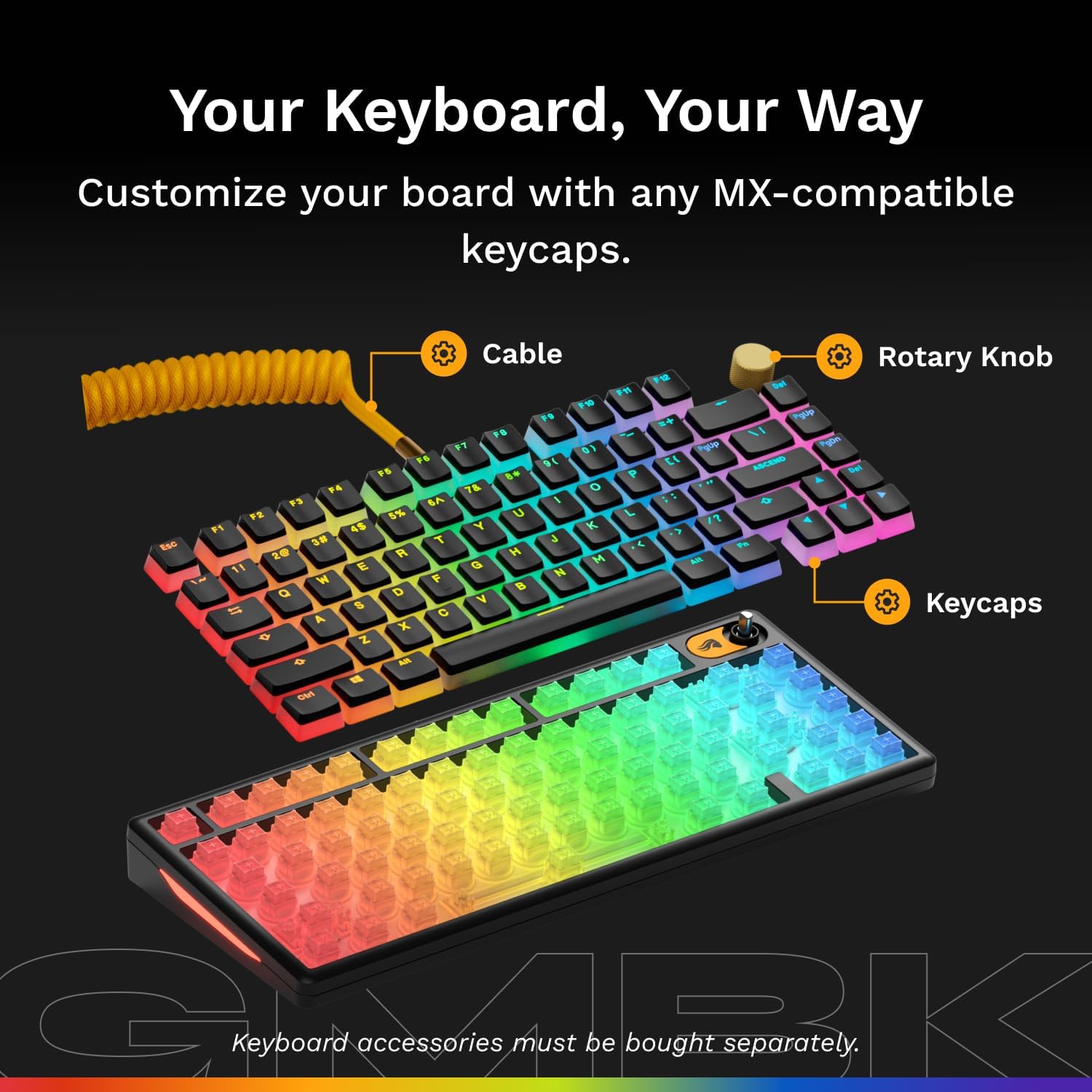
Image: The Glorious GMBK 75% keyboard highlighting its customizable elements, including swappable keycaps, detachable cable, and rotary knob.
6.2 Swappable Switches
The GMBK 75% supports hot-swappable switches, allowing you to change the mechanical switches without soldering. This enables users to experiment with different switch types (e.g., linear, tactile, clicky) to find their preferred typing or gaming experience.
Video: A demonstration of the Glorious GMMK2 keyboard, showcasing its various customizable options and different typing sounds. This video highlights the modularity and personalization aspects of Glorious keyboards.
Video: This video illustrates the extensive customization possibilities of Glorious keyboards, emphasizing how users can create a unique typing experience by swapping components.
7. Maintenance
7.1 Cleaning
To clean your keyboard, disconnect it from your computer. Use a soft, dry cloth to wipe down the keycaps and chassis. For deeper cleaning, you may carefully remove keycaps using a keycap puller and use compressed air to clear debris from beneath the keys. Avoid harsh chemicals.
7.2 Water and Dust Resistance (IP57)
The Glorious GMBK 75% keyboard is rated IP57 for water and dust resistance. This means it is protected against dust ingress and can withstand immersion in water up to 1 meter for 30 minutes. While resistant, it is recommended to avoid intentional exposure to liquids and dust to prolong the product's lifespan.

Image: The Glorious GMBK 75% keyboard with water droplets on its surface, illustrating its IP57 water and dust resistance feature.
8. Troubleshooting
- Keyboard Not Responding: Ensure the USB cable is securely connected to both the keyboard and the computer. Try a different USB port or cable.
- RGB Lights Not Working: Check the keyboard's lighting settings using the function keys or Glorious software. Ensure the keyboard is properly powered.
- Keys Not Registering: If individual keys are not working, ensure the switches are properly seated. If using custom switches, verify compatibility.
- Software Issues: If experiencing problems with Glorious software, ensure it is updated to the latest version. Reinstalling the software may resolve conflicts.
9. Specifications
| Brand | Glorious |
| Model Number | GLO-GMBK75-BLK-US |
| Item Weight | 1.96 pounds |
| Product Dimensions (LxWxH) | 12.64 x 5.39 x 1.61 inches |
| Color | Black |
| Power Source | USB Powered |
| Connectivity Technology | Cherry MX Stem (Compatible) |
| Keyboard Description | Gaming |
| Special Feature | Backlit, Hot-Swappable, Lightweight, Silent |
| Material | UV Coated ABS Plastic |
| IP Rating | IP57 (Water and Dust Resistant) |
10. Warranty and Support
For warranty information, technical support, or further assistance with your Glorious GMBK 75% Gaming Keyboard, please visit the official Glorious website or contact their customer support directly. Keep your proof of purchase for warranty claims.
Official Glorious Website: www.gloriousgaming.com


