
1. Important Safety Instructions
Please read all safety instructions carefully before using this appliance. Failure to follow these instructions may result in electric shock, fire, or serious personal injury.
- Always unplug the fan before cleaning or performing any maintenance.
- Do not insert fingers or any objects through the grille when the fan is operating.
- Ensure the fan is placed on a stable, level surface to prevent tipping.
- Keep the power cord away from heated surfaces.
- Do not operate the fan with a damaged cord or plug.
- This appliance is for indoor use only.
2. Package Contents
Verify that all items are included in your package:
- 1 × Dreo Poly Fan (DR-HPF007S)
- 1 × Power Adapter
- 1 × Remote Control (Battery included)
- 1 × Screw for Base
- 1 × Screwdriver for Base
3. Setup and Assembly
Follow these steps to assemble your DREO Smart Fan:
- Carefully remove all components from the packaging.
- Attach the fan body to the pedestal column.
- Secure the base to the bottom of the pedestal column using the provided screw and screwdriver.
- Attach the remote control holder to the pedestal column at a convenient height.
- Plug the power adapter into the fan and then into a power outlet.
Video: PolyFan Assembly and Clean
This video demonstrates the step-by-step assembly process and how to clean the PolyFan. It shows how to attach the base, secure the column, and connect the power adapter. It also covers disassembling parts for cleaning.
Video: Dreo HPF004S Installation Video
This video provides a visual guide for the installation of the Dreo HPF004S fan, which shares similar assembly steps with the DR-HPF007S model.
4. Operating Instructions
Your DREO Smart Fan offers multiple control methods and customizable settings for optimal comfort.
4.1 Control Methods
- Touch Controls: Use the intuitive touch panel on the fan's pedestal.
- Remote Control: Operate the fan from a distance with the included remote.
- DREO App: Connect via Wi-Fi for advanced features, scheduling, and voice control.
- Voice Control: Integrate with Alexa or Google Assistant for hands-free operation.
4.2 Fan Speeds and Airflow Modes
- 9 Fan Speeds: Adjust airflow intensity from a gentle breeze to powerful circulation.
- 6 Airflow Modes: Choose from Normal, Natural, Sleep, Auto, Custom, and Turbo modes to suit your preference.

Image: Fan Modes and Speeds
The fan's display shows the current speed and selected mode, offering 9 speed levels and 6 distinct airflow modes for personalized comfort.
4.3 Oscillation
- 3D Oscillation: Enjoy wide-area coverage with 150° horizontal and 120° vertical oscillation.
- Position-based Oscillation: (DREO app exclusive) The fan adjusts its airflow direction based on your movement within the room.

Image: 3D Oscillation
This image illustrates the fan's ability to oscillate both horizontally (150°) and vertically (120°), providing comprehensive air circulation.
Video: Dreo Smart Position-based Oscillation Fan TurboPoly Fan 707S
This video highlights the smart position-based oscillation feature of the fan, demonstrating how it tracks movement to maintain airflow.
4.4 Timer Function
Set the fan to automatically turn off after a specified period:
- On-device: Up to 8 hours.
- DREO App: Up to 12 hours for extended control.
4.5 Smart Features via DREO App
- Scheduling: Program the fan to turn on/off at specific times.
- Temperature Triggers: Set the fan to adjust speed based on ambient temperature.
- Desktop Widgets: Quick access to fan controls from your smartphone home screen.
- Quiet Operation: Operates as low as 25dB for undisturbed sleep.
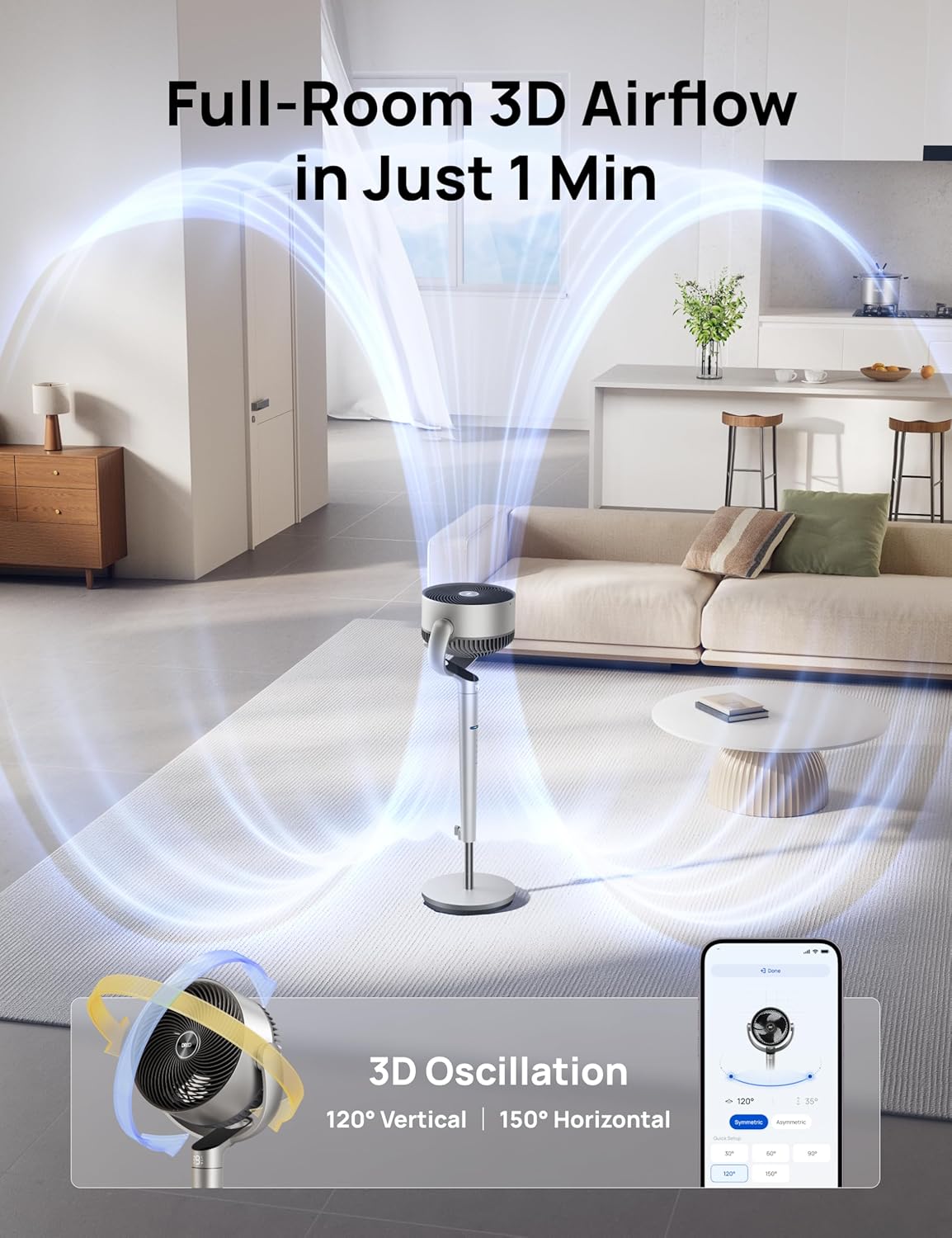
Image: App Control Interface
The DREO app provides comprehensive control over fan settings, including modes, speeds, oscillation, and smart features.
5. Cleaning and Maintenance
Regular cleaning ensures optimal performance and longevity of your fan.
- Always unplug the fan before cleaning.
- Wipe the exterior surfaces with a soft, damp cloth.
- To clean the fan blades, remove the front grille by rotating it counter-clockwise.
- Rotate the blade cap counter-clockwise to remove it, then carefully take out the blade from the shaft.
- Rinse the cap, blade, and grille under running water. Dry all parts thoroughly before reassembling.
- Reassemble the fan by reversing the disassembly steps.
Video: PolyFan Assembly and Clean
This video demonstrates how to disassemble the fan for cleaning and reassemble it, ensuring proper maintenance.
6. Troubleshooting
If you encounter any issues with your DREO Smart Fan, refer to the following common solutions:
- Fan does not turn on: Ensure the power cord is securely plugged into a working outlet. Check if the power adapter is correctly connected to the fan.
- Weak airflow: Verify that the fan speed is set to an appropriate level. Clean the fan blades and grilles to remove any dust buildup.
- Unusual noise: Ensure all parts are assembled correctly and securely. Clean the fan to remove any foreign objects that might be causing noise.
- Remote control not working: Check the battery in the remote control. Ensure there are no obstructions between the remote and the fan.
- Wi-Fi connection issues: Ensure your Wi-Fi network is 2.4GHz. Restart your router and the fan, then try connecting again via the DREO app.
7. Specifications
| Feature | Detail |
|---|---|
| Brand | Dreo |
| Model Name | DR-HPF007S |
| Product Dimensions | 13.7"D x 8.7"W x 42.52"H |
| Power Source | DC |
| Wattage | 50 watts |
| Voltage | 120 Volts |
| Noise Level | 25 Decibels |
| Air Flow Capacity | 1404 Cubic Feet Per Minute |
| Speed | 8 Meters per Second |
| Number of Power Levels | 9 |
| Special Features | Adjustable Height, Adjustable Tilt, Oscillating, Remote Controlled, Timer, Wi-Fi, Voice Control |
| Control Method | App, Remote, Touch |
| Indoor/Outdoor Usage | Indoor |
| Item Weight | 17.96 pounds |
| UPC | 810142858212 |
8. Warranty and Support
For product support, warranty information, or any inquiries, please contact Dreo customer service:
- Website: www.dreo.com
- Email: support@dreo.com
- Phone: (888) 290-1688 (Mon-Fri, 9:00 AM-5:00 PM PST/PDT)


