
1. Introduction
This manual provides instructions for the SABLUTE KMA1pro Bluetooth Keyboard and Mouse combo, designed for Apple devices. This combo offers a full-size Mac layout keyboard with 7-color backlighting, multi-device connectivity, and a quiet, rechargeable mouse. Please read this manual thoroughly before use to ensure proper operation and longevity of your devices.
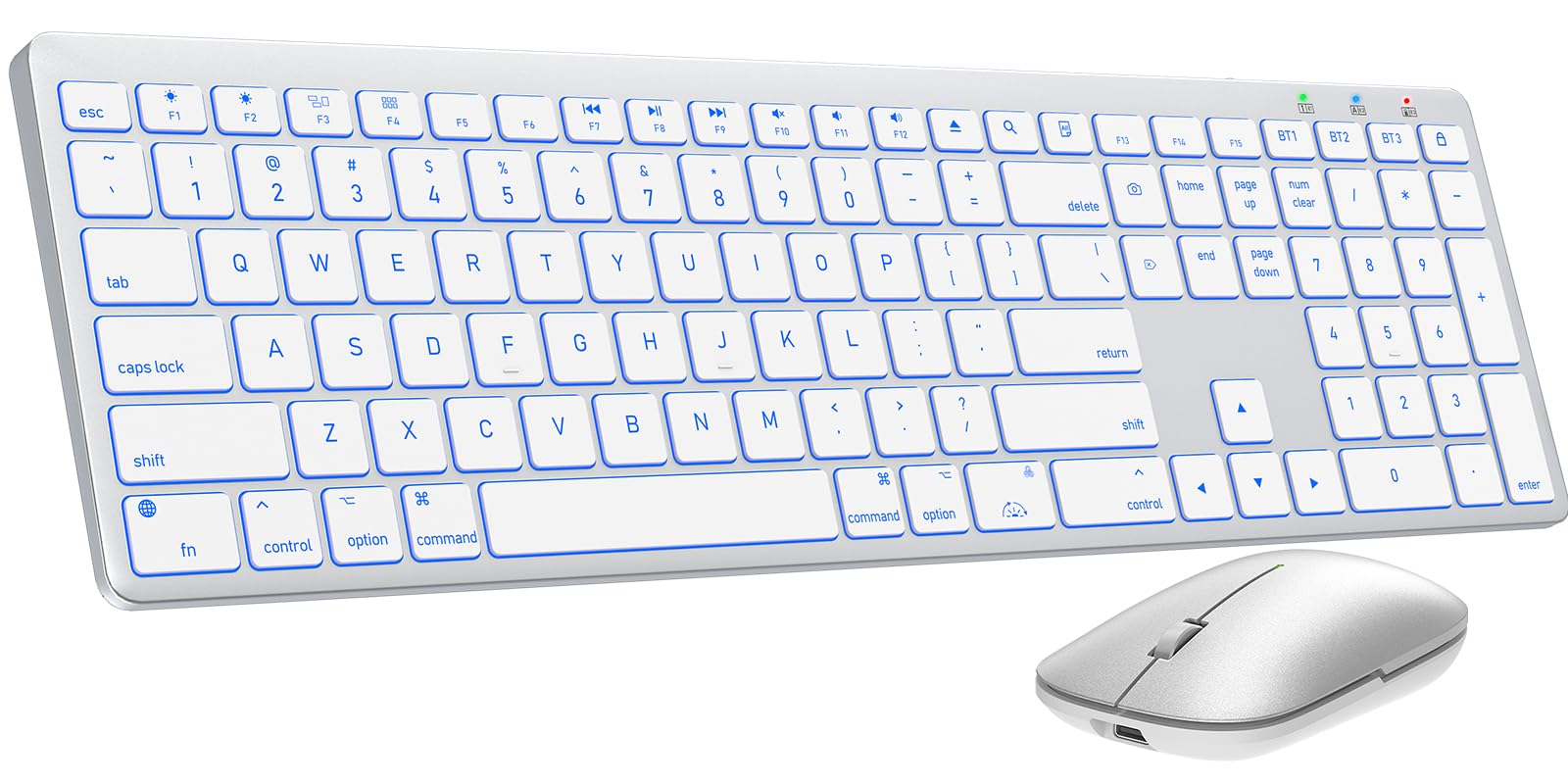
Image 1.1: The SABLUTE KMA1pro Bluetooth Keyboard and Mouse combo.
Package Contents:
- SABLUTE KMA1pro Bluetooth Keyboard
- SABLUTE Bluetooth Mouse
- USB-C Charging Cable
- Silicone Dustproof Cover
- User Manual
2. Setup
2.1 Charging the Devices
Before initial use, fully charge both the keyboard and the mouse. Use the provided USB-C charging cable.
- Connect the USB-C end of the cable to the charging port on the keyboard (located on the top edge) and the mouse (located on the front edge).
- Connect the USB-A end of the cable to a USB power adapter (not included) or a computer's USB port.
- The charging indicator light will illuminate. Once fully charged (approximately 2-3 hours), the indicator will change or turn off.

Image 2.1: Charging the keyboard and mouse via USB-C cable.
2.2 Powering On/Off
- Keyboard: Locate the power switch on the top edge of the keyboard. Slide it to the 'ON' position to power on, and 'OFF' to power off.
- Mouse: Locate the power switch on the bottom of the mouse. Slide it to the 'ON' position to power on, and 'OFF' to power off.
2.3 Bluetooth Pairing
The KMA1pro combo supports connecting up to three Bluetooth devices simultaneously.
- Enable Bluetooth on your Mac device: Go to System Settings (or System Preferences) > Bluetooth and ensure Bluetooth is turned on.
- Keyboard Pairing:
- Turn on the keyboard.
- Press and hold the BT1, BT2, or BT3 key for 3-5 seconds until the corresponding indicator light flashes rapidly. This indicates the keyboard is in pairing mode.
- On your Mac device, look for "SABLUTE Keyboard" in the Bluetooth device list and click "Connect".
- Once connected, the indicator light will stop flashing.
- Mouse Pairing:
- Turn on the mouse.
- Press the channel switch button on the bottom of the mouse to select a channel (e.g., BT1). The indicator light will flash.
- On your Mac device, look for "SABLUTE Mouse" in the Bluetooth device list and click "Connect".
- Once connected, the indicator light will stop flashing.
- Repeat these steps for additional devices using BT2 and BT3 channels.

Image 2.2: The keyboard and mouse can switch between three paired Bluetooth devices.
3. Operation
3.1 Keyboard Backlight Control
The keyboard features 7-color backlighting with adjustable brightness levels.
- Change Backlight Color: Press Fn +
 (the light bulb icon) to cycle through the 7 available colors.
 - Adjust Brightness: Press Fn + (the sun icon) to cycle through 3 brightness levels or turn the backlight off.

Image 3.1: Adjusting backlight colors and brightness on the keyboard.
3.2 Switching Between Multiple Devices
To switch between your paired devices (Mac, iPad, iPhone), simply press the corresponding Bluetooth channel key on the keyboard:
- Press BT1 to switch to device 1.
- Press BT2 to switch to device 2.
- Press BT3 to switch to device 3.
For the mouse, press the channel switch button on the bottom to select the desired paired channel.
3.3 Mac Shortcut Keys
The keyboard features a full standard Mac layout with dedicated macOS shortcut keys for enhanced productivity.

Image 3.2: Mac-specific function keys on the keyboard.
| Key | Function |
|---|---|
| F1 | Light Decreases |
| F2 | Light Increases |
| F3 | Multitasking Window |
| F4 | Launchpad |
| F7 | Previous Track |
| F8 | Play/Pause |
| F9 | Next Track |
| F10 | Mute |
| F11 | Volume - |
| F12 | Volume + |
| Media Eject | Eject Media |
| Search | Search Function |
| Select All | Select All Content |
| Switch Backlight | Toggle Backlight On/Off |
| Lock Screen | Lock Screen |
Note: Mac shortcuts and keys are incompatible with Windows operating systems.
3.4 Mouse DPI Adjustment
The mouse features three adjustable DPI settings (800/1200/1600) for precise cursor control.
- To switch DPI settings, press and hold the middle scroll wheel button and the right-click button simultaneously for 3 seconds. The DPI will cycle through 800, 1200, and 1600.

Image 3.3: The mouse offers three adjustable DPI settings for cursor precision.
3.5 Ergonomic Tilt
The keyboard includes built-in adjustable folding feet to set an ergonomic typing angle, reducing wrist strain during extended use.
- Gently pull out the folding feet located on the underside of the keyboard to elevate the back edge.
- Push them back in to return the keyboard to a flat position.

Image 3.4: The keyboard features adjustable folding feet for ergonomic comfort.
3.6 Power Saving Mode
Both the keyboard and mouse feature an intelligent auto-sleep mode to conserve battery power when not in use. To reactivate, simply press any key on the keyboard or move/click the mouse.
4. Maintenance
4.1 Cleaning
- Turn off both the keyboard and mouse before cleaning.
- Use a soft, lint-free cloth slightly dampened with water or a mild cleaning solution. Avoid harsh chemicals.
- For the keyboard, you can use a can of compressed air to remove dust and debris from between the keys.
4.2 Using the Dustproof Cover
A custom-fit silicone protective film is included to shield your keyboard from dust, spills, and daily wear. Place it over the keyboard when not in active use or during travel.
4.3 Battery Care
- Avoid fully discharging the batteries frequently. Recharge when the low battery indicator appears.
- If storing the devices for an extended period, charge them to about 50% and power them off. Recharge every few months to prevent deep discharge.
5. Troubleshooting
| Problem | Possible Solution |
|---|---|
| Keyboard/Mouse not connecting via Bluetooth |
|
| Backlight not working or dim |
|
| Mouse cursor erratic or unresponsive |
|
| Keyboard keys not responding |
|
6. Specifications
| Feature | Detail |
|---|---|
| Brand | SABLUTE |
| Model Number | KMA1pro |
| Color | Silver White |
| Connectivity Technology | Bluetooth |
| Compatible Devices | Mac, Mac Mini, iPad, MacBook, MacBook Air, MacBook Pro |
| Operating System | Mac OS |
| Keyboard Layout | QWERTY |
| Keyboard Description | Membrane, Scissor-Switch Keys |
| Keyboard Backlight | 7 Colors, 3 Brightness Levels |
| Keyboard Battery Capacity | 1600 mAh |
| Mouse Battery Capacity | 300 mAh |
| Mouse DPI Settings | 800/1200/1600 |
| Item Weight | 0.82 Kilograms (Keyboard and Mouse) |
| Special Features | 7 Color Backlit, Designed for Mac, Dustproof Cover, Quiet Typing, Rechargeable, Multi-Device Switching, Ergonomic Tilt |
7. Warranty Information
SABLUTE offers a 24-month warranty for each KMA1pro Bluetooth Keyboard and Mouse combo from the date of purchase. This warranty covers manufacturing defects and workmanship. Please retain your proof of purchase for warranty claims.
The warranty does not cover damage caused by misuse, accidents, unauthorized modifications, or normal wear and tear.
8. Customer Support
For any questions, technical assistance, or warranty claims, please contact SABLUTE customer support:
- Email: sabluteservices@outlook.com
Our support team aims to respond within 24 hours.
Video 8.1: Official product video demonstrating the SABLUTE Bluetooth Wireless Keyboard and Mouse for Mac features.


