1. Introduction
Thank you for choosing the SGIN C10 10.1-inch Kids Tablet. This device is designed to provide an engaging and safe digital experience for children, featuring parental controls and educational content. This manual will guide you through the setup, operation, and maintenance of your tablet to ensure optimal performance and user safety.
2. Product Overview
2.1 Package Contents
Upon unpacking, please ensure all items listed below are present:
- SGIN C10 10.1-inch Tablet
- Protective Case
- Charger
- USB Cable
- Instruction Manual

Image: Diagram showing the tablet's ports and buttons, along with the included accessories: tablet, protective case, charger, USB cable, and instruction manual.
2.2 Tablet Components
Familiarize yourself with the physical components of your SGIN C10 tablet:
- Power Button: Located on the side, used to turn the tablet on/off or put it to sleep.
- Volume Buttons: Adjust the audio output level.
- Headphone Jack: For connecting wired headphones.
- USB Port: For charging and data transfer.
- TF Card Slot: For expanding storage with a microSD card.
- Front Camera: For video calls and selfies.
- Rear Camera: For taking photos and videos.
- Speakers: For audio output.
- 10.1-inch HD IPS Touch Screen: Main display for interaction.
- Protective Case with Stand: Provides protection and allows for hands-free viewing.
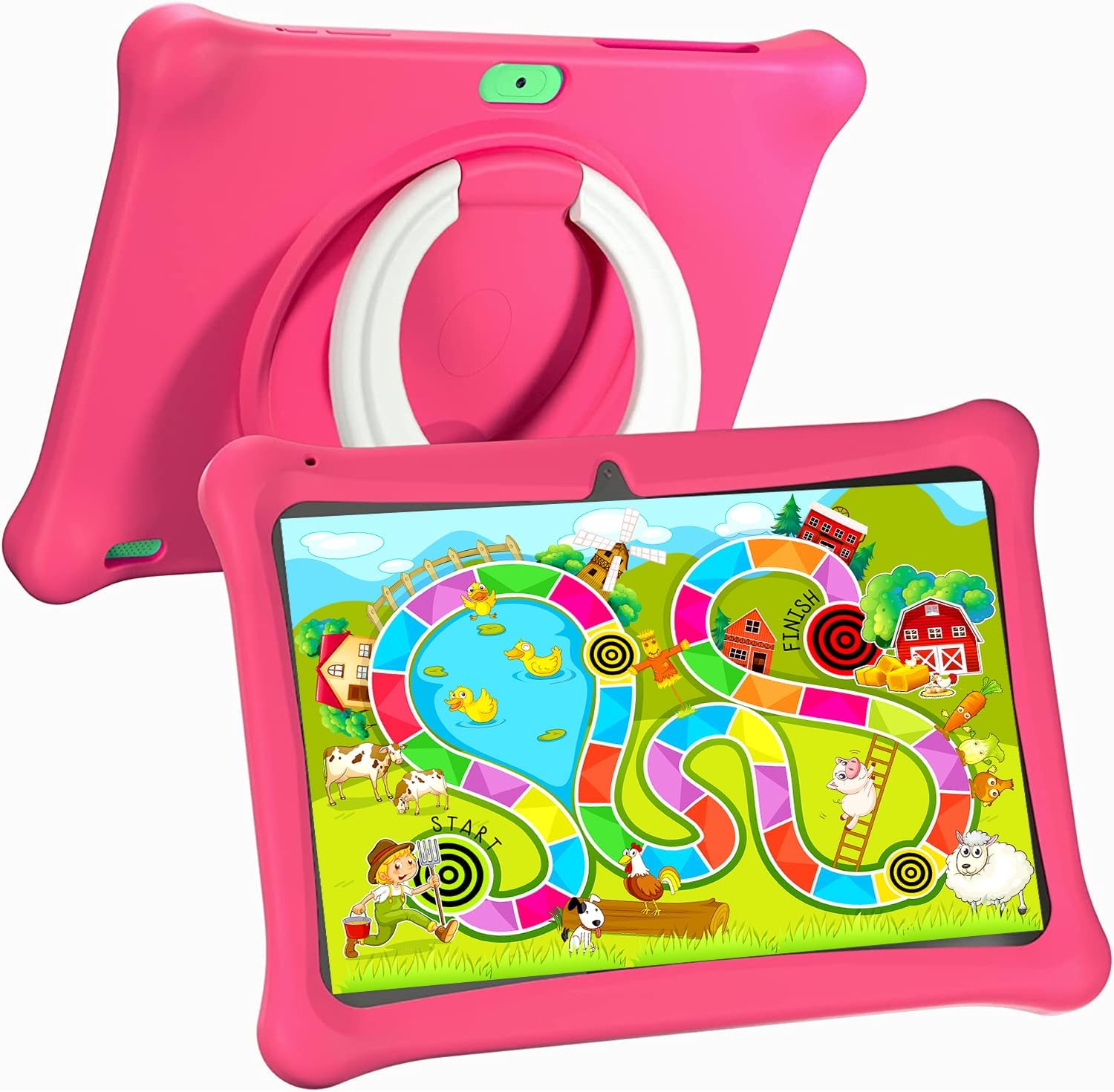
Image: The SGIN C10 tablet in its pink protective case, displaying a colorful educational game on its screen. The rear of the tablet shows the integrated stand.
2.3 Key Features
- High Performance: Equipped with a 1.6GHz quad-core processor, 2GB RAM, and 32GB ROM (expandable up to 32GB via TF card).
- Kid-Proof Case: Durable pink case designed to protect against dust, bumps, and drops, with heat dissipation features.
- Pre-installed iWawa Kid's Software: Offers a safe and entertaining environment with thousands of free educational games and apps.
- Parental Control System: Allows parents to manage screen time, content, and user accounts.
- Long Battery Life: 5000mAh lithium battery provides 6-8 hours of usage.
- Eye Protection Screen: 1280*800 HD IPS touch screen for vibrant colors and comfortable viewing.
- Dual Camera: 2MP front camera and 5MP rear camera for photos and videos.

Image: Icons representing key features of the SGIN C10 tablet: Android 12, Quad-core processor, Dual Camera, 5000mAh battery, WiFi, HD Display, 2GB RAM + 32GB storage, 10 Inch screen, and Parental Control.

Image: Visual representation of the tablet's 2GB RAM and 32GB ROM (expandable via TF card), alongside a diagram of the 1.6 GHz Quad-core Processor.

Image: The 10-inch HD display showing vibrant content, and a close-up of the protective case's rotatable stand.

Image: A child using the tablet, highlighting the 5000mAh Lithium Battery, and a close-up of the tablet's dual camera system.
3. Setup
3.1 Initial Charging
- Connect the USB cable to the tablet's USB port.
- Connect the other end of the USB cable to the provided charger.
- Plug the charger into a power outlet.
- Allow the tablet to charge fully before first use. The battery indicator on the screen will show charging status.
3.2 Powering On/Off
- To Power On: Press and hold the Power Button until the SGIN logo appears on the screen.
- To Power Off: Press and hold the Power Button until a menu appears. Select "Power off" and confirm.
- To Sleep/Wake: Briefly press the Power Button to put the tablet to sleep or wake it up.
3.3 Connecting to Wi-Fi
- From the home screen, swipe down from the top to open the Quick Settings panel.
- Tap and hold the Wi-Fi icon to open Wi-Fi settings.
- Toggle Wi-Fi on if it's off.
- Select your desired Wi-Fi network from the list.
- Enter the network password if prompted, then tap "Connect".
3.4 Initial iWawa Setup
The SGIN C10 tablet comes with iWawa Kid's software pre-installed. Follow the on-screen prompts to set up the child-friendly environment and parental controls during the first launch.
4. Operating Instructions
4.1 Basic Navigation
- Touch: Tap an icon or option to select it.
- Swipe: Drag your finger across the screen to scroll through pages or lists.
- Pinch: Use two fingers to zoom in or out on images or web pages.
- Home Button: Returns you to the home screen.
- Back Button: Returns you to the previous screen.
- Recent Apps Button: Shows recently used applications.
4.2 Using the Camera
- Open the Camera app from the home screen or app drawer.
- Tap the camera switch icon to toggle between the front and rear cameras.
- Tap the shutter button to take a photo.
- Tap the video icon to switch to video recording mode, then tap the record button to start/stop recording.
4.3 Installing/Uninstalling Apps
- Installing Apps: Within the iWawa environment, access the Kids Store to download free games and educational applications. Parents can also approve apps from the Google Play Store via parental controls.
- Uninstalling Apps: From the parental control interface, select the app management option to uninstall unwanted applications.
4.4 Adjusting Settings
- Volume: Use the physical Volume Buttons on the side of the tablet.
- Brightness: Swipe down from the top of the screen to access Quick Settings and adjust the brightness slider. More detailed display settings are available in the main Settings app.
- Other Settings: Access the main Settings app for Wi-Fi, Bluetooth, display, sound, storage, and other system configurations.
5. Parental Control
The SGIN C10 tablet features a robust parental control system integrated with the iWawa Kid's software, allowing you to create a safe and customized environment for your child.
5.1 Accessing Parental Controls
To access parental control settings, you will typically need to exit the iWawa Kid's interface and enter a password-protected parent mode. Follow the on-screen instructions within the iWawa app to set up and manage this access.
5.2 Key Parental Control Features
- Set Passwords: Establish a secure password to prevent children from exiting the iWawa environment or altering settings.
- Screen Time Limits: Define daily usage limits and specific time periods when the tablet can be used.
- Content Management: Control access to apps, games, videos, and websites. You can whitelist appropriate websites and block unwanted content.
- App Approval: Manage which applications your child can access, including those downloaded from the Kids Store or Google Play Store.
- Multiple User Accounts: Create separate profiles for each child, allowing personalized settings and content for individual users.
- Ad Elimination: The system helps eliminate unwanted advertisements within the child's environment.
6. Maintenance
6.1 Cleaning the Device
- Always power off the tablet before cleaning.
- Use a soft, lint-free cloth to wipe the screen and body.
- For stubborn smudges, slightly dampen the cloth with water or a screen-safe cleaner. Avoid harsh chemicals.
- Ensure no moisture enters ports or openings.
6.2 Battery Care
- Avoid fully discharging the battery frequently.
- Do not expose the tablet to extreme temperatures.
- Use only the provided charger and cable.
6.3 Software Updates
Periodically check for system updates in the tablet's Settings menu under "System" or "About tablet." Keeping your software updated ensures optimal performance and security.
6.4 Storage Management
To manage storage, you can:
- Delete unused apps and files.
- Move photos and videos to a computer or cloud storage.
- Insert a TF (microSD) card into the designated slot to expand storage capacity up to 32GB.
7. Troubleshooting
| Problem | Possible Solution |
|---|---|
| Tablet does not turn on. | Ensure the battery is charged. Connect the charger and wait a few minutes before attempting to power on again. |
| Screen is unresponsive. | Restart the tablet by holding the Power Button for about 10 seconds until it powers off, then power it on again. |
| Cannot connect to Wi-Fi. | Check if Wi-Fi is enabled. Ensure the password is correct. Restart your Wi-Fi router. |
| Apps are crashing or running slowly. | Close background apps. Clear app cache (Settings > Apps > [App Name] > Storage > Clear cache). Ensure sufficient storage space. |
| Parental controls are not working as expected. | Re-enter the parental control settings and verify all configurations (time limits, content filters, app approvals). Ensure the correct child profile is active. |
8. Specifications
| Feature | Specification |
|---|---|
| Brand | SGIN |
| Model Name | C10 |
| Operating System | Android |
| Screen Size | 10 Inches |
| Max Screen Resolution | 1280 Pixels |
| Processor | 1.6GHz Quad-core (Intel Processor Brand) |
| RAM | 2GB |
| Internal Storage (ROM) | 32GB |
| Expandable Storage | TF Card up to 32GB |
| Front Camera | 2MP |
| Rear Camera | 5MP |
| Battery Capacity | 5000mAh |
| Connectivity | WiFi, Bluetooth |
| Item Weight | 2.35 pounds |
| Product Dimensions | 1 x 1 x 1 inches |
9. Warranty and Support
For warranty information and technical support, please refer to the documentation included with your purchase or visit the official SGIN website. If you encounter issues not covered in this manual, please contact SGIN customer service for assistance.


