
Introduction
This manual provides detailed instructions for the ECHTPower Ergonomic Vertical Mouse, Model CG045. It covers setup, operation, maintenance, and troubleshooting to ensure optimal performance and user comfort. This vertical mouse is designed to promote a natural hand and wrist posture, reducing strain during extended use.

Image: The ECHTPower Ergonomic Vertical Mouse, highlighting its design for natural comfort.
Package Contents
- ECHTPower Ergonomic Vertical Mouse (Model CG045)
- 2.4GHz USB Receiver
- USB-C Charging Cable
- User Manual
Product Overview
Familiarize yourself with the components of your ECHTPower Vertical Mouse.

Image: A top-down view of the ECHTPower Ergonomic Vertical Mouse alongside its 2.4GHz USB receiver.
- Left Click Button: Standard left-click function.
- Right Click Button: Standard right-click function.
- Scroll Wheel: For vertical scrolling.
- DPI Adjustment Button: Cycles through DPI settings.
- LED Display: Shows connection mode, DPI level, and battery status.
- Forward Button: Navigates forward in web browsers or file explorers.
- Backward Button: Navigates backward in web browsers or file explorers.
- Power Switch: Turns the mouse on or off.
- Mode Switch Button: Switches between 2.4GHz and Bluetooth modes.
- USB-C Charging Port: For recharging the internal battery.
- 2.4GHz USB Receiver Storage: Compartment for the USB receiver.

Image: A diagram illustrating the quick side buttons (Forward, Back) and the scroll wheel on the mouse.
Setup
1. Charging the Mouse
Before first use, fully charge the mouse. Connect the provided USB-C charging cable to the mouse's charging port and the other end to a USB power source (e.g., computer, USB wall adapter). The LED display will indicate charging status.

Image: The ECHTPower mouse displaying its 700mAh battery capacity.
2. Connecting via 2.4GHz USB Receiver
- Locate the 2.4GHz USB receiver stored in the bottom compartment of the mouse.
- Insert the USB receiver into an available USB port on your computer.
- Turn on the mouse using the power switch located on the bottom.
- Press the mode switch button until the LED display shows the 2.4GHz connection icon. The mouse should connect automatically.
3. Connecting via Bluetooth
- Turn on the mouse using the power switch.
- Press the mode switch button until the LED display shows the Bluetooth connection icon.
- On your device (PC, Mac, Laptop, Tablet), navigate to Bluetooth settings.
- Search for new devices and select "ECHTPower Mouse" (or similar) from the list.
- Confirm pairing. The LED display will indicate a successful connection.

Image: The ECHTPower mouse demonstrating multi-device compatibility, connected to a laptop via USB receiver and a tablet via Bluetooth.
Operating Instructions
Power On/Off
Use the power switch on the bottom of the mouse to turn it on or off. Turning off the mouse when not in use conserves battery life.
Switching Connection Modes
Press the mode switch button (usually located on the bottom or top of the mouse) to cycle between 2.4GHz and Bluetooth connection modes. The LED display will show the active mode.
Adjusting DPI
Press the DPI adjustment button (located near the scroll wheel) to cycle through the 7 available DPI levels: 400, 800, 1600, 2400, 3200, 6400, and 8000. The current DPI setting will be shown on the LED display.

Image: The ECHTPower mouse illustrating its 7 adjustable DPI levels, ranging from 400 to 8000.
LED Display Indicators
The integrated LED display provides real-time information:
- Connection Mode: Indicates whether the mouse is in 2.4GHz or Bluetooth mode.
- DPI Level: Shows the currently selected DPI sensitivity.
- Battery Status: Displays the remaining battery charge and low-battery warnings.

Image: A close-up view of the ECHTPower mouse's LED display, showing the DPI setting and battery level.
Programmable Buttons
The mouse features programmable buttons that can be customized using dedicated software. This allows you to assign specific functions or macros to buttons for enhanced workflow or gaming.
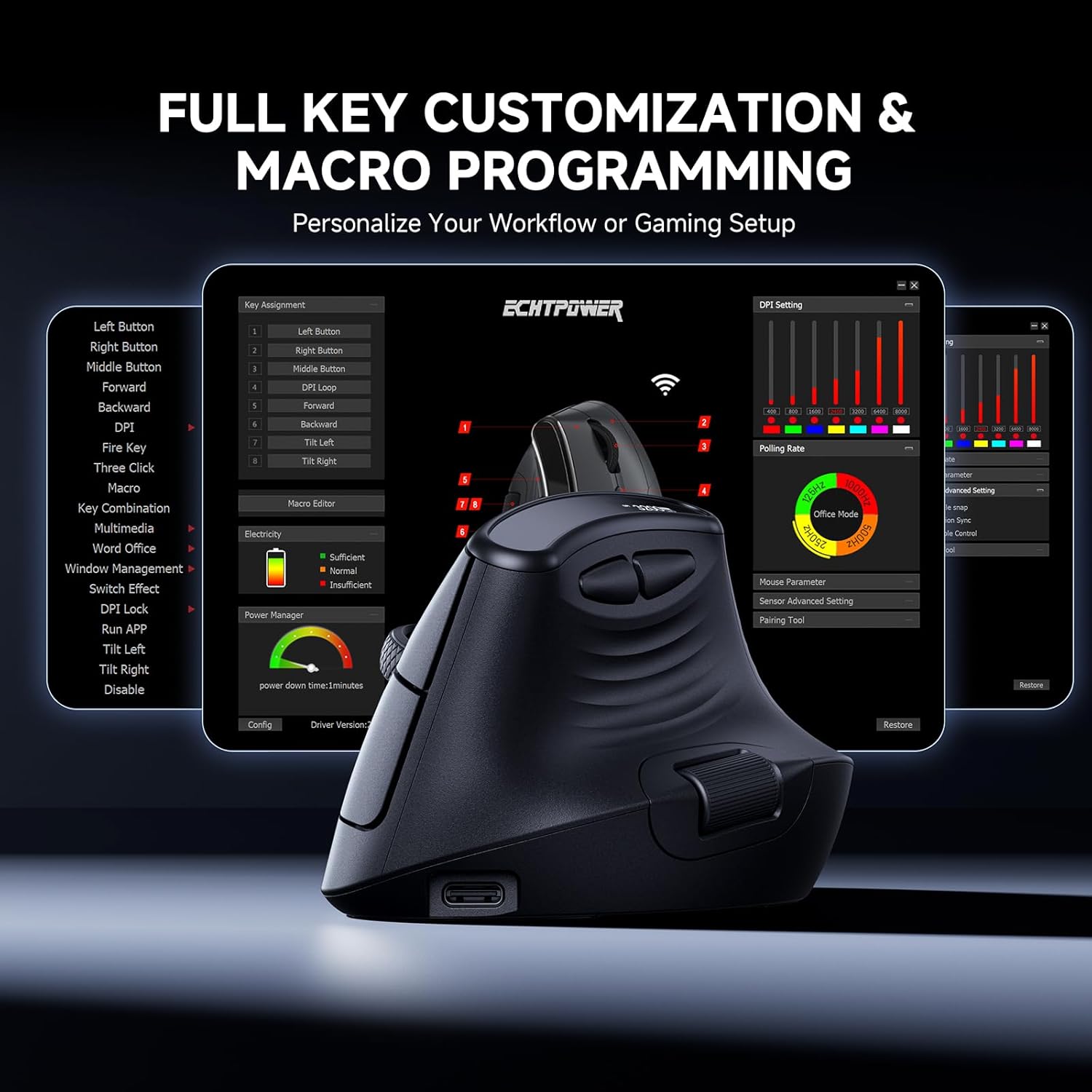
Image: A screenshot of the ECHTPower mouse customization software interface, showing options for key assignment and macro programming.
Sleep Mode
The mouse is equipped with an intelligent three-level sleep mode to conserve power. It automatically enters sleep mode after 1 second, 30 seconds, and 60 seconds of inactivity. The mouse will instantly wake up with any movement or click.
Maintenance
- Cleaning: Use a soft, dry cloth to clean the mouse. Avoid using harsh chemicals or abrasive materials.
- Battery Care: To prolong battery life, avoid fully discharging the mouse frequently. Recharge when the low-battery warning appears.
- Storage: When not in use for extended periods, store the mouse in a cool, dry place.
Troubleshooting
| Issue | Possible Solution |
|---|---|
| Mouse not responding |
|
| Cursor movement is erratic or slow |
|
| Buttons not working |
|
Specifications
| Feature | Detail |
|---|---|
| Model | CG045 |
| Connectivity | 2.4GHz Wireless, Bluetooth |
| DPI Levels | 400, 800, 1600, 2400, 3200, 6400, 8000 (7 levels) |
| Battery Capacity | 700mAh Rechargeable |
| Buttons | Programmable (Left, Right, Scroll Wheel, DPI, Forward, Backward) |
| Special Features | Ergonomic Vertical Design, LED Display, Silent Clicks, Multi-Device Connection, Intelligent Sleep Mode |
| Weight | 5.6 ounces (approx. 159g) |
| Dimensions | 4.45 x 3.07 x 3.03 inches (approx. 11.3 x 7.8 x 7.7 cm) |
Official Product Video
Watch the official product video for a visual guide to the ECHTPower Ergonomic Vertical Mouse.
Video: An official product video showcasing the features and design of the ECHTPower Ergonomic Vertical Mouse.
Warranty and Support
ECHTPower products come with a standard manufacturer's warranty. For specific warranty details, please refer to the warranty card included in your package or visit the official ECHTPower website.
For technical support, troubleshooting assistance, or any inquiries regarding your ECHTPower Ergonomic Vertical Mouse, please contact ECHTPower customer service through their official channels. Contact information can typically be found on the product packaging or the brand's website.
