1. Getting Started
1.1 Unpacking and Initial Setup
Carefully unpack your new HP 17 Laptop. Ensure all components are present before proceeding with the setup.

Image 1.1: The HP 17 Laptop shown with various accessories including a mouse, webcam cover, and dust plugs.
1.1.1 What's in the Box
- 1*HP 17.3" FHD Laptop
- 1*Power Adapter
- 1*Instruction Manual
1.1.2 First Power On
- Connect the power adapter to the laptop's AC smart pin port and then to a power outlet.
- Open the laptop lid. The laptop may power on automatically, or you may need to press the power button.
- Follow the on-screen instructions to complete the Windows 11 Pro setup, including language selection, network connection, and user account creation.
2. Operating Your HP 17 Laptop
2.1 Power Management
Your HP 17 Laptop is equipped with a 3-cell, 41 Wh Li-ion battery and supports HP Fast Charge technology.
- Turning On/Off: Press the power button to turn the laptop on. To turn off, click the Start button, then Power > Shut down.
- Sleep Mode: Close the lid or select Sleep from the Power menu to enter sleep mode.
- HP Fast Charge: This feature allows you to charge your battery up to 50% in approximately 45 minutes when the laptop is off.

Image 2.1: Illustration of HP Fast Charge, indicating a 0 to 50% charge in approximately 45 minutes, alongside the Microsoft Copilot logo.
2.2 Using the Keyboard and Touchpad
The laptop features a full-size, soft grey keyboard with a dedicated numeric keypad for enhanced productivity. It also includes a Copilot AI Key.
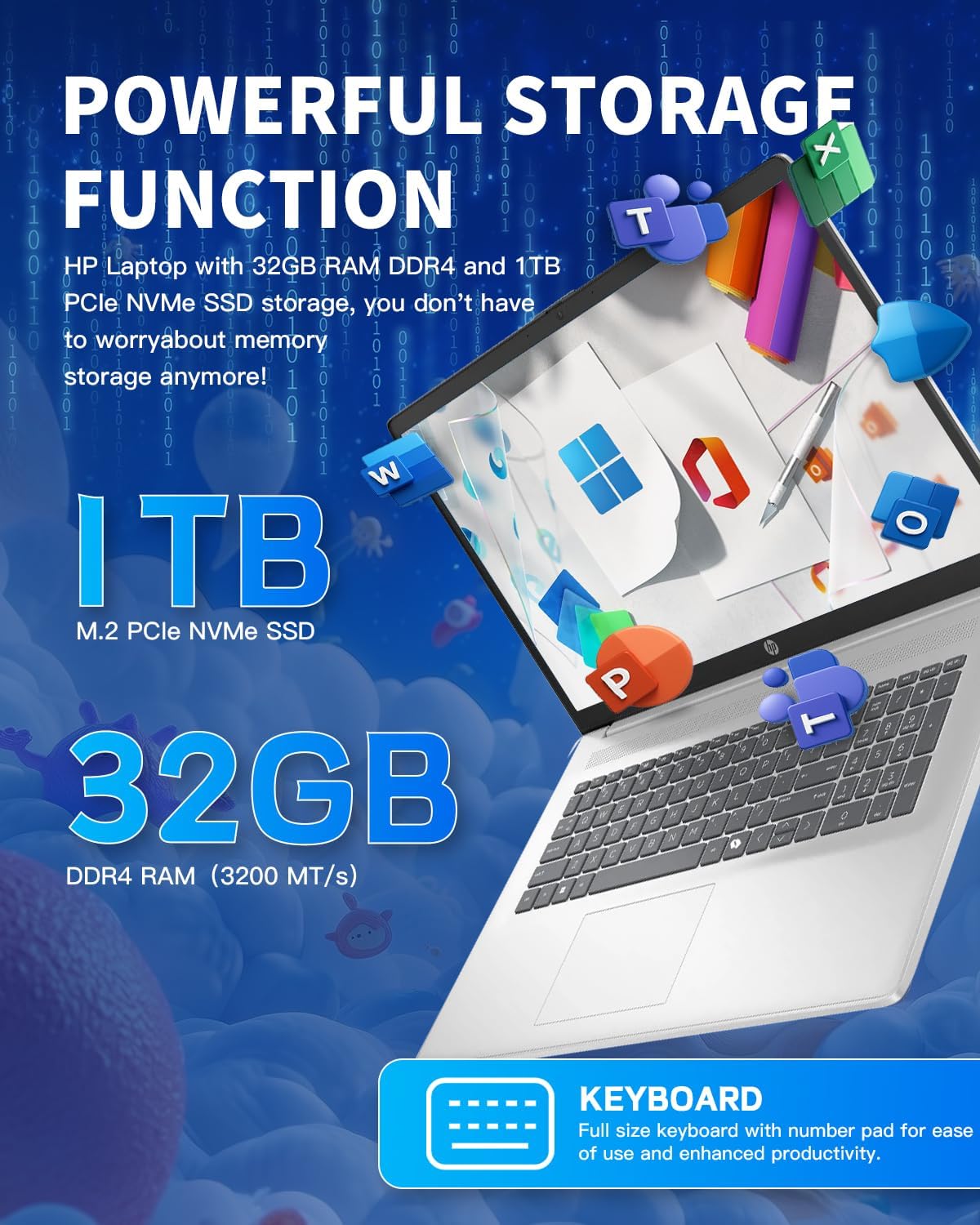
Image 2.2: Close-up view of the HP 17 Laptop's full-size keyboard, showcasing the numeric keypad and the Microsoft Copilot key.
2.3 Display Features
The 17.3-inch HD+ (1600 x 900) anti-glare display provides clear visuals with 250 nits brightness and 60% NTSC color gamut. The anti-glare coating helps reduce reflections for comfortable viewing.

Image 2.3: The 17.3-inch HD+ display of the HP laptop, emphasizing its anti-glare properties and 1600x900 resolution.
2.4 Connectivity
Your laptop supports modern wireless standards for fast and reliable connections.
- Wi-Fi 6 (2x2): Provides faster wireless speeds and improved performance in dense environments.
- Bluetooth 5.3: For connecting wireless peripherals such as mice, keyboards, and headphones.

Image 2.4: The HP 17 Laptop highlighting Wi-Fi 6 and Bluetooth 5.3 capabilities, along with a camera shutter for privacy during video calls.
2.5 Ports and Connections
The HP 17 Laptop offers a variety of ports for connecting external devices.
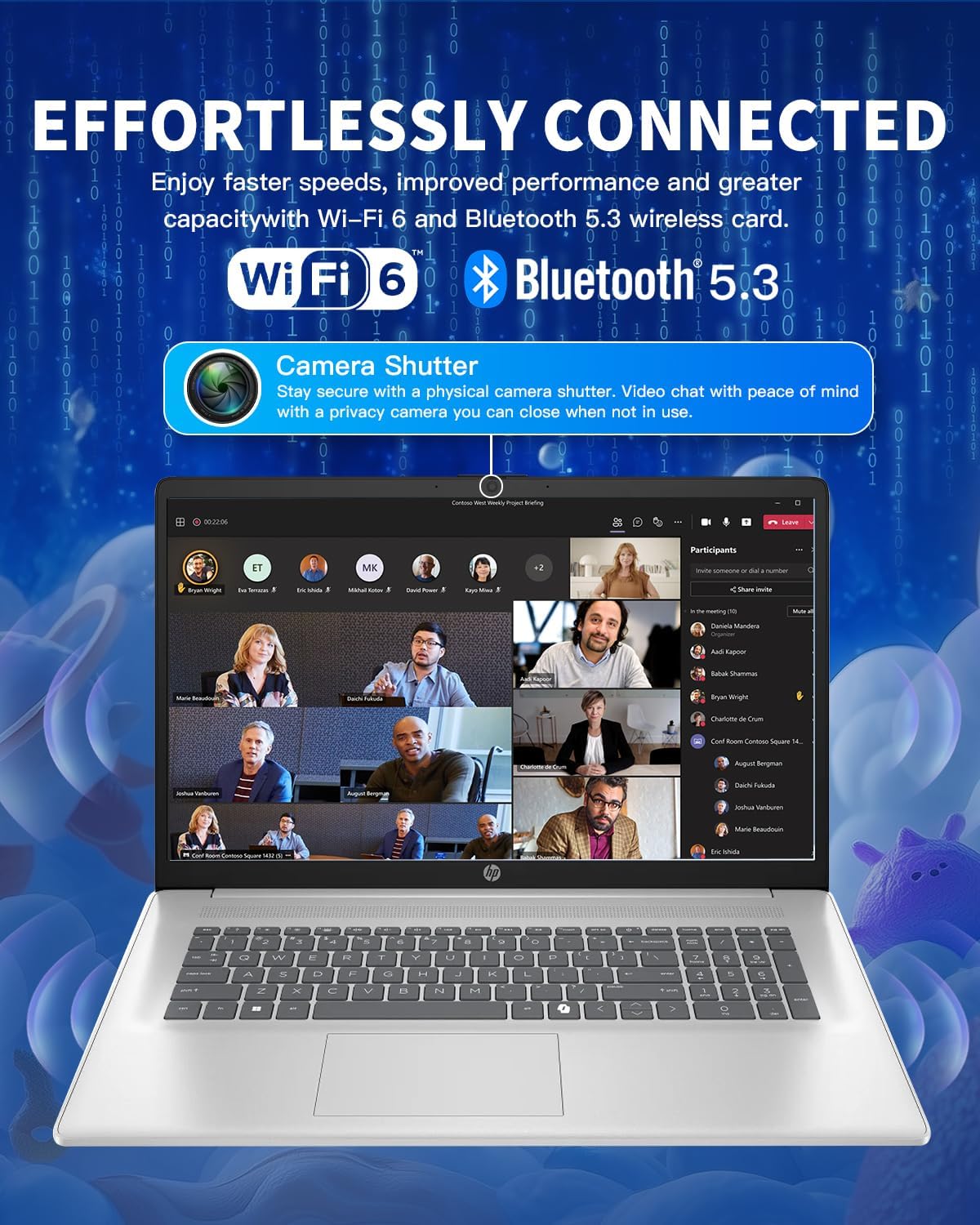
Image 2.5: Diagram illustrating the various ports on the HP 17 Laptop, including USB Type-C, USB Type-A, HDMI 1.4b, AC smart pin, and a headphone/microphone combo jack.
- 1 USB Type-C 5Gbps signaling rate: Supports data transfer only. Does not support charging or external monitors.
- 2 USB Type-A 5Gbps signaling rate: For connecting standard USB devices.
- 1 Headphone/microphone combo: For audio input and output.
- 1 AC smart pin: For connecting the power adapter.
- 1 HDMI 1.4b: For connecting to external displays.
2.6 Using Microsoft Copilot
The dedicated Copilot AI Key provides instant access to your built-in AI assistant, streamlining tasks and enhancing productivity.
Video 2.1: An overview of the HP 17 Laptop, demonstrating its features including the Microsoft Copilot AI assistant and camera shutter for privacy.
Image 2.6: A user interacting with the Microsoft Copilot AI companion on the HP laptop, illustrating its role in boosting productivity and creativity.
3. Maintenance and Care
3.1 Cleaning the Laptop
- Use a soft, lint-free cloth slightly dampened with water or a screen cleaner to clean the display.
- For the keyboard and chassis, use a soft cloth. Avoid harsh chemicals or abrasive materials.
- Regularly clean dust from vents to ensure proper airflow.
3.2 Battery Care
- Avoid fully discharging the battery frequently.
- Store the laptop in a cool, dry place when not in use for extended periods.
- If storing for a long time, ensure the battery is charged to about 50%.
3.3 Software Updates
Regularly update your Windows operating system and drivers to ensure optimal performance and security. Windows Update can be accessed via Settings > Windows Update.
4. Troubleshooting
4.1 Power Issues
- Laptop not turning on: Ensure the power adapter is securely connected and the outlet is functional. Try a different power outlet.
- Battery not charging: Verify the power adapter connection. Check for any damage to the adapter or charging port.
4.2 Display Problems
- No display: Connect an external monitor via HDMI to check if the issue is with the laptop's internal display.
- Flickering screen: Update your graphics drivers. Adjust display refresh rate in Windows settings.
4.3 Connectivity Problems
- Wi-Fi not connecting: Restart your router and laptop. Check Wi-Fi settings and ensure the correct network is selected.
- Bluetooth device not pairing: Ensure the Bluetooth device is in pairing mode and within range. Check Bluetooth settings on your laptop.
4.4 Performance Issues
- Slow performance: Close unnecessary applications. Check Task Manager for resource-intensive processes. Ensure sufficient free space on the SSD.
- Overheating: Ensure vents are clear of obstructions. Use the laptop on a hard, flat surface.
5. Specifications
| Feature | Detail |
|---|---|
| Operating System | Windows 11 Pro |
| Processor | Intel Core i3-N305 (8-Core), up to 3.8 GHz |
| Processor Cache | 6 MB L3 cache |
| Memory (RAM) | 32 GB DDR4-3200 MT/s |
| Graphics | Intel UHD Graphics (Integrated) |
| Internal Storage | 1 TB PCIe NVMe M.2 SSD |
| Display | 17.3-inch diagonal, HD+ (1600 x 900), anti-glare, 250 nits, 60% NTSC |
| Wireless Connectivity | Wi-Fi 6 (2x2) and Bluetooth 5.3 |
| Ports | 1 USB Type-C 5Gbps, 2 USB Type-A 5Gbps, 1 Headphone/microphone combo, 1 AC smart pin, 1 HDMI 1.4b |
| Camera | HP True Vision 720p HD camera with temporal noise reduction and integrated dual array digital microphones, privacy shutter |
| Audio | HD Audio with stereo speakers |
| Keyboard | Full-size, soft grey keyboard with numeric keypad |
| Battery | 3-cell, 41 Wh Li-ion battery |
| Power Adapter | 45 W AC power adapter |
| Dimensions (W x D x H) | 15.78 in x 10.15 in x 0.78 in |
| Weight | 4.60 lb |
6. Warranty and Support
6.1 Warranty Information
Your HP 17 Laptop comes with a standard manufacturer's warranty. Please refer to the warranty card included in your product packaging for specific terms and conditions, including coverage duration and limitations. Keep your proof of purchase for warranty claims.
6.2 Contacting Support
For technical assistance, troubleshooting beyond this manual, or warranty service, please visit the official HP support website or contact HP customer service. You will typically need your product's serial number, which can be found on a label on the bottom of your laptop or in the system information within Windows.
For additional resources, you may visit the HP Store on Amazon.