1. Introduction
This manual provides essential information for the proper setup, operation, and maintenance of your Colourbing A16 Retro Game Console. Please read this guide thoroughly before using the device to ensure optimal performance and longevity.
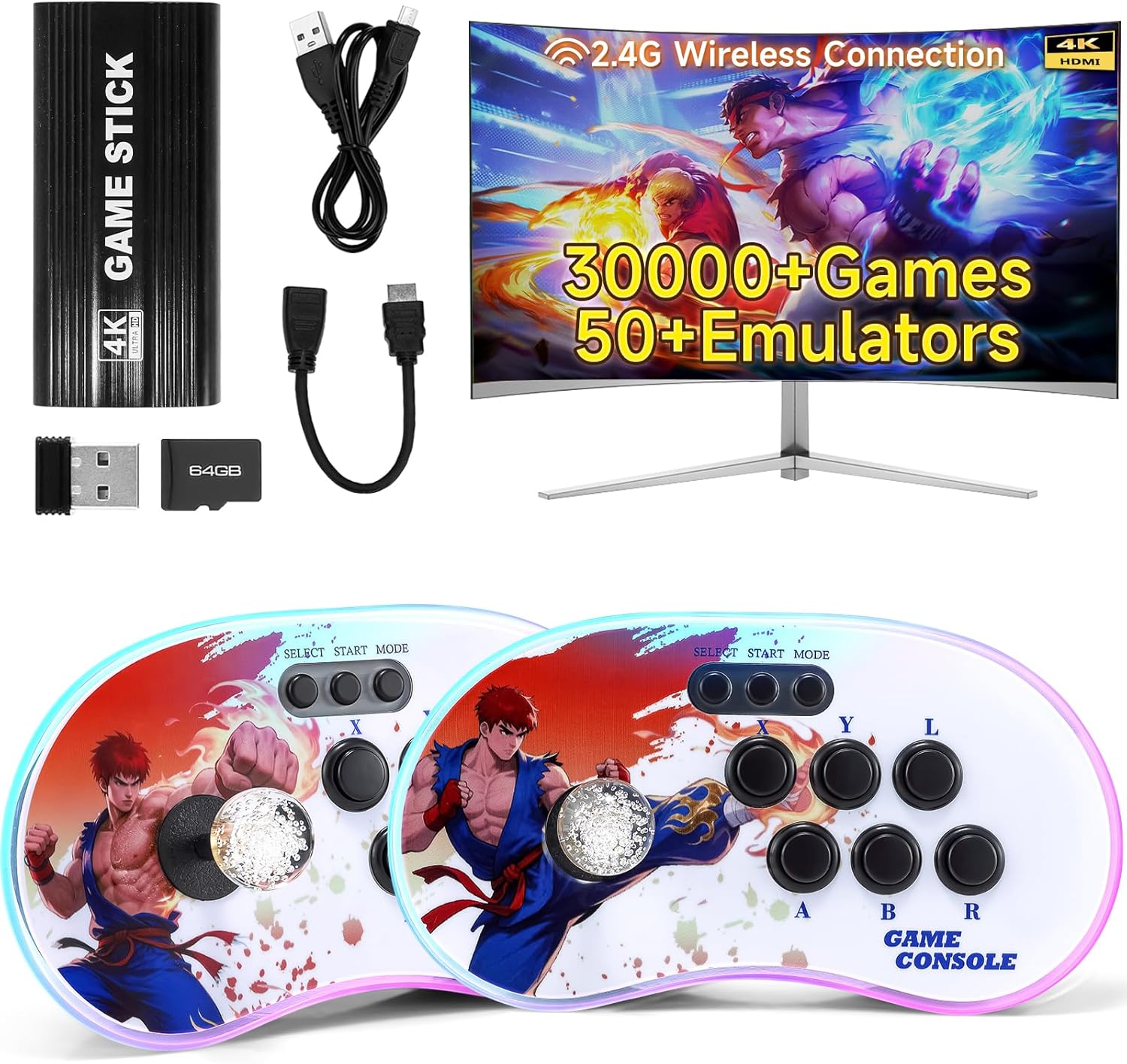
Figure 1: Colourbing A16 Retro Game Console with included accessories.
2. Package Contents
Verify that all items listed below are included in your package:
- Box
- Game Stick x2
- Game Paddle x1
- Receiver x1
- 64GB TF Card x1
- USB Cable x1
- HD Extension Cable x1
- User Manual x1

Figure 2: Visual representation of the package contents.
3. Product Features
- Extensive Game Library: Built-in 30,000+ retro games with 50 pre-installed emulators on a 64GB TF card.
- Multi-Player Support: Supports controller connection for 2-player battles, compatible with large-screen TVs.
- High-Definition Output: HDMI output for 4K HD display on TVs, monitors, projectors, and notebooks.
- Wireless Connectivity: Wireless TV connection allows gameplay from a distance.
- Ergonomic Design: Game machine features an ergonomic grip with smooth edges and anti-slip bases for stability.
- Enhanced Controls: Upgraded crystal joysticks with light-touch professional buttons for sensitive and delay-free operation.
- Aesthetic Lighting: Cool RGB ambient lighting around the joysticks.
- Long-Lasting Power: Battery support (3*AAA batteries, not included) for extended gameplay and 45 days continuous standby.

Figure 3: Professional 3D Joystick design for precise control.

Figure 4: Multi-device connection capabilities.
4. Setup Instructions
Follow these steps to set up your Colourbing A16 Retro Game Console:
- Connect the wireless adapter to the Game Stick.
- Plug the power cord into the Game Stick.
- Plug the HD Extension Cable into the Game Stick.
- Connect the USB power supply (not included) to the charging adapter (5V 2A recommended).
- Plug the HD Extension Cable into your TV's HDMI Port.
- Insert 3*AAA batteries into the Game Controller (batteries not included).
- Switch your TV's signal source to the corresponding HD channel.

Figure 5: Detailed setup steps for the A16 console.
5. Operating Instructions
5.1 Navigating the Menu
Once powered on, use the joystick and buttons on the controller to navigate through the various emulators and game lists. The display will show the number of games available per console.
5.2 Game Selection and Play
Select your desired emulator from the main menu, then browse the list of games. Press the appropriate button (usually 'A' or 'Start') to launch a game. The console supports various classic titles, and gameplay is designed to be intuitive.
5.3 Adjusting Volume
The volume control is located on the side of the console. Use it to adjust the audio output to your preferred level.
5.4 Screen Rotation
For games that benefit from a different screen orientation (vertical or horizontal), you can adjust the display settings. While in a game, press the 'X' button and 'Select' button simultaneously to access the quick menu. Navigate to 'Video' -> 'Output' -> 'Video Rotation' and select your desired orientation (e.g., 90 deg, 270 deg, or Normal). Press 'B' to go back and 'X' to exit the menu and apply changes.
Video 1: Demonstration of the Colourbing A16 Game Console's menu navigation and screen rotation feature.
6. Maintenance
- Cleaning: Use a soft, dry cloth to clean the console and controllers. Avoid liquid cleaners.
- Storage: Store the console in a cool, dry place away from direct sunlight and extreme temperatures.
- Battery Care: Remove AAA batteries from controllers if not in use for extended periods to prevent leakage.
- TF Card: Handle the TF card with care. Avoid frequent removal or insertion to prevent damage.
7. Troubleshooting
- Console Not Powering On: Ensure the Game Stick is properly connected to a power source (5V 2A adapter recommended) and the power button is switched on.
- No Display on TV: Verify that the HDMI cable is securely connected to both the Game Stick and the TV. Ensure the TV's input source is set to the correct HDMI channel.
- Controllers Not Responding: Check if the AAA batteries in the controllers are correctly inserted and have sufficient charge. Ensure the wireless receiver is properly connected to the Game Stick.
- Game Freezes or Lags: Some games may occasionally freeze. Press the reset button (next to the power button) on the console to restart. Ensure the TF card is properly inserted.
- Audio Issues: Adjust the volume using the side button on the console. Check TV audio settings.
8. Specifications
| Model Number | A16 |
| Brand | Colourbing |
| Controller Type | Joystick |
| Power Source | Battery Powered (3*AAA for controllers) |
| Display Type | Digital (4K HD HDMI Output) |
| Material | Plastic |
| Memory Storage Capacity | 64 GB (TF Card Included) |
| Form Factor | Handheld (Game Stick) |
| Product Dimensions | 4 x 1.3 x 6.5 inches |
| Item Weight | 3.79 pounds |
9. Warranty and Support
For warranty information and technical support, please refer to the contact details provided in the packaging or visit the official Colourbing website. Keep your purchase receipt for warranty claims.


