
1. Introduction
Thank you for choosing the iKF V11 Wired Gaming Headset. This manual provides essential information for setting up, operating, and maintaining your headset to ensure an optimal gaming experience. Please read these instructions carefully before use.
2. Product Overview
2.1 Included Components
- iKF V11 Wired Gaming Headset
- Detachable Microphone
- User Manual
2.2 Key Features
- Immersive 7.1 Virtual Surround Sound: Equipped with high-performance sound card chips and 53mm drivers for 360-degree spatial audio.
- Crystal-Clear ENC Calls: Dual 360° AI noise-canceling omnidirectional microphones ensure clear voice communication.
- Multi-Platform Compatibility: Supports PC, laptop, PS4, PS5, and Xbox (an adapter may be required for some Xbox models, not included) via USB connection.
- Ergonomic and Comfortable Design: Lightweight, adjustable headband with soft memory foam protein ear pads for extended gaming sessions.
- FPS Exclusive Game Tuning: Enhances tactical sound quality, including footsteps, gunshots, and vehicle sounds for competitive gaming.
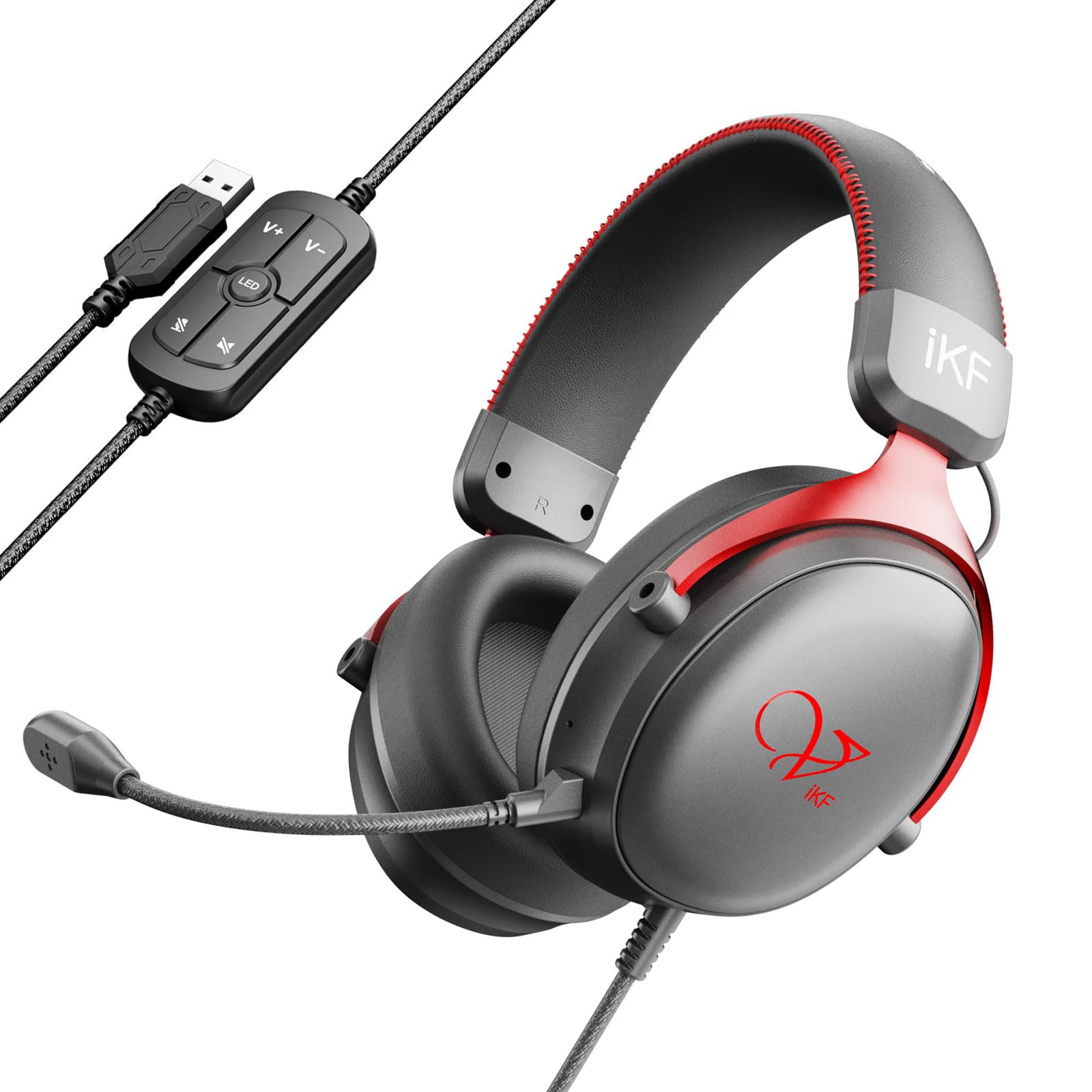
Image: The iKF V11 headset, showcasing its design and highlighting the 7.1 Virtual Surround Sound feature.
3. Setup Instructions
3.1 Connecting the Headset
- Locate an available USB port on your PC, laptop, PS4, PS5, or Xbox console.
- Plug the USB connector of the iKF V11 headset into the USB port.
- Your operating system or console should automatically detect the headset. Follow any on-screen prompts for driver installation if necessary.

Image: The iKF V11 headset with its USB connector and inline control unit, demonstrating USB compatibility.
3.2 Attaching the Microphone
- Identify the microphone port on the left earcup of the headset.
- Align the detachable microphone's connector with the port and gently push it in until it clicks securely into place.
- Adjust the flexible microphone boom to position it optimally near your mouth for clear communication.

Image: A user wearing the iKF V11 headset, highlighting the detachable microphone and its noise-canceling capabilities.
4. Operating Instructions
4.1 Audio Control
- Volume Adjustment: Use the volume up (+) and volume down (-) buttons on the inline control unit to adjust the audio output level.
- Microphone Mute: Press the microphone mute button on the inline control unit to toggle the microphone on or off. An indicator light may show the microphone status.
4.2 7.1 Virtual Surround Sound
The iKF V11 headset features 7.1 virtual surround sound. This feature is typically enabled automatically upon connection or can be configured through your device's sound settings. For PC users, check your operating system's sound control panel or any dedicated iKF software (if available) to ensure 7.1 surround sound is active for an immersive audio experience.

Image: An internal view of the headset's earcup, illustrating the advanced 53mm driver technology responsible for high-quality audio.
4.3 Ergonomic Adjustment
- Headband Adjustment: Gently slide the earcups up or down along the headband to find a comfortable fit that rests securely on your head.
- Earcup Rotation: The earcups may have a slight pivot to conform to the shape of your ears, enhancing comfort and seal.

Image: The iKF V11 headset demonstrating its adaptive headband and breathable memory foam earmuffs for comfort.
4.4 FPS Game Tuning
The headset is designed with FPS exclusive game tuning to enhance critical in-game sounds. This tuning optimizes the audio profile to make sounds like footsteps, gunshots, and vehicle movements more distinct, providing a tactical advantage in competitive gaming. This feature is integrated into the headset's sound processing.

Image: The iKF V11 headset, illustrating its specialized FPS game tuning for enhanced in-game audio cues.
5. Maintenance
- Cleaning: Use a soft, dry cloth to wipe the headset and earcups. Do not use harsh chemicals or abrasive materials.
- Storage: Store the headset in a cool, dry place away from direct sunlight and extreme temperatures. Avoid placing heavy objects on the headset.
- Cable Care: Avoid sharp bends or excessive pulling on the USB cable to prevent damage.
6. Troubleshooting
- No Sound:
- Ensure the headset's USB connector is fully plugged into the device.
- Check the volume level on the inline control unit and your device.
- Verify that the headset is selected as the default audio output device in your device's sound settings.
- Test the headset on a different USB port or device to rule out port issues.
- Microphone Not Working:
- Ensure the detachable microphone is securely attached to the headset.
- Check if the microphone mute button on the inline control unit is active (unmuted).
- Verify that the headset microphone is selected as the default input device in your device's sound settings.
- Adjust microphone sensitivity in your device's sound settings.
- Sound Distortion:
- Lower the volume on both the headset and your device.
- Ensure the USB connection is stable.
- Update audio drivers on your PC if applicable.
7. Specifications
| Feature | Detail |
|---|---|
| Model Name | V11 |
| Brand | iKF |
| Connectivity Technology | Wired (USB) |
| Driver Size | 53 mm |
| Sound Type | 7.1 Virtual Surround Sound |
| Microphone Type | Detachable, Dual 360° AI Noise-Canceling (ENC) |
| Ear Placement | Over-Ear |
| Form Factor | Circumaural |
| Impedance | 32 Ohms |
| Control Type | Button Control (Inline) |
| Material | Plastic, Memory Foam Protein Ear Pads |
| Compatible Devices | PC, Laptop, PS4, PS5, Xbox |
| Color | Red |
8. Warranty and Support
For warranty information and customer support, please refer to the documentation included with your purchase or contact the iKF customer service directly. The standard return policy for this product is 30 days for refund or replacement.
Manufacturer: iKF
Seller: iKF Store
