
1. Introduction
This manual provides essential information and instructions for the safe and efficient use of your Motorola Moto G05 XT2523-2 smartphone. Please read this guide thoroughly before operating your device to ensure optimal performance and longevity. Keep this manual for future reference.
2. Safety Information
- Do not expose the device to extreme temperatures, direct sunlight, or high humidity.
- Avoid dropping or subjecting the device to severe impact.
- Use only approved chargers and accessories to prevent damage and ensure safety.
- Do not attempt to disassemble or repair the device yourself. Refer to authorized service personnel.
- Keep the device away from medical devices, as it may interfere with their operation.
- Dispose of the device and its battery responsibly according to local regulations.
3. Package Contents
Verify that your package contains the following items:
- Motorola Moto G05 XT2523-2 Smartphone
- Power Adapter
- USB Cable
- SIM Tray Ejector
- Quick Start Guide (not included in this digital manual)
4. Device Overview
The Motorola Moto G05 XT2523-2 features a sleek design with a 6.67-inch IPS LCD display. It is equipped with a powerful camera system and essential ports for connectivity.
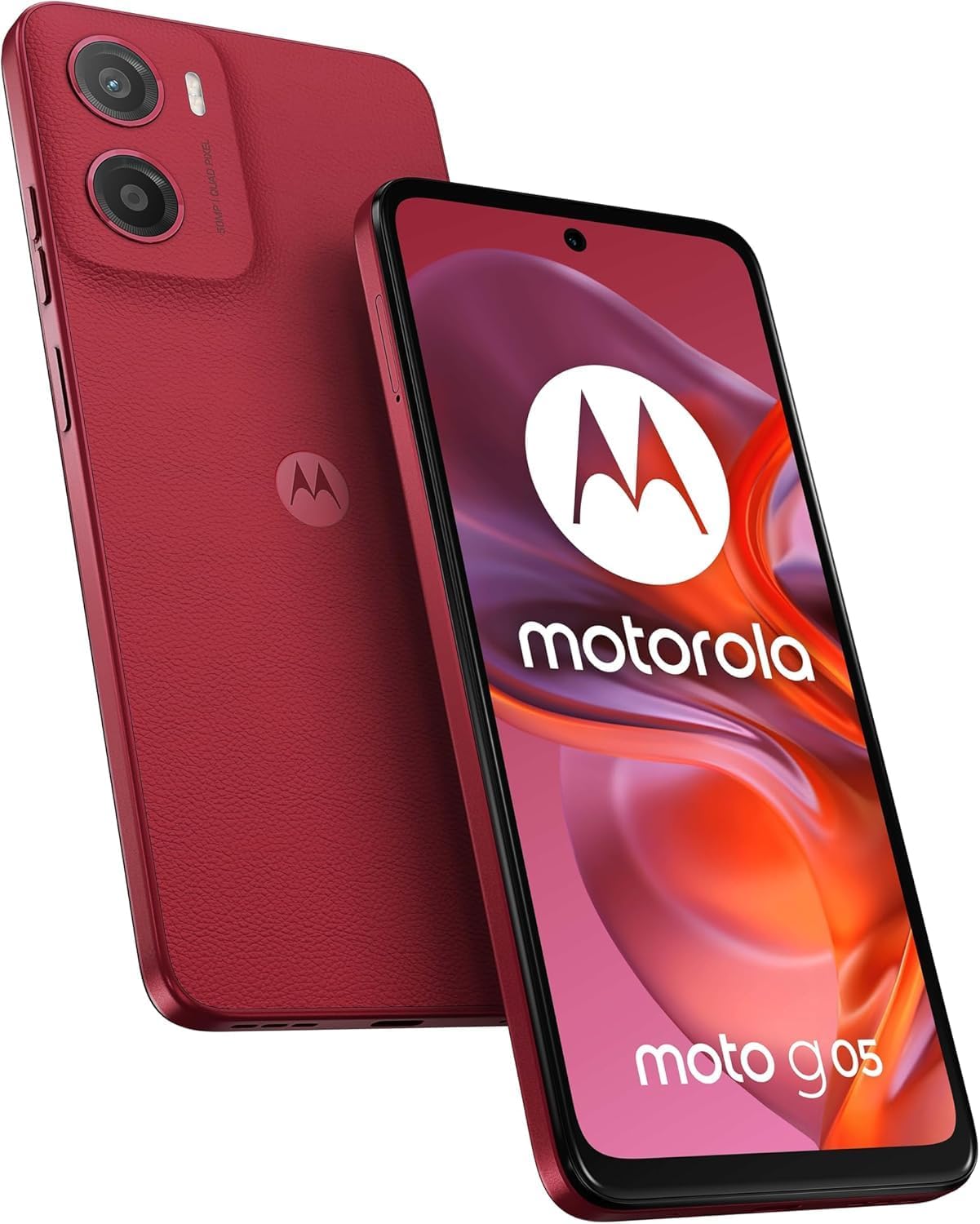
Image: Front view of the Motorola Moto G05 XT2523-2 smartphone, showcasing its display and front camera.

Image: Rear view of the Motorola Moto G05 XT2523-2 smartphone, highlighting the camera module and Motorola logo.
5. Setup
5.1. Inserting SIM Card(s) and MicroSD Card
- Locate the SIM tray on the side of your device.
- Insert the SIM tray ejector tool into the small hole next to the tray and press firmly until the tray pops out.
- Carefully pull out the SIM tray.
- Place your Nano-SIM card(s) and/or microSD card into the designated slots on the tray. Ensure the gold contacts face down. This device supports Dual-SIM and a dedicated microSDXC slot.
- Gently push the tray back into the slot until it is flush with the device.
5.2. Initial Power On and Setup
- Press and hold the Power button (usually on the right side) until the Motorola logo appears.
- Follow the on-screen prompts to select your language, connect to Wi-Fi, set up your Google account, and configure other initial settings.
5.3. Network Compatibility
The Motorola Moto G05 XT2523-2 is a GSM unlocked smartphone. It is designed to work with GSM networks globally. For users in the USA, it is compatible with carriers such as T-Mobile, Metro, Mint, Tello, and Ultra. It is not compatible with CDMA carriers like Verizon, Sprint, Boost, Cricket, Xfinity, or AT&T.

Image: Chart illustrating network compatibility for the GSM unlocked Motorola Moto G05 XT2523-2, showing compatible (T-Mobile, Metro, Mint Mobile, Ultra, Rest of World) and incompatible (Verizon, AT&T, Sprint, Boost, Virgin Mobile, Visible, Cricket, Other CDMA Network) carriers.
Before purchasing or using, please verify compatibility with your specific network provider using the following frequency bands:
- SIM CARD 1 & 2:
- 2G GSM: 850 / 900 / 1800 / 1900
- 3G WCDMA: 850(B5) / 900(B8) / 2100(B1)
- 4G LTE FDD: 700(B28) / 800(B20) / 850(B5) / 900(B8) / 1800(B3) / 2100(B1) / 2600(B7)
- 4G LTE TDD: 2300(B40) / 2500(B41) / 2600(B38)
6. Operating Your Device
6.1. Basic Navigation
- Touchscreen Gestures: Tap, swipe, pinch-to-zoom, and long-press to interact with the Android 15 operating system.
- Home Screen: Access apps, widgets, and notifications.
- Notification Panel: Swipe down from the top of the screen to view notifications and quick settings.
6.2. Calls and Messaging
- Making Calls: Open the Phone app, enter the number, and tap the call icon.
- Sending Messages: Open the Messages app, start a new conversation, enter the recipient and your message.
6.3. Camera Usage
Your Moto G05 is equipped with a 50 MP rear camera and an 8 MP front camera.
- Open the Camera app.
- Select your desired mode (Photo, Video, Portrait, etc.).
- Tap the shutter button to capture photos or start/stop video recording.
6.4. Connectivity
- Wi-Fi: Go to Settings > Network & internet > Wi-Fi to connect to available networks.
- Bluetooth: Go to Settings > Connected devices > Connection preferences > Bluetooth to pair with other devices.
- Mobile Data: Ensure mobile data is enabled in Quick Settings or Network & internet settings for internet access via your SIM card.
6.5. Battery Management
The device features a 5200mAh non-removable battery.
- To check battery usage, go to Settings > Battery.
- Enable Battery Saver mode to extend battery life when needed.
- Avoid fully discharging the battery frequently for optimal battery health.
7. Maintenance
7.1. Software Updates
Regularly check for and install software updates to ensure your device has the latest features, security patches, and performance improvements. Go to Settings > System > System updates.
7.2. Cleaning Your Device
Use a soft, lint-free cloth to clean the screen and body of your phone. Avoid harsh chemicals or abrasive materials.
7.3. Storage Management
Your device has 128GB of internal storage, expandable via microSDXC. Regularly manage your storage by deleting unnecessary files, uninstalling unused apps, and moving media to your microSD card or cloud storage.
8. Troubleshooting
8.1. Common Issues
- Device not turning on: Ensure the battery is charged. Connect to the power adapter and try again.
- Apps crashing or freezing: Close and reopen the app. If the issue persists, clear the app's cache (Settings > Apps > [App Name] > Storage & cache > Clear cache).
- Poor network signal: Check your SIM card insertion. Move to an area with better network coverage. Contact your service provider if the issue continues.
- Battery draining quickly: Reduce screen brightness, close background apps, disable unnecessary connectivity features (Wi-Fi, Bluetooth, GPS) when not in use.
8.2. Factory Reset
A factory reset will erase all data from your phone and restore it to its original factory settings. Backup all important data before proceeding.
- Go to Settings > System > Reset options.
- Tap 'Erase all data (factory reset)'.
- Confirm your decision and enter your PIN/password if prompted.
9. Specifications
| Feature | Specification |
|---|---|
| Model Name | Motorola Moto G05 XT2523-2 |
| Operating System | Android 15 |
| Processor | Mediatek Helio G81 Extreme (12 nm), Octa-core (2x2.0 GHz Cortex-A75 & 6x1.7 GHz Cortex-A55) |
| RAM | 4 GB |
| Internal Storage | 128 GB |
| Expandable Storage | microSDXC (dedicated slot) |
| Display | 6.67 inches IPS LCD, 720 x 1604 pixels, Corning Gorilla Glass 3, 90 Hz Refresh Rate |
| Rear Camera | 50 MP, f/1.8, (wide), PDAF |
| Front Camera | 8 MP, f/2.1, (wide), 1.12µm |
| Battery | 5200 mAh (non-removable) |
| Connectivity | GSM, LTE, WCDMA, Wi-Fi, Bluetooth |
| SIM | Dual-SIM |
| Dimensions | 6.52 x 0.32 x 2.99 inches |
| Weight | 0.423 ounces (12 grams) |
10. Warranty and Support
For warranty information, please refer to the warranty card included with your product or visit the official Motorola website. For technical support, troubleshooting assistance, or service inquiries, please contact Motorola customer support through their official channels.
You can find more information and support resources on the official Motorola website: www.motorola.com


