
Product Overview
The FeiyuTech SCORP-C2 is a camera gimbal stabilizer designed for professional videography. It features advanced AI tracking, a robust payload capacity, and versatile shooting modes to enhance your creative workflow. This manual provides comprehensive instructions for setting up, operating, and maintaining your device.
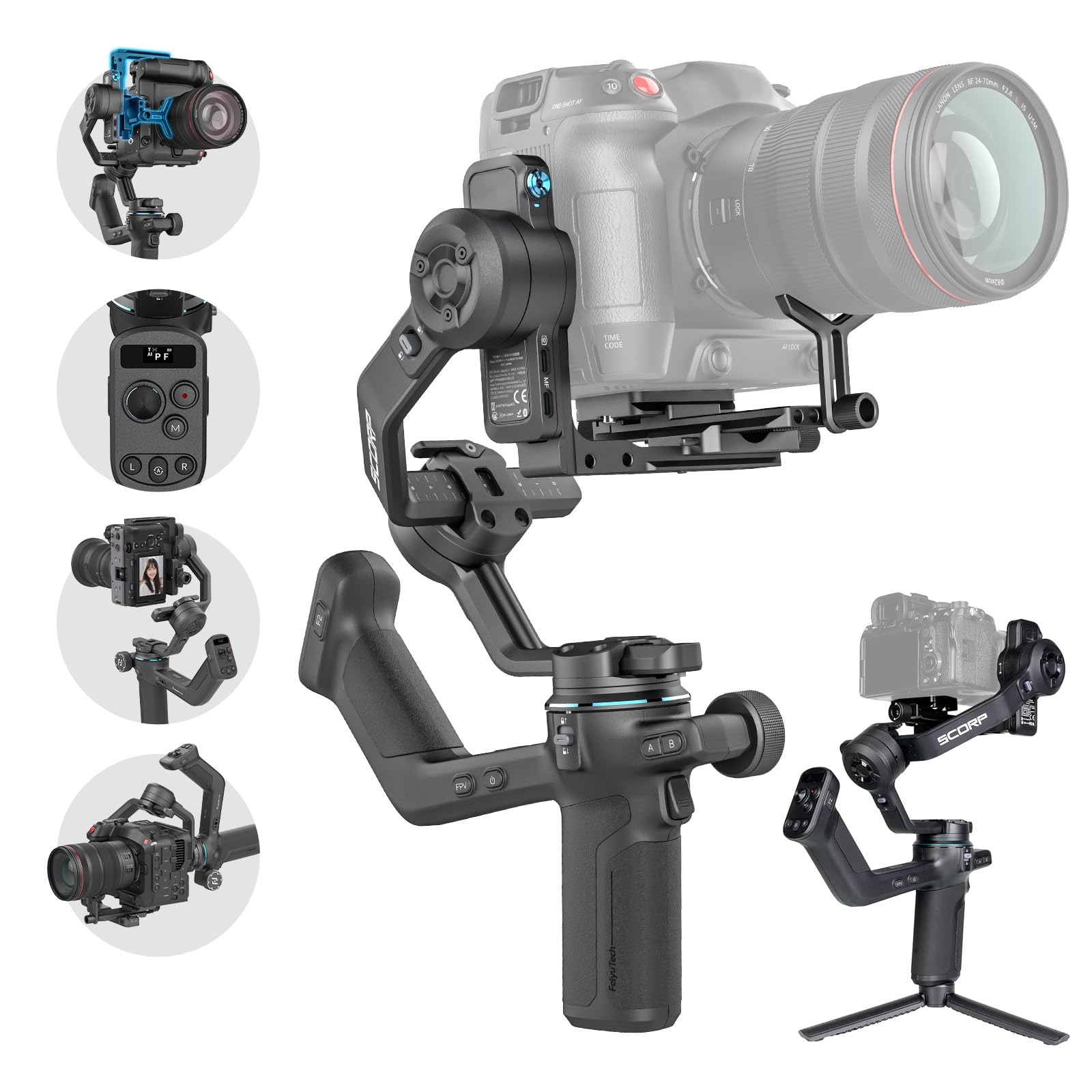
The FeiyuTech SCORP-C2 Camera Gimbal Stabilizer, showcasing its main body and design.
What's in the Box
Carefully unpack your FeiyuTech SCORP-C2 and ensure all components are present:
- SCORP-C2 Gimbal Stabilizer (Main Body)
- USB-C to Type-C Camera Control Cable
- USB-C Charging Cable
- Allen Key
- Quick Release Plate; Upper Quick Release Plate
- Tripod; Slider; Camera Fixed Screw; Lens Holder; Camera Fixed Screw
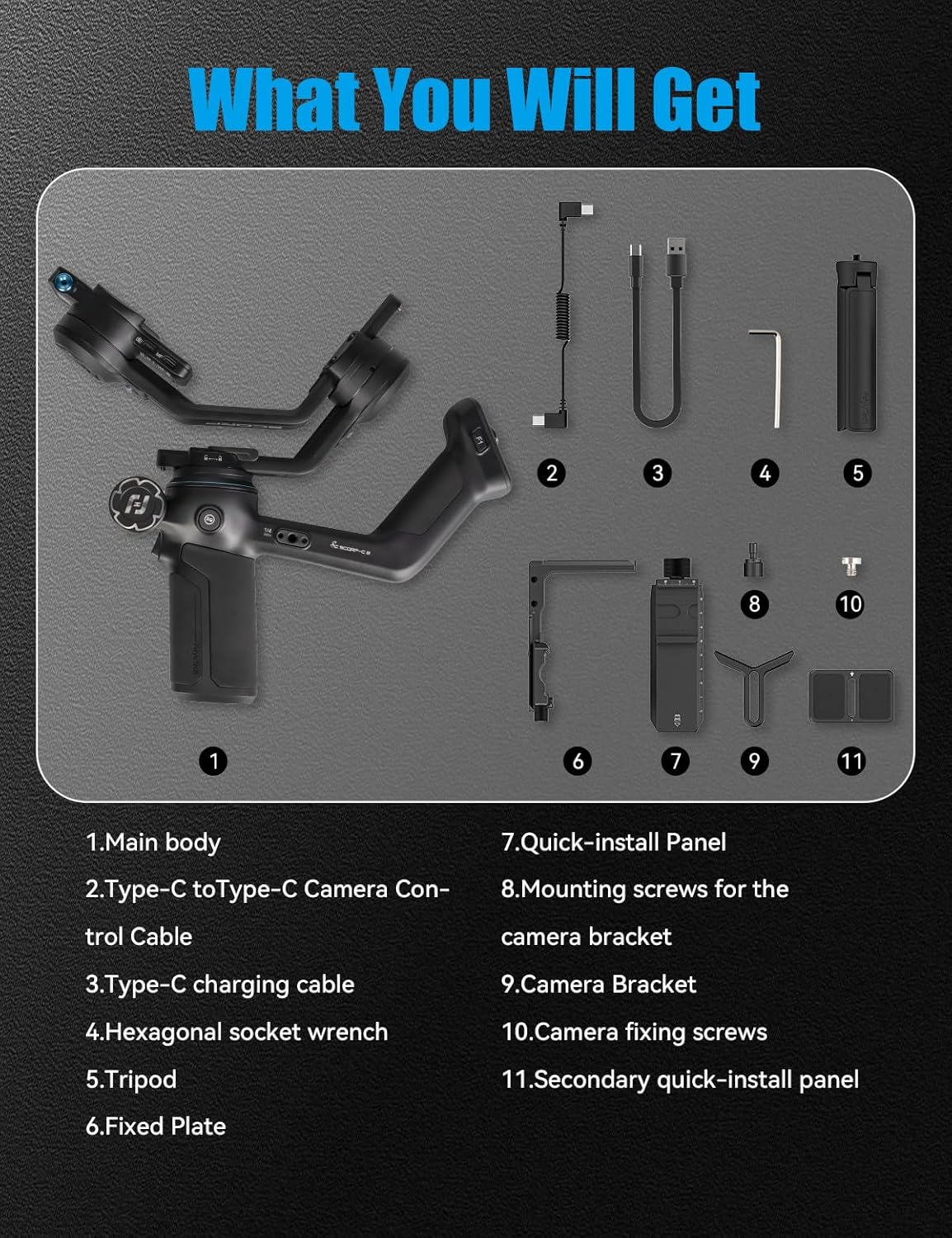
An image displaying all the components included in the FeiyuTech SCORP-C2 package, numbered for easy identification.
Setup Instructions
1. Attaching the Tripod and Handle
Attach the included tripod to the bottom of the gimbal handle for stable placement. The integrated handle is ergonomically designed for comfortable grip.

The integrated grip of the gimbal, designed for comfortable and effortless control during use.
2. Mounting the Camera
The SCORP-C2 features an Arca Quick Release Plate system. Secure your camera onto the quick release plate using the camera fixed screw. Then, slide the plate with the camera into the gimbal's mounting platform until it locks securely. The open mounting platform allows for flexible camera positioning.

The gimbal with a camera mounted, demonstrating its 3.5KG (7.72lb) payload capacity, compatible with various camera types.
3. Balancing the Gimbal
Proper balancing is crucial for optimal performance. Unlock the three-axis motor locks. Adjust the camera's position using the five-way center of gravity adjustment and the center of gravity memory slider until the camera remains stable in any orientation. Use the knob-based switch for precise adjustments. Re-engage the three-axis buckle locks for storage or transport.
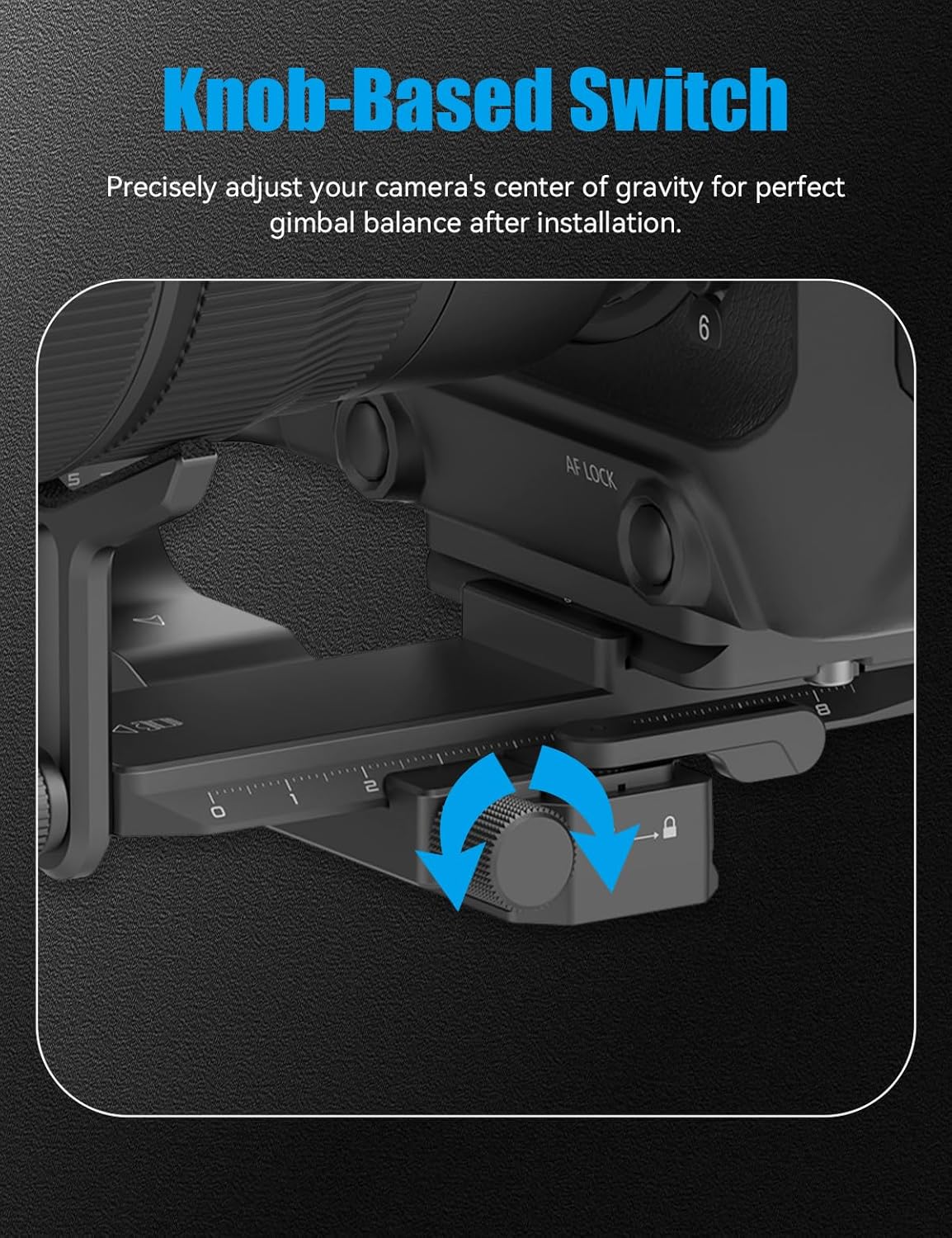
A close-up of the knob-based switch, used for precisely adjusting the camera's center of gravity for perfect gimbal balance.

The 3-Axis Buckle Lock Design, allowing for quick and secure locking of the gimbal axes for balancing and storage.
4. Connecting the Camera
Connect your camera to the gimbal using the provided USB-C to Type-C camera control cable. This enables Bluetooth control for starting/stopping recording and switching modes directly from the gimbal.
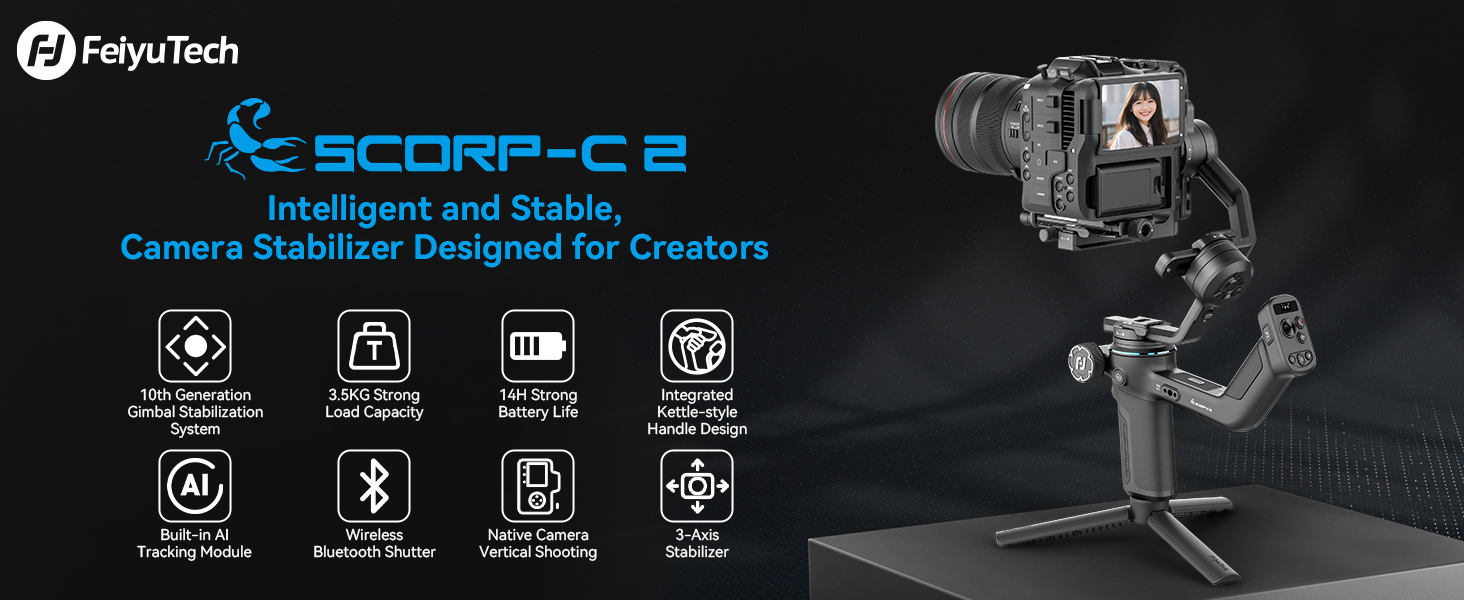
The FeiyuTech SCORP-C2 as a 3-axis stabilizer, ensuring smooth footage.
Operating Instructions
1. Powering On/Off
Press and hold the power button located on the handle to turn the gimbal on or off. The OLED screen will display the current status.
2. Understanding Controls and OLED Screen
The gimbal features intuitive controls including a joystick, record button, mode button, left/right buttons, and an auto rotation button. The bright OLED touchscreen displays vital settings and allows for precise parameter adjustments.

A diagram illustrating the intuitive controls and the OLED status screen on the gimbal handle.

A close-up view of the built-in OLED color display, showing status and parameter adjustments.
3. AI Tracking 4.0
The built-in AI module automatically locks onto and follows your face or subject without needing an app. This is ideal for solo creators and vloggers.
- Face Tracking: Automatically tracks faces.
- Open Palm Gesture: Initiate shoot/record.
- Thumbs Opposite Direction Gesture: Start/stop tracking.
- OK Gesture: Start/stop face tracking.
- Double L-shaped Gesture: Custom framing.
- Double Thumbs-up Gesture: Turn off gesture control.

Visual representation of AI Tracking 4.0 capabilities, including various gesture controls for tracking and framing.
4. Vertical Shooting
Achieve native vertical shooting quickly without additional accessories. Double-tap the F1 button to enter or exit vertical mode instantly. For true native vertical shooting, remove the camera with its mounting slider, rotate it 90 degrees, slide it into the vertical arm, and clamp it tightly.

An image demonstrating the quick vertical shooting feature and native camera vertical mode, with instructions for switching.
5. AB Point Trajectory Memory
Preset two points (A and B) for camera movement paths with customizable speed, angle, and dwell time. One-tap playback allows for effortless replication of professional cinematic moves.

A close-up of the gimbal's handle showing the A/B buttons for setting trajectory memory points.
6. Multi-Function Magic Wheel
The high-precision magnetic sensor knob with adjustable damping provides precise control over axis rotation, follow focus, or zoom, delivering a smooth and professional handling experience.

A detailed view of the multi-function Electric Magic Wheel, used for precise control over gimbal functions.
7. Stabilization System
The 10th generation stabilization system, powered by FeiyuTech's 2025 Quaternion Stabilization Algorithm with intelligent gyroscope calibration, ensures smooth footage even on complex terrain.

An illustration highlighting the advanced 10th Generation Stabilization System for steady footage.
Maintenance
1. Charging the Battery
The gimbal offers 10-13 hours of maximum runtime. Use the provided USB-C charging cable to charge the device. With 18W fast charging, you can get an extra 30 minutes of runtime in just 5 minutes, and a full charge (0-100%) takes approximately 3 hours.

An image illustrating the 14-hour ultra-long battery life, emphasizing continuous creation without power interruptions.
2. Cleaning and Storage
Wipe the gimbal with a soft, dry cloth. Avoid using harsh chemicals. When not in use, engage the three-axis motor locks and store the gimbal in a dry, safe place to prevent damage.
Troubleshooting
If you encounter issues, refer to the following common solutions:
- Gimbal not powering on: Ensure the battery is fully charged.
- Unstable footage: Re-balance the gimbal carefully, ensuring all axes are properly adjusted.
- AI tracking not working: Check for clear line of sight to the subject and ensure proper gesture recognition.
- Camera not responding to controls: Verify the camera control cable is securely connected and your camera model is compatible.
For further assistance, please visit the official FeiyuTech support website.
Specifications
| Feature | Detail |
|---|---|
| Product Name | Feiyu SCORP-C 2 Handheld Gimbal |
| Max. Tilt Range | +120° ~ -200° (±3°) |
| Max. Roll Range | +75° ~ -245° (±3°) |
| Max. Pan Range | 360° |
| Payload Capability | About 3500g (7.72 lbs) |
| Weight (main body) | About 1520g (Not including tripod) |
| Battery Life | ≤14 Hours (Motion State) |
| Operating Voltage | 6.8V-8.4V |
| Battery Capacity | 4500mAh |
| Product Dimensions | 9.8"D x 6.8"W x 13.5"H |
| Compatible Devices | For Canon, Fujifilm, Nikon, Panasonic, Sony cameras. (Refer to official website for specific model compatibility.) |

A table summarizing the key product parameters and specifications of the FeiyuTech SCORP-C2.
Official Product Videos
Watch the official product video for a visual guide to the FeiyuTech SCORP-C2's main features.
Video: FeiyuTech Scorp C2 Camera Gimbal Stabilizer Main Features. This video demonstrates the primary functionalities and design aspects of the gimbal.
Warranty and Support
The FeiyuTech SCORP-C2 comes with a 1-year warranty. For warranty claims, technical support, or additional product information, please contact FeiyuTech customer service or visit their official website.
You can also find more information and support from the seller, FLY ET Store, on Amazon.


