
1. Introduction
This manual provides essential information for setting up, operating, maintaining, and troubleshooting your ASUS ROG Strix G16 G614 gaming laptop. Please read this manual thoroughly to ensure proper use and to maximize your device's performance and longevity.
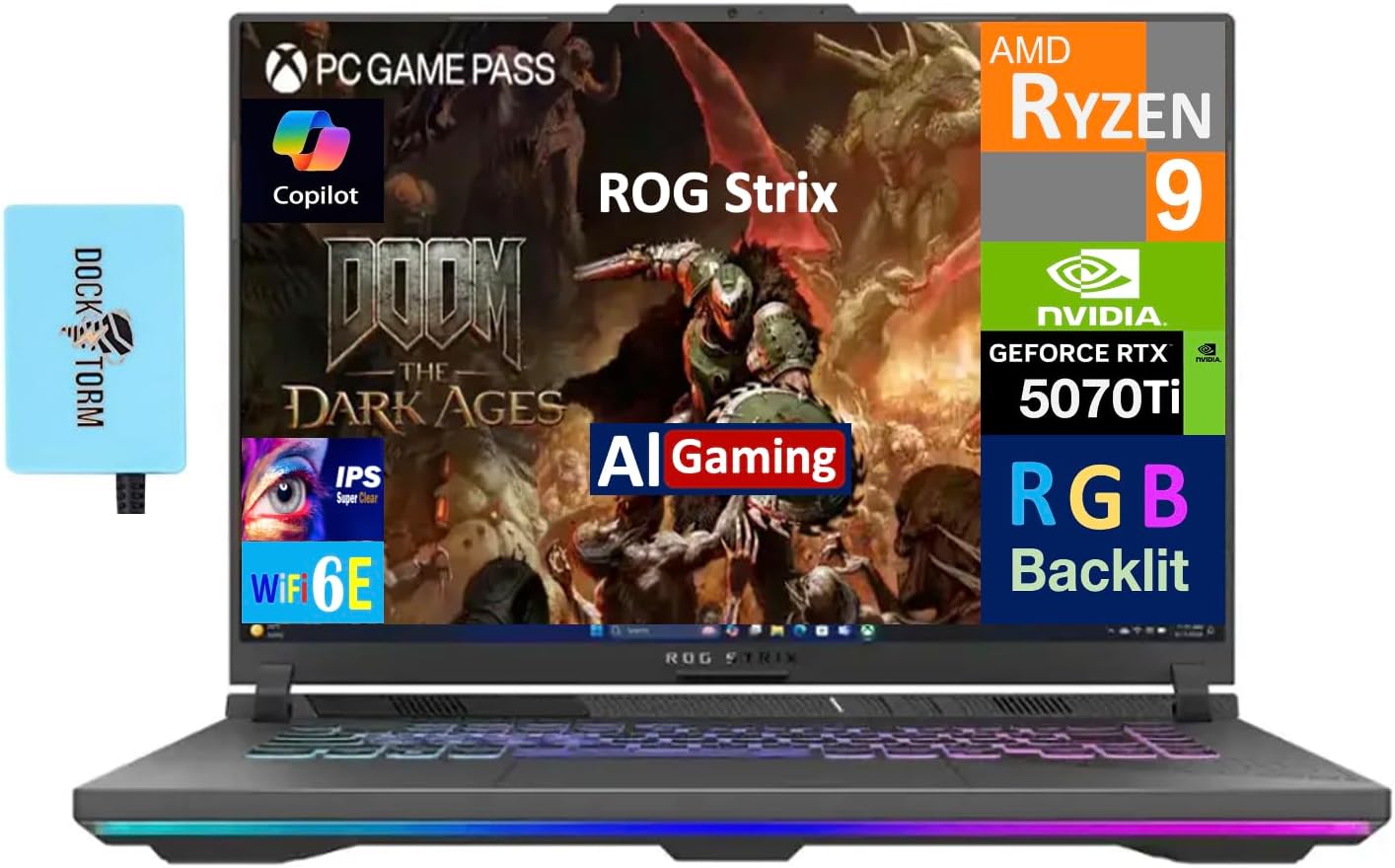
Figure 1: ASUS ROG Strix G16 G614 Gaming Laptop. This image shows the laptop open with a game displayed on the screen, highlighting its gaming capabilities.
2. Setup
2.1 Unpacking and Initial Inspection
Carefully remove all components from the packaging. Verify that the following items are present:
- ASUS ROG Strix G16 G614 Laptop
- Power Adapter and Cable
- Dockztorm Portable USB Hub
- Documentation (including this manual)
Inspect the laptop for any physical damage. If any damage is found, contact your retailer immediately.
2.2 Connecting Power
Connect the power adapter to the laptop's power input port and then plug the power cable into a wall outlet. The laptop can be used while charging.
2.3 Initial Boot and Operating System Setup
Press the power button to turn on the laptop. Follow the on-screen instructions to complete the Windows 11 Pro setup process. This includes selecting your region, connecting to a network, and creating a user account.
2.4 Connecting the Dockztorm Portable USB Hub
The included Dockztorm Portable USB Hub can be connected to an available USB port on your laptop to expand connectivity options. This hub supports data transfer rates up to 5Gbps.

Figure 2: Dockztorm Portable USB Hub. This image displays the compact blue USB hub included with the laptop.
3. Operating
3.1 Power On/Off and Sleep Mode
- To power on: Press the power button located on the top right of the keyboard deck.
- To power off: Click the Start button, then Power > Shut down.
- To enter sleep mode: Click the Start button, then Power > Sleep, or close the laptop lid.
3.2 Keyboard and Touchpad
The laptop features an RGB backlit keyboard. You can customize the lighting effects through the pre-installed ASUS software. The touchpad supports multi-touch gestures for navigation.

Figure 3: Keyboard and Touchpad. This image provides a top-down view of the laptop's keyboard, showcasing the RGB backlighting and the touchpad.
3.3 Display Settings
The 16.0-inch WUXGA (1920x1200) IPS display operates at a 165Hz refresh rate. You can adjust display settings, including resolution and refresh rate, via Windows Display Settings or NVIDIA Control Panel for optimal gaming and viewing experiences.
3.4 Connectivity
The laptop supports 802.11ax Wi-Fi for high-speed wireless internet, Bluetooth 5.3 for connecting wireless peripherals, and an RJ-45 port for wired Ethernet connections.
4. Maintenance
4.1 Cleaning
- Screen: Use a soft, lint-free cloth lightly dampened with water or a screen cleaner. Avoid harsh chemicals.
- Keyboard and Chassis: Use a soft cloth. For dust in crevices, use compressed air.
- Vents: Regularly check and clean the cooling vents to prevent dust buildup, which can affect performance.
4.2 Software Updates
Keep your operating system (Windows 11 Pro), drivers (especially graphics drivers), and ASUS utilities updated to ensure optimal performance and security. Check for updates regularly through Windows Update and ASUS Armoury Crate software.
4.3 Battery Care
To prolong battery life, avoid fully discharging the battery frequently. For extended storage, charge the battery to approximately 50-60% and store the laptop in a cool, dry place.
5. Troubleshooting
This section addresses common issues you might encounter.
- Laptop does not power on: Ensure the power adapter is securely connected to both the laptop and a working power outlet. Try a different outlet.
- Display issues (no image, flickering): Connect an external monitor to verify if the issue is with the laptop's display or the graphics output. Update graphics drivers.
- Performance slowdowns: Check for background applications consuming resources. Ensure cooling vents are clear. Update drivers and operating system.
- Wi-Fi connectivity problems: Restart your router and the laptop. Check Wi-Fi settings in Windows. Ensure Wi-Fi drivers are updated.
For more complex issues, refer to the ASUS support website or contact technical support.
6. Specifications
Key technical specifications for the ASUS ROG Strix G16 G614 laptop:
| Feature | Specification |
|---|---|
| Model | G614PR-G16 |
| Display | 16.0" IPS WUXGA (1920x1200) 165Hz |
| Processor | AMD Ryzen 9 8940HX (up to 5.3 GHz, 16-Cores, 32-Threads) |
| Graphics | NVIDIA GeForce RTX 5070 Ti 12GB GDDR7 |
| RAM | 32GB DDR5 SODIMM |
| Storage | 1TB PCIe NVMe SSD |
| Operating System | Windows 11 Pro (64-bit) |
| Wireless Connectivity | 802.11ax Wi-Fi, Bluetooth 5.3 |
| Ports | HDMI, Headphone/Microphone Combo Jack, RJ-45, USB (via Dockztorm Hub) |
| Battery | 4-Cell 90 WHr |
| Weight | Approximately 9.9 pounds |
| Color | Eclipse Gray |
7. Warranty and Support
Your ASUS ROG Strix G16 G614 laptop comes with a 1-year manufacturer warranty from GreatPriceTech. For warranty claims or technical assistance, please contact GreatPriceTech directly.
For additional support resources, driver downloads, and FAQs, please visit the official ASUS support website: www.asus.com/support/