
OWC Express 1M2 80Gb/s
OWC Express 1M2 80Gb/s Portable NVMe SSD Enclosure User Manual
Brand: OWC
Model: Express 1M2 80Gb/s
1. Product Overview
The OWC Express 1M2 80Gb/s Portable NVMe SSD Enclosure is designed to provide ultra-fast external storage solutions. This enclosure allows users to install their own NVMe M.2 SSDs, offering exceptional speed, broad compatibility, and a robust, heat-dissipating design. It is an enclosure only, requiring a separate NVMe SSD for full functionality.
Key Features:
- Supremely Fast: Over 6000MB/s peak real-world speed for rapid data transfer.
- Widely Compatible: Works seamlessly with Macs, PCs, iPad Pros, Chromebooks, and Surface devices.
- Exceptionally Flexible: Supports DIY "build your own" solutions and is easily future upgradeable with faster, higher capacity 2280 or 2242 NVMe M.2 SSDs.
- Innovatively Cool: Features a patent-pending heat-dissipating design that offers rugged protection and silently keeps the drive cool for consistent top speed.
- Versatile: Capable of handling daily data needs to professional-level creative projects, matching internal storage performance.
- Convenient: Bus-powered via the included USB4 cable, eliminating the need for an external power adapter.

Image: The OWC Express 1M2 80Gb/s Portable NVMe SSD Enclosure, showcasing its aluminum heat sink design.
2. Setup Guide
2.1. Installing Your NVMe SSD
This enclosure requires a user-supplied NVMe M.2 SSD. Follow these steps to install your drive:
- Open the Enclosure: Carefully slide open the enclosure to reveal the internal M.2 slot. Refer to the quick start guide included with your product for specific opening instructions.
- Insert NVMe SSD: Align your 2280 or 2242 NVMe M.2 SSD with the M.2 slot inside the enclosure. Gently push the SSD into the slot at an angle until it is fully seated.
- Secure the SSD: Once inserted, gently push down the end of the SSD and secure it with the provided screw or retention clip, if applicable. Ensure the SSD is firmly in place.
- Close the Enclosure: Carefully slide the enclosure back together until it is securely closed.
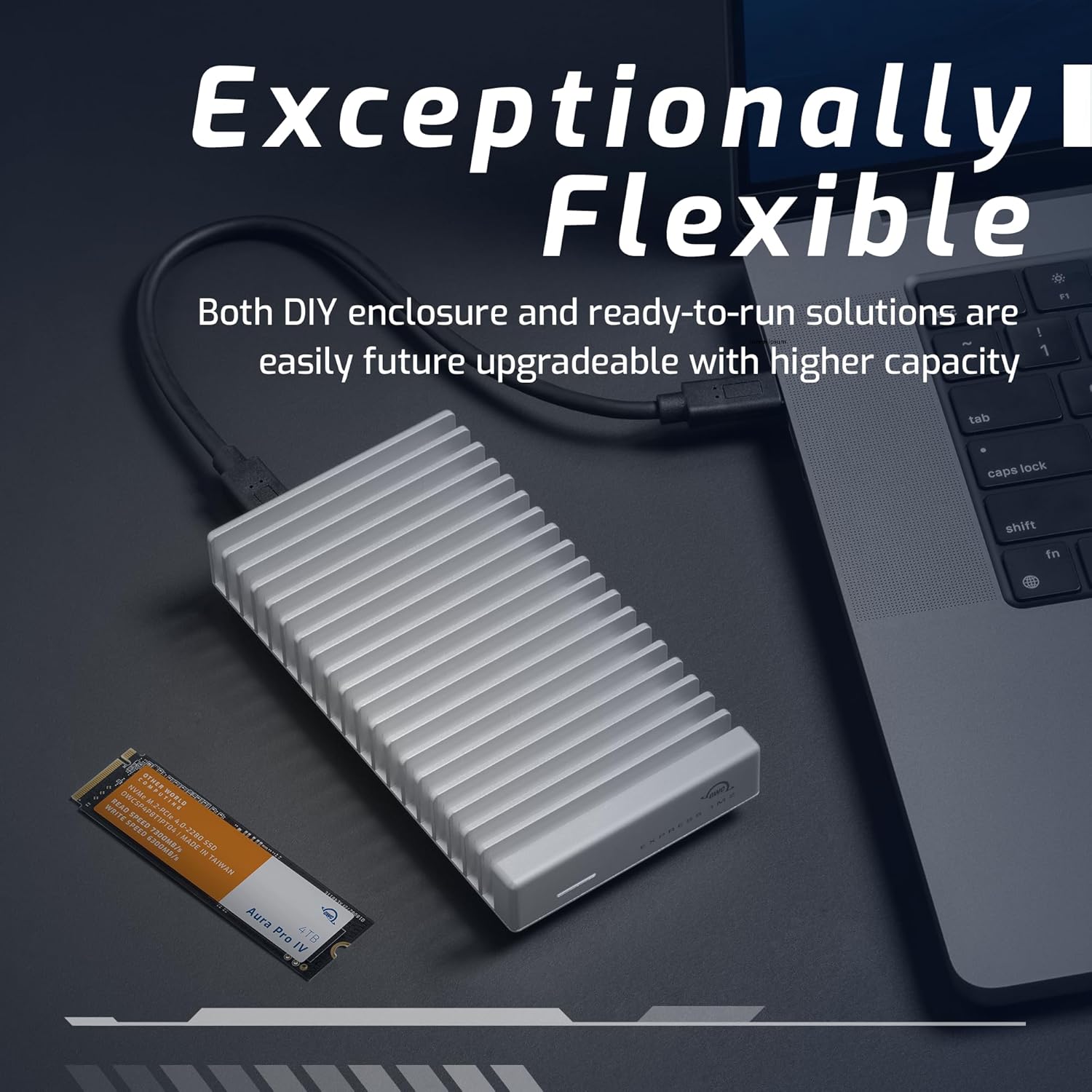
Image: The OWC Express 1M2 enclosure connected to a laptop, with a separate NVMe SSD module shown, illustrating the flexible and upgradeable design.
2.2. Connecting to Your Device
Once your NVMe SSD is installed, connect the enclosure to your computer or compatible device:
- Use the Included Cable: Connect one end of the provided USB4 cable to the port on the OWC Express 1M2 enclosure.
- Connect to Host Device: Connect the other end of the USB4 cable to a compatible USB4, Thunderbolt, or USB-C port on your Mac, PC, iPad Pro, Chromebook, or Surface device.
- Power On: The enclosure is bus-powered, meaning it draws power directly from the connected device. No external power adapter is required.

Image: The OWC Express 1M2 enclosure connected to a laptop via its USB4 cable, highlighting its bus-powered convenience.
3. Operating Instructions
3.1. Initializing and Formatting the SSD
Upon first connection, your operating system may prompt you to initialize and format the newly installed NVMe SSD. Follow your operating system's instructions for disk management:
- Windows: Use Disk Management to initialize the disk (GPT partition style recommended) and create a new simple volume.
- macOS: Use Disk Utility to erase and format the drive (APFS for macOS, ExFAT for cross-platform compatibility).
- Cross-Platform Compatibility: For seamless use between Mac and PC, consider formatting the drive with ExFAT. OWC also offers MacDrive software (sold separately) for enhanced cross-platform file system support.
3.2. Data Transfer and Performance
The OWC Express 1M2 is designed for high-speed data transfer:
- Speed: Achieve over 6000MB/s peak real-world speeds when connected to a compatible USB4 80Gb/s or Thunderbolt 5 host. Performance may vary based on the specific NVMe SSD installed, host device capabilities, and workload.
- Usage: Drag and drop files, use as a scratch disk for video editing, or for high-performance data backups.

Image: The OWC Express 1M2 enclosure with text indicating "Supremely Fast" and "Over 6000MB/s Peak Real-World Speed".
3.3. Device Compatibility
The OWC Express 1M2 offers broad compatibility:
- Mac: Compatible with Macs featuring USB4, Thunderbolt 4, Thunderbolt 3, or USB-C ports.
- PC: Compatible with PCs featuring USB4, Thunderbolt 4, Thunderbolt 3, or USB-C ports.
- iPad Pro: Connect directly to iPad Pro models with USB-C.
- Chromebooks & Surface Devices: Compatible with models featuring USB4, Thunderbolt 4, or USB-C ports.
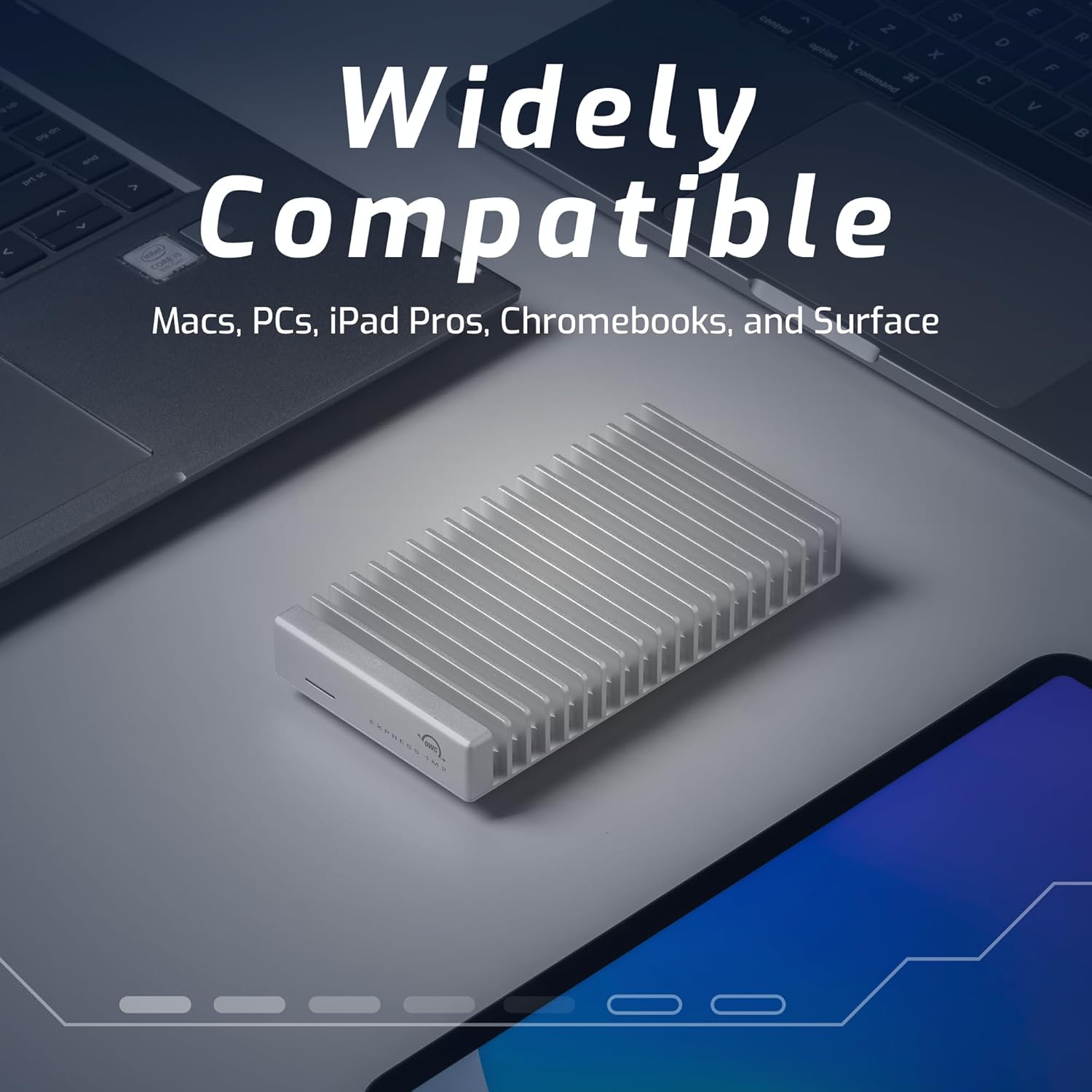
Image: The OWC Express 1M2 enclosure positioned between a laptop and a tablet, with text indicating "Widely Compatible" across various devices.
4. Maintenance
4.1. Heat Dissipation
The OWC Express 1M2 features an aluminum heat sink enclosure designed to dissipate heat efficiently, ensuring optimal performance and longevity of your NVMe SSD. No active cooling (fans) is required, making it silent in operation.
- Ensure the enclosure's fins are not obstructed to allow for proper airflow and heat exchange.
- Avoid placing the enclosure in direct sunlight or in enclosed spaces that could trap heat.

Image: A side view of the OWC Express 1M2 enclosure, emphasizing its innovative heat-dissipating fin design.
4.2. General Care
- Keep the enclosure clean by wiping it with a soft, dry cloth. Avoid using liquid cleaners.
- Protect the enclosure from drops, impacts, and excessive vibrations.
- Store the device in a cool, dry place when not in use.
5. Troubleshooting
5.1. Drive Not Detected
- Check Connections: Ensure the USB4 cable is securely connected to both the enclosure and your host device.
- Verify SSD Installation: Open the enclosure and confirm that the NVMe SSD is properly seated and secured in its slot.
- Try Different Port/Cable: Test with a different USB4/Thunderbolt/USB-C port on your device, or try a different compatible cable if available.
- Check Disk Management (Windows) / Disk Utility (macOS): Ensure the drive is initialized and formatted. If it appears as "unallocated space," you will need to initialize and format it.
- Test with Another Device: If possible, try connecting the enclosure to another compatible computer to rule out issues with the original host device.
5.2. Slow Performance
- Host Port Compatibility: Ensure you are connected to a USB4 (80Gb/s), Thunderbolt 5, or Thunderbolt 4 port for optimal speeds. Connecting to older USB standards (e.g., USB 3.0/3.1 Gen 1) will result in lower speeds.
- SSD Performance: The maximum speed is limited by the installed NVMe SSD's capabilities. Ensure your SSD is a high-performance model.
- System Resources: Close unnecessary applications on your computer that might be consuming significant CPU, RAM, or disk resources.
- Cable Quality: Use the included high-quality USB4 cable. Lower quality or longer cables can sometimes impact performance.
5.3. Enclosure Feels Warm
- It is normal for the aluminum enclosure to feel warm during operation, especially during heavy data transfers. This indicates that the heat sink design is effectively dissipating heat from the internal SSD.
- If the enclosure feels excessively hot or performance degrades significantly, ensure it is in a well-ventilated area and not obstructed.
6. Specifications
| Feature | Detail |
|---|---|
| Hard Drive Type | Solid State Drive (NVMe M.2, user-supplied) |
| Brand | OWC |
| Item Weight | 14.3 ounces |
| Product Dimensions (LxWxH) | 5.2 x 2.8 x 0.9 inches |
| Connectivity Technology | USB4 (Thunderbolt Compatible/USB-C) |
| Special Feature | Backward Compatible, Heat Dissipating Enclosure |
| Compatible Devices | Macs, PCs, iPad Pros, Chromebooks, Surface devices (with compatible USB-C/Thunderbolt ports) |
| Installation Type | External Hard Drive Enclosure |
| Included Components | Quick Start Guide, USB4 Cable |
| Data Transfer Rate | Up to 6000 Megabytes Per Second (peak real-world) |
| Manufacturer | Other World Computing |
7. Support Information
For further assistance, product registration, or to explore other OWC products, please visit the official OWC Store or support resources:
- OWC Store on Amazon: https://www.amazon.com/stores/OWC/page/BDF6BC1A-C98F-4B67-AB05-55E9848E4097
- Quick Start Guide: Refer to the physical Quick Start Guide included in your product packaging for initial setup details.
Please note that this product is an enclosure only. For issues related to the performance or functionality of the installed NVMe SSD, please refer to the SSD manufacturer's documentation and support.
No official product videos from the seller were available for embedding in this manual.
Related documentsExpress 1M2 80Gb/s

Ask a question about this manual
Ask about setup, troubleshooting, compatibility, parts, safety, or missing instructions. Manuals+ will review the question and use this page’s manual context to help answer it.