1. Introduction
This manual provides essential information for the setup, operation, maintenance, and troubleshooting of your HP OmniDesk M03 Premium 2025 Business Desktop PC. Designed for business innovation, this desktop offers robust performance for multitasking, creative workloads, and AI-powered applications.
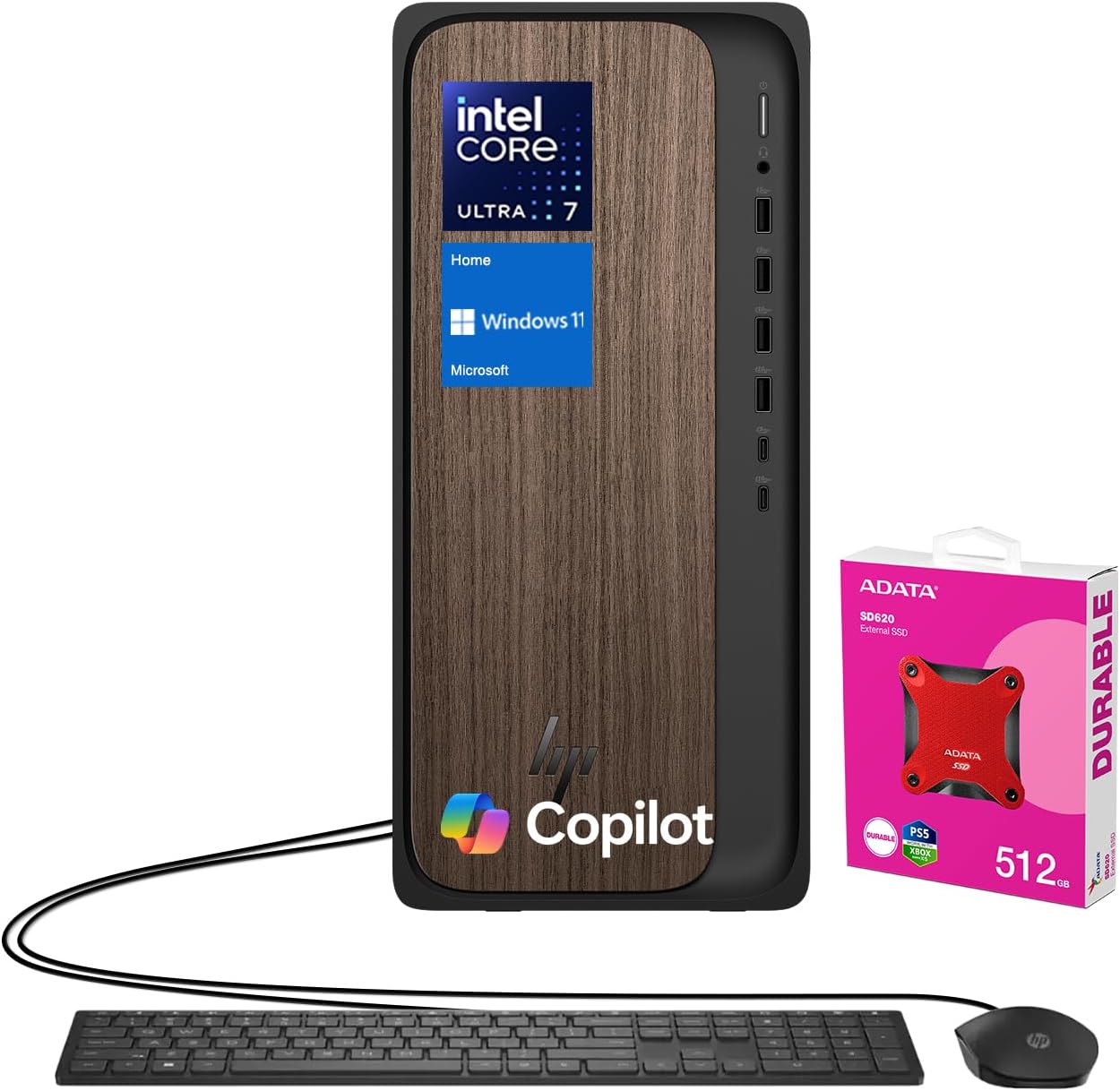
Key components include an Intel Core Ultra 7 265 Processor, NVIDIA GeForce RTX 4060 Graphics, 64GB DDR5 RAM, and a 2TB PCIe M.2 SSD. It comes pre-installed with Windows 11 Home and includes a wired keyboard and mouse for immediate use. An ADATA 512GB External SSD is bundled for additional storage and data management.
2. Setup
- Unpacking: Carefully remove all components from the packaging. Ensure the desktop tower, wired keyboard, wired mouse, power cable, and any bundled accessories (like the ADATA external SSD) are present.
- Placement: Position the desktop tower on a stable, flat surface with adequate ventilation around all sides. Avoid placing it in enclosed spaces or near heat sources.
- Connect Peripherals:
- Connect your monitor(s) to the available HDMI or DisplayPort outputs on the rear of the desktop.
- Plug the wired keyboard and mouse into any available USB Type-A ports.
- Connect the power cable to the desktop's power input and then to a grounded electrical outlet.
- If using the bundled ADATA external SSD, connect it to an available USB port.
- Initial Power On: Press the power button located on the front of the desktop. Follow the on-screen instructions to complete the Windows 11 Home setup process, including network configuration and user account creation.
3. Operating Instructions
Your HP OmniDesk M03 is ready for use immediately after initial setup. It runs on Windows 11 Home, providing a user-friendly interface and access to a wide range of applications.
- Windows 11 Home: Explore the Start Menu for applications, settings, and system information. Utilize features like Copilot for AI-powered assistance and enhanced productivity.
- Multitasking: The powerful Intel Core Ultra 7 processor and 64GB DDR5 RAM allow for seamless multitasking. Open multiple applications and browser tabs without experiencing significant slowdowns.
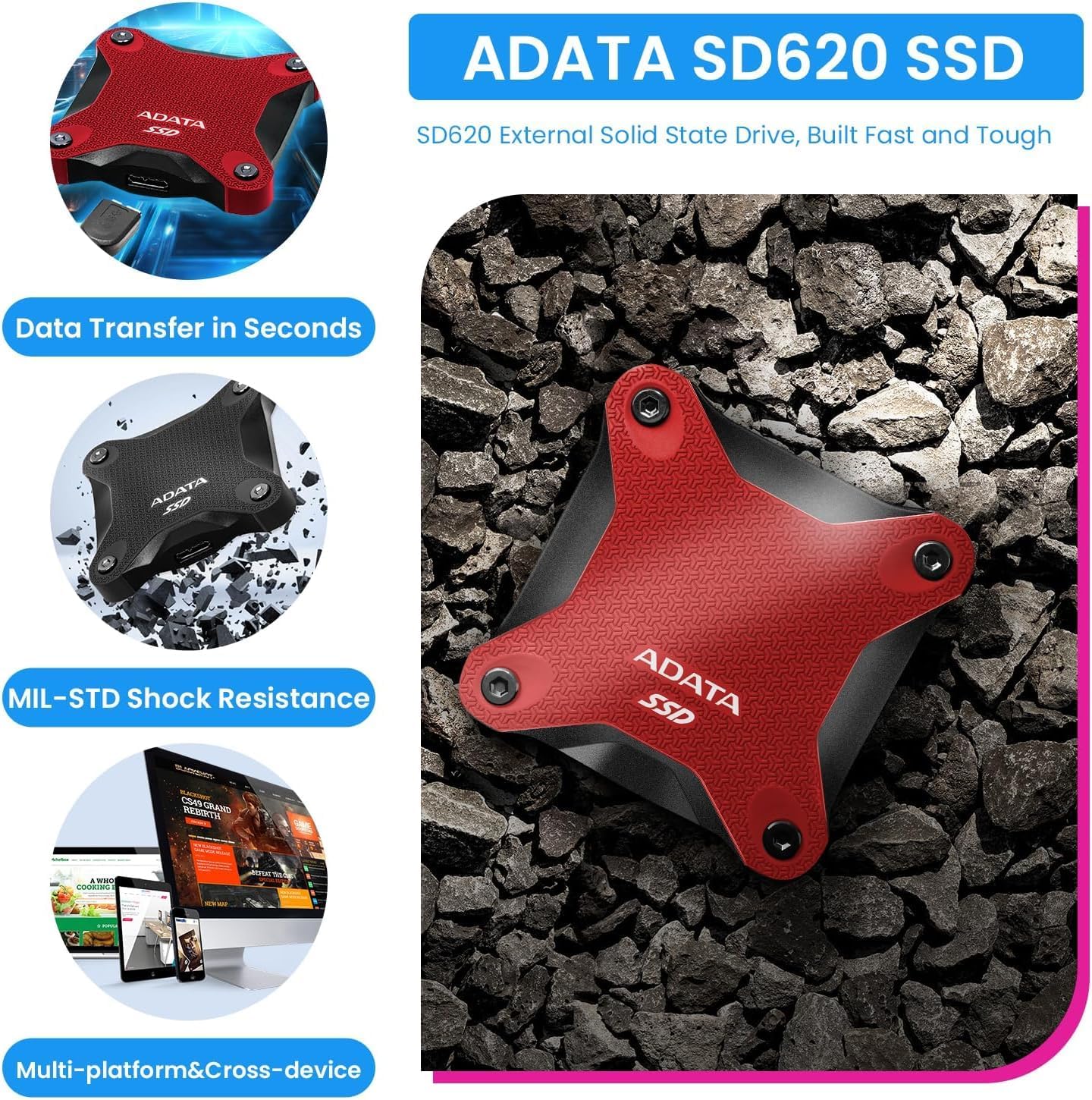
- Storage Management: The 2TB internal SSD provides fast access to your files. Use the bundled 512GB external SSD for additional storage, backups, or transferring large files.
- Connectivity: Utilize the integrated Wi-Fi 6 for high-speed wireless internet access and Bluetooth for connecting compatible wireless devices.
4. Connectivity
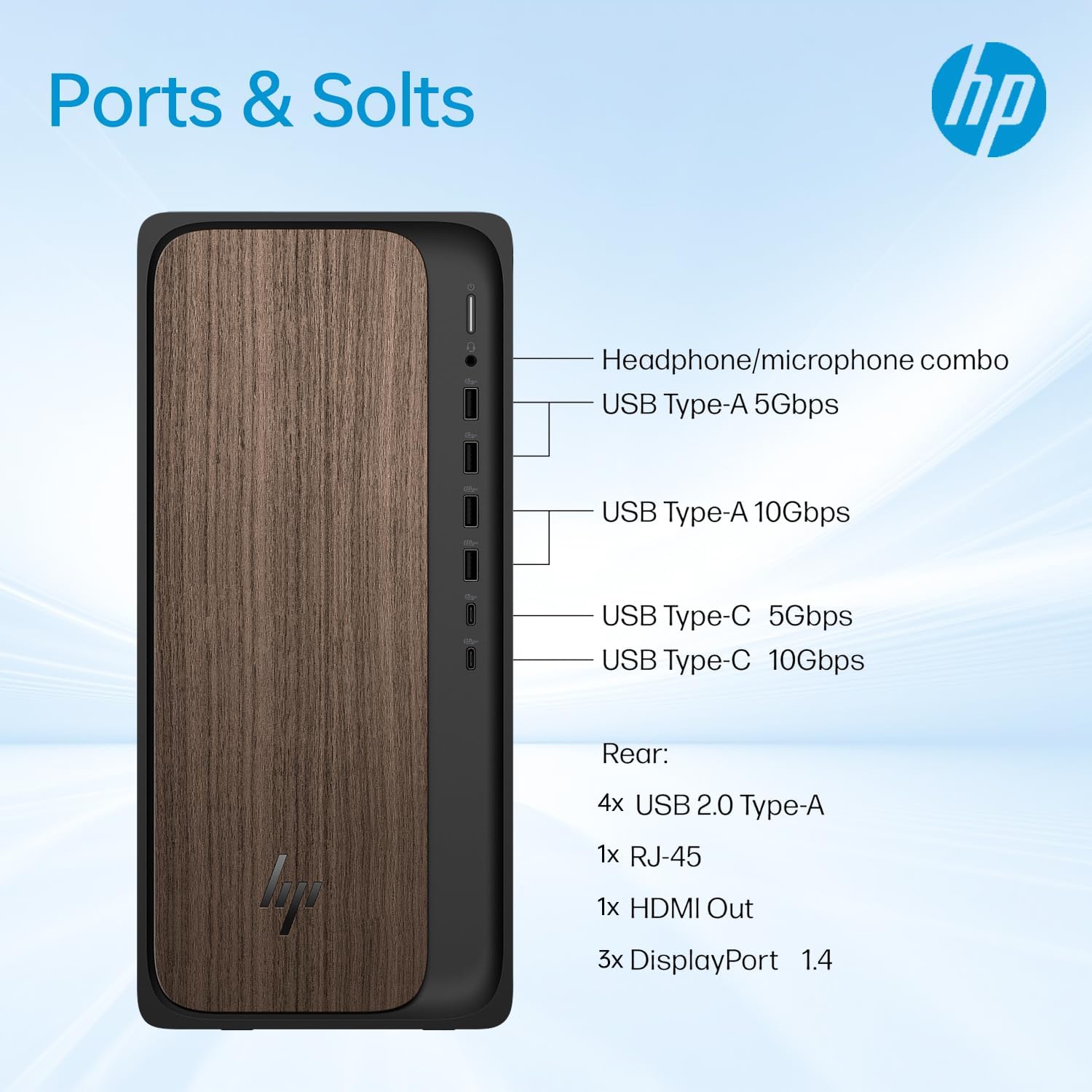
The HP OmniDesk M03 offers a variety of ports for connecting peripherals and external devices:
Front Ports:
- 1x USB Type-C 10Gbps signaling rate
- 1x USB Type-C 5Gbps signaling rate
- 2x USB Type-A 10Gbps signaling rate
- 2x USB Type-A 5Gbps signaling rate
- 1x Headphone/microphone combo jack
Rear Ports:
- 4x USB 2.0 Type-A
- 1x RJ-45 (Ethernet)
- 3x 3.5 mm audio jack combo
- 1x HDMI output
- 3x DisplayPort outputs
Wireless Connectivity:
- Wi-Fi 6 (802.11ax)
- Bluetooth
5. Specifications
| Feature | Detail |
|---|---|
| Processor | Intel Core Ultra 7 265 (20 Cores, 20 Threads, 30MB L3 Cache, 2.4GHz base, up to 5.3GHz max turbo) |
| Memory (RAM) | 64GB DDR5 UDIMM (4800 MHz) |
| Internal Storage | 2TB PCIe M.2 SSD |
| External Storage | ADATA 512GB External SSD (bundled) |
| Graphics | NVIDIA GeForce RTX 4060 (8GB GDDR6) |
| Operating System | Windows 11 Home |
| Wireless Connectivity | Wi-Fi 6 (802.11ax), Bluetooth |
| Dimensions (LxWxH) | 6.10" x 13.27" x 12.40" (15.5 x 33.7 x 31.5 cm) |
| Weight | 11.78 lbs (5.34 kg) |
| Color | Black |
| Included Peripherals | Wired Keyboard & Mouse |
6. Maintenance
Regular maintenance helps ensure the longevity and optimal performance of your HP OmniDesk M03 PC.
- Cleaning: Regularly clean the exterior of the desktop with a soft, dry cloth. Use compressed air to clear dust from ventilation grilles to prevent overheating. Ensure the PC is powered off and unplugged before cleaning.
- Software Updates: Keep your Windows 11 operating system and all drivers updated. Windows Update can be accessed via the Settings menu. Regularly check for graphics card driver updates from NVIDIA's official website.
- Data Backup: Periodically back up important files to the bundled ADATA external SSD or a cloud storage service to prevent data loss.
- Security: Maintain up-to-date antivirus software and be cautious of suspicious emails or websites to protect your system from malware.
7. Troubleshooting
If you encounter issues with your HP OmniDesk M03, try the following basic troubleshooting steps:
- No Power/System Not Booting:
- Ensure the power cable is securely connected to both the desktop and the electrical outlet.
- Verify the power outlet is functional by plugging in another device.
- If the system still does not boot, disconnect all peripherals except the monitor, keyboard, and mouse, then attempt to power on again.
- No Display:
- Check that the monitor is powered on and correctly connected to the desktop's HDMI or DisplayPort.
- Try connecting the monitor to a different video output port if available.
- Ensure the correct input source is selected on your monitor.
- Peripheral Not Working:
- Try plugging the peripheral into a different USB port.
- Restart the computer.
- Check the device manufacturer's website for updated drivers.
- Slow Performance:
- Close unnecessary applications running in the background.
- Ensure your operating system and drivers are up to date.
- Run a disk cleanup and defragmentation (for HDD, not typically needed for SSDs).
- Check for malware using antivirus software.
If these steps do not resolve the issue, please refer to the Warranty and Support section for further assistance.
8. Warranty and Support
Your HP OmniDesk M03 Premium 2025 Business Desktop PC comes with specific warranty coverage:
- A 1-year warranty on the upgraded RAM and SSD is provided by PCOnline US.
- The remaining components of the desktop retain the original 1-year manufacturer's warranty from HP.
For technical support or warranty claims, please contact the respective support channels:
- For RAM/SSD related issues: Contact PCOnline US support.
- For other hardware or system issues: Contact HP Customer Support. Refer to the documentation included with your product or visit the official HP support website for contact details.
9. Product Images





10. Video Resources
No official seller videos are available for this product at this time.