1. Introduction
Thank you for choosing the WOLFBOX X3 Dash Cam and USB C ACC Hardwire Kit. This manual provides detailed instructions for the installation, operation, and maintenance of your new dash cam system. The WOLFBOX X3 offers a dual-camera setup with 2.5K 60FPS front recording and 1080P 30FPS rear recording, enhanced by a STARVIS 2 IMX675 sensor for clear footage in various lighting conditions. It also features 5.8GHz Wi-Fi, GPS, and Advanced Driver Assistance System (ADAS) functions to enhance your driving experience and safety.
2. Package Contents
Please verify that all items listed below are included in your package:
- WOLFBOX X3 Front Dash Cam
- Rear Camera
- USB C ACC Hardwire Kit (11.48 ft)
- GPS Module (integrated or separate)
- Various Fuse Taps (Mirco, Mini, Small, Medium)
- Pry Tool
- User Manual
- Mounting Accessories
- 64GB MicroSD Card (if included in specific package)

Image: Overview of the WOLFBOX X3 Dash Cam, rear camera, hardwire kit, 64GB SD card, and a smartphone displaying the WOLFBOX app interface.
3. Product Overview
3.1 Dash Cam Features
- Dual Recording: Front 2.5K (2560*1440P) at 60fps and Rear 1080P at 30fps.
- STARVIS 2 IMX675 Sensor: Enhances low-light performance and reduces image noise.
- 5.8GHz Wi-Fi: For faster and more stable video transfers to the WOLFBOX app.
- Built-in GPS: Records vehicle speed and location data.
- Smart ADAS: Advanced Driver Assistance System for proactive hazard alerts.
- Touch Screen: Intuitive interface for easy control and settings adjustment.

Image: Illustrates the WOLFBOX X3's dual recording capabilities, showing 2.5K 60FPS for the front camera and 1080P 30FPS for the rear camera, emphasizing ultra-smooth video.
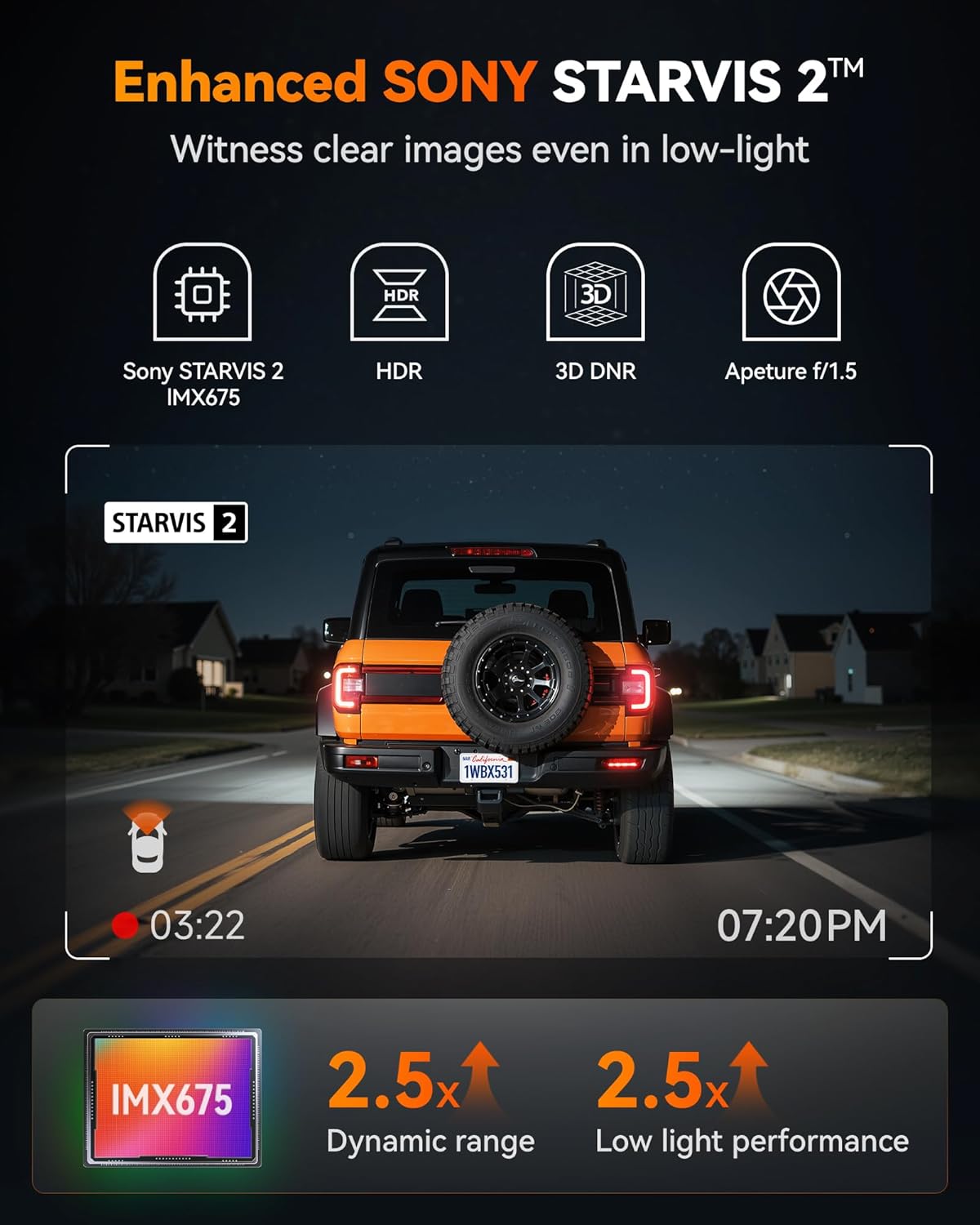
Image: Highlights the Enhanced SONY STARVIS 2 IMX675 sensor, detailing its benefits for clear images in low-light conditions, improved dynamic range, and low light performance.
3.2 Hardwire Kit Features
- Wide Capacity: 11.48 ft cable, 5A steady output.
- Voltage Input: Supports 12V-24V vehicle power.
- Adjustable Protection Voltage: Three levels (12.4V, 12V, 11.6V) to prevent vehicle battery drain.
- USB-C Port: Compatible with the WOLFBOX X3 and other Type-C powered devices.

Image: Displays the WOLFBOX USB C ACC Hardwire Kit, including the main cable with a voltage display, various fuse taps, and a pry tool for installation.
4. Setup and Installation
4.1 MicroSD Card Insertion
- Ensure the dash cam is powered off.
- Insert the MicroSD card (Class 10 or higher, up to 256GB recommended) into the designated slot until it clicks.
- Format the MicroSD card via the dash cam's settings menu upon first use.
4.2 Dash Cam Mounting
- Front Camera: Choose a location on your windshield that does not obstruct your view, typically behind the rearview mirror. Clean the area thoroughly. Attach the mounting bracket to the windshield, then slide the dash cam onto the bracket.
- Rear Camera: Mount the rear camera on the rear windshield, ensuring a clear view. Route the cable neatly along the headliner and pillar trim to the front dash cam.
4.3 Hardwire Kit Installation
The hardwire kit provides continuous power for parking monitoring and protects your vehicle's battery from draining.
- Identify Fuse Box: Locate your vehicle's fuse box (refer to your vehicle's owner's manual).
- Connect ACC Wire (Red): Use one of the provided fuse taps to connect the red ACC wire to a fuse that is only powered when the ignition is on (e.g., radio, cigarette lighter).
- Connect B+ Wire (Yellow): Use another fuse tap to connect the yellow B+ wire to a fuse that has constant power (e.g., hazard lights, interior lights).
- Connect GND Wire (Black): Securely attach the black GND wire to a metal bolt or screw on the vehicle's chassis for a ground connection.
- Route Cables: Neatly route all cables along the vehicle's interior trim using the pry tool to conceal them.
- Connect to Dash Cam: Plug the USB-C end of the hardwire kit into the dash cam's power input.

Image: Illustrates the different types of fuse taps provided (Mirco, Mini, Small, Medium) to ensure compatibility with various vehicle fuse boxes. Each tap includes a slot for the original fuse and a new fuse for the dash cam.
4.4 Adjusting Voltage Protection
The hardwire kit features a switch to adjust the battery protection voltage. This prevents the dash cam from draining your car battery when the ignition is off.
- 12.4V: Highest protection, cuts power if battery drops to 12.4V.
- 12V: Medium protection, cuts power if battery drops to 12V.
- 11.6V: Lowest protection, cuts power if battery drops to 11.6V.
Adjust the switch on the hardwire kit from left to right to select your desired protection voltage level.
5. Operating Instructions
5.1 Power On/Off and Recording
- The dash cam will automatically power on and begin recording when your vehicle's ignition is turned on.
- It will automatically power off when the ignition is turned off (or enter parking mode if hardwired).
- Recordings are saved in a loop, overwriting the oldest files when the MicroSD card is full, unless locked.
5.2 Touch Screen Operation
Navigate the dash cam's settings and features by tapping the icons on the touch screen. Common functions include: video playback, settings menu, Wi-Fi toggle, and emergency recording.
5.3 Wi-Fi and GPS Functionality
- Wi-Fi: Enable Wi-Fi on the dash cam via the touchscreen. Download the WOLFBOX app on your smartphone. Connect your phone to the dash cam's 5.8GHz Wi-Fi network. This allows for faster video transfers, live preview, and settings adjustments.
- GPS: The built-in GPS module automatically records your vehicle's speed and location. This data is embedded into video files and can be viewed via the WOLFBOX app or compatible PC software.

Image: Demonstrates the 5.8GHz Wi-Fi and GPS capabilities of the WOLFBOX X3, showing a smartphone connected to the dash cam app with map data and speed information, highlighting fast data transfer.
5.4 Advanced Driver Assistance System (ADAS)
The WOLFBOX X3 features ADAS technology to provide real-time alerts for potential road hazards.
- Forward Collision Warning (FCW): Alerts you if you are approaching a vehicle too quickly.
- Lane Departure Warning (LDW): Alerts you if your vehicle drifts out of its lane without signaling.
- Stop & Go: Notifies you when the vehicle in front of you starts moving after a stop.
These features can be enabled or disabled in the dash cam's settings menu.

Image: Illustrates the Advanced Driver Assistance System (ADAS) features, including Forward Collision Warning, Lane Departure Warning, and Stop & Go, showing how the system detects and alerts drivers to potential hazards.
6. Maintenance
6.1 MicroSD Card Management
- Regularly format the MicroSD card (at least once a month) to ensure optimal performance and prevent data corruption.
- Replace the MicroSD card every 6-12 months, as continuous overwriting can degrade its lifespan.
6.2 Cleaning
- Use a soft, dry cloth to clean the dash cam's screen and lenses.
- Avoid using abrasive cleaners or solvents.
6.3 Firmware Updates
Check the WOLFBOX official website or app periodically for firmware updates. Updates can improve performance, add new features, or fix bugs. Follow the provided instructions carefully when updating firmware.
7. Troubleshooting
- Dash Cam Not Powering On:
Check power connection. Ensure the hardwire kit is correctly installed and receiving power. Verify the vehicle's ignition is on. - Recording Errors/Corrupted Files:
Format the MicroSD card. Try a different, high-quality MicroSD card. Ensure the card is Class 10 or higher. - Wi-Fi Connection Issues:
Ensure Wi-Fi is enabled on the dash cam. Restart both the dash cam and your smartphone. Ensure you are connecting to the correct 5.8GHz network. - GPS Not Recording Data:
Ensure the dash cam has a clear view of the sky. Verify GPS functionality is enabled in settings. - ADAS Alerts Not Functioning:
Ensure ADAS features are enabled in the settings. Calibrate the camera if necessary (refer to specific instructions in the dash cam's menu). Ensure the windshield is clean and free of obstructions. - Hardwire Kit Draining Battery:
Adjust the voltage protection level on the hardwire kit to a higher setting (e.g., 12.4V). Ensure the B+ wire is connected to a constant power source and the ACC wire to an ignition-switched source.
8. Specifications
| Feature | Detail |
|---|---|
| Front Camera Resolution | 2.5K (2560*1440P) @ 60fps |
| Rear Camera Resolution | 1080P @ 30fps |
| Image Sensor | STARVIS 2 IMX675 |
| Wi-Fi Frequency | 5.8GHz |
| GPS | Built-in (records speed and location) |
| ADAS Features | Forward Collision Warning, Lane Departure Warning, Stop & Go |
| Hardwire Kit Cable Length | 11.48 ft |
| Hardwire Kit Output | 5A steady |
| Hardwire Kit Input Voltage | 12V-24V |
| Hardwire Kit Protection Voltage | 12.4V, 12V, 11.6V (adjustable) |
| Display Features | Wireless, Touch Screen |
| Date First Available | July 31, 2025 |
9. Warranty and Support
WOLFBOX products typically come with a standard manufacturer's warranty. Please refer to the warranty card included in your package or visit the official WOLFBOX website for specific warranty terms and conditions.
For technical support, troubleshooting assistance, or any inquiries regarding your WOLFBOX X3 Dash Cam, please contact WOLFBOX customer service through their official website or the contact information provided in your product packaging.


