
1. Introduction
This manual provides detailed instructions for the installation, operation, and maintenance of your PGST QEK-A105F-F Home Alarm System. This system offers comprehensive security for your home or business, featuring WiFi and 4G GSM connectivity, a 2.4-inch display, and compatibility with the Tuya Smart Life app, Alexa, and Google Assistant. Please read this manual thoroughly before using the product to ensure proper function and safety.
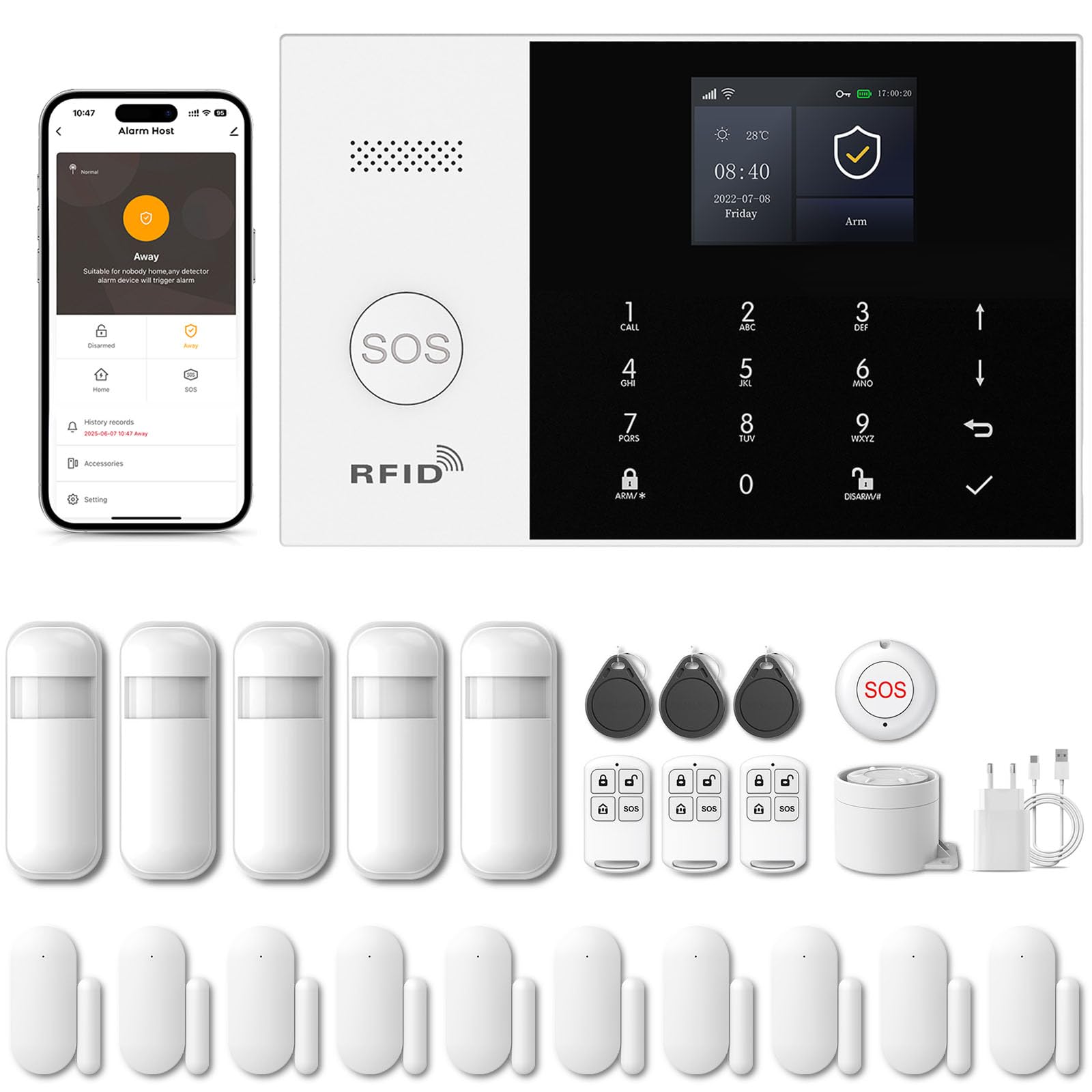
Image 1.1: PGST Home Alarm System main unit and included accessories.
2. Safety Information
- Do not expose the device to extreme temperatures, humidity, or direct sunlight.
- Ensure the power adapter is compatible with your local voltage and current.
- Keep the device away from water and other liquids.
- Do not attempt to disassemble or repair the device yourself. Contact customer support for assistance.
- Use only authorized accessories and replacement parts.
3. Package Contents
Verify that all items are present in your package:
- PGST Alarm Host Panel (QEK-A105F-F)
- Power Adapter
- Remote Controls
- Door/Window Sensors
- PIR Motion Detector
- RFID Tags
- Mounting Screws and Adhesives
- User Manual

Image 3.1: Example of included components in the alarm kit.
4. Product Overview
4.1. Alarm Host Panel Layout

Image 4.1: Front and rear view of the alarm host panel with labeled components.
- Speaker: For alarm sounds and voice prompts.
- SOS Button: Press for emergency alarm.
- RFID Card Sensing Area: For disarming with RFID tags.
- TFT Display Screen: 2.4-inch screen for status and settings.
- Up/Down Function Buttons: For navigation.
- Back/Cancel Button: To go back or cancel an action.
- Confirm Button: To confirm selections.
- Dialing Buttons (0-9): For entering numbers or codes.
- Away Arming Key: Activates full arming mode.
- Home Arming Key: Activates home arming mode.
- Disarming Button: Deactivates the alarm system.
- Anti-prying switch: Triggers alarm if panel is tampered with.
- 3.5mm Siren Interface: For connecting an external wired siren.
- Wired Arming Area Interface: For connecting wired sensors.
- SIM Card Slot: For 2G/3G/4G GSM SIM card.
- ON/OFF Switch: Main power switch.
- Micro USB 110/220V AC to 5V: Power input port.
4.2. Dimensions
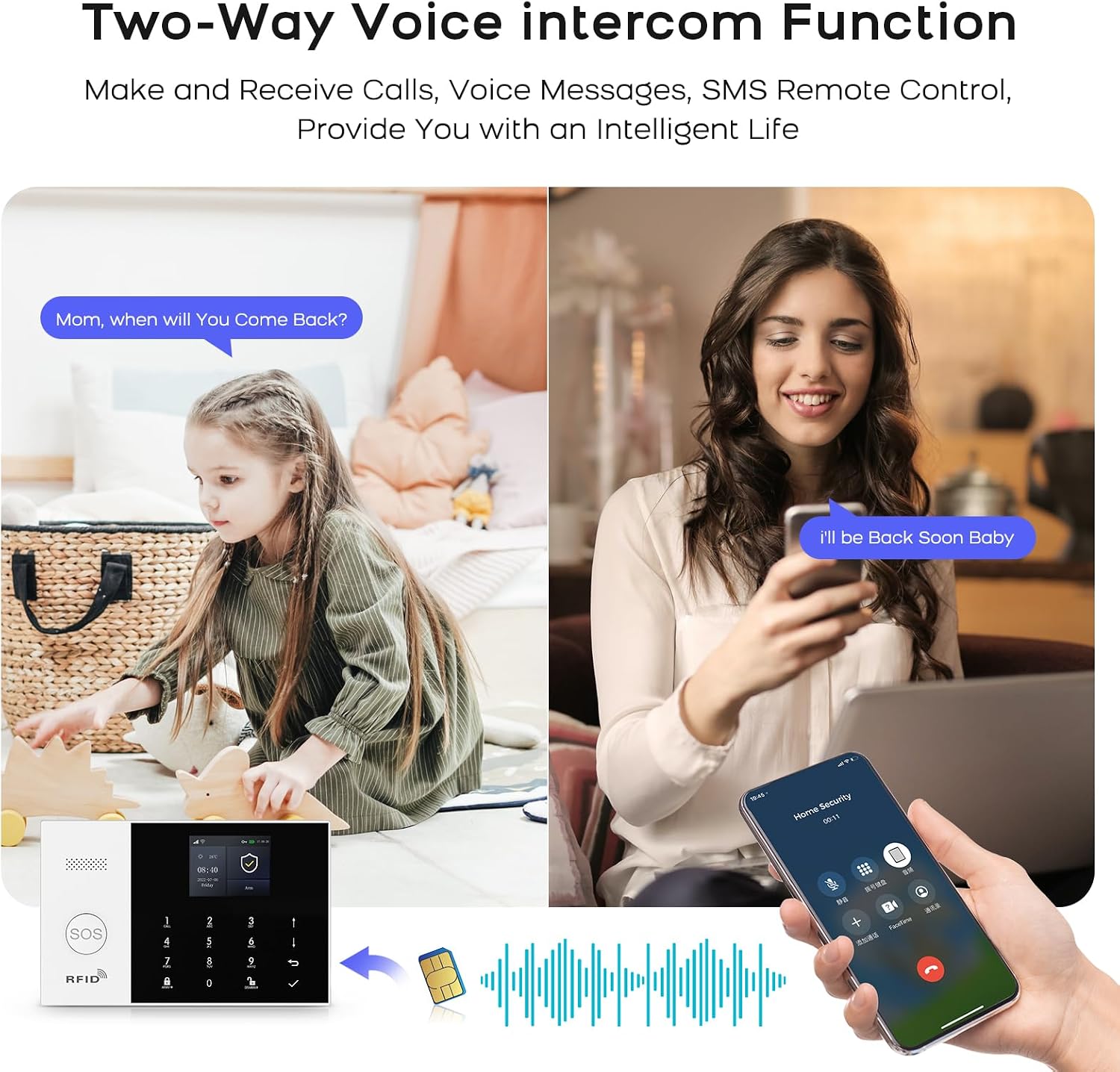
Image 4.2: Physical dimensions of the alarm host panel.
5. Setup and Installation
5.1. Powering the Host Panel
- Connect the power adapter to the Micro USB port on the host panel.
- Plug the adapter into a standard wall outlet.
- Flip the ON/OFF switch to the 'ON' position. The panel will power on.
5.2. SIM Card Installation (Optional for 4G GSM Functionality)
- Ensure the host panel is powered off.
- Locate the SIM card slot on the rear of the panel.
- Insert a 2G/3G/4G GSM SIM card into the slot, ensuring correct orientation.
- Power on the host panel. The system will attempt to register with the cellular network.
5.3. App Installation and Wi-Fi Connection
The system uses the 'Smart Life' or 'Tuya Smart' app for remote control and configuration.
- Download the 'Smart Life' or 'Tuya Smart' app from your smartphone's app store (Google Play for Android, App Store for iOS).
- Register or log in to your account.
- On the alarm host panel, navigate to Menu > Wi-Fi > Soft AP Configuration.
- In the app, tap '+' to add a device. Select 'Sensors' > 'Alarm' > 'Wi-Fi Flashing'.
- Follow the on-screen instructions in the app to connect the alarm host to your 2.4GHz Wi-Fi network. (5GHz Wi-Fi is not supported).

Image 5.1: Steps for Wi-Fi configuration via the Smart Life app.
5.4. Adding Wireless Accessories (Sensors, Remotes)
The system supports up to 100 wireless storage locations for accessories.
- On the host panel, enter the pairing mode (refer to the panel's menu for 'Add Sensor' or 'Add Remote').
- Activate the accessory (e.g., trigger a motion sensor, separate a door sensor, press a button on the remote).
- The host panel will confirm successful pairing.
- Repeat for all desired accessories.

Image 5.2: Example of sensor placement within a home environment.
6. Operating the System
6.1. Arming and Disarming
- Arm Away: Press the Away Arming Key on the panel, use the remote control, or arm via the Smart Life app. All sensors will be active.
- Arm Home: Press the Home Arming Key on the panel, use the remote control, or arm via the Smart Life app. Typically, perimeter sensors (doors/windows) are active, while internal motion sensors are inactive.
- Disarm: Enter your PIN on the panel, use the disarm button on the remote, use an RFID tag, or disarm via the Smart Life app.
6.2. SOS Emergency Function
In an emergency, press the SOS button on the host panel or the remote control. The system will immediately trigger the alarm and send notifications to pre-set emergency contacts.

Image 6.1: Remote control with SOS button for emergency alerts.
6.3. Two-Way Voice Intercom
The alarm host supports two-way voice communication through the integrated speaker and microphone, allowing you to communicate with someone at the alarm panel via the app or a phone call.

Image 6.2: Two-way voice intercom function in use.
6.4. Timer Function (Scheduled Arm/Disarm)
You can set schedules for automatic arming and disarming of the system through the Smart Life app.

Image 6.3: Example of scheduled arming and disarming times.
6.5. Entry/Exit Delay
Configure custom entry and exit delays to allow time to leave or enter your property without triggering the alarm immediately. This can be set in the app.

Image 6.4: Customizing entry and exit delays via the app.
6.6. Voice Control (Alexa & Google Assistant)
Integrate your alarm system with Amazon Alexa or Google Assistant for convenient voice control commands such as arming or disarming the system.

Image 6.5: Using Alexa for voice control of the alarm system.
6.7. Alarm Notifications
Upon alarm trigger, the system will:
- Sound the internal siren (up to 120dB) and any connected external sirens.
- Send instant push notifications to your smartphone via the Smart Life app.
- Send SMS messages to up to 5 pre-set phone numbers (if a SIM card is installed).
- Make phone calls to up to 5 pre-set phone numbers (if a SIM card is installed).

Image 6.6: Five preset alarm call numbers for notifications.
7. Maintenance
7.1. Battery Management
The host panel has a built-in 1000 mAh backup battery, providing approximately 5.5 hours of operation during a power outage. Wireless sensors are battery-powered and will send low battery alerts to the host panel and your app when replacement is needed.
Image 7.1: Low battery alerts for wireless sensors.
7.2. Cleaning
Wipe the host panel and sensors with a soft, dry cloth. Do not use liquid cleaners or abrasive materials.
7.3. Anti-Tampering Protection
The alarm host is equipped with an anti-tampering switch. If the main unit is forcibly removed from its mounting, an alarm will be triggered immediately, regardless of its armed status.

Image 7.2: Anti-tampering protection feature.
8. Troubleshooting
| Problem | Possible Cause | Solution |
|---|---|---|
| Host panel not powering on. | Power adapter disconnected; ON/OFF switch off; faulty adapter. | Check power connection; ensure switch is ON; try a different adapter. |
| Cannot connect to Wi-Fi. | Incorrect Wi-Fi password; 5GHz network used; host too far from router. | Verify password; ensure 2.4GHz network; move host closer to router. |
| Sensors not triggering alarm. | Sensor battery low; sensor not paired; system disarmed. | Replace sensor battery; re-pair sensor; ensure system is armed. |
| No SMS/Call notifications. | No SIM card; SIM card not active; poor cellular signal; incorrect emergency numbers. | Install/activate SIM card; check signal strength; verify emergency numbers in settings. |
9. Specifications
- Brand: PGST
- Model Number: QEK-A105F-F
- Connectivity Technology: Wireless (Wi-Fi 2.4GHz, GSM/3G/4G)
- Power Source: Battery (1000 mAh Lithium Polymer) / AC Adapter
- Product Dimensions (L x W x H): 18 x 12 x 3 cm (7.09 x 4.72 x 1.18 inches)
- Display: 2.4-inch TFT Screen
- Control Method: Application (Tuya Smart Life), Keypad, Remote Control, Voice Control (Alexa, Google Assistant)
- Max Wireless Range: 100 meters (open area)
- Alarm Type: Audio and Motion
- Installation Type: Self-adhesive / Wall-mounted
10. Warranty and Support
Your PGST Home Alarm System comes with a standard manufacturer's warranty. Please refer to the warranty card included in your package for specific terms and conditions. For technical support, troubleshooting assistance, or warranty claims, please contact PGST customer service through the contact information provided on the official PGST website or your purchase platform.


