Download PDFFree PDF. The Save button below keeps a bookmark and private notes in your account.
CNBRO AI Smart Glasses L802 User Manual
Model: L802
1. Introduction
This manual provides detailed instructions for the setup, operation, maintenance, and troubleshooting of your CNBRO AI Smart Glasses, model L802. Please read this manual thoroughly before using the device to ensure proper functionality and to maximize your user experience.
2. Product Overview
The CNBRO AI Smart Glasses L802 integrate advanced features such as an 8MP HD camera, AI voice assistant, real-time translation, open-ear audio, and object recognition into a wearable form factor. Designed for convenience and enhanced interaction with your environment, these glasses offer a hands-free experience for various activities.
Image 2.1: CNBRO AI Smart Glasses L802 (Black-Sunglasses variant).
Key Features:
8MP HD Camera: Records 1080P/30FPS videos and captures photos with EIS stabilization and a 105° wide-angle lens.
AI Assistant & Visual Recognition: Utilizes advanced AI for object identification, scene analysis, and answering queries.
Real-Time Translation: Supports translation of spoken and visual text.
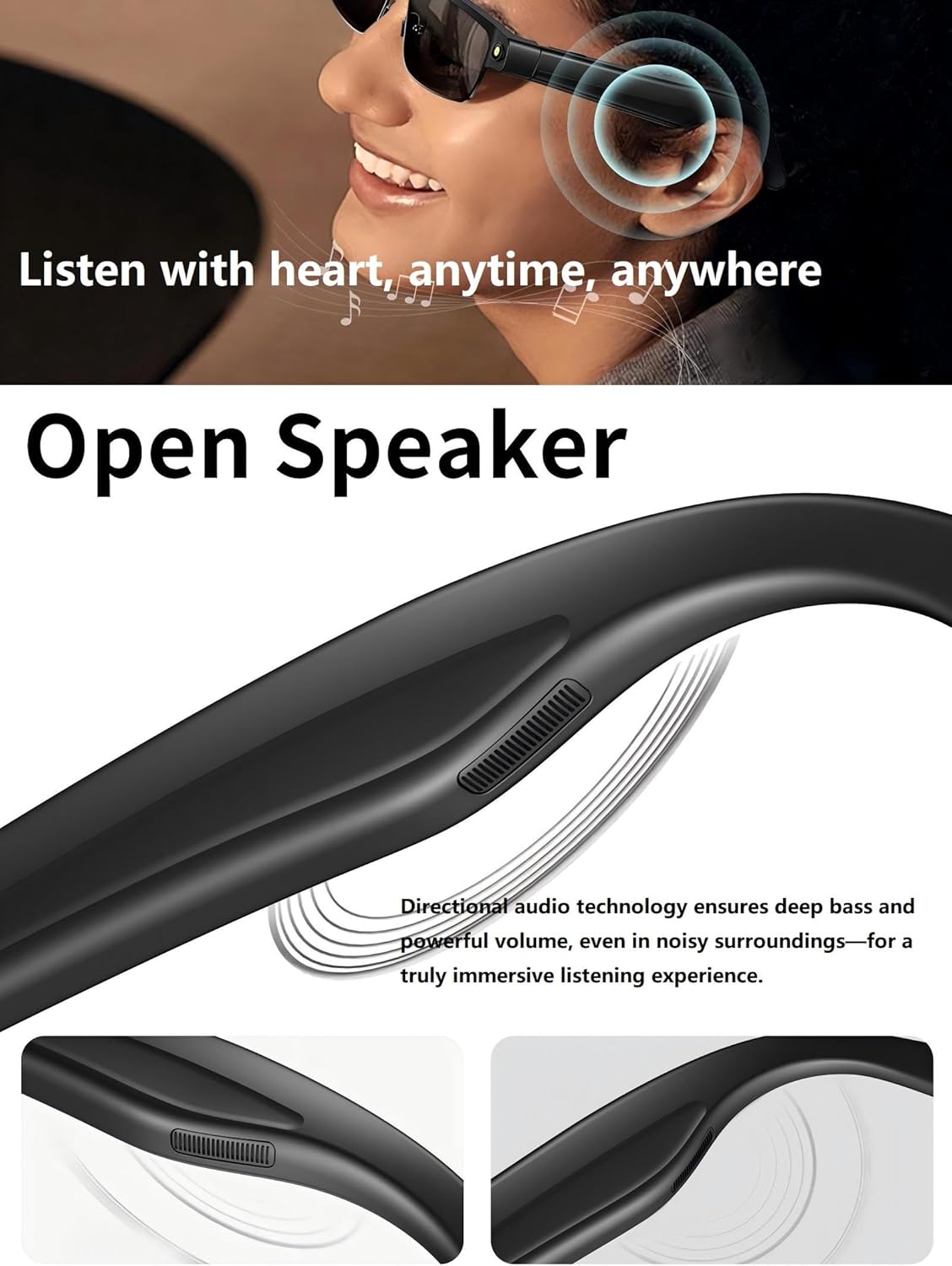
Open-Ear Audio: Directional speakers provide sound without obstructing ambient noise.
Dual Noise-Canceling Microphones: Ensures clear audio for calls and recordings.
Voice Control: Activate functions and manage media playback using voice commands.
Long Battery Life: Integrated 270mAh battery for extended use.
App Compatibility: Works with iOS and Android via the free HeyCyan app.
3. Setup
3.1. Unboxing and Initial Inspection
Carefully remove all items from the packaging. Verify that the following components are present:
1x CNBRO AI Smart Glasses L802
1x Charging Cable
1x User Manual (this document)
3.2. Charging the Glasses
Connect the provided magnetic charging cable to the charging port on the glasses.
Connect the other end of the charging cable to a USB power adapter (not included) or a computer's USB port.
The charging indicator light will illuminate during charging. A full charge typically takes approximately 1-2 hours.
Once fully charged, the indicator light may change color or turn off. Disconnect the charging cable.
Image 3.1: Magnetic charging port on the smart glasses.
3.3. App Installation and Pairing
Download the "HeyCyan" app from your device's app store (available for iOS and Android).
Ensure Bluetooth is enabled on your smartphone.
Power on the CNBRO AI Smart Glasses by pressing and holding the power button (refer to the diagram in Section 2 for button location).
Open the HeyCyan app and follow the on-screen instructions to pair your glasses. The app will guide you through the connection process.
Once paired, the glasses are ready for use.
4. Operating Instructions
4.1. Camera Operation
The integrated 8MP HD camera allows for hands-free photo and video capture.
Taking Photos: Briefly press the camera button once to capture a still image.
Recording Videos: Press and hold the camera button for 2 seconds to start video recording. Press again briefly to stop recording.
All captured media is stored internally and can be transferred to your smartphone via the HeyCyan app.
Image 4.1: Detail of the 8MP HD camera lens.
Image 4.2: Examples of smart glasses usage in daily life.
4.2. AI Assistant and Real-Time Translation
The glasses feature an integrated AI assistant and real-time translation capabilities.
Activating AI Assistant: Use a predefined voice command (e.g., "HeyCyan") or a specific button press (refer to app settings for configuration) to activate the AI assistant.
Object Recognition: Point your gaze at an object and activate the AI assistant to identify it and provide information.
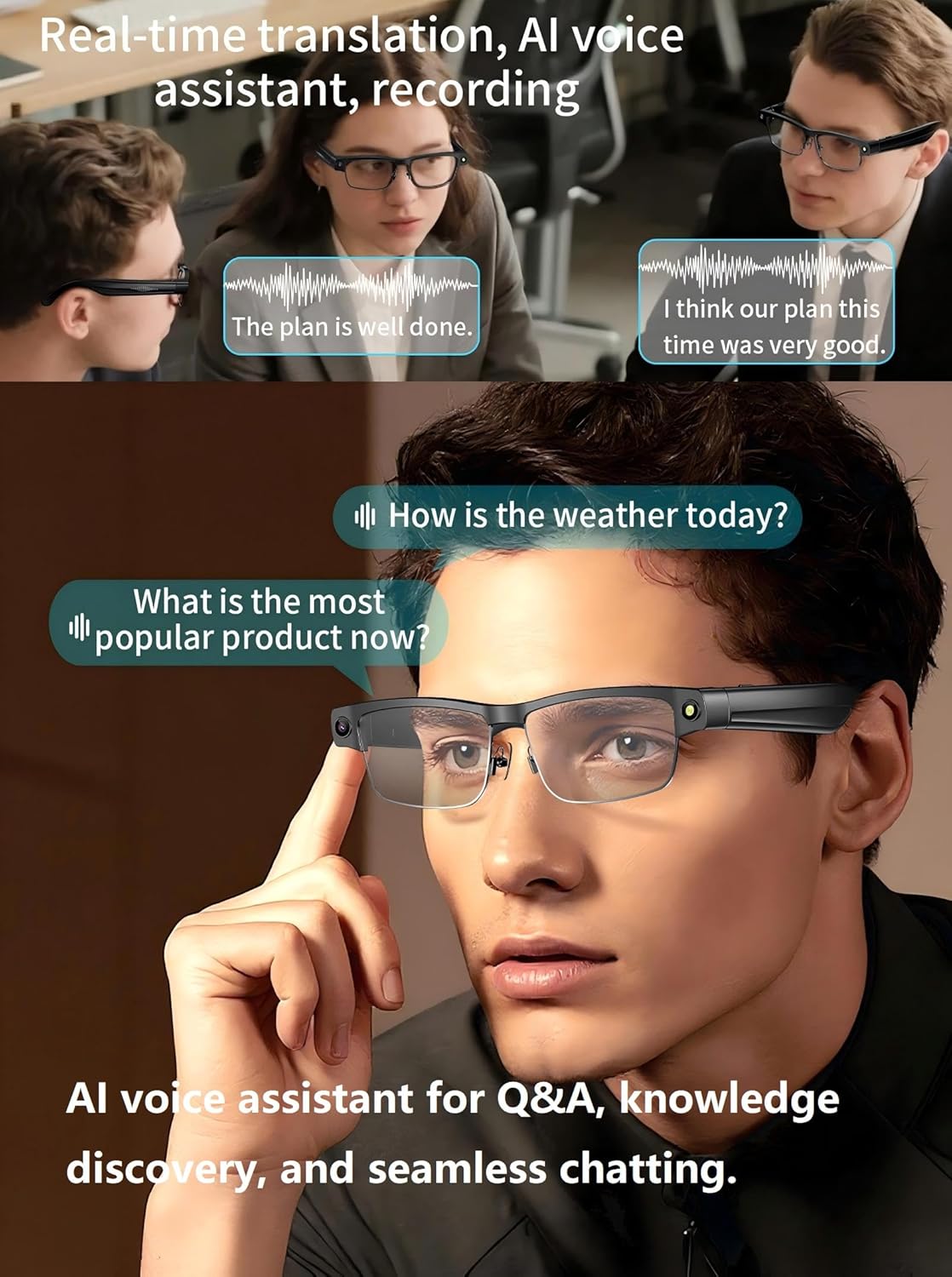
Real-Time Translation: The glasses can translate spoken conversations or text seen through the lenses. Activate the translation feature via voice command or app.
Image 4.3: Smart glasses facilitating real-time translation and AI interaction.
Image 4.4: AI visual recognition identifying landmarks and providing information.
4.3. Open-Ear Audio and Bluetooth Calls
The open-ear audio system allows you to listen to music or take calls while remaining aware of your surroundings.
Music Playback: Once paired with your smartphone, audio will stream directly to the glasses. Use the touch controls on the temple arm or voice commands to play, pause, skip tracks, and adjust volume.
Answering/Ending Calls: When a call comes in, press the designated button on the temple arm (or use a voice command) to answer. Press again to end the call.
Rejecting Calls: Press and hold the designated button (or use a voice command) to reject an incoming call.
Image 4.5: Open-ear speaker design for ambient awareness.
Image 4.6: Hands-free Bluetooth calling feature in use.
4.4. HeyCyan App Usage
The HeyCyan app serves as the central hub for managing your smart glasses.
Media Transfer: Easily transfer photos and videos captured by the glasses to your smartphone.
Settings Customization: Adjust camera settings, AI assistant preferences, language for translation, and audio profiles.
Firmware Updates: Receive and install firmware updates for improved performance and new features.
Transcription: Access auto-transcribed recordings of meetings or lectures.
Video 4.7: Overview of CNBRO AI Smart Glasses features, including app integration and media transfer.
5. Maintenance
Cleaning: Use a soft, lint-free cloth to clean the lenses and frame. Avoid abrasive materials or harsh chemicals.
Storage: Store the glasses in their protective case when not in use to prevent scratches and damage.
Water Resistance: The glasses are designed for everyday use but are not fully waterproof. Avoid submerging them in water or exposing them to heavy rain.
Temperature: Avoid exposing the glasses to extreme temperatures (hot or cold) to prevent damage to the battery and electronic components.
6. Troubleshooting
Issue
Possible Cause
Solution
Glasses do not power on
Low battery; Device malfunction
Charge the glasses fully. If issue persists, contact support.
Unable to pair with smartphone
Bluetooth off; Glasses not in pairing mode; App issue
Ensure Bluetooth is on. Restart glasses and phone. Reinstall HeyCyan app.
Poor audio quality
Low volume; Environmental noise; Bluetooth interference
Adjust volume. Move away from noisy environments. Ensure no obstructions between glasses and phone.
Camera not recording/taking photos
Insufficient storage; Software glitch
Check available storage via app. Restart glasses.
AI features not responding
No internet connection; App not running; Software glitch
Ensure stable internet connection. Verify HeyCyan app is open and connected. Restart app and glasses.
7. Specifications
Feature
Detail
Model Number
US-X-L802blksungls
Camera
8MP HD, 1080P/30FPS Video Recording, EIS Stabilization, 105° Wide-Angle Lens
For warranty information and customer support, please refer to the documentation included with your purchase or visit the official CNBRO website. If you encounter any issues not covered in this manual, please contact CNBRO customer service for assistance. They are available to provide solutions and further guidance.
Ask a question about this manual
Ask about setup, troubleshooting, compatibility, parts, safety, or missing instructions. Manuals+ will review the question and use this page’s manual context to help answer it.