
1. Introduction
This manual provides detailed instructions for the Acer Dual Mode Ergonomic Wireless Mouse, Model OMR290. Please read this manual thoroughly before using the product to ensure proper operation and to maximize its features. This mouse offers dual connectivity (2.4GHz and Bluetooth 5.2) and an ergonomic design for enhanced comfort and productivity.
2. Safety Information
- Keep the device away from water and other liquids.
- Do not attempt to disassemble or repair the device yourself.
- Use only specified batteries (2x AAA batteries, not included).
- Dispose of batteries and the device according to local regulations.
3. Package Contents
- 1 x Acer Dual Mode Ergonomic Wireless Mouse (Model OMR290)
- 1 x USB-A Receiver (stored inside the mouse)
- 1 x User Manual
- 1 x Product Warranty Card
4. Product Overview
Familiarize yourself with the buttons and features of your Acer OMR290 mouse:

Figure 1: Acer OMR290 Mouse Button Layout. This image displays the mouse from various angles, labeling the Left & Right Click, Scroll Wheel, Side Scroll Wheel, Side Scroll Wheel Center Button, Forward & Backward Buttons, DPI Button, On/Off Power Switch, Optical Sensor, USB-A Receiver storage, and AAA Battery Compartment.
- Left & Right Click Buttons: Standard mouse click functions.
- Scroll Wheel: For vertical scrolling.
- Side Scroll Wheel: Multi-function wheel with a central button.
- Side Scroll Wheel Center Button: Toggles functions of the side scroll wheel.
- Forward & Backward Buttons: For navigation in web browsers or file explorers.
- DPI Button (2.4G/BT Button): Adjusts cursor sensitivity and switches connectivity modes.
- On/Off Power Switch: Located on the bottom of the mouse.
- Optical Sensor: For tracking movement.
- AAA Battery Compartment: Holds two AAA batteries (not included).
- USB-A Receiver Storage: Compartment for the 2.4GHz USB receiver.
5. Setup
5.1 Battery Installation
- Open the battery compartment cover on the bottom of the mouse.
- Insert two AAA batteries, ensuring correct polarity (+/-).
- Close the battery compartment cover.
Note: The USB-A receiver is stored inside the battery compartment. Remove it before closing the cover if you plan to use 2.4GHz mode.
5.2 Connecting via 2.4GHz USB Receiver
- Remove the USB-A receiver from the battery compartment.
- Plug the USB-A receiver into an available USB port on your computer.
- Slide the On/Off Power Switch on the bottom of the mouse to the 'ON' position.
- Double-click the DPI button (G1) to switch to 2.4GHz mode. The indicator light will flash red.
- The mouse should automatically connect to your device.
5.3 Connecting via Bluetooth (BT5.2)
- Slide the On/Off Power Switch on the bottom of the mouse to the 'ON' position.
- Double-click the DPI button (B1 or B2) to switch to Bluetooth mode. The indicator light will flash blue or green.
- On your device (computer, laptop, tablet), go to Bluetooth settings and search for new devices.
- Select 'OMR290 Mouse BT1' or 'OMR290 Mouse BT2' from the list of available devices to pair.
- Once paired, the indicator light will stop flashing and remain solid.

Figure 2: Multi-Device Connection. The mouse can connect to up to three devices (one 2.4GHz, two Bluetooth) and switch between them by double-clicking the DPI button.
5.4 Switching Between Devices
The Acer OMR290 mouse supports seamless switching between three devices (one 2.4GHz and two Bluetooth connections). To switch:
- Double-click the DPI button. The indicator light (G1 for 2.4GHz, B1/B2 for Bluetooth) will show the currently active connection.
- Note: Bluetooth mode and 2.4GHz mode cannot be used simultaneously.
6. Operating Instructions
6.1 Ergonomic Design
The mouse features a 59° vertical tilt, designed to position your hand in a natural handshake posture. This ergonomic design helps reduce wrist and arm strain during extended use.
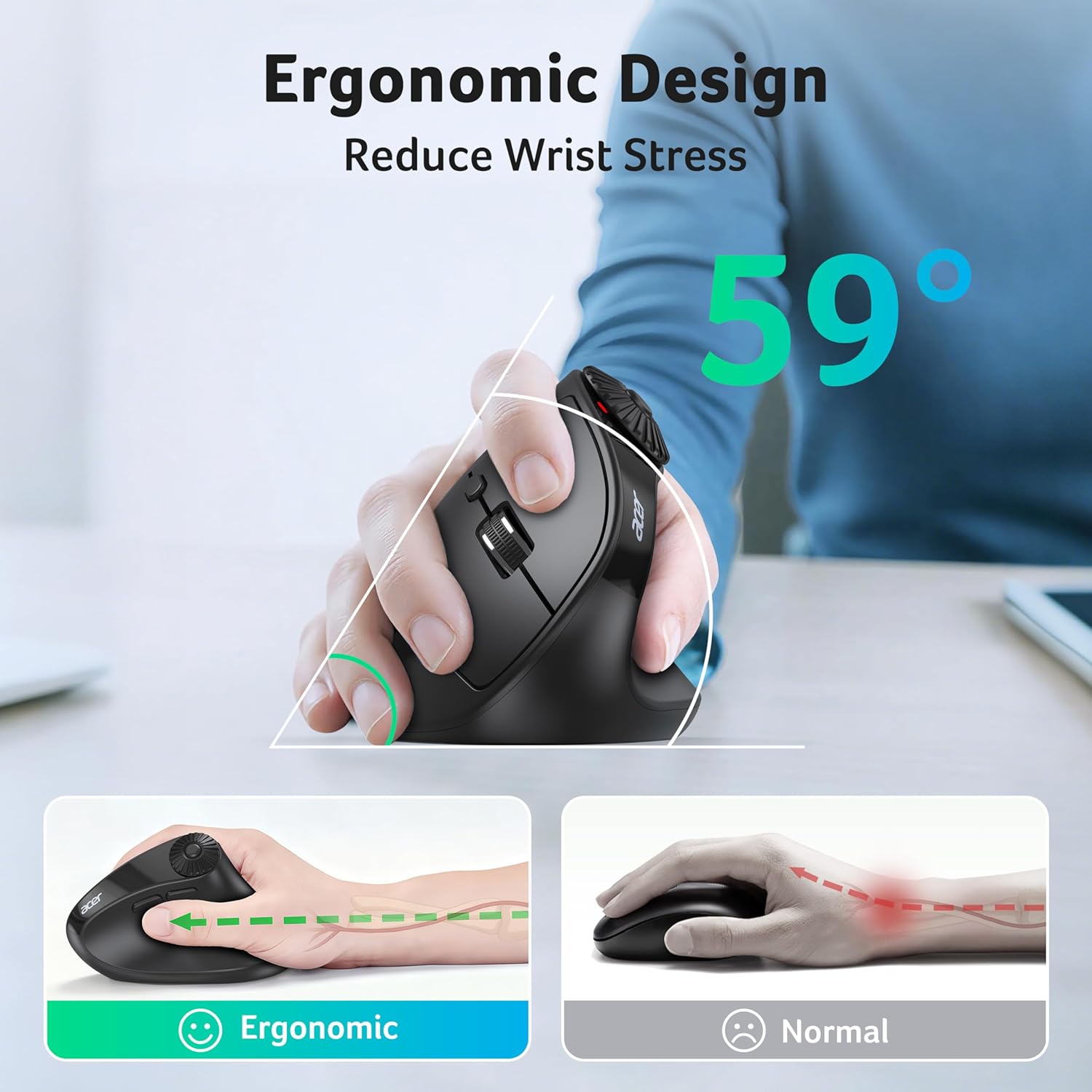
Figure 3: Ergonomic Design. The 59° vertical angle promotes a natural hand position, reducing wrist stress.
6.2 DPI Adjustment
The mouse offers 4 adjustable DPI levels (1200/2400/3200/4000) for precise cursor control. To change the DPI:
- Press the DPI button once to cycle through the available DPI settings.
- Each press will change the sensitivity, indicated by a flashing light.

Figure 4: 4-Level DPI Control. Adjust cursor sensitivity for various tasks, from precise design work to fast-paced gaming.
6.3 Side Scroll Wheel Functions
The multi-function side scroll wheel with a central button allows for quick access to three fixed functions:
- Window Toggle: Single-click the central button to switch between open windows (similar to Alt+Tab on Windows or Command+Tab on macOS).
- Zoom In/Out: Single-click the central button to activate zoom function. Scroll the side wheel to zoom in or out.
- Horizontal Scrolling: Single-click the central button to enable horizontal scrolling. Scroll the side wheel to move left or right.
To switch between Windows (Red) and macOS (Green) system modes for the side scroll wheel functions: Long-press the central button of the side scroll wheel.

Figure 5: Designed for Windows/macOS System. Long-press the side scroll wheel button to switch between operating system modes.

Figure 6: Unique Multi-Function Button. Single-click to switch between Window Toggle, Zoom In/Out, and Horizontal Scrolling modes.
6.4 Forward & Backward Buttons
Use the conveniently placed forward and backward buttons on the side of the mouse for quick navigation in web browsers or file folders.

Figure 7: Forward & Backward Buttons. Easily switch to the next or previous page/folder.
6.5 Power Saving Mode
The mouse will enter sleep mode after 10 minutes of inactivity to conserve battery life. To wake the mouse, simply double-click any button.
7. Maintenance
7.1 Cleaning
- Wipe the mouse with a soft, dry cloth.
- Do not use harsh chemicals or abrasive cleaners.
- Ensure no liquid enters the mouse casing.
7.2 Battery Replacement
When the battery level is below 10%, the G1/B1/B2 indicator lights will flash to alert you. Replace the two AAA batteries as described in Section 5.1.
8. Troubleshooting
| Problem | Possible Cause | Solution |
|---|---|---|
| Mouse not responding | Low battery; Power switch off; Incorrect connection mode; USB receiver not plugged in (2.4GHz) or Bluetooth not paired. | Replace batteries; Turn on power switch; Double-click DPI button to select correct mode; Plug in USB receiver or re-pair Bluetooth. |
| Cursor movement is erratic | Dirty optical sensor; Unsuitable surface; Low battery. | Clean optical sensor; Use on a smooth, non-reflective surface; Replace batteries. |
| Cannot switch between devices | Incorrect button press. | Ensure you are double-clicking the DPI button to cycle through G1, B1, B2 modes. |
9. Specifications
| Feature | Detail |
|---|---|
| Model | OMR290 |
| Connectivity | 2.4GHz Wireless, Bluetooth 5.2 |
| DPI Levels | 1200 / 2400 / 3200 / 4000 |
| Buttons | 8 (Left, Right, Scroll Wheel, Side Scroll Wheel, Side Scroll Wheel Center Button, Forward, Backward, DPI) |
| Ergonomic Angle | 59° Vertical |
| Power Source | 2 x AAA Batteries (Not Included) |
| Sleep Mode | After 10 minutes of inactivity |
| Compatible Systems | Windows, macOS, Chrome OS, Linux, Android |
| Dimensions | 5.08 x 3.31 x 3.23 inches |
| Weight | 4.9 ounces |
10. Warranty and Support
10.1 Warranty Information
This product comes with a standard manufacturer's warranty. Please refer to the included Product Warranty Card for specific terms and conditions regarding your warranty coverage.
10.2 Customer Support
For technical assistance, troubleshooting, or warranty claims, please contact Acer customer service:
- Email: NE_hub.service@acergadget.com
- Phone (US): (978) 230-8895 (Mon-Fri: 9am-6pm EST)