
1. Introduction
This manual provides essential information for setting up, operating, and maintaining your ASUS Zenbook 14 OLED Laptop. This device is designed for business, multimedia, gaming, and student use, offering a powerful computing experience with its Intel 16-core Ultra 7 255H processor, vibrant 14-inch WUXGA Lumina OLED Touch display, 16GB DDR5 memory, and 512GB SSD storage. Please read this manual thoroughly to ensure proper use and longevity of your laptop.
2. What's in the Box
Carefully unpack your ASUS Zenbook 14 OLED Laptop and ensure all items are present:
- ASUS Zenbook 14 OLED Laptop
- Power Adapter
- Auth 3-in-1 USB Cable

Image: Packaging for the included Auth 3-in-1 USB Cable.
3. Product Overview
The ASUS Zenbook 14 OLED Laptop combines performance with a sleek design. Key features include:
- Processor: Intel 16-core Ultra 7 255H with up to 5.1 GHz clock speed.
- Graphics: Integrated Intel Arc 140T GPU.
- Display: 14-inch WUXGA (1920x1200) Lumina OLED Touch display with 500 nits HDR brightness and 100% DCI-P3 color gamut.
- Memory: 16GB DDR5 SDRAM.
- Storage: 512GB Solid State Drive (SSD).
- Operating System: Windows 11 Pro.
- Connectivity: Wi-Fi 7, Bluetooth, 2x Thunderbolt 4, 1x USB-A 3.2, 1x HDMI 2.1 TMDS.
- Audio: Harman Kardon speakers with Dolby Atmos support.
- Security: Fingerprint reader and FHD IR Privacy Camera.
- Keyboard: Backlit keyboard.

Image: Overview of key features including Intel Ultra 7 255H, Intel Arc 140T GPU, 14" WUXGA OLED Touch, up to 16GB RAM, up to 2TB SSD, Windows 11 Pro, Wi-Fi 7, Dolby Atmos, Harman Kardon, FHD IR Privacy Camera, and Bluetooth 5.4.

Image: Detailed view of the Intel Core Ultra 7 255H processor, highlighting its 16-core, 16-thread architecture with up to 5.1 GHz speed.

Image: The 14-inch OLED Touch display with a 16:10 aspect ratio and 1920 x 1200 resolution.

Image: Top-down view of the laptop's backlit keyboard and large touchpad.
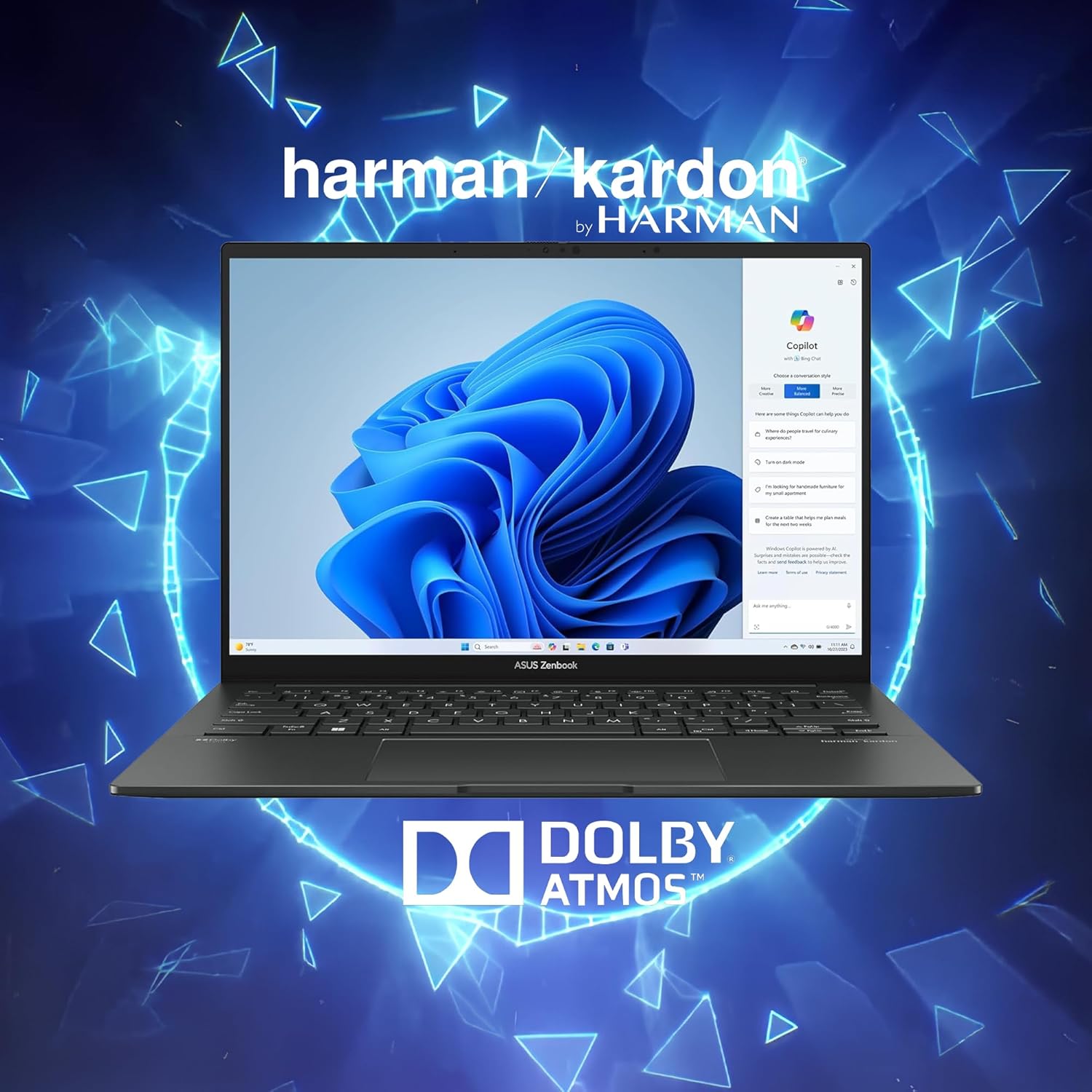
Image: Laptop display showing Windows 11 with Copilot, emphasizing Dolby Atmos and Harman Kardon audio features.
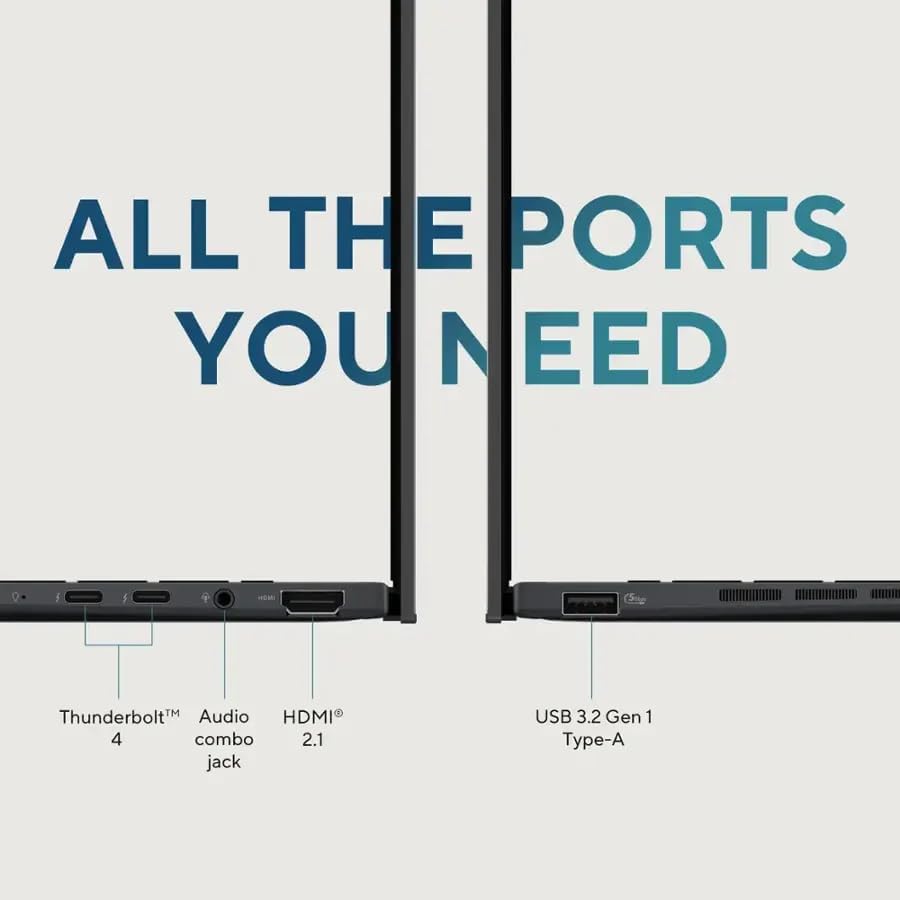
Image: Close-up of the laptop's ports, including Thunderbolt 4, Audio combo jack, HDMI 2.1, and USB 3.2 Gen 1 Type-A.

Image: Laptop showcasing Wi-Fi 7 capabilities for fast connectivity and an FHD IR privacy webcam for clear video conferencing.
4. Setup
- Charge the Laptop: Connect the power adapter to the laptop's charging port and a power outlet. Allow the battery to charge fully before first use.
- Power On: Open the laptop lid and press the power button, typically located on the top right of the keyboard or side.
- Initial Setup: Follow the on-screen instructions to complete the Windows 11 Pro setup, including language selection, network connection, and user account creation.
- Connect Peripherals: Connect any external devices such as a mouse, external display, or USB drives to the available ports.
5. Operating Instructions
5.1 Power On/Off
- To Power On: Press the power button.
- To Shut Down: Click the Start button, then Power > Shut down.
- To Restart: Click the Start button, then Power > Restart.
- To Sleep: Close the lid or click the Start button, then Power > Sleep.
5.2 Keyboard and Touchpad
The laptop features a full-sized backlit keyboard and a responsive touchpad for navigation.
- Backlit Keyboard: Adjust keyboard backlight brightness using the dedicated function keys (Fn + F7, typically).
- Touchpad Gestures: Supports multi-touch gestures for scrolling, zooming, and switching applications. Refer to Windows settings for customization.
5.3 Display
The 14-inch WUXGA OLED Touch display offers vivid colors and deep blacks. It supports touch input for intuitive interaction with Windows 11 Pro.
- Touch Functionality: Use your fingers to navigate, select, and interact with applications directly on the screen.
- Display Settings: Adjust resolution, brightness, and color profiles via Windows Display Settings.
5.4 Connectivity
Your Zenbook 14 OLED provides various ports and wireless options for connecting to other devices and networks.
- Wi-Fi 7: Connect to high-speed wireless networks. Configure Wi-Fi settings in Windows.
- Bluetooth: Pair with Bluetooth-enabled devices like headphones or mice.
- Thunderbolt 4: Use these versatile ports for high-speed data transfer, video output, and power delivery.
- USB-A 3.2: Connect standard USB devices.
- HDMI 2.1: Connect to external monitors or TVs for extended display.
6. Maintenance
- Cleaning: Use a soft, lint-free cloth to clean the screen and chassis. Avoid harsh chemicals.
- Software Updates: Regularly update Windows and ASUS drivers to ensure optimal performance and security.
- Battery Care: To prolong battery life, avoid extreme temperatures and fully discharging the battery frequently.
- Storage: Keep the laptop in a cool, dry place when not in use.
7. Troubleshooting
- Laptop Not Powering On: Ensure the power adapter is securely connected and the battery has sufficient charge. Try a different power outlet.
- Display Issues: If the screen is blank, try connecting an external monitor to check if the issue is with the laptop's display. Adjust brightness settings.
- Connectivity Problems: For Wi-Fi issues, restart your router and the laptop. For Bluetooth, ensure the device is discoverable and within range.
- Slow Performance: Close unnecessary applications, check for malware, and ensure sufficient free storage space.
- Keyboard/Touchpad Unresponsive: Restart the laptop. If the issue persists, check for driver updates.
8. Specifications
| Feature | Detail |
|---|---|
| Brand | ASUS |
| Model Name | ASUS Zenbook 14 OLED |
| Screen Size | 14 Inches |
| Color | Jasper Gray |
| Hard Disk Size | 512 GB SSD |
| CPU Model | Intel Ultra 7 255H (16-core, 2 GHz) |
| RAM Memory Installed Size | 16 GB DDR5 |
| Operating System | Windows 11 Pro |
| Special Feature | Backlit Keyboard, Fingerprint Reader |
| Graphics Coprocessor | Intel Arc 140T GPU |
| Item Weight | 2.7 Pounds |
| Dimensions (L x W x Thickness) | 8.67" x 12.3" x 0.59" |
| Video Output | HDMI, Thunderbolt |
| Display Resolution Maximum | 1920x1200 |
| Display Type | OLED, Touchscreen (capacitive) |
| Total USB Ports | 3 (2x Thunderbolt 4, 1x USB-A 3.2) |
| Total Number of HDMI Ports | 1 |
| Connectivity Technology | Thunderbolt 4, USB-A 3.2, HDMI 2.1 TMDS, Wi-Fi 7, Bluetooth |
| Webcam Capability | FHD IR Privacy Camera |
9. Warranty and Support
For warranty information and technical support, please refer to the documentation included with your product or visit the official ASUS support website. Keep your purchase receipt for warranty claims.


