
1. Introduction
Thank you for choosing the SAMCOM FPCN50A Waterproof Dual Band Two-Way Radio. This manual provides essential information for the safe and efficient operation of your device. Please read it thoroughly before use and retain it for future reference.
1.1 Package Contents
- SAMCOM FPCN50A Two-Way Radio
- Lithium Polymer Battery (included)
- USB Type-C Charging Cable
- Power Adapter
- Belt Clip
- Antenna
- User Manual (this document)
2. Safety Information
Observe the following safety precautions to prevent fire, injury, or damage to the radio.
- Battery Safety: Use only the specified battery and charger. Do not short-circuit, incinerate, or disassemble the battery.
- Water Resistance: The FPCN50A is IP67 waterproof. Ensure all port covers are securely closed before exposure to water. Do not immerse the radio beyond specified depths or durations.
- Explosive Environments: Do not operate the radio in potentially explosive atmospheres (e.g., near flammable gas, dust particles, metallic powders).
- Antenna Care: Do not touch the antenna during transmission. Do not use a damaged antenna.
- Hearing Protection: Avoid prolonged exposure to high volume levels.
- FCC Compliance: This device complies with FCC standards (FCC ID: 2BPIZ-FPCN50A) for safe and legal operation in the U.S.
3. Product Features
The SAMCOM FPCN50A radio offers a range of advanced features designed for reliable communication:
- IP67 Waterproof: Built to withstand harsh conditions, including rain, snow, and extreme temperatures.
- Dual Band Operation: Seamlessly switch between digital (Channels 1-10) and analog (Channels 11-20) modes.
- Real-Time GPS: Share locations, display azimuth maps, and send emergency beacons.
- Custom Text Messaging: Communicate via text in trunking mode or digital channels, with editable messages through programming software.
- Group Call Functionality: Instantly connect with multiple radios via one-touch group calling.
- Dual Charging Options: Includes an adapter and a 2-in-1 USB Type-C port for versatile charging.
- Color LCD & User-Friendly Interface: Intuitive button layout and bright display for easy navigation, featuring customizable channel names and zone management.
- Multi-Time Zone Support: Automatically syncs to local UTC time and displays it on the home screen.
4. Getting Started
4.1 Battery Installation
- Ensure the radio is powered off.
- Locate the battery compartment cover on the back of the radio.
- Slide the latch to unlock the cover and remove it.
- Align the Lithium Polymer battery with the contacts inside the compartment.
- Gently press the battery into place until it clicks.
- Replace the battery compartment cover and slide the latch to lock it securely.
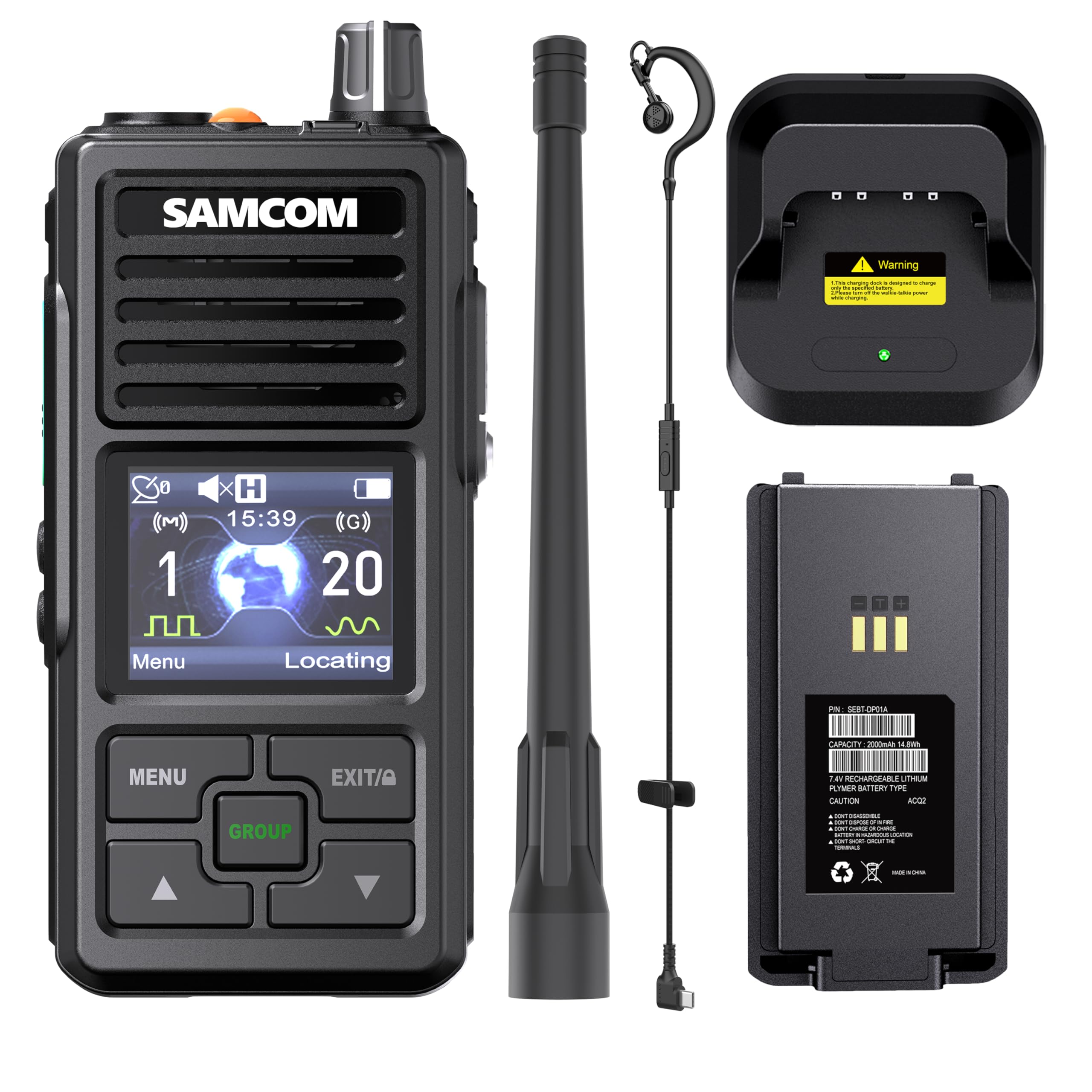
Image: Rear view of the SAMCOM FPCN50A radio, showing the battery compartment and its secure latch mechanism.
4.2 Charging the Battery
The FPCN50A supports dual charging options:
- Using the Charging Adapter: Connect the provided power adapter to a wall outlet and then to the radio's charging port.
- Using the USB Type-C Port: Connect the provided USB Type-C cable to the radio's Type-C port and then to a compatible USB power source (e.g., computer, power bank, or USB wall adapter).
The charging indicator on the radio will illuminate during charging and change color or turn off when fully charged. Ensure the Type-C port cover is sealed when not charging to maintain IP67 rating.

Image: The SAMCOM FPCN50A radio with a USB Type-C cable inserted into its charging port, demonstrating the charging connection.
5. Basic Operation
5.1 Power On/Off
- To Power On: Rotate the Power/Volume knob clockwise until a click is heard and the LCD screen illuminates.
- To Power Off: Rotate the Power/Volume knob counter-clockwise until a click is heard and the LCD screen turns off.
5.2 Volume Adjustment
Rotate the Power/Volume knob clockwise to increase the volume and counter-clockwise to decrease it.
5.3 Channel Selection
Use the Channel Up/Down buttons (typically located on the side or front panel) to navigate through available channels. The current channel number and name will be displayed on the color LCD.

Image: The SAMCOM FPCN50A radio's color LCD screen, showing channel number, name, and other operational indicators.
6. Advanced Features
6.1 Dual Band Digital & Analog Modes
The FPCN50A supports both digital and analog communication. Channels 1-10 are typically configured for digital mode, while Channels 11-20 are for analog mode. The radio allows independent zone control for monitoring two channels simultaneously. Refer to the programming software for detailed configuration of digital and analog channels.
6.2 Real-Time GPS Functionality
The integrated GPS allows for real-time location tracking. Users can share their current location, view azimuth maps, and send emergency beacons to pre-programmed contacts or groups. This feature is particularly useful for outdoor activities and emergency coordination.
6.3 Custom Text Messaging
The radio supports text message communication in trunking mode or digital channels. Messages can be edited and sent using the programming software, providing SMS-like functionality for discreet communication.
6.4 Group Call
Initiate a group call with a single touch to communicate with multiple radios simultaneously, even if they are not on the same channel. This enhances team communication efficiency.
6.5 Multi-Time Zone Support
The radio automatically syncs to local UTC time and displays it on the home screen, making it convenient for users operating across different time zones.
6.6 Custom Channel Naming
Channels can be customized with specific names via the programming software, allowing for easier identification and management of communication groups or frequencies.
7. Maintenance
- Cleaning: Wipe the radio's surface with a soft, damp cloth. Do not use harsh chemicals or abrasive cleaners.
- Port Covers: Always ensure all port covers (e.g., Type-C charging port, accessory port) are securely closed when not in use to maintain the IP67 waterproof rating.
- Battery Care: Store the battery in a cool, dry place. Avoid fully discharging the battery for extended periods.
- Storage: When storing the radio for long periods, remove the battery and store it separately.
8. Troubleshooting
| Problem | Possible Cause | Solution |
|---|---|---|
| Radio does not power on. | Battery is low or not installed correctly. | Charge the battery or re-install it correctly. |
| Cannot transmit or receive. | Incorrect channel selected; out of range; antenna not properly attached. | Verify channel settings; move closer to other radios; ensure antenna is securely fastened. |
| Poor audio quality. | Low battery; interference; radio too far apart. | Charge battery; move away from sources of interference; reduce distance between radios. |
| GPS not acquiring signal. | Obstructed view of the sky; indoors. | Move to an open outdoor area with a clear view of the sky. |
9. Specifications
| Model Number | FPCN50A |
| Product Dimensions | 2.1 x 1.7 x 4.41 inches |
| Batteries | 1 Lithium Polymer battery (included) |
| Display Type | LCD |
| Color | Black |
| Number of Channels | 20 |
| Frequency Range | 400MHz to 470MHz |
| Talking Range Maximum | 10 Mile |
| Water Resistance Level | IP67 Waterproof |
| FCC ID | 2BPIZ-FPCN50A |
| UPC | 745028419976 |
10. Warranty and Support
SAMCOM provides a Lifetime Warranty for the FPCN50A Two-Way Radio. For technical assistance, troubleshooting, or warranty claims, please contact our UT Local Tech Support.
For further information or support, please visit the official SAMCOM website or contact customer service through your purchase platform.
FCC Certification: This device complies with Part 15 of the FCC Rules. Operation is subject to the condition that this device does not cause harmful interference.
