
1. Introduction
Welcome to the user manual for your CINMOORE CM-C2LU 2.5K Indoor Camera. This guide provides essential information for the proper installation, operation, and maintenance of your device. Please read this manual thoroughly before using the camera to ensure optimal performance and safety.
2. Product Overview
The CINMOORE CM-C2LU is an advanced indoor security camera designed for monitoring homes, pets, and babies. It features 2.5K Ultra HD resolution, pan and tilt functionality, AI-powered detection, two-way audio, and flexible storage options.
Key Features:
- 2.5K Ultra HD Video: Provides clear and detailed video footage.
- Pan & Tilt Functionality: Offers 360° horizontal and 109° vertical coverage.
- AI Detection: Free, non-subscription detection for persons, pets, and baby crying.
- Full Duplex 2-Way Audio: Allows simultaneous speaking and listening.
- Enhanced Night Vision: Clear infrared night vision for monitoring in low-light conditions.
- Flexible Storage: Supports local SD card storage (up to 512GB, not included) and optional AWS cloud storage.
- 2.4GHz Wi-Fi & Bluetooth Setup: Ensures quick and stable connection.
- Privacy Mode: Physically covers the lens for enhanced privacy.
Package Contents:
- CINMOORE CM-C2LU Security Camera (x1 per unit in pack)
- Mounting Screws (x1 set per unit in pack)
- Quick Guide (x1)
- Power Cable (x1 per unit in pack)

Image 2.1: CINMOORE CM-C2LU Indoor Camera (2-pack shown).

Image 2.2: Overview of CINMOORE CM-C2LU camera features and 360-degree coverage.
3. Setup
3.1 Initial Setup
- Download the App: Search for the official CINMOORE app on your smartphone's app store (iOS or Android) and install it.
- Create an Account: Open the app and follow the on-screen instructions to register a new account or log in if you already have one.
- Power On the Camera: Connect the camera to a power source using the provided power cable. The camera will power on and indicate its status (e.g., a blinking LED light).
- Add Device: In the app, tap the '+' icon to add a new device. Select your camera model from the list.
- Connect to Wi-Fi: The camera uses 2.4GHz Wi-Fi. Ensure your smartphone is connected to a 2.4GHz Wi-Fi network. The app will guide you through connecting the camera to your Wi-Fi network using Bluetooth for a faster setup. Note: 5GHz Wi-Fi networks are not supported.
- Placement: Position the camera in your desired location.
3.2 Mounting Options
The CINMOORE CM-C2LU camera offers versatile mounting options:
- Tabletop Mount: Place the camera on any flat surface.
- Wall Mount: Use the included mounting screws to secure the camera to a wall.
- Ceiling Mount: Attach the camera to the ceiling for an overhead view.
Ensure the camera is securely mounted and has a clear line of sight to the area you wish to monitor.
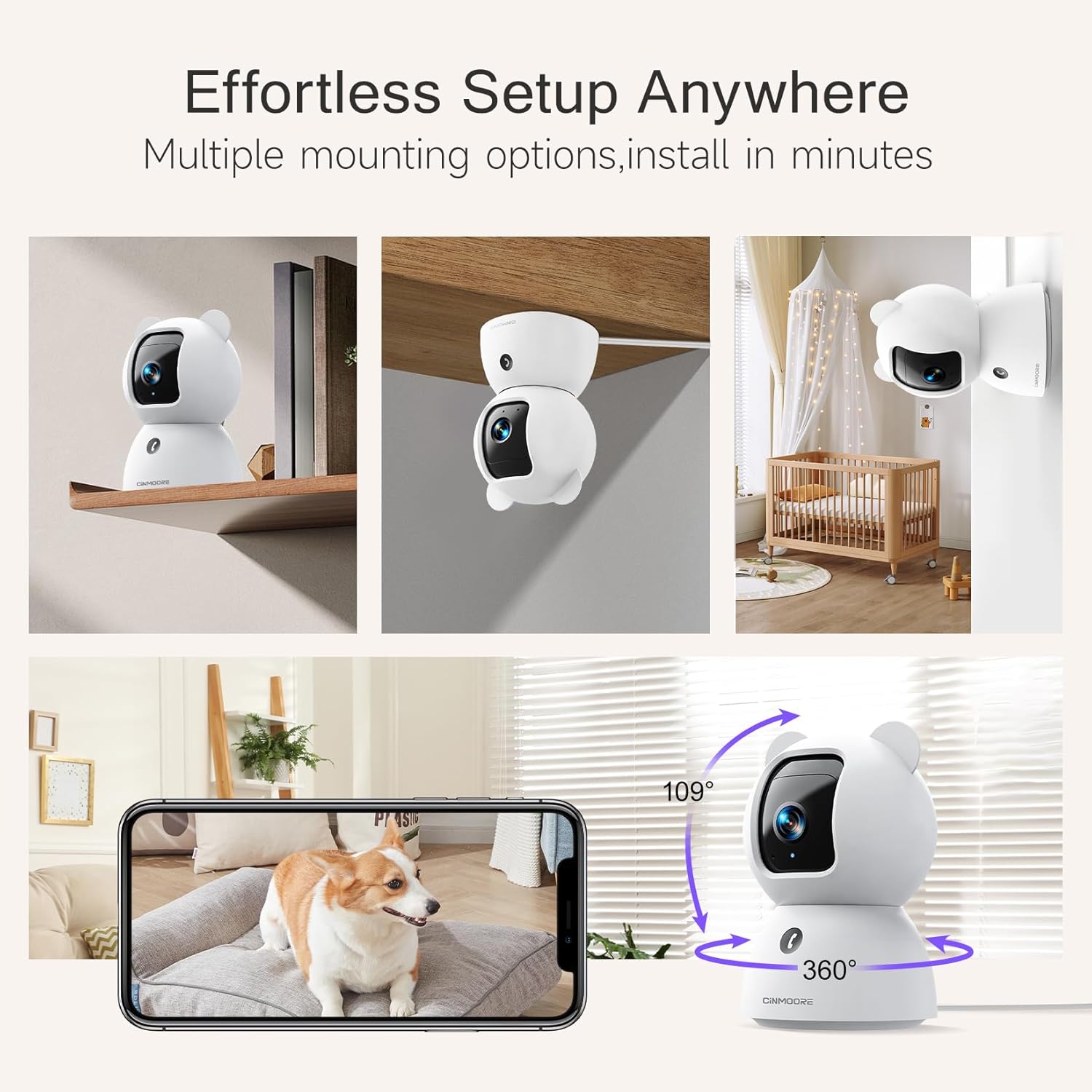
Image 3.1: Multiple mounting options for the camera.
4. Operating Instructions
4.1 Live View and Pan/Tilt Control
Once connected, open the app to view the live feed from your camera. Use the on-screen controls to pan (rotate horizontally) and tilt (rotate vertically) the camera lens to adjust your viewing angle.
4.2 Two-Way Audio
The camera supports full duplex two-way audio, allowing you to speak and listen simultaneously through the app. Tap the microphone icon in the live view to activate the audio feature. The camera also features a one-click call button for quick communication.

Image 4.1: Full Duplex 2-Way Audio in action.
4.3 AI Detection and Alerts
The camera features built-in AI for detecting persons, pets, and baby crying without requiring a subscription. You can customize detection zones and sensitivity settings within the app to receive relevant alerts.
- Person Detection: Identifies human presence.
- Pet Detection: Recognizes pet activity.
- Cry Detection: Alerts you to a baby's crying sounds.
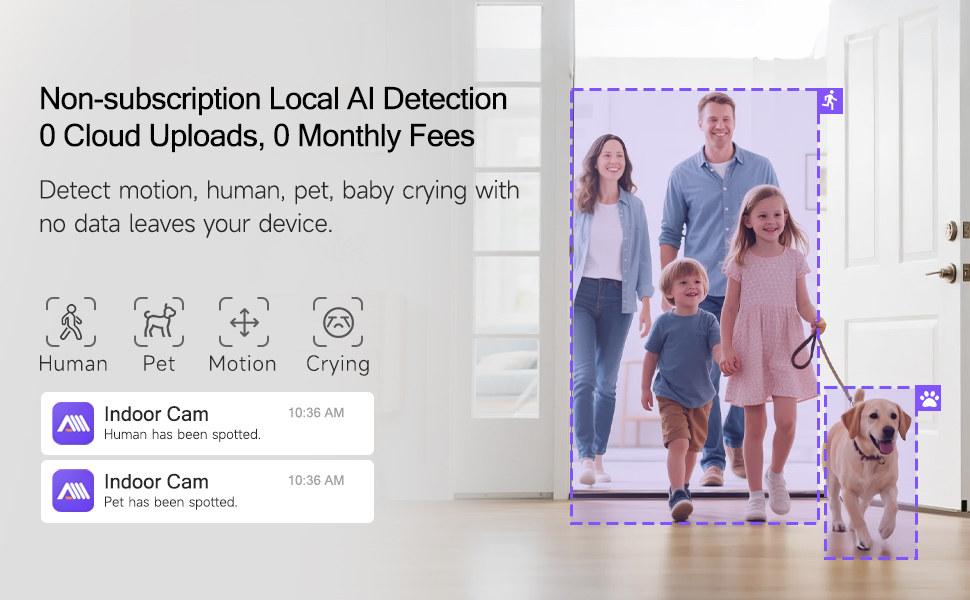
Image 4.2: Non-subscription local AI detection for human and pet activity.

Image 4.3: AI-enabled baby cry detection providing instant alerts.
4.4 Night Vision
The camera automatically switches to infrared night vision in low-light conditions, providing clear black-and-white footage. This ensures continuous monitoring day and night.

Image 4.4: Clear IR Night Vision for monitoring in the dark.
4.5 Storage Options
The camera offers two primary storage methods for recorded footage:
- Local SD Card Storage: Insert a microSD card (up to 512GB, not included) into the camera's SD slot for 24/7 continuous recording. An advanced SD Card Encryption mode ensures your local footage is only viewable through the CINMOORE App.
- Cloud Storage: Optional AWS cloud storage with bank-level encryption is available. Check the app for details on subscription plans and free trials.

Image 4.5: Storage options including SD card and cloud storage.
4.6 Privacy Mode
Activate Privacy Mode through the app to physically rotate the camera lens downwards, blocking its view and ensuring your privacy when needed.
4.7 Customized Detection Zones
Define specific areas within the camera's view for motion detection. This helps reduce false alarms by focusing on critical zones and ignoring irrelevant movements.
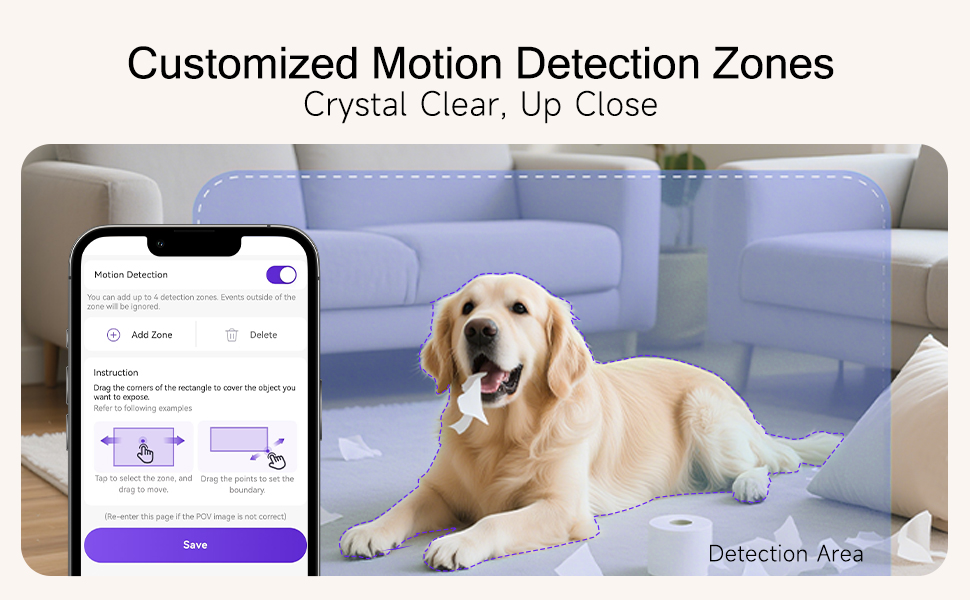
Image 4.6: Setting up customized motion detection zones.
5. Maintenance
5.1 Cleaning the Camera
To maintain optimal image quality, periodically clean the camera lens with a soft, dry, lint-free cloth. Do not use harsh chemicals or abrasive cleaners.
5.2 Firmware Updates
Ensure your camera's firmware is up to date for the best performance and security. Check the CINMOORE app regularly for available firmware updates and follow the in-app instructions to install them.
5.3 Resetting the Device
If you encounter persistent issues, you may need to reset the camera. Locate the reset button (often a small pinhole) on the camera (refer to Image 4.5 for location). Use a pin or paperclip to press and hold the reset button for approximately 5-10 seconds until you hear a prompt or see a change in the LED indicator. This will restore the camera to its factory settings, and you will need to set it up again.
6. Troubleshooting
This section addresses common issues you might encounter with your CINMOORE CM-C2LU camera.
| Problem | Possible Cause | Solution |
|---|---|---|
| Camera fails to connect to Wi-Fi | Incorrect Wi-Fi password; 5GHz Wi-Fi network; Weak Wi-Fi signal; Camera too far from router. | Ensure correct 2.4GHz Wi-Fi password. Confirm your router broadcasts a 2.4GHz network. Move camera closer to the router. Restart router and camera. |
| No live view or offline status | No power; Internet connection issue; App malfunction. | Check power connection. Verify home internet is working. Restart the app. If issue persists, reset camera and re-add. |
| Poor video quality | Dirty lens; Insufficient bandwidth; Low light conditions. | Clean the camera lens. Ensure stable and sufficient internet bandwidth. Night vision activates automatically in low light. |
| AI detection not working | Detection settings disabled; Incorrect detection zone setup; Firmware outdated. | Check app settings to ensure detection types are enabled. Adjust detection zones and sensitivity. Update camera firmware. |
| Two-way audio issues | Microphone/speaker muted in app; App permissions; Network latency. | Ensure microphone and speaker are enabled in the app. Check app permissions for microphone access. Verify stable internet connection. |
| SD card not recording | SD card full or corrupted; Incorrect format; SD card not inserted properly. | Check SD card status in app. Format SD card via app if needed. Reinsert SD card. Replace with a new SD card if corrupted. |
7. Specifications
| Feature | Detail |
|---|---|
| Model Number | CM-C2LU |
| Indoor/Outdoor Usage | Indoor |
| Video Capture Resolution | 2.5K (1920p) |
| Connectivity Technology | Wired (Power), Wi-Fi (Data) |
| Wireless Communication | 2.4GHz Wi-Fi, Bluetooth |
| Power Source | Corded Electric |
| Special Features | 2-Way Audio, Cry Detection, Night Vision, PTZ Technology, Time-Lapse |
| Mounting Type | Ceiling Mount, Tabletop Mount, Wall Mount |
| Compatible Devices | Smartphone (iOS, Android) |
| Controller Type | Amazon Alexa (Voice Control) |
| Material | Acrylonitrile Butadiene Styrene (ABS) |
| Product Dimensions | 3 x 4.7 x 3 inches |
| Item Weight | 1.59 pounds |
| Storage | MicroSD Card (up to 512GB, not included), Cloud Storage (optional) |
8. Warranty and Support
For warranty information, technical support, or any inquiries regarding your CINMOORE CM-C2LU camera, please refer to the contact details provided on the official CINMOORE website or within the CINMOORE mobile application. Keep your purchase receipt as proof of purchase for warranty claims.


